


Creating and managing email accounts in cPanel
With cPanel, you can create and centrally manage professional email addresses for your domain. Instead of using generic free email addresses, you can use your own mailboxes such as info@yourdomain.ch, contact@yourdomain.ch, or firstname.lastname@yourdomain.ch. This looks professional, strengthens your brand, and ensures clear business communication.
In this article, you will learn how to create a new email account in cPanel at CURIAWEB, configure important settings such as password and storage space, manage existing accounts, and access Webmail.
In short:
An email account in cPanel is a full-featured mailbox for your domain. It can receive, send, and store emails and can be used via Webmail or programs like Outlook, Apple Mail, Thunderbird, Android, or iPhone.
Why having your own email accounts with your domain makes sense
Having your own email address with your domain is particularly important for companies, associations, freelancers, and professional projects. It builds trust and ensures your communication is directly linked to your website or brand.
- Professional appearance: An address like info@yourdomain.ch looks more professional than a private free email address.
- Clear responsibilities: You can create separate addresses for departments like sales, support, accounting, or administration.
- Central management: All email accounts for your domain can be managed directly in cPanel.
- Flexible usage: Mailboxes can be used via Webmail or with a mail program.
- Control over storage: You can set an individual storage limit for each account.
Step 1: Log in to cPanel
First, log in to your cPanel dashboard. You can usually find access via your CURIAWEB client account or through the credentials provided by CURIAWEB for your hosting package.
After logging in, you will see various sections for Website, Files, Databases, Domains, and Email. For this article, the "Email" section is relevant.
Step 2: Open the "Email Accounts" section
In the cPanel dashboard, go to the "Email" section and click on "Email Accounts". In this overview, you can see existing mailboxes and create new email addresses for your domain.
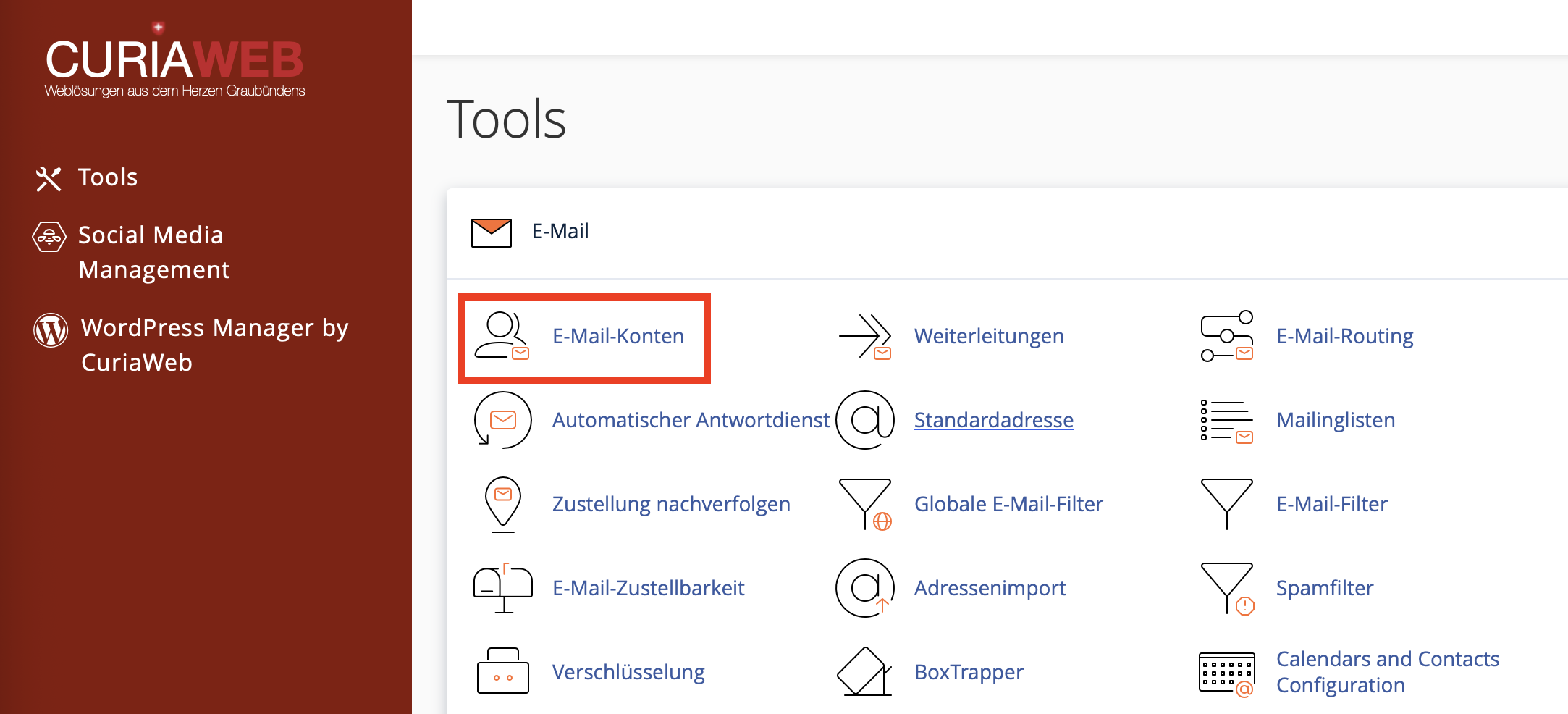
Then, click the "+ Create" button to add a new email account.
Step 3: Select domain
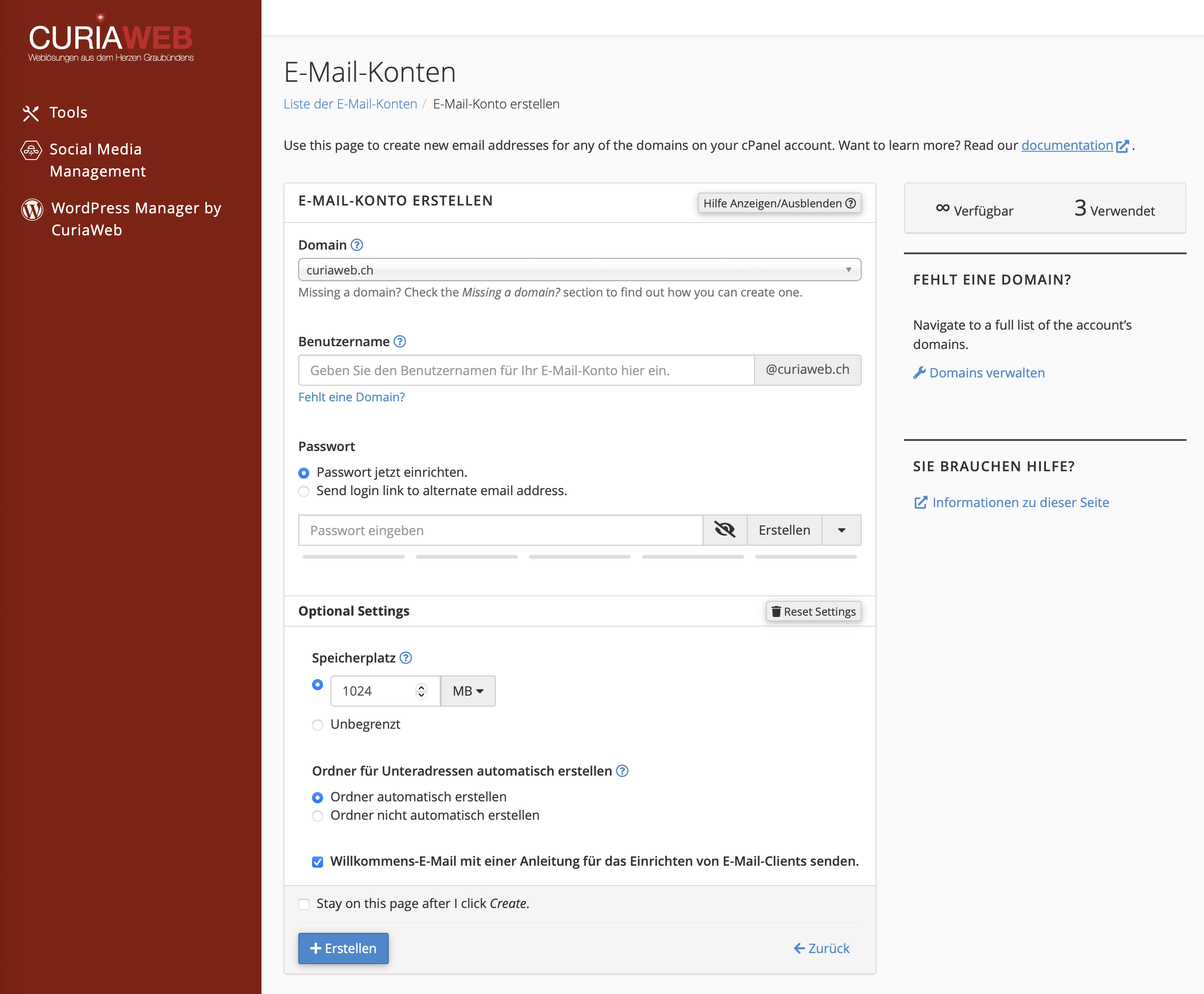
If multiple domains or add-on domains are set up in your hosting package, first select the desired domain. The new email account will then be created for that specific domain.
Example: If you select the domain yourdomain.ch and enter info as the username, it creates the full address info@yourdomain.ch.
Important:
Be sure to select the correct domain, especially if you manage multiple websites or projects in the same cPanel account.
Step 4: Set username for the email address
In the "Username" field, enter the part of the address that should appear before the @ sign. It is best to use short, understandable, and readable names.
Typical examples are:
- info for general inquiries
- contact for contact forms or public communication
- support for customer queries
- billing or accounting for administrative emails
- firstname.lastname for personal business addresses
Avoid unnecessarily complicated or hard-to-remember spellings. Clear and consistent email addresses are recommended for business communication.
Step 5: Create a secure password
A secure password is especially important for every email account. Email mailboxes often contain confidential information and can be abused if passwords are weak, for example for sending spam or unauthorized access.
If possible, use the "Generate" function to create a strong password directly in cPanel. Then, save the password securely, for example in a trusted password manager.
Recommendations for secure passwords:
- Use long passwords with upper and lowercase letters.
- Include numbers and special characters.
- Do not use names, company names, or simple dictionary words.
- Use a unique password for each account.
- Change passwords immediately if you suspect unauthorized access.
Step 6: Set storage space for the mailbox
When creating an email account, you can define a storage limit. This limit sets the maximum amount of storage space the mailbox may use.
A storage limit is useful if multiple people or departments use email accounts and the available hosting storage needs to be distributed in a controlled manner. Alternatively, depending on the hosting package, you may be able to choose an unlimited or unconstrained setting.
Note: If a mailbox is full, new emails may not be delivered. Regularly check the storage usage, especially for accounts with many attachments or long-term email history.
Step 7: Create account
After you have set the domain, username, password, and storage space, click "Create". cPanel will then create the new email account and display it in the list of email accounts.
The new mailbox is now ready for use. You can log in directly via Webmail or set up the address in an email program on your computer, smartphone, or tablet.
Managing email accounts in cPanel
In the "Email Accounts" overview, you can manage existing mailboxes. Depending on the cPanel version and hosting configuration, various actions are available:
- Check Email: Opens Webmail for the selected account.
- Manage: Allows changes to settings such as password or storage space.
- Change Password: Creates a new password for the mailbox.
- Adjust Storage: Increases or reduces the quota of the email account.
- Delete Account: Removes the email account from cPanel.
Caution when deleting:
When you delete an email account, the emails stored in the mailbox may also be removed. Check before deleting whether important messages have been backed up or archived locally.
Open Webmail and read emails in the browser
You can read your emails directly in the browser without setting up an additional email program. To do this, click "Check Email" next to the desired mailbox in the list of email accounts.
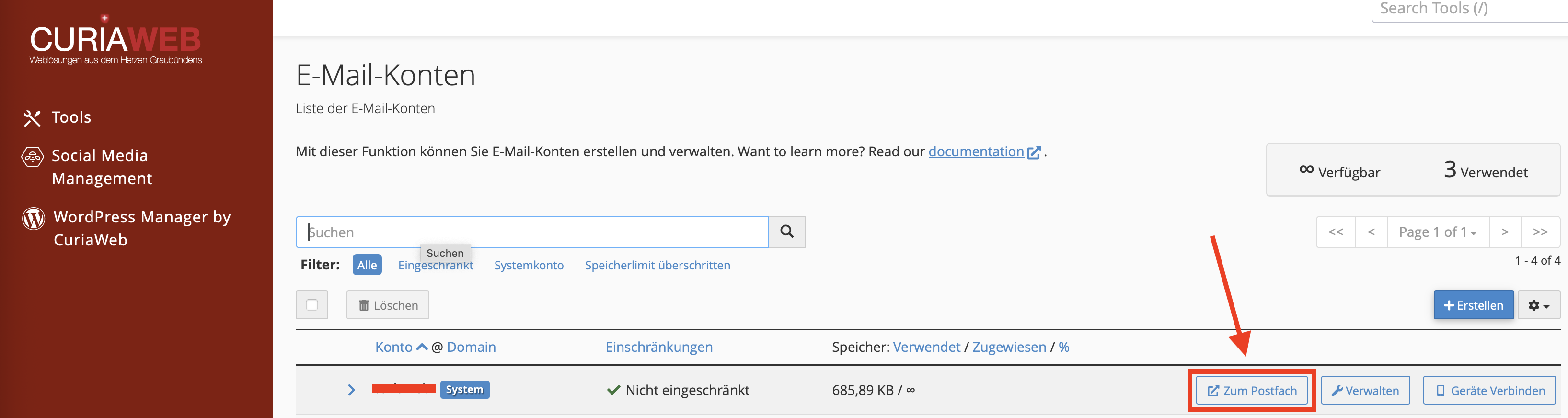
Webmail is particularly suitable if you want to access your mailbox while on the move, from a third-party device, or without having an email program set up.
Set up email account in Outlook, Apple Mail, Thunderbird, or Smartphone
Once the email account is created, you can set it up in a mail client. To do this, you generally need the full email address, the password, and the server data for incoming and outgoing emails.
In cPanel, you can usually find the necessary information via the configuration details of the respective mailbox. These data may vary depending on the hosting environment and domain configuration. Therefore, always use the information from your own cPanel account.
At CURIAWEB, you will also find separate guides for setup in common mail programs and on mobile devices, such as Outlook, Thunderbird, Apple Mail, iPhone, Android, and Gmail app.
Plus addressing and automatic folders
Depending on the configuration, cPanel supports so-called Plus addressing. This involves using an addition after the username, for example info+newsletter@yourdomain.ch.
Such addresses can be useful to better sort emails or to identify certain sign-up sources. If automatic folders are enabled, cPanel can create corresponding folders for such plus addresses. This allows messages to be filed in a more structured way and keeps the inbox cleaner.
Example: A message to info+invoices@yourdomain.ch can be used for better sorting without necessarily having to create a completely separate email account.
Monitoring storage space and mailbox size
In the email account overview, you can see how much storage space a mailbox is already using. This display is helpful for identifying full mailboxes early on.
If an email account is using a lot of storage, check the following points in particular:
- Large attachments in sent and received messages
- Old emails that are no longer needed
- Trash and spam folders
- Local mail programs that leave emails on the server
- IMAP folders with many archived messages
If a mailbox is regularly filling up, you can increase the storage limit in cPanel or delete messages that are no longer needed. Make sure to back up important data beforehand.
Best practices for managing your email accounts
A clean email structure facilitates daily work and reduces administrative effort in the long term. Especially for business use, it pays to plan email accounts deliberately.
- Use functional addresses: For example info@, support@, or accounting@.
- Avoid unnecessary accounts: Not every address has to be a separate mailbox. Sometimes a forwarder is sufficient.
- Regularly check old accounts: Remove or disable mailboxes that are no longer in use.
- Use strong passwords: Especially when using shared devices, caution is advised.
- Keep an eye on storage space: Full mailboxes can hinder the delivery of new messages.
- Document responsibilities: Especially in teams, it should be clear who has access to which mailbox.
Email account or Forwarder?
In cPanel, you can use both full email accounts and email forwarders. The difference is important:
| Function | Email Account | Forwarder |
|---|---|---|
| Own mailbox | Yes | No |
| Store emails | Yes | No, forwards to destination |
| Login via Webmail | Yes | No |
| Suitable for | Active communication with own mailbox | Forwarding to existing address |
If you want to receive, store, and reply to emails directly at the domain address, create an email account. If messages are only to be forwarded to another existing address, a forwarder may suffice.
Common problems and solutions
The email account cannot receive messages:
Check whether the domain is correctly connected to the hosting and whether email routing is set correctly. Full mailboxes can also hinder delivery.
The password does not work:
Set a new password for the affected email account in cPanel and then update it in all mail programs used.
Storage space is full:
Delete emails that are no longer needed, empty the trash and spam folders, or increase the mailbox storage limit.
The account works in the browser but not in Outlook or on the smartphone:
In this case, the problem is usually in the settings of the mail program. Check the username, password, server names, ports, and encryption against the information in cPanel.
SEO note: Professional email addresses for Swiss domains
For companies and projects in Switzerland, a professional email address with your own domain is an important part of a reputable online presence. Especially with Swiss domains like .ch or .swiss, a matching email address looks trustworthy and supports a unified digital identity.
If you don't own your own domain yet, you can register it directly at CURIAWEB and then set up matching email accounts in your hosting.
No own domain yet?
Register your desired domain at CURIAWEB and use professional email addresses with your own domain.
Register domainSummary
With cPanel, you can create and manage email accounts for your domain quickly and clearly. You can add new mailboxes, change passwords, set storage limits, open Webmail, and manage existing accounts. For professional communication, it is recommended to use clear addresses, strong passwords, and to regularly check storage usage.
This creates a solid foundation for business email communication with your own domain at CURIAWEB.
Need help creating or managing your email accounts?
CURIAWEB support is happy to assist you with questions about cPanel, email accounts, Webmail, or setup in your mail program.
Create support ticket