


Autoresponder in cPanel einrichten: Automatische Antworten und Abwesenheitsnotizen erstellen
Mit einem Autoresponder in cPanel können Sie automatische E-Mail-Antworten einrichten. Das ist besonders nützlich, wenn Sie während Ferien, Feiertagen, Geschäftsreisen oder anderen Abwesenheiten nicht regelmässig auf eingehende Nachrichten reagieren können. Sobald eine E-Mail an die entsprechende Adresse eingeht, sendet das System automatisch eine zuvor definierte Antwort an den Absender zurück.
Bei CURIAWEB können Sie Autoresponder bequem über cPanel oder direkt über Webmail verwalten. So können sowohl Administratoren als auch einzelne E-Mail-Benutzer eine professionelle Abwesenheitsnotiz einrichten, ohne dafür zusätzliche Software installieren zu müssen.
Wann ist ein Autoresponder sinnvoll?
Autoresponder werden häufig für klassische Abwesenheitsnotizen verwendet. Sie eignen sich aber auch für andere Situationen, in denen Absender sofort eine Rückmeldung erhalten sollen.
- Ferien und Urlaub: Informieren Sie Kontakte über Ihre Abwesenheit und den Zeitpunkt Ihrer Rückkehr.
- Feiertage oder Betriebsferien: Teilen Sie mit, wann Ihr Unternehmen wieder erreichbar ist.
- Support- oder Kontaktadressen: Bestätigen Sie automatisch den Eingang einer Anfrage.
- Teilzeit oder eingeschränkte Erreichbarkeit: Weisen Sie auf längere Antwortzeiten hin.
- Projekt- oder Event-Adressen: Geben Sie automatische Hinweise zu Bearbeitungszeiten oder Zuständigkeiten.
Ein gut formulierter Autoresponder sorgt für Transparenz und reduziert Rückfragen. Besonders im geschäftlichen Umfeld wirkt eine klare automatische Antwort professionell und kundenfreundlich.
Wichtiger Hinweis zur automatischen Antwort
Ein Autoresponder beantwortet eingehende Nachrichten automatisch. Deshalb sollte der Text sorgfältig formuliert werden. Vermeiden Sie vertrauliche Informationen, interne Details oder Hinweise, die für unbekannte Absender nicht bestimmt sind.
Damit automatische Antworten nicht unnötig auf Spam reagieren, berücksichtigt cPanel Schutzmechanismen. Nachrichten, die vom Spamfilter entsprechend eingestuft werden, können von Autorespondern ignoriert werden. Das hilft, unnötige automatische Antworten auf unerwünschte Nachrichten zu vermeiden.
Schritt 1: In cPanel einloggen
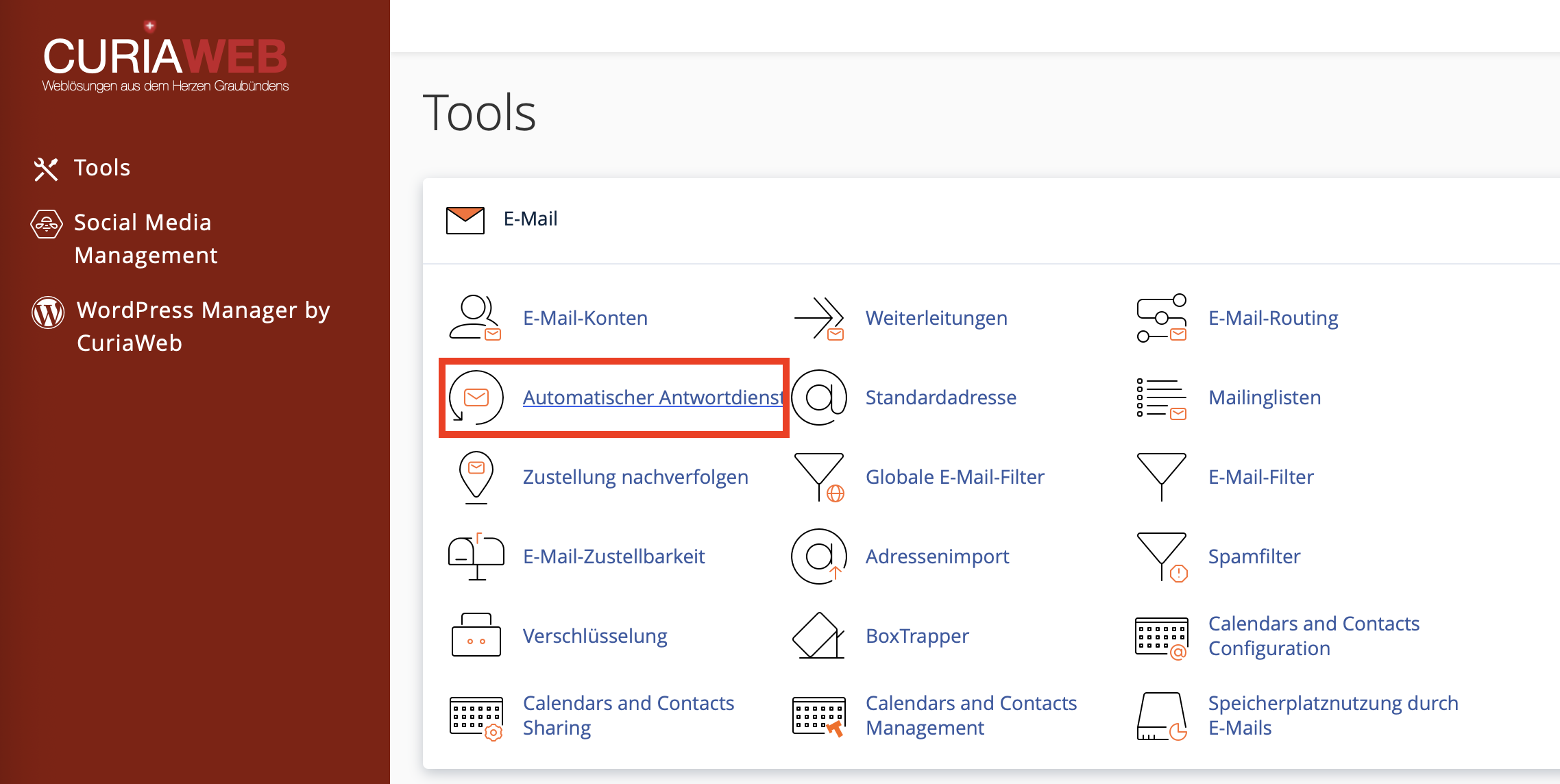
Melden Sie sich zuerst in Ihrem CURIAWEB-Kundenbereich oder direkt in cPanel an. Öffnen Sie danach im cPanel den Bereich E-Mail. Dort finden Sie den Menüpunkt Autoresponder.
Je nach verwendeter cPanel-Oberfläche kann die Darstellung leicht variieren. Die Funktion befindet sich jedoch in der Regel im E-Mail-Bereich zusammen mit weiteren E-Mail-Werkzeugen wie E-Mail-Konten, Weiterleitungen, Spamfiltern und E-Mail-Zustellbarkeit.
Schritt 2: Autoresponder hinzufügen
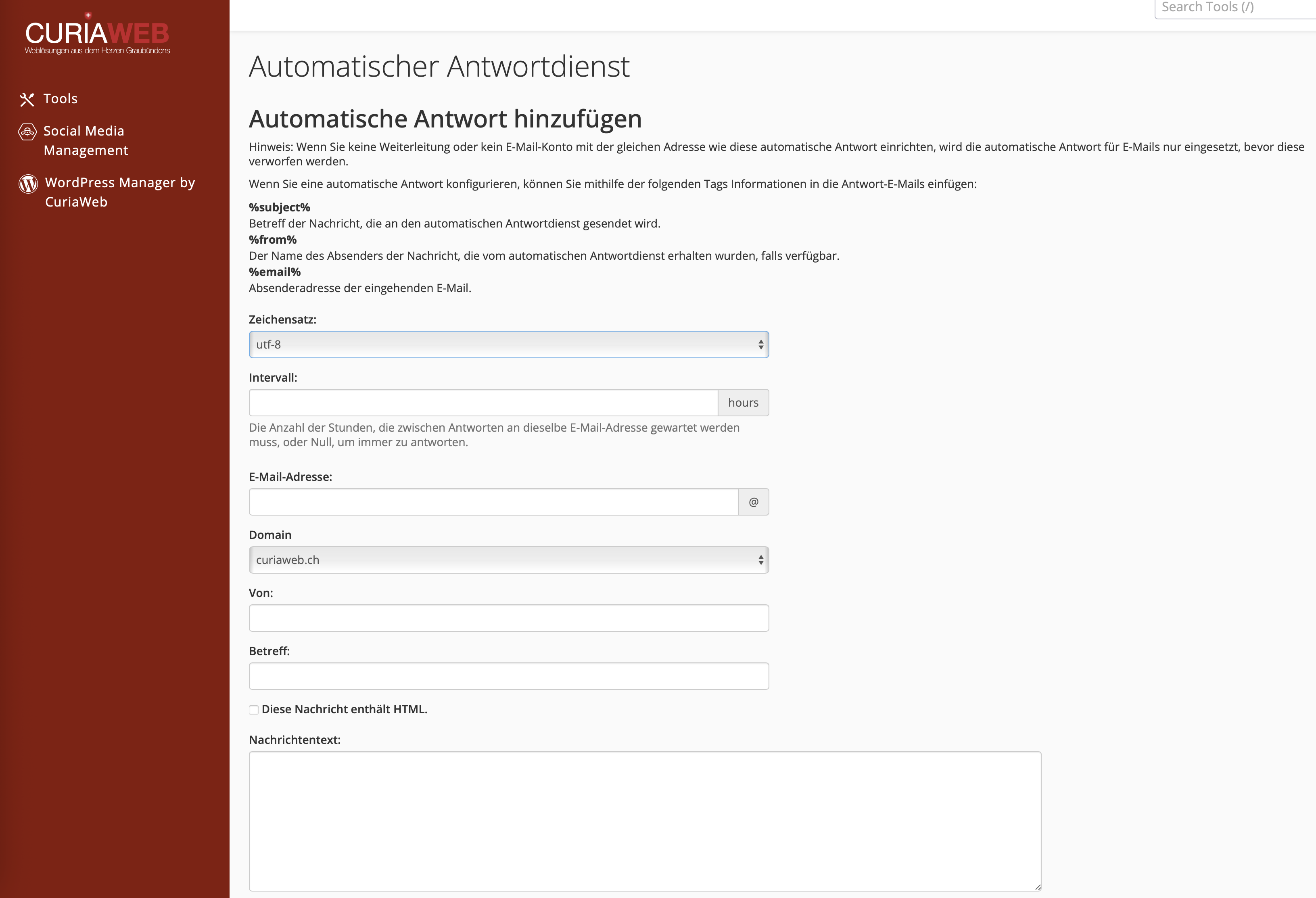
Klicken Sie in der Autoresponder-Übersicht auf Autoresponder hinzufügen. Anschliessend öffnet sich ein Formular, in dem Sie die automatische Antwort konfigurieren können.
Wenn in Ihrem Hosting mehrere Domains eingerichtet sind, achten Sie darauf, dass Sie die richtige Domain beziehungsweise E-Mail-Adresse auswählen. Der Autoresponder gilt immer für die konkret konfigurierte Adresse.
Schritt 3: Intervall festlegen
Das Feld Intervall legt fest, wie lange cPanel warten soll, bevor derselbe Absender erneut eine automatische Antwort erhält. Diese Einstellung ist wichtig, damit bei wiederholten Nachrichten nicht jedes Mal sofort eine neue Abwesenheitsnotiz verschickt wird.
Empfehlung:
Setzen Sie das Intervall häufig auf 24 Stunden. Dadurch erhält ein Absender maximal einmal pro Tag Ihre automatische Antwort. Das verhindert unnötige Mehrfachantworten und reduziert das Risiko von automatischen Antwortschleifen.
Ein sehr kurzes Intervall kann dazu führen, dass ein Absender bei mehreren Nachrichten mehrfach dieselbe automatische Antwort erhält. Ein zu langes Intervall kann hingegen dazu führen, dass ein Absender bei einer späteren neuen Anfrage keine erneute Information bekommt. Für klassische Abwesenheitsnotizen sind 24 Stunden meist eine gute Wahl.
Schritt 4: E-Mail-Adresse auswählen
Im Feld E-Mail tragen Sie den lokalen Teil der Adresse ein, für die der Autoresponder gelten soll. Wenn Sie zum Beispiel eine automatische Antwort für info@ihredomain.ch erstellen möchten, tragen Sie je nach cPanel-Darstellung info ein und wählen rechts daneben die passende Domain aus.
Achten Sie darauf, dass die Adresse korrekt geschrieben ist. Ein Autoresponder funktioniert nur für die Adresse, für die er eingerichtet wurde.
Schritt 5: Absendername und Betreff definieren
Im Feld Von geben Sie den Namen an, der beim Empfänger als Absendername der automatischen Antwort erscheinen soll. Das kann Ihr persönlicher Name, ein Teamname oder der Firmenname sein.
Im Feld Betreff sollten Sie einen klaren und verständlichen Betreff verwenden. Gute Beispiele sind:
- Abwesenheitsnotiz: Max Muster
- Automatische Antwort: Ihre Nachricht wurde erhalten
- Vielen Dank für Ihre E-Mail
- Ferienabwesenheit bis 15. August
Ein klarer Betreff hilft dem Absender, die automatische Antwort sofort richtig einzuordnen.
Schritt 6: Nachrichtentext verfassen
Im Feld Körper oder Nachricht erfassen Sie den eigentlichen Text der automatischen Antwort. Der Text sollte freundlich, kurz und informativ sein.
Beispiel für eine Abwesenheitsnotiz:
Guten Tag
Vielen Dank für Ihre Nachricht. Ich bin derzeit abwesend und ab dem 15. August wieder erreichbar. Ihre E-Mail wird während dieser Zeit nicht regelmässig gelesen.
In dringenden Fällen wenden Sie sich bitte an support@ihredomain.ch.
Freundliche Grüsse
Max Muster
Vermeiden Sie zu lange Texte. Eine Autoresponder-Nachricht sollte alle wichtigen Informationen enthalten, aber nicht unnötig umfangreich sein. Besonders wichtig sind der Zeitraum der Abwesenheit, eine mögliche Vertretung und ein Hinweis, ob die E-Mail weitergeleitet oder nach der Rückkehr bearbeitet wird.
Platzhalter im Autoresponder verwenden
cPanel unterstützt bestimmte Platzhalter, mit denen Sie dynamische Informationen aus der ursprünglichen E-Mail in Ihre automatische Antwort einfügen können. Das kann die Nachricht persönlicher oder informativer machen.
%subject%– fügt den Betreff der ursprünglichen E-Mail ein%from%– fügt den Namen des Absenders ein, sofern verfügbar%email%– fügt die E-Mail-Adresse des Absenders ein
Diese Platzhalter sind optional. Für klassische Abwesenheitsnotizen reicht meist ein einfacher, statischer Text. Wenn Sie Platzhalter verwenden, prüfen Sie die Nachricht besonders sorgfältig, damit der Text für Empfänger verständlich bleibt.
HTML oder reiner Text?
Je nach cPanel-Version können Sie festlegen, ob die Nachricht als HTML interpretiert werden soll. Für einfache Abwesenheitsnotizen genügt in der Regel reiner Text. Wenn Sie Formatierungen, Links oder Absätze gezielt als HTML verwenden möchten, müssen Sie darauf achten, dass der Code korrekt aufgebaut ist.
Für die meisten geschäftlichen Abwesenheitsnotizen empfiehlt sich ein schlichter Text ohne komplexe Formatierung. Dadurch ist sichergestellt, dass die automatische Antwort in möglichst vielen E-Mail-Programmen sauber angezeigt wird.
Start- und Endzeit festlegen
Ein Autoresponder kann sofort aktiv sein oder für einen bestimmten Zeitraum geplant werden. Das ist besonders praktisch bei Ferien oder geplanten Abwesenheiten. Sie können ein Startdatum und ein Enddatum festlegen, damit die automatische Antwort nicht manuell ein- und ausgeschaltet werden muss.
Wählen Sie bei Start und Ende die Option Benutzerdefiniert, wenn der Autoresponder nur während eines bestimmten Zeitraums aktiv sein soll. Legen Sie anschliessend Datum und Uhrzeit fest.
Wenn Sie kein Enddatum setzen oder den Autoresponder dauerhaft aktiv lassen, wird die automatische Antwort weiterhin versendet, bis Sie sie manuell deaktivieren oder löschen. Prüfen Sie daher nach Ihrer Rückkehr, ob die Einstellung noch korrekt ist.
Autoresponder speichern
Nachdem Sie alle Felder ausgefüllt haben, klicken Sie auf Erstellen oder Ändern, je nachdem ob Sie einen neuen Autoresponder anlegen oder einen bestehenden bearbeiten. cPanel speichert die Konfiguration und aktiviert den Autoresponder gemäss Ihrer Zeitplanung.
Nach dem Speichern empfiehlt es sich, den Autoresponder zu testen. Senden Sie dazu von einer externen E-Mail-Adresse eine Nachricht an die konfigurierte Adresse und prüfen Sie, ob die automatische Antwort korrekt ankommt.
Autoresponder bearbeiten oder löschen
Bestehende Autoresponder werden in der Autoresponder-Übersicht angezeigt. Dort können Sie vorhandene automatische Antworten bearbeiten oder löschen. Eine Bearbeitung ist sinnvoll, wenn sich der Zeitraum, der Nachrichtentext oder die Vertretung ändert.
Wenn eine Abwesenheitsnotiz nicht mehr benötigt wird, sollten Sie diese löschen oder deaktivieren. So vermeiden Sie, dass Absender weiterhin eine veraltete automatische Antwort erhalten.
Autoresponder direkt über Webmail einrichten
Ein Autoresponder kann nicht nur über das zentrale cPanel-Konto eingerichtet werden, sondern auch direkt über Webmail. Das ist besonders praktisch, wenn einzelne E-Mail-Benutzer ihre Abwesenheitsnotiz selbst verwalten sollen, ohne Zugriff auf das gesamte Hosting-Konto zu erhalten.
Diese Variante eignet sich besonders für Mitarbeitende, die ihre eigene Ferienabwesenheit oder persönliche automatische Antwort selbst einrichten möchten.
Häufige Fehler bei Autorespondern
Wenn ein Autoresponder nicht wie erwartet funktioniert, prüfen Sie zuerst die grundlegenden Einstellungen. Häufige Ursachen sind:
- Falsche E-Mail-Adresse: Der Autoresponder wurde für eine andere Adresse eingerichtet.
- Zeitplanung nicht aktiv: Start- oder Enddatum liegen ausserhalb des gewünschten Zeitraums.
- Zu langes Intervall: Derselbe Absender erhält nicht sofort erneut eine Antwort.
- Spamfilter greift: Bestimmte Nachrichten werden wegen Spamverdacht nicht automatisch beantwortet.
- Veralteter Text: Die Abwesenheitsnotiz wurde nach der Rückkehr nicht angepasst oder entfernt.
- Test mit derselben Adresse: Je nach Intervall erhält dieselbe Testadresse nicht mehrfach eine Antwort.
Best Practices für professionelle Abwesenheitsnotizen
Eine gute automatische Antwort ist kurz, klar und hilfreich. Sie sollte dem Absender mitteilen, dass seine Nachricht angekommen ist, wann mit einer Antwort zu rechnen ist und an wen er sich in dringenden Fällen wenden kann.
Empfohlene Inhalte einer Abwesenheitsnotiz:
- Freundliche Begrüssung
- Hinweis auf Abwesenheit oder eingeschränkte Erreichbarkeit
- Datum der Rückkehr oder voraussichtliche Antwortzeit
- Alternative Kontaktadresse für dringende Fälle
- Freundlicher Abschluss mit Name oder Teambezeichnung
Vermeiden Sie Formulierungen wie „Ich bin im Urlaub und mein Postfach wird nicht überwacht“, wenn die Nachricht an unbekannte externe Absender gehen kann. Besser ist eine neutrale und professionelle Formulierung, zum Beispiel: „Ich bin derzeit nicht erreichbar und beantworte Ihre Nachricht nach meiner Rückkehr.“
Zusammenfassung
Mit dem cPanel Autoresponder richten Sie automatische Antworten für Ihre E-Mail-Adressen schnell und zuverlässig ein. Die Funktion eignet sich ideal für Abwesenheitsnotizen, Ferienmeldungen, Eingangsbestätigungen oder Hinweise auf eingeschränkte Erreichbarkeit.
Wichtig sind eine klare Nachricht, ein sinnvolles Intervall und eine korrekte Zeitplanung. Wenn Sie Start- und Enddatum sauber definieren, aktiviert und deaktiviert cPanel die automatische Antwort automatisch. Einzelne Benutzer können ihre Autoresponder zudem direkt über Webmail verwalten.
Benötigen Sie Hilfe beim Einrichten einer automatischen Antwort?
Der CURIAWEB-Support unterstützt Sie gerne, wenn Ihr Autoresponder nicht wie erwartet funktioniert oder Sie Fragen zur Konfiguration in cPanel oder Webmail haben.
Tipp: Testen Sie Ihre automatische Antwort nach dem Speichern mit einer externen E-Mail-Adresse. So sehen Sie sofort, ob Betreff, Nachricht und Zeitplanung korrekt funktionieren.
