


Manage Mailing Lists: Set Up Group Emails with Mailman
With mailing lists, you can send a message to a central email address and have it automatically distributed to multiple recipients. This is particularly practical for teams, associations, project groups, internal announcements, or organized group communication.
In cPanel, the Mailing Lists feature is available for this purpose. Technically, this feature is powered by Mailman, a specialized solution for managing email distribution lists. It allows you to manage members, define access rules, enable moderation, and utilize message archives.
Briefly explained:
A mailing list is an email distributor. A message sent to a list address such as team@yourdomain.ch can be automatically forwarded to all registered members.
What are mailing lists suitable for?
Mailing lists are ideal whenever multiple people need to regularly receive the same information. Instead of entering each recipient's address manually, you send the message to the central list address. Mailman then handles the distribution to all members.
Typical areas of application include:
- Internal team communication: Send messages to employees, departments, or project groups.
- Associations and organizations: Inform members about news, dates, or decisions.
- Project groups: Keep everyone involved up to date on progress, changes, or tasks.
- Technical notifications: Distribute information to multiple administrators or managers.
- Discussion groups: Depending on the configuration, members can also post messages to the list themselves.
Important:
Mailing lists are not the same as simple email forwarders. A mailing list offers additional management functions such as member management, privacy options, moderation, archives, and administrative settings.
Mailing List or Forwarder: What is the difference?
In cPanel, there are various ways to distribute emails to multiple recipients. A forwarder address is often sufficient for simple forwarding. For larger groups, member management, or moderated communication, a mailing list is better suited.
| Feature | Mailing List | Email Forwarder |
|---|---|---|
| Central list address | Yes | Yes |
| Member management | Yes, via Mailman | Very limited |
| Moderation possible | Yes | No |
| Archive function | Possible, depending on settings | No |
| Suitable for | Teams, associations, groups, organized distribution lists | Simple forwarding to individual targets |
Step 1: Open Mailing Lists in cPanel
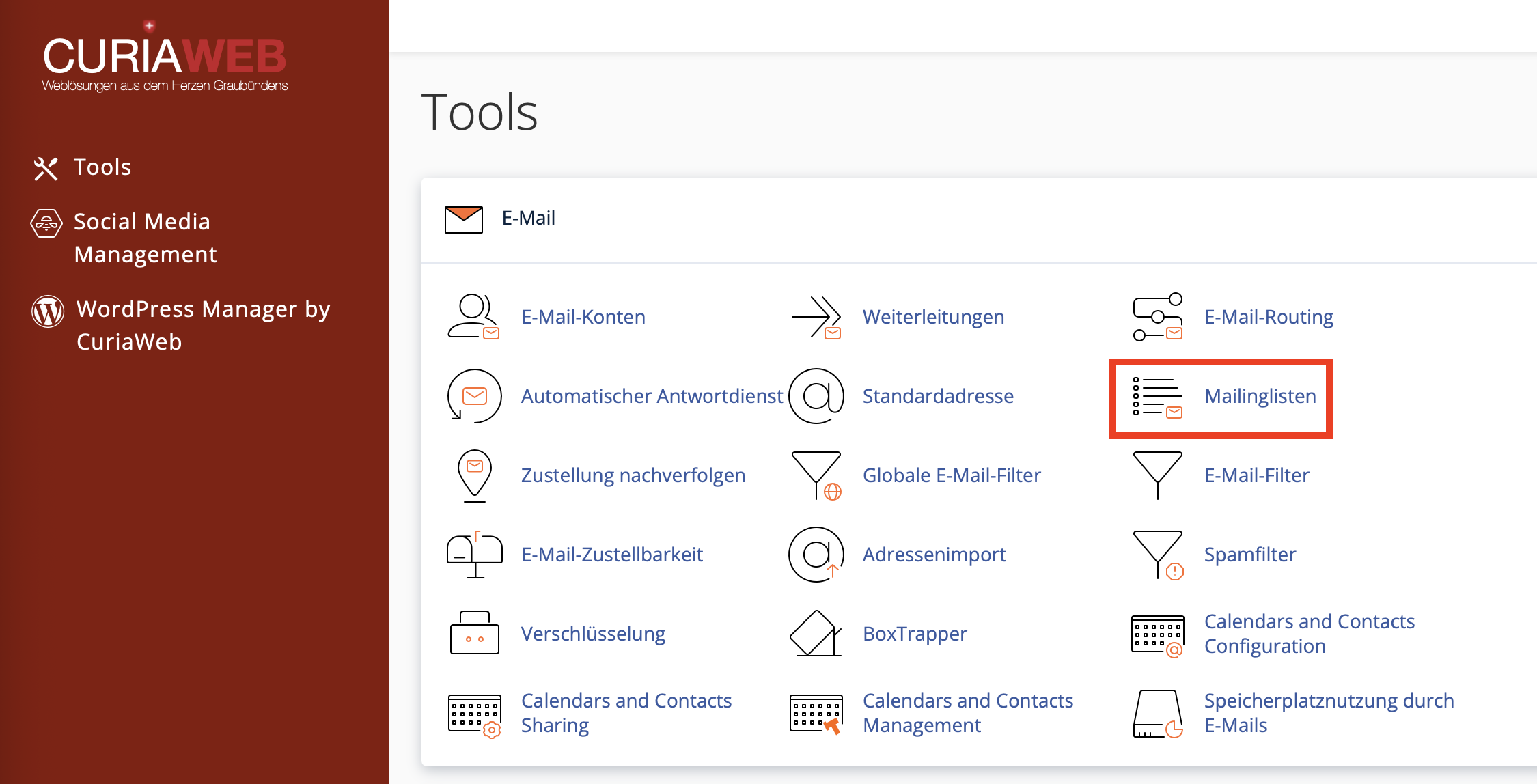
First, log in to your cPanel. Then navigate to the "Email" section and open the "Mailing Lists" feature.
There you will see an overview of existing lists and can create new mailing lists for your domain.
Step 2: Create a new mailing list
To create a new list, fill in the required fields. The most important point is the List Name. This forms the part of the email address before the @ symbol.
Examples:
- team results in team@yourdomain.ch
- news results in news@yourdomain.ch
- association results in association@yourdomain.ch
- project results in project@yourdomain.ch
Important details when creating:
- List Name: The name before the @ symbol, for example team, info-distribution, or news.
- Domain: The domain for which the list address should be created.
- Password: Administrative password for managing the mailing list.
- Privacy Options: Determines whether the list is run privately or publicly.
Step 3: Choose Privacy Option
When creating a mailing list, you choose whether the list should be private or public. This setting affects, among other things, who can subscribe and whether archives are publicly accessible.
| Option | Description | Recommendation |
|---|---|---|
| Private | Subscriptions are controlled. Archives are not publicly viewable. | Recommended for teams, associations, customer communication, and internal distribution lists. |
| Public | More open subscription process and public visibility possible. | Only use if a public list is explicitly desired. |
Recommendation:
For business, association-internal, or confidential communication, you should generally use a private mailing list. This gives you more control over members and content.
Step 4: Save Mailing List
After defining the list name, domain, password, and privacy option, create the mailing list. cPanel then sets up the list and displays it in the table of existing lists.
From this point on, you can manage the list, add members, and configure further Mailman settings.
Manage Current Lists
In the overview of existing mailing lists, you will find the most important management functions. These include detailed Mailman administration, delegation, password changes, and deleting lists that are no longer required.
Open Mailman Administration
Clicking the "Manage" action takes you to the detailed Mailman interface. Significantly more settings are available there than in the simple cPanel overview.
Depending on the configuration, you can manage areas such as:
- Members: Add, remove, or moderate recipients.
- Subscription rules: Define who is allowed to subscribe and whether confirmations are required.
- Moderation: Have messages approved before delivery.
- Reply behavior: Define whether replies go to the sender or to the entire list.
- Archiving: Manage settings for storing previous messages.
- List information: Customize description, welcome texts, or notices.
Manage Members of a Mailing List
The most important area of a mailing list is member management. Here you specify which email addresses receive messages via the list. Depending on the purpose of the list, you should check the members regularly and remove outdated addresses.
For internal lists, it is advisable to include only authorized persons. For external lists, you should ensure that recipients expect to receive the messages and that communication is handled properly from both a legal and organizational standpoint.
Privacy Notice:
Only include recipients in mailing lists if this is organizationally permissible and the recipients are meant to receive the messages. Careful handling of recipient data is especially important for external distribution lists.
Delegation: List Management Without cPanel Access
The Delegation feature is helpful if other people need to manage a mailing list without gaining access to the entire cPanel account. Delegated users can take over administrative tasks for the list depending on their permissions, such as moderating messages or managing list settings.
This is particularly useful for associations, departments, or project teams where the operational responsibility for a list does not lie with the technical administration.
Change Mailing List Password
An administrative password is used to manage a mailing list. If this password is lost or needs to be changed for security reasons, you can change it in cPanel using the corresponding function.
Security Tip:
Use a strong, separate password for mailing list management. Only pass this password on to people who are actually supposed to perform administrative tasks for the list.
Spam Protection for Mailing Lists
Mailing lists can become targets for unsolicited messages, especially if the list address is publicly visible. Therefore, you should take appropriate protective measures and carefully check the Mailman settings.
Via the Mailman administration, you can configure spam filter options and moderation rules. In conjunction with SpamAssassin or spam-score-based rules, suspicious messages can be filtered out or held back.
Check Spam Filter in Mailman:
- Click on "Manage" for the desired list.
- Open the Privacy Options in Mailman.
- Switch to the Spam Filters section.
- Set up appropriate filter rules if required for your use case.
- Save the settings and then test the delivery with test messages.
Moderation: Approve Messages Responsibly
For many mailing lists, it makes sense not to distribute messages automatically to all members. Moderation functions allow posts to be reviewed first and approved only afterwards.
Moderation is highly recommended for:
- public or semi-public lists,
- lists with external members,
- large distribution lists with many recipients,
- lists where only specific people are allowed to send,
- sensitive business or organizational communication.
Set Up Reply Behavior Correctly
An important point with mailing lists is the reply behavior. Depending on the setting, replies either go to the original sender or to the entire list. This decision has a major impact on daily usage.
| Reply Target | Advantage | Suitable for |
|---|---|---|
| Reply to Sender | Prevents unnecessary messages to all members. | Newsletters, announcements, information distribution lists |
| Reply to List | Enables discussions within the group. | Team lists, project groups, discussion lists |
Check this setting carefully. For large distribution lists, replying to the entire list can quickly lead to an unnecessary flood of emails.
Public and Private Archives
Mailman can archive messages so that past posts can be read later. Whether an archive is publicly or privately accessible depends on the list settings.
For internal or business lists, a private archive is usually recommended. For public discussion lists, a public archive can make sense if the content is intentionally meant to be accessible to everyone.
Note:
Before enabling public archives, verify whether the content is actually allowed to be publicly visible. Mailing lists may contain personal or commercially confidential information.
Delete a Mailing List
Mailing lists that are no longer required can be deleted in cPanel. Proceed with caution, as removing the list also affects the associated list address and potentially administrative data.
Before deleting, you should check:
- Is the list address still actively used?
- Are there still members registered who should be informed?
- Is there important archive data or settings that need to be backed up beforehand?
- Is the list address mentioned in forms, signatures, or documents?
Best Practices for Secure and Efficient Mailing Lists
A well-configured mailing list saves time and reduces miscommunication. A clear structure is especially worthwhile for larger groups.
- Use clear list names: For example team, board, support-internal, or projectname.
- Prefer private lists: For internal and business communication, private is usually the safer choice.
- Check members regularly: Remove outdated or unauthorized addresses.
- Use moderation selectively: Particularly useful for public or large lists.
- Choose reply behavior intentionally: Prevent unnecessary mass replies to all recipients.
- Use strong passwords: Protect list management from unauthorized access.
- Control archives: Only use public archives if the content is suitable for them.
Common Problems and Solutions
Messages do not reach all members:
Check whether the recipients are correctly entered in the member list. Also check whether messages are moderated or have been held back by spam filters.
A member cannot send a message to the list:
Depending on the list settings, only certain people may be allowed to post. Check the posting and moderation rules in Mailman.
The list is receiving spam:
Enable or tighten spam filter and moderation rules. Also check whether the list address is publicly visible.
Replies go to all members:
Check the reply behavior in Mailman. For newsletters or pure information distribution lists, it is often better not to send replies automatically to the entire list.
The Mailman password has been forgotten:
Change the mailing list password directly via cPanel and keep it in a safe place afterwards.
Summary
Mailing lists in cPanel enable structured group communication via a central email address. With Mailman, you can manage members, define privacy options, enable moderation, use archives, and configure spam protection.
For internal teams, associations, project groups, and organized distribution lists, mailing lists are a powerful alternative to simple forwarders. The key is a clean configuration with clear permissions, appropriate privacy options, and regular maintenance of the member list.
Do you need help with mailing lists or Mailman?
CURIAWEB support will be happy to assist you with the setup, management, and secure configuration of your mailing lists in cPanel.
Create Support Ticket