


Globale E-Mail-Filter in cPanel: Regeln für alle Postfächer gleichzeitig festlegen
Mit globalen E-Mail-Filtern in cPanel können Sie Regeln erstellen, die nicht nur für ein einzelnes Postfach gelten, sondern für eingehende Nachrichten der gesamten Domain. Dadurch lassen sich wiederkehrende Muster, unerwünschte Begriffe, bestimmte Absender oder technische Merkmale zentral behandeln.
Während normale E-Mail-Filter für ein bestimmtes E-Mail-Konto erstellt werden, greifen globale Filter domainweit. Das ist besonders nützlich, wenn Sie eine Regel für mehrere oder alle Adressen Ihrer Domain anwenden möchten, beispielsweise um bestimmte Spam-Muster zu blockieren, Nachrichten mit bestimmten Betreffzeilen zu verwerfen oder E-Mails anhand technischer Kriterien weiterzuleiten.
Was sind globale E-Mail-Filter?
Globale E-Mail-Filter sind serverseitige Regeln, die cPanel auf eingehende Nachrichten einer Domain anwendet. Der Server prüft dabei, ob eine Nachricht bestimmte Bedingungen erfüllt. Wenn dies der Fall ist, wird die definierte Aktion ausgeführt.
Eine Regel kann zum Beispiel prüfen, ob der Betreff ein bestimmtes Wort enthält, ob der Absender zu einer bestimmten Domain gehört oder ob ein bestimmter Header vorhanden ist. Danach kann die Nachricht zugestellt, verworfen, weitergeleitet oder an ein Programm übergeben werden.
Unterschied zwischen normalen und globalen E-Mail-Filtern
Der wichtigste Unterschied liegt im Geltungsbereich. Ein normaler E-Mail-Filter wird für ein bestimmtes Postfach eingerichtet. Ein globaler Filter gilt dagegen für die Domain und kann damit mehrere Postfächer beeinflussen.
| Filtertyp | Geltungsbereich | Typischer Einsatz |
|---|---|---|
| E-Mail-Filter nach Benutzer | Nur ein bestimmtes E-Mail-Konto | Persönliche Sortierung, Weiterleitung oder Regeln pro Postfach |
| Globale E-Mail-Filter | Alle passenden Nachrichten einer Domain | Domainweite Regeln gegen Spam, bestimmte Absender oder zentrale Automatisierungen |
Für die meisten individuellen Sortierungen sollten Sie zuerst normale E-Mail-Filter verwenden. Globale Filter sind sinnvoll, wenn eine Regel wirklich für mehrere oder alle Adressen einer Domain gelten soll.
Wann sind globale Filter sinnvoll?
Globale E-Mail-Filter sind besonders dann nützlich, wenn Sie wiederkehrende Nachrichten zentral behandeln möchten. Typische Einsatzbereiche sind:
- Blockieren von Nachrichten mit klar erkennbaren Spam-Begriffen im Betreff
- Verwerfen von E-Mails bestimmter unerwünschter Absender oder Domains
- Weiterleiten bestimmter Nachrichten an ein zentrales Postfach
- Filtern von automatisierten Systemmeldungen für mehrere Adressen
- Domainweite Regeln für alte oder nicht mehr genutzte Kontaktadressen
- Technische Regeln für Header, Empfänger oder bestimmte Muster
Wenn eine Regel nur ein einzelnes Postfach betrifft, ist ein normaler E-Mail-Filter meist die bessere Wahl. Globale Filter sollten gezielt und sparsam eingesetzt werden.
Globale E-Mail-Filter in cPanel öffnen
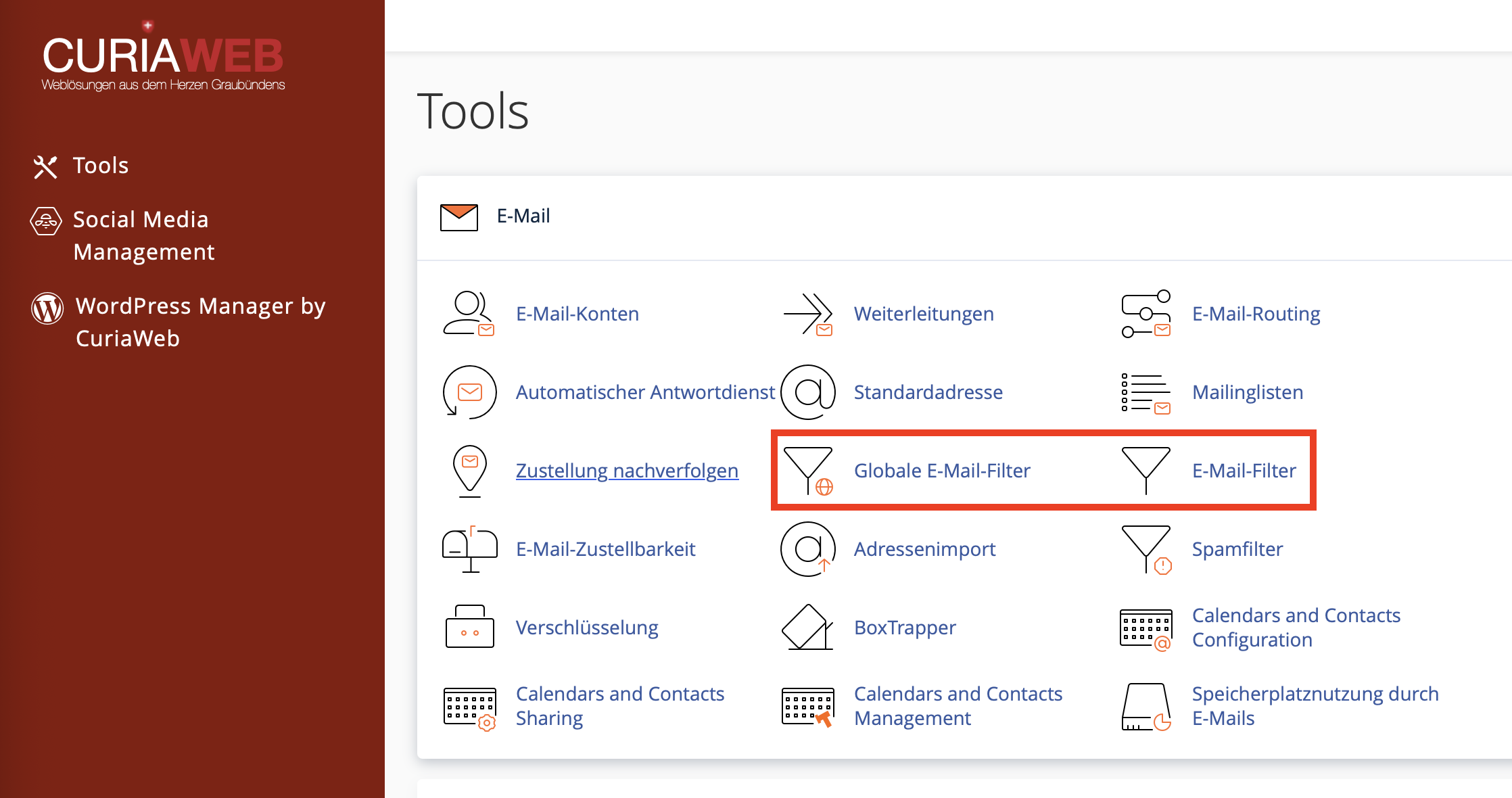
Melden Sie sich zuerst in Ihrem CURIAWEB-Kundenbereich oder direkt in cPanel an. Öffnen Sie danach im Bereich E-Mail die Funktion Globale E-Mail-Filter.
Dort sehen Sie bestehende globale Filter und können neue Regeln erstellen. Prüfen Sie bestehende Filter regelmässig, damit alte oder nicht mehr benötigte Regeln keine unerwünschten Auswirkungen haben.
- Melden Sie sich in cPanel an.
- Öffnen Sie den Bereich E-Mail.
- Klicken Sie auf Globale E-Mail-Filter.
- Klicken Sie auf Neuen Filter erstellen.
- Vergeben Sie einen eindeutigen Namen.
- Definieren Sie die Regel und die gewünschte Aktion.
- Testen Sie den Filter vor dem produktiven Einsatz.
- Klicken Sie auf Erstellen.
Schritt 1: Eindeutigen Filternamen vergeben
Vergeben Sie für jeden globalen Filter einen Namen, der die Funktion klar beschreibt. Das erleichtert später die Verwaltung, besonders wenn mehrere Regeln aktiv sind.
Gute Beispiele für Filternamen sind:
- Spam Betreff Gewinnspiel verwerfen
- Alte Domain an Info weiterleiten
- Absenderdomain blockieren
- Systemmeldungen zentral sortieren
Vermeiden Sie unklare Namen wie „Filter 1“ oder „Test“. Bei globalen Regeln ist nachvollziehbare Dokumentation besonders wichtig.
Schritt 2: Regel definieren
Die Regel legt fest, wann der globale Filter greifen soll. Sie können je nach cPanel-Version verschiedene Felder prüfen, zum Beispiel Absender, Empfänger, Betreff, Nachrichtentext oder Header.
| Kriterium | Beispiel | Möglicher Einsatz |
|---|---|---|
| Betreff | enthält „Gewinnspiel“ | Spam-Muster anhand des Betreffs erkennen |
| Von | enthält „example.com“ | Bestimmte Absender oder Domains behandeln |
| An | enthält „verkauf@“ | Nach Zieladresse unterscheiden |
| Nachrichtentext | enthält einen bestimmten Begriff | Formulare oder wiederkehrende Systemtexte erkennen |
| Header | bestimmter technischer Header | Fortgeschrittene technische Filterregeln |
Schritt 3: Aktion auswählen
Die Aktion bestimmt, was mit einer Nachricht passiert, wenn die Regel erfüllt ist. Besonders bei globalen Filtern sollten Sie sichere Aktionen bevorzugen, bevor Sie Nachrichten direkt löschen oder verwerfen.
| Aktion | Beschreibung | Empfehlung |
|---|---|---|
| Nachricht verwerfen | Die Nachricht wird gelöscht und nicht zugestellt. | Nur bei eindeutig unerwünschten Nachrichten verwenden. |
| In Ordner zustellen | Die Nachricht wird in einen bestimmten Ordner zugestellt. | Sichere Option zum Testen und Sortieren. |
| An E-Mail weiterleiten | Die Nachricht wird an eine andere Adresse weitergeleitet. | Für zentrale Sammel- oder Kontrolladressen geeignet. |
| Fehlermeldung zurückgeben | Die Nachricht wird abgewiesen und der Absender erhält eine Meldung. | Nur für bewusst blockierte Zustellungen verwenden. |
Beispiel: Spam mit bestimmtem Betreff verwerfen
Ein typischer globaler Filter kann Nachrichten mit immer gleichen Spam-Begriffen im Betreff verwerfen. Beispiel: Sie erhalten wiederholt Spam-Mails mit dem Wort „Gewinnspiel“ im Betreff.
Beispielregel:
- Regel: Betreff enthält „Gewinnspiel“
- Aktion: Nachricht verwerfen
Wenn Sie unsicher sind, ob auch legitime Nachrichten betroffen sein könnten, sollten Sie die Nachricht zunächst nicht löschen, sondern in einen separaten Ordner zustellen oder an eine Kontrolladresse weiterleiten.
Wildcard-Redirects und reguläre Ausdrücke
Für fortgeschrittene Anwendungsfälle können globale Filter mit regulären Ausdrücken arbeiten. Damit lassen sich Muster definieren, die mehrere ähnliche Adressen oder Absender erfassen.
Ein Beispiel: Sie möchten Absender wie test_user1@example.com, test_user2@example.com oder ähnliche Varianten erkennen. Dafür kann ein regulärer Ausdruck verwendet werden.
test_user.+@example\.comDie Zeichenfolge .+ steht dabei für beliebige Zeichen. Der Punkt in example\.com wird mit einem Backslash maskiert, damit er als tatsächlicher Punkt interpretiert wird und nicht als Platzhalter.
Warum mehrere einfache Filter oft besser sind
Komplexe globale Regeln sind schwerer zu prüfen und später schwieriger zu warten. In vielen Fällen ist es besser, mehrere einfache und klar benannte Filter zu erstellen, statt eine grosse Regel mit vielen Bedingungen zu verwenden.
Das hat mehrere Vorteile:
- Jede Regel ist leichter verständlich.
- Fehler lassen sich schneller finden.
- Einzelne Filter können gezielt deaktiviert oder angepasst werden.
- Die Reihenfolge der Regeln bleibt besser nachvollziehbar.
- Tests sind einfacher und aussagekräftiger.
Globale Filter testen
Bevor Sie einen globalen Filter produktiv einsetzen, sollten Sie ihn mit der Funktion Filtertest prüfen. Dabei können Sie eine Beispielnachricht einfügen und sehen, ob die Regel wie erwartet greift.
Nach dem Test zeigt cPanel ein technisches Protokoll. Dieses Protokoll gibt an, ob Bedingungen erfüllt wurden und ob eine Aktion ausgelöst würde.
1 Condition is false: $header_subject: contains "Test"
...
10 Filterung hat keine signifikante Zustellung eingerichtet.
11 Normale Zustellung wird erfolgen.
Dieses Ergebnis bedeutet, dass die Bedingung nicht erfüllt wurde und die Nachricht normal zugestellt würde.
Testergebnisse richtig interpretieren
| Testergebnis | Bedeutung | Nächster Schritt |
|---|---|---|
| Normale Zustellung wird erfolgen | Der Filter hat nicht gegriffen. | Prüfen, ob die Bedingung zu eng oder das falsche Feld gewählt wurde. |
| Signifikante Zustellung oder Aktion eingerichtet | Der Filter hat gegriffen und eine Aktion würde ausgeführt. | Prüfen, ob die Aktion wirklich gewünscht ist. |
Wenn der Filter nicht wie erwartet reagiert, prüfen Sie die Schreibweise, den gewählten Operator, das geprüfte Feld und die Reihenfolge der Regeln.
Globale Filter und BCC-Empfänger
Ein häufiger Irrtum betrifft BCC-Empfänger. Das BCC-Feld wird beim Empfang normalerweise nicht als sichtbarer Header an alle Empfänger übertragen. Deshalb können Filterregeln nicht zuverlässig anhand des BCC-Feldes greifen.
Wenn Sie Nachrichten anhand von Empfängerinformationen filtern möchten, verwenden Sie sichtbare Felder wie An oder technische Header, sofern diese zuverlässig vorhanden sind. Für BCC-basierte Logik sind globale E-Mail-Filter in der Regel nicht geeignet.
Häufige Fehler bei globalen E-Mail-Filtern
| Problem | Mögliche Ursache | Lösung |
|---|---|---|
| Filter greift nicht | Falsches Feld, falscher Operator oder Bedingung zu eng | Filtertest nutzen und Regel vereinfachen |
| Zu viele Nachrichten werden gefiltert | Regel ist zu allgemein oder Regex greift zu breit | Bedingung präzisieren und mit Beispielen testen |
| Wichtige E-Mails verschwinden | Globale Löschregel verwirft legitime Nachrichten | Regel deaktivieren, Test durchführen und Zustellung nachverfolgen |
| BCC-Regel funktioniert nicht | BCC ist beim Empfang meist nicht als filterbares Feld vorhanden | Andere Kriterien wie sichtbare Empfänger oder Header verwenden |
| Regeln beeinflussen sich gegenseitig | Filter-Reihenfolge oder überlappende Bedingungen | Reihenfolge prüfen und Regeln klar trennen |
Best Practices für globale Filter
Globale Filter sind ein mächtiges Werkzeug, sollten aber kontrolliert eingesetzt werden. Besonders bei geschäftlich genutzten Domains ist es wichtig, dass keine legitimen Nachrichten unbeabsichtigt verloren gehen.
Empfohlene Vorgehensweise:
- Globale Filter nur verwenden, wenn die Regel wirklich domainweit gelten soll.
- Filter eindeutig benennen.
- Mit sicheren Aktionen wie Zustellen in Ordner oder Weiterleiten testen.
- Löschregeln erst nach erfolgreichem Test einsetzen.
- Regex-Regeln besonders sorgfältig prüfen.
- Mehrere einfache Filter statt einer komplexen Regel verwenden.
- Alte oder nicht mehr benötigte Filter regelmässig löschen.
- Bei verschwundenen Nachrichten die Funktion „Zustellung nachverfolgen“ nutzen.
Globale Filter und Spamfilter kombinieren
Globale E-Mail-Filter können Spam reduzieren, ersetzen aber keinen vollwertigen Spamfilter. Spamfilter bewerten Nachrichten anhand vieler technischer und inhaltlicher Merkmale. Globale Filter führen dagegen nur die Regeln aus, die Sie selbst definieren.
Sinnvoll ist oft eine Kombination: Der Spamfilter behandelt allgemeine Spam-Erkennung, während globale Filter gezielt wiederkehrende Muster verarbeiten, die für Ihre Domain besonders relevant sind.
Zusammenfassung
Globale E-Mail-Filter in cPanel ermöglichen es, Regeln für die gesamte Domain festzulegen. Dadurch können Nachrichten für mehrere Postfächer gleichzeitig verarbeitet, sortiert, weitergeleitet oder verworfen werden.
Da globale Filter domainweit wirken, sollten sie besonders sorgfältig geplant und getestet werden. Verwenden Sie klare Filternamen, einfache Bedingungen und sichere Testaktionen. Löschregeln und Regex-Muster sollten erst eingesetzt werden, wenn Sie sicher sind, dass keine legitimen Nachrichten betroffen sind.
Für individuelle Postfachregeln sind normale E-Mail-Filter meist besser geeignet. Globale Filter sind die richtige Wahl, wenn eine Regel bewusst für alle oder mehrere Adressen einer Domain gelten soll.
Sie möchten globale Filter sicher einrichten?
Der CURIAWEB-Support hilft Ihnen gerne bei der Planung, beim Testen von Filterregeln oder bei der Umsetzung von Regex-Mustern, damit wichtige E-Mails nicht versehentlich verloren gehen.
Tipp: Testen Sie globale Filter immer mit Beispielnachrichten, bevor Sie sie produktiv einsetzen. Besonders Löschregeln und Regex-Muster sollten nie ungeprüft aktiviert werden.
