


Setting up Email Filters in cPanel: Automatically Sort, Forward, or Delete Messages
With email filters in cPanel, you can automatically process incoming messages. The mail server checks defined rules and then executes the desired action. This allows you, for example, to automatically move emails into folders, forward them to another address, discard them, or sort them based on specific criteria.
Email filters are particularly helpful for keeping your inbox organized, automatically structuring recurring messages, or handling certain unwanted emails directly on the server side. Because these filters run directly on the server, they work regardless of whether you access your emails via Webmail, Outlook, Thunderbird, Apple Mail, Android, or iPhone.
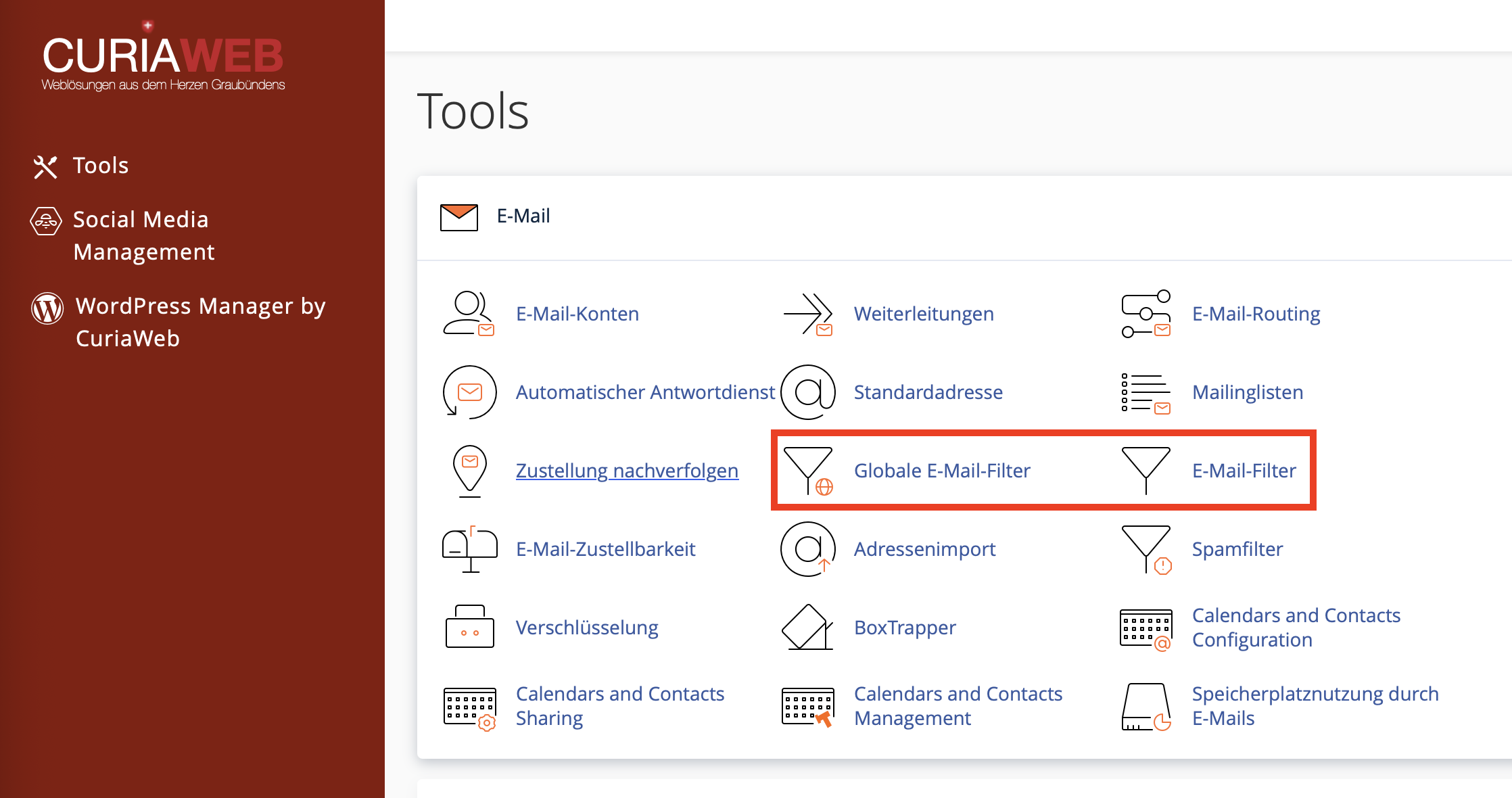
When do email filters make sense?
Email filters are suitable whenever specific messages need to be automatically recognized and processed. This can be important for inbox organization as well as for security and efficiency.
- Sort newsletters: Automatically move messages to a newsletter folder.
- Organize invoices: Place emails with specific subject lines or senders into an invoice folder.
- Separate project emails: Automatically sort messages containing project identifiers.
- Forward specific senders: Additionally send emails from important contacts to another address.
- Remove unwanted messages: Discard recurring, disruptive messages.
- Support automations: Process emails from forms, online shops, or systems according to specific criteria.
Particularly for business email accounts, filters help you find emails faster and reduce routine work. At the same time, rules should be created and tested carefully to prevent important messages from being accidentally deleted or misfiled.
Difference between Email Filters, Spam Filters, and BoxTrapper
Email filters are not the same as spam filters. A spam filter evaluates messages based on typical spam characteristics. BoxTrapper works with a verification system for unknown senders. Email filters, on the other hand, execute clearly defined rules that you set yourself.
| Function | How it works | Typical Use Case |
|---|---|---|
| Email Filters | Rules based on sender, subject, recipient, content, or headers | Sorting, forwarding, discarding, organizing |
| Spam Filters | Evaluates spam probability based on technical characteristics | Marking, moving, or blocking spam |
| BoxTrapper | Unknown senders must verify themselves | Additional protection for heavily spammed inboxes |
User Filters vs. Global Email Filters
In cPanel, depending on your interface and permissions, there are two relevant filter areas. User Filters apply to a specific email account. Global Email Filters, on the other hand, can be applied to multiple or all incoming messages across a domain.
For most use cases, we recommend using User Filters first. This ensures that the rule remains restricted to a specific mailbox and has no unintended consequences for other email addresses.
Step 1: Open Email Filters in cPanel
First, log in to your CURIAWEB client area or directly into cPanel. Then, open the Email section and select the Email Filters or User Filters feature.
In the overview, you will see the existing email accounts. Select the account for which you want to create a filter and click Manage Filters.
Step 2: Create a New Filter
In the filter management area, click Create a New Filter. Then, assign a unique name to the filter. The name should describe what the rule does, for example, Sort Invoices, Move Newsletters, or Forward Specific Sender.
- Open the Email Filters section in cPanel.
- Click Manage Filters next to the desired account.
- Select Create a New Filter.
- Assign a unique Filter Name.
- Define the Rules (i.e., when the filter should trigger).
- Define the Actions (i.e., what should happen to the message).
- Click Create.
Step 3: Define Conditions
The condition determines when a filter is applied. cPanel provides various criteria for this. Typical filter conditions relate to the sender, recipient, subject, message body, headers, or other properties of an email.
| Criterion | Example | Possible Use Case |
|---|---|---|
| From | sender@example.com | Sort messages from a specific sender |
| Subject | Invoice | Automatically move invoices into a folder |
| To | support@yourdomain.ch | Differentiate by recipient address |
| Body | Order number | Recognize system emails or forms |
| Spam Status / Header | specific header value | Technical filter rules for advanced users |
If you have multiple conditions, you can specify whether all conditions must be met or if a single condition is sufficient. Apply this logic carefully. A rule that is too broad may catch too many messages, while a rule that is too narrow might not trigger at all.
Step 4: Select an Action
The action determines what cPanel does with a message when the rule matches. Depending on your cPanel version, various actions are available.
| Action | Description | Note |
|---|---|---|
| Deliver to Folder | Automatically sorts messages into a chosen folder. | Ideal for newsletters, invoices, or projects. |
| Redirect to Email | Forwards matching messages to another address. | Useful for team or backup/deputy processes. |
| Discard Message | Deletes the message without delivery. | Only use when you are absolutely sure. |
| Fail with Message | Rejects the message with an error note. | For special cases, not for normal sorting. |
| Pipe to a Program | Passes messages to a script or program. | Only for advanced technical setups. |
Example 1: Automatically Move Newsletters to a Folder
A common use case is automatically sorting newsletters. This keeps your inbox clean without deleting the messages right away.
Example Rule:
- Rule: Subject contains “Newsletter”
- Action: Deliver to Folder “Newsletter”
It is best to create the target folder first in Webmail or in your email application. After that, cPanel can deliver the matching messages to this folder.
Example 2: Automatically Sort Invoices
For business mailboxes, it is often useful to automatically sort invoices or payment receipts. You can filter by senders, subject lines, or specific terms.
Example Rule:
- Rule: Subject contains “Invoice”
- Action: Deliver to Folder “Invoices”
If you have many different invoice senders, it is better to create several simple filters rather than one very large, complex rule. This makes maintenance easier and reduces errors.
Example 3: Forward Specific Senders
You can also use email filters to automatically send specific messages to another address. This is useful, for example, if inquiries from a particular client should additionally go to a backup contact or colleague.
Example Rule:
- Rule: From contains “client@example.com”
- Action: Redirect to Email “backup@yourdomain.ch”
When setting up forwarding, check whether a local delivery should also take place or if it should only be forwarded. Depending on the selected action, a message might otherwise bypass the original mailbox entirely.
Setting the Correct Filter Order
The order of the filters is important because cPanel processes rules from top to bottom. If multiple filters match the same message, the order can influence which action is executed first.
In the Current Filters list, you can change the position of the filters using drag-and-drop or the corresponding controls, depending on your interface. Place specific rules further up and general rules further down.
Test Filters Before Deployment
Before you use a filter in production, you should test it. This is especially important if the filter deletes, discards, or forwards messages.
cPanel provides a Filter Test section for this. There, you can paste a sample email containing your criteria and then check which action would be triggered.
- Open the Filter Test section.
- Paste a sample message that matches the desired rule.
- Click Test Filter.
- Review the results carefully.
Interpreting the Results Correctly:
- Normal delivery will occur: The rule did not trigger. The email would be delivered normally.
- Filtering has set up a significant delivery: The filter triggered and the defined action will be executed.
If the test does not deliver the desired result, adjust the condition. Often, the issue lies in terms that are too exact, incorrect capitalization, wrong operators, or checking a different field than expected.
Common Errors with Email Filters
| Problem | Possible Cause | Solution |
|---|---|---|
| Filter does not trigger | Wrong field, wrong operator, or condition is too narrow | Use the filter test and simplify the condition |
| Too many emails are captured | Condition is too general | Use more specific terms, senders, or multiple conditions |
| Emails are accidentally deleted | Deletion rule is formulated too broadly | Deactivate the rule, run a test, and initially move to a folder instead of deleting |
| Forwarding does not work as expected | Action or destination address entered incorrectly | Check destination address and send a test email |
| Rule only works sometimes | Filter order or multiple rules interfere with each other | Check order and separate rules clearly |
Best Practices for Clean Filter Rules
Well-maintained email filters can save a lot of work. Disorganized or too aggressive rules, however, can lead to problems. Therefore, use clear names, simple conditions, and test every rule.
Recommended Procedure:
- Name filters clearly.
- Start with simple rules.
- When in doubt, move to a folder first instead of deleting.
- Test rules with sample messages.
- Regularly check the filter order.
- Remove old or no longer needed filters.
If you are unsure whether a filter is working correctly, first choose a safe action such as Deliver to Folder. Once you have verified that the rule works reliably, you can adjust the action if necessary.
Summary
With email filters in cPanel, you can automatically sort, forward, or discard incoming messages. This keeps your inbox more organized and allows recurring tasks to be automated on the server side.
Crucial factors are clear conditions, appropriate actions, and careful testing before production use. You should be especially careful with deletion rules and global filters to ensure that important emails are not lost by mistake.
Would you like to set up complex email filters securely?
CURIAWEB support will gladly help you plan and implement filter rules to ensure important messages are sorted reliably and not accidentally deleted.
Tip: For new filters, first use a safe action like "Deliver to Folder". Only when the rule works reliably should you use deletion or discard actions.
