


Changing cPanel Language: How to Switch the Interface Language
Depending on your account, browser, or server settings, the cPanel interface may initially be displayed in English or another language. However, you can change the language of the management interface directly within cPanel to your preferred language, such as German or any other available language.
This setting only affects the display of cPanel itself. Your website, email accounts, files, databases, and domains will remain completely unchanged.
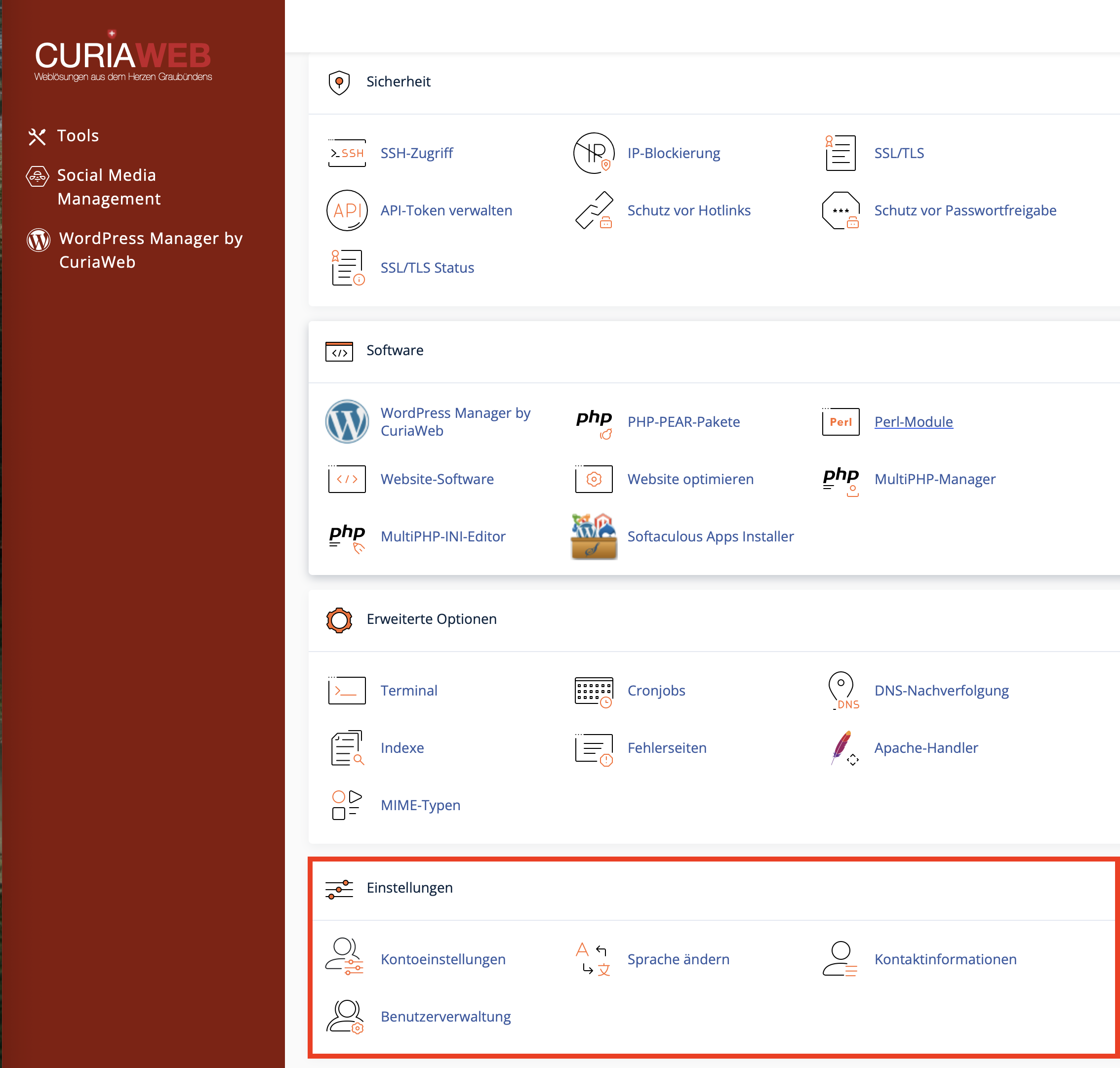
How to Change Your Language in cPanel
Follow these steps to modify the interface language of your cPanel dashboard:
- Log in to your cPanel account.
- Scroll down to the Preferences section.
- Click on Change Language.
- Select your desired language (e.g., German (Deutsch)) from the dropdown menu.
- Click on the Change button.
Once saved, the cPanel interface will refresh and display in the selected language. If certain sections remain in English, this may be due to untranslated modules, custom extensions, or third-party applications.
Which Areas Are Affected by the Language Change?
The language change modifies the user interface of cPanel. This means menu items, descriptions, and most system notifications will adapt to the chosen language.
| Area | Changes with the cPanel Language? |
|---|---|
| cPanel Menus and Interface | Yes, provided translations are available. |
| Website Content | No, this will not translate your live website. |
| WordPress Language | No, WordPress has its own independent language settings. |
| Email Contents | No, existing emails remain completely unchanged. |
| Webmail Interface | Not necessarily. Webmail can use its own language preferences. |
Why Do Some Terms Still Appear in English?
Even after switching to your preferred language, individual terms, error messages, or extensions might still show up in English. This is standard behavior and does not mean the language change failed.
Potential reasons include:
- Technical Jargon: Terms like DNS, FTP, SSL, MX Record, or Backup are universally used in their English form.
- Third-Party Extensions: Add-ons like Softaculous, JetBackup, or other custom modules might manage translations independently.
- Incomplete Translations: Certain system alerts or brand-new features might not be fully translated in your active version.
- Browser Cache: In rare cases, your browser might still load a cached view of the old layout.
Changing the Language Back
You can change the language back or select a new one at any time. Simply navigate back to the Change Language tool and pick any other language available.
This modification applies specifically to your individual cPanel account. Other users or subaccounts may have their own independent settings based on their interface and access levels.
Frequently Asked Questions (FAQ)
Does the language change affect my website?
No. This adjustment only applies to the administration dashboard of your hosting. Your website, databases, files, emails, and domains are not touched.
Will this switch WordPress to my chosen language as well?
No. WordPress uses its own language settings. You can modify these within the WordPress dashboard by navigating to Settings > General.
Why do I still see English technical terms?
Certain advanced technical phrases, specialized alerts, or third-party modules do not have translations available and will default to English.
Can I revert cPanel to English later?
Yes. You are free to change your language selection at any time using the Change Language option.
Can't Find a Setting After Changing the Language?
cPanel contains a wide range of features. If you are having trouble locating a specific tool, make use of the search bar at the top of the interface. It supports both localized and international technical terms like Email, DNS, Backup, or FTP.
Language, Email, Database, Backup, FTP, SSLSummary
Using the Change Language utility allows you to quickly adjust the cPanel dashboard to your preferred language. This change updates only the management layout of your hosting account and has zero impact on your live website, WordPress setup, emails, or databases.
Any remaining English phrases are typically due to global technical terms, third-party add-ons, or incomplete translation packages in that specific version.
Still can't find a specific option despite switching languages?
The CURIAWEB Technical Team is standing by to help you find your way around cPanel.
