


WordPress Dashboard Explained: Understanding Your Website's Control Center
The WordPress dashboard is the first area you see after logging into your website. It is the central management interface of your WordPress installation. From here, you create content, edit pages, manage images, install plugins, customize the design, check updates, and control important settings.
Especially for beginners, the dashboard can seem overwhelming at first. However, once you know the most important areas, WordPress becomes much clearer. This article shows you which functions the dashboard offers, how to customize the interface, and what you should look out for during your daily work.
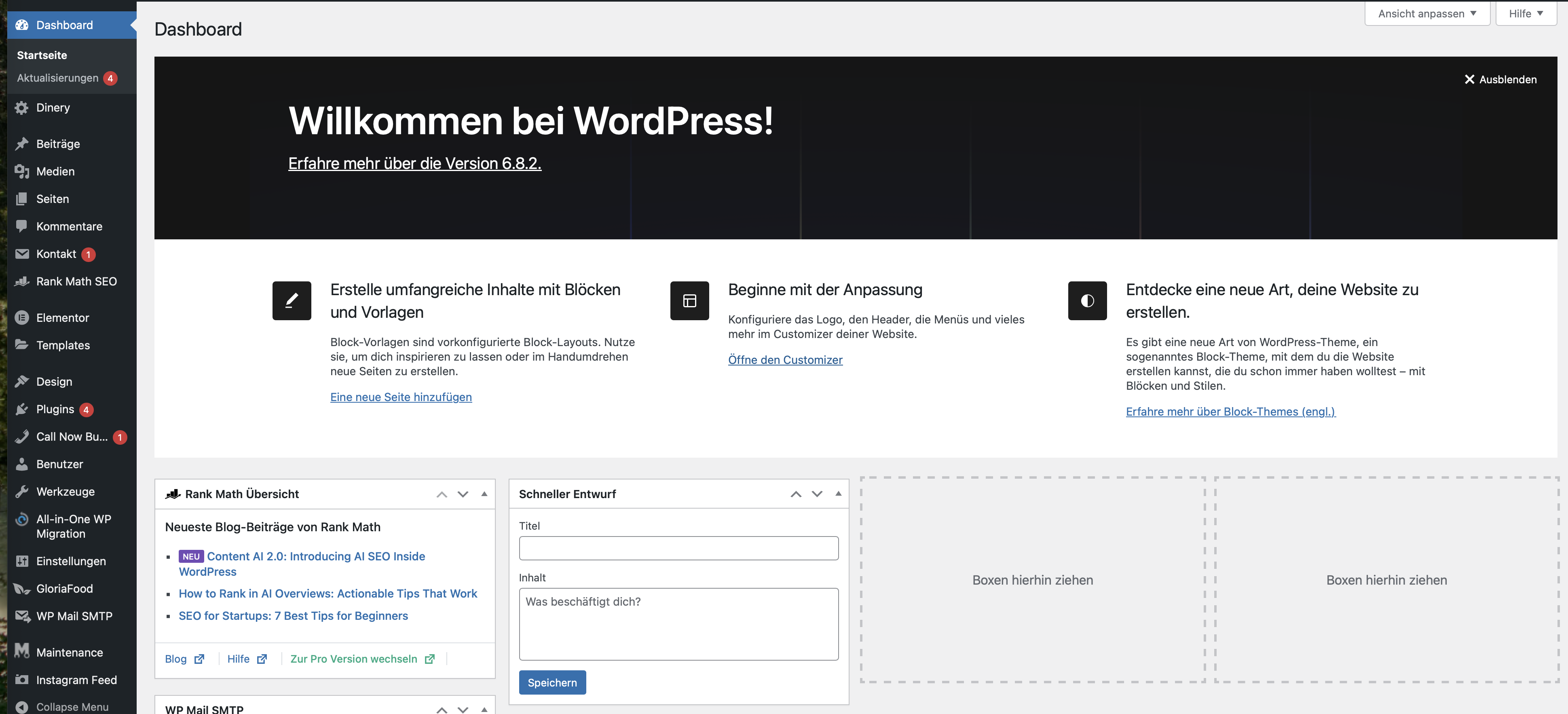
Example view of the WordPress dashboard after logging in.
What is the WordPress Dashboard?
The dashboard is the admin area of your WordPress website. It is also called the backend. Visitors to your website cannot see this area. Only logged-in users with the appropriate rights can access it.
In the dashboard you can, among other things:
- create new posts and pages,
- edit existing content,
- manage images, PDFs, and other media,
- moderate comments,
- customize menus and widgets,
- install and update plugins,
- change or customize themes,
- manage users,
- change WordPress settings,
- perform updates.
Which menu items are visible depends on your user role. Administrators can see all areas. Editors, authors, or contributors only see the functions that are enabled for their role.
1. The Dashboard Home Page
After logging in, you usually land on the dashboard home page. It shows various information boxes, known as dashboard widgets. These give you a quick overview of the status and activity of your website.
Depending on the WordPress version, theme, and installed plugins, the dashboard view may look different. Plugins like SEO tools, security plugins, statistics plugins, or WooCommerce can add their own boxes.
2. The Most Important Dashboard Widgets
By default, WordPress displays several widgets on the dashboard home page. You can show, hide, or move them.
| Widget | Function | Benefit |
|---|---|---|
| At a Glance | Shows posts, pages, comments, WordPress version, and active theme. | Quick overview of your website. |
| Activity | Shows recent publications, scheduled posts, and comments. | Helps with editing and moderation. |
| Quick Draft | Allows you to quickly save a post idea. | Good for spontaneous notes and article ideas. |
| WordPress Events and News | Shows news and events from the WordPress world. | Informs about developments and community topics. |
3. Customizing the Dashboard
You can organize your dashboard so that only the information that is important to you is visible. This saves time and reduces distraction.
How to customize the view:
- Click on Screen Options at the top right.
- Check or uncheck the boxes for the desired dashboard widgets.
- Drag and drop widgets to your preferred position.
- Collapse or expand individual widgets using the small arrow.
These adjustments usually apply to your own user account. Other users can also customize their dashboard view individually.
4. Understanding the Left Navigation Bar
The left sidebar is the most important navigation area in the WordPress dashboard. Here you will find all the central tools for managing your website.
Typical menu items:
- Dashboard: Overview and updates.
- Posts: Create and manage blog articles, news, and guides.
- Media: Manage images, PDFs, videos, and files.
- Pages: Edit static content like contact, services, or legal notice.
- Comments: Review, approve, or delete comments.
- Appearance: Manage themes, customizer, menus, and widgets.
- Plugins: Extend, activate, or deactivate features.
- Users: Manage accounts, roles, and profiles.
- Tools: Import, export, and other management functions.
- Settings: Basic configuration of the website.
Additional plugins can add more menu items, for example WooCommerce, SEO tools, security plugins, or form plugins.
5. Distinguishing Posts and Pages
A frequent starting point in the dashboard are Posts and Pages. Both look similar but have different tasks.
| Content Type | Suitable for | Examples |
|---|---|---|
| Posts | Ongoing content with dates, categories, and tags. | Blog articles, news, guides, tutorials. |
| Pages | Static content without a classic blog structure. | Homepage, contact, legal notice, privacy policy, services. |
For a professional website, posts and pages should be cleanly separated. This improves the overview, navigation, and SEO structure.
6. Media Area: Managing Images and Files
Under Media you will find the Media Library. This is where WordPress manages images, PDFs, logos, downloads, and other files.
In the media area you can:
- upload files,
- edit images,
- maintain alt texts,
- manage PDFs,
- search and filter files,
- delete media that are no longer needed.
Pay attention to clear file names, optimized image sizes, and meaningful alt texts. A well-maintained media library saves storage space and improves loading times.
7. Appearance Area: Theme, Menus, and Customizer
Under Appearance, you control the look of your website. Depending on the theme and WordPress version, you will find different functions there.
Typical areas:
- Themes: Activate and manage design templates.
- Customizer: Adjust colors, logo, header, menus, and other options.
- Menus: Create and structure navigation.
- Widgets: Manage sidebar and footer elements.
- Editor: Access theme files or the site editor, depending on the theme.
Changes to the design should be carefully checked, especially on mobile devices. For code adjustments, a child theme or a staging environment is recommended.
8. Plugins: Extending Functions
Plugins extend WordPress with additional functions. Examples include contact forms, SEO tools, security features, caching, shops, newsletters, galleries, or analysis functions.
In the Plugins area you can:
- install new plugins,
- activate plugins,
- deactivate plugins,
- update plugins,
- delete plugins.
Only install plugins that you really need. Too many or poorly maintained plugins can affect performance, security, and stability.
9. User Management
Under Users, you manage all accounts on your WordPress website. There you can create new users, change roles, edit profiles, and delete users.
By default, WordPress has different roles:
- Administrator,
- Editor,
- Author,
- Contributor,
- Subscriber.
Only grant administrator rights to people who really need them. For pure content maintenance, a lower role is usually sufficient.
10. Settings: The Basic Configuration of Your Website
Under Settings, you will find central configuration areas. These affect the entire website and should be carefully adjusted.
Important settings areas:
- General: Website title, tagline, URL, language, timezone.
- Writing: Default category and post options.
- Reading: Homepage, blog page, and search engine visibility.
- Discussion: Comments, moderation, and avatars.
- Media: Image sizes and upload structure.
- Permalinks: URL structure of your posts and pages.
- Privacy: Set the privacy policy page.
Especially the permalink settings and search engine visibility should be checked right after installation.
11. Updates in the Dashboard
WordPress informs you in the dashboard about available updates for WordPress itself, plugins, themes, and translations. These updates are important for security, stability, and compatibility.
Before updating you should:
- create a backup,
- check if it is a major update,
- use staging first for critical websites,
- test the website and forms after the update,
- test the checkout for WooCommerce.
Do not ignore updates permanently. Outdated plugins and themes are a common security risk.
12. Using the Help Tab
At the top right of many dashboard areas, you will find the Help tab. This displays context-sensitive information about the area currently open.
The help tab can be useful for:
- Posts,
- Pages,
- Comments,
- Media,
- Menus,
- Settings,
- User management.
Especially for beginners, it is worth taking a look at this area before changing settings.
13. Customizing the View in List Views
Not only the dashboard home page can be customized. List views such as posts, pages, users, or comments also offer the Screen Options tab at the top right.
There you can often determine:
- which columns are visible,
- how many items are displayed per page,
- whether additional information is shown,
- which boxes are visible in the editor.
If you are missing a setting in the editor or in an overview, check Screen Options first.
14. Keeping the Dashboard Clear
As the number of plugins increases, the dashboard can become cluttered. Many extensions add their own menu items, notices, or widgets.
For more order:
- hide unneeded dashboard widgets,
- delete unused plugins,
- only install necessary plugins,
- check plugin notices regularly,
- assign user roles correctly,
- do not indiscriminately expand menu items through plugins.
A tidy dashboard reduces errors and makes daily work easier.
15. Security in the Dashboard
The dashboard is a protected area. Therefore, you should pay special attention to login security and user rights.
Recommended security measures:
- use strong passwords,
- do not use usernames like
admin, - enable two-factor authentication for administrators,
- grant administrator rights sparingly,
- remove old user accounts,
- keep WordPress and plugins up to date,
- create regular backups,
- check login activities if you suspect anything.
A secure admin area protects not only the technology, but also content, customer data, and your online reputation.
16. Dashboard and Performance
If the dashboard reacts slowly, this can have several causes. It is often due to too many plugins, external dashboard widgets, large databases, WooCommerce data, slow API queries, or an outdated PHP version.
Check if the dashboard is slow:
- active plugins,
- third-party dashboard widgets,
- WooCommerce reports,
- statistics plugins,
- PHP version,
- database size,
- server resources,
- browser extensions.
If only the backend is slow, the public website does not necessarily have to be slow. Nevertheless, the cause should be investigated.
17. SEO-Relevant Areas in the Dashboard
Many SEO tasks are done directly in the WordPress dashboard. Depending on the SEO plugin, additional functions are added.
SEO-relevant areas:
- Posts and Pages: content, headings, internal links.
- Media: alt texts and image files.
- Permalinks: clean URL structure.
- Categories: thematic structure.
- SEO Plugin: titles, meta descriptions, sitemap, schema.
- Comments: moderation and spam protection.
A well-organized dashboard makes continuous SEO work easier.
18. GEO: Why a Clear Dashboard Helps Indirectly
GEO (Generative Engine Optimization) benefits from well-maintained, clearly structured, and up-to-date content. The dashboard is the place where this content is created and managed.
A well-utilized dashboard supports GEO through:
- clean content structure,
- regular updates,
- correct categories and page hierarchy,
- well-maintained media and alt texts,
- complete FAQ and guide content,
- controlled user rights,
- fewer technical errors.
19. Common Mistakes in the WordPress Dashboard
- Too many administrators: Increases security risks.
- Ignoring updates: Outdated plugins can cause security gaps.
- Installing plugins indiscriminately: Dashboard and website become slow or unstable.
- Incorrectly changing permalinks: Old URLs can generate 404 errors.
- Accidentally disabling search engine visibility: Website may not be indexed.
- Ignoring dashboard notices: Important warnings remain unheeded.
- No backups before making changes: Errors are difficult to undo.
- Unclear user roles: Employees receive too many rights.
Recommended Procedure for Beginners
- View the dashboard: Briefly open all main areas after logging in.
- Customize the view: Hide unnecessary widgets.
- Distinguish posts and pages: Classify content correctly.
- Maintain media cleanly: Optimize images and set alt texts.
- Check user roles: Grant administrator rights sparingly.
- Control settings: Especially General, Reading, and Permalinks.
- Take updates seriously: Create a backup before major updates.
- Use plugins consciously: Only install what is really needed.
- Use the help tab: Check context information directly in WordPress.
- Log in regularly: Keep an eye on the website status and notices.
Frequently Asked Questions about the WordPress Dashboard
What is the WordPress dashboard?
The dashboard is the management area of your WordPress website. There you create and edit content, manage media, plugins, users, design, and settings.
How do I reach the dashboard?
Usually via /wp-admin after your domain, for example https://www.yourdomain.ch/wp-admin.
Why don't I see all menu items?
This is probably related to your user role. Only administrators can see all areas.
Can I customize the dashboard?
Yes. Via Screen Options, you can show or hide many widgets and columns.
Why is my dashboard slow?
Possible causes include many plugins, external widgets, WooCommerce data, large databases, outdated PHP versions, or insufficient server resources.
What do the red update notices mean?
They indicate available updates for WordPress, plugins, themes, or translations. Updates should be reviewed and carried out after a backup.
Can I delete dashboard widgets?
You can usually hide or move them. Some plugin widgets only disappear when the corresponding plugin is deactivated or adjusted.
Is the dashboard publicly visible?
No. The dashboard is only visible to logged-in users with appropriate rights.
The Perfect Home for Your WordPress Site
A clear dashboard makes work easier – a stable hosting environment makes it reliable. With WordPress Hosting from CURIAWEB, you benefit from a Swiss server location, fast NVMe infrastructure, SSL included, cPanel management, and personal support.
View WordPress Hosting from CURIAWEBQuestions about installation or operation? Our CURIAWEB Support will be happy to help you personally.
