


Installing and Changing a WordPress Theme: Customizing Design Safely
A WordPress theme determines the appearance of your website. It controls layout, colors, typography, headers, footers, blog views, page templates, responsive behavior, and often additional design features. With a theme, you can fundamentally change the look of your website without deleting posts, pages, or images.
At the same time, a theme is not just "decoration". It affects loading time, usability, mobile display, SEO structure, accessibility, and maintainability. Therefore, a theme should not only look good, but also be technically clean, up-to-date, and suitable for your project.
What Does a WordPress Theme Do?
A theme determines how your content is displayed. Posts, pages, images, and media remain intact in the database, but the theme decides how this content looks to visitors.
A modern theme typically handles:
- Website layout,
- Header and footer display,
- Fonts and colors,
- Blog and archive views,
- Display of individual posts and pages,
- Responsive adjustment for smartphones and tablets,
- Menu positions,
- Widget areas,
- Templates for landing pages,
- WooCommerce layouts, if supported.
Many themes also bring their own settings, demo content, or integrations with page builders. The more features a theme contains, the more important a careful selection becomes.
Theme, Template, and Page Builder: What Is the Difference?
These terms are frequently confused. Distinguishing them is important for practical work.
| Term | Meaning | Example |
|---|---|---|
| Theme | The complete basic design framework of the website. | Astra, GeneratePress, Kadence, Block Theme. |
| Template | A template for specific page types or layouts. | Landing page without sidebar, blog post template. |
| Page Builder | Tool for visually creating individual page layouts. | Elementor, Divi, Beaver Builder. |
A theme can work without a page builder. However, a page builder always requires an active theme as a foundation.
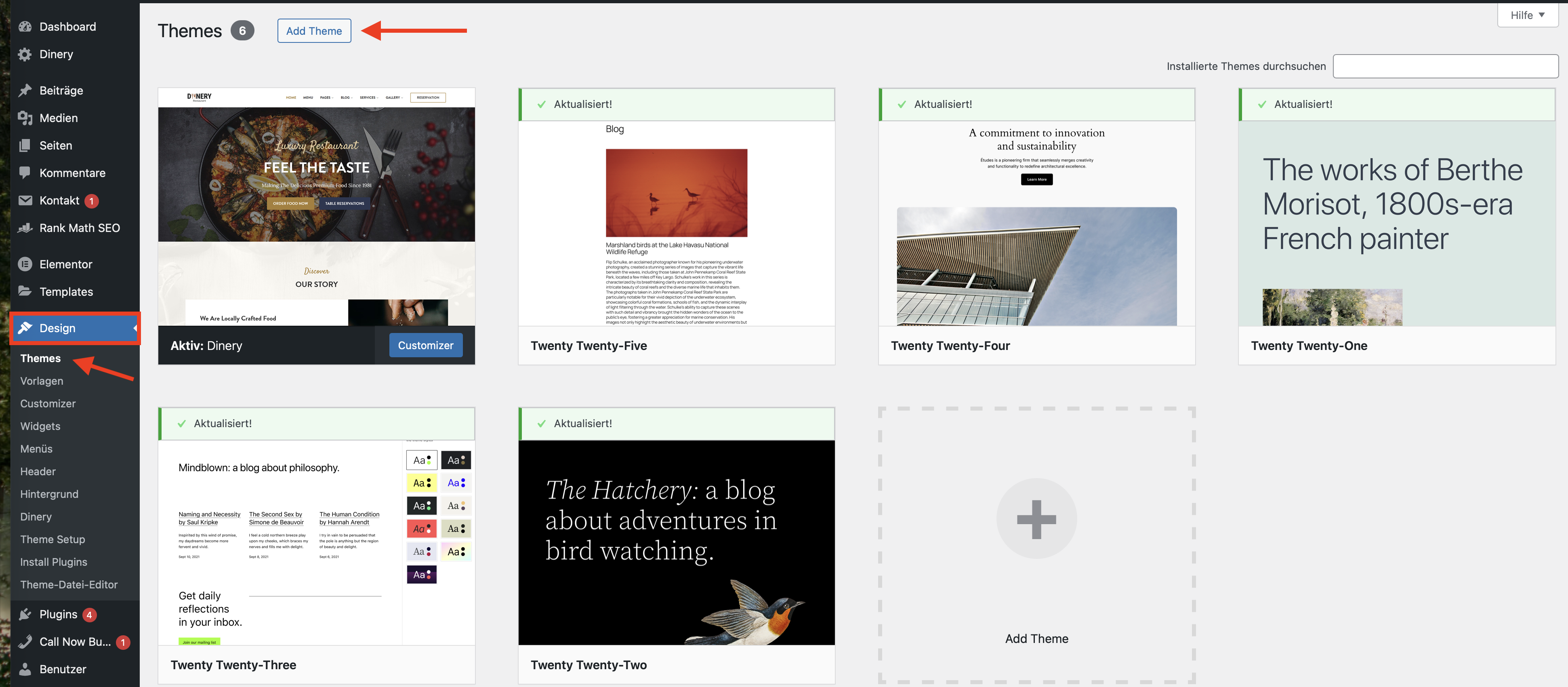
1. Installing a Theme via the WordPress Directory
The easiest way is through the official WordPress theme directory. There you will find numerous free themes that can be installed directly in the dashboard.
How to proceed:
- Log in to your WordPress dashboard.
- Go to Appearance > Themes.
- Click on Add New.
- Search for a theme or use the filters.
- Click on Install.
- Use the Live Preview first.
- Only click on Activate afterwards.
This method is particularly suitable for free themes and simple websites.
2. Uploading a Premium Theme as a ZIP File
If you have purchased a theme from a provider, you will often receive a ZIP file. You can upload this directly into WordPress.
How the upload works:
- Go to Appearance > Themes.
- Click on Add New.
- Click on Upload Theme at the top.
- Select the theme's ZIP file.
- Click on Install Now.
- Activate the theme or use the preview first.
3. Installing a Theme Manually via cPanel
If the upload in the WordPress dashboard fails, for example due to file size or a timeout, you can install the theme using the cPanel File Manager.
- Open your cPanel.
- Launch the File Manager.
- Navigate to the WordPress directory.
- Open
wp-content/themes/. - Upload the theme's ZIP file.
- Unpack the file using Extract.
- Check if the theme folder is located directly inside the
themesfolder. - Afterwards, go to Appearance > Themes in the WordPress dashboard.
- Activate the theme.
Make sure that unpacking does not create unnecessary nesting, for example theme/theme/files. WordPress expects the theme files directly inside the theme folder.
4. Installing a Theme via FTP or SFTP
Advanced users can also upload themes via FTP or SFTP. The target folder is the same:
wp-content/themes/
The process:
- Unpack the theme ZIP file locally on your computer.
- Connect via FTP/SFTP.
- Upload the theme folder to
wp-content/themes/. - Activate it in the WordPress dashboard under Appearance > Themes.
For security reasons, SFTP is preferable to FTP if available.
Checking a Theme Before Activation
Do not activate a new theme carelessly on a live website. Depending on the theme, menus, widgets, headers, footers, sidebars, and custom layouts may be displayed differently.
Check before activation:
- Use Live Preview,
- Check the homepage,
- Check the blog view,
- Check individual posts,
- Check the contact page,
- Control menus,
- Check headers and footers,
- Test the mobile display,
- Check WooCommerce pages, if present,
- Test forms and important buttons.
For larger websites, changing a theme in a staging environment first is highly recommended.
Important Selection Criteria for a Theme
A good theme should not only be visually appealing, but also technically clean.
| Criterion | Why important? |
|---|---|
| Up-to-dateness | Actively maintained themes are safer and more compatible. |
| Loading Speed | Bloated themes degrade performance and user experience. |
| Responsive Design | The website must work perfectly on smartphones, tablets, and desktops. |
| Compatibility | The theme should be compatible with WordPress, plugins, and WooCommerce if applicable. |
| Support and Documentation | Good documentation saves time during setup and troubleshooting. |
| Accessibility | Clean usability improves user-friendliness and quality. |
Free Theme or Premium Theme?
Both can make sense. The decisive factor is not the price alone, but quality, maintenance, and suitability for your project.
Free themes are often suitable for:
- small websites,
- blogs,
- simple corporate pages,
- projects with a limited budget,
- a clean base without many additional functions.
Premium themes can be useful for:
- extensive design options,
- demo templates,
- WooCommerce shops,
- support needs,
- complex layout requirements,
- regular updates by a commercial provider.
For premium themes, check whether updates are only available with an active license.
Page Builder Themes and Lightweight Themes
Many modern websites use page builders like Elementor or Divi. In such cases, a lightweight theme that does not get in the way of the page builder is often beneficial.
Advantages of lightweight themes:
- Better performance,
- Fewer unnecessary functions,
- More flexibility with page builders,
- Easier maintenance,
- Clearer technical structure.
Extensive multipurpose themes can be practical, but they often bring many functions that are not required at all.
Changing a Theme: What Happens to My Content?
When changing a theme, posts, pages, images, users, and comments are normally preserved. The theme mainly changes the way things are presented.
However, the following may change:
- Menu positions,
- Widget areas,
- Header and footer layout,
- Page templates,
- Theme-specific shortcodes,
- Customizer settings,
- WooCommerce appearance,
- Fonts and colors,
- Spacing and layout widths.
If your old theme used its own shortcodes or special content blocks, these might become visible as text or unusable after the change.
Before Changing a Theme: Create a Backup
You should create a backup before every theme change. This is especially important for existing websites with lots of content, individual customizations, or WooCommerce.
The backup should include:
- Files,
- Database,
- Uploads,
- Theme files,
- Plugins,
- Configurations.
If something does not work correctly after the theme change, you can restore the previous state.
Child Theme for Individual Customizations
If you want to change CSS, PHP files, or template files, you should use a child theme. Changes made to the main theme can be overwritten during updates.
A child theme is useful for:
- Custom CSS outside of the Customizer,
- Adjustments to template files,
- Changes to
functions.php, - Individual layout adjustments,
- Permanent code adjustments.
Small design adjustments can often be made directly in the Customizer or in the "Additional CSS" area. Deeper customizations belong in a child theme or a custom plugin.
Delete Unused Themes
Just like plugins, unneeded themes should be removed. Otherwise, they continue to sit as files on the server and must be maintained.
Recommendation:
- Keep the active theme,
- Keep the child theme, if used,
- Keep one current standard theme as a fallback,
- Delete old or unused themes,
- Keep remaining themes up to date.
A standard theme as a fallback can be helpful if the active theme causes problems.
Performing Theme Updates
Theme updates improve security, compatibility, and bug fixes. They should be carried out regularly.
Check before theme updates:
- Is a backup available?
- Is a child theme in use?
- Were changes made directly in the main theme?
- Compatibility with the WordPress version?
- Compatibility with WooCommerce?
- Staging test for important websites?
If direct changes were made in the main theme, they can be lost during the update.
Theme and SEO
A theme influences SEO indirectly and sometimes directly. It determines HTML structure, loading time, mobile presentation, heading logic, internal layouts, and areas relevant to Core Web Vitals.
SEO-relevant theme factors:
- Fast loading time,
- Clean mobile presentation,
- Correct heading structure,
- No unnecessary scripts,
- Clean presentation of images,
- Good navigation,
- Readable font sizes,
- Accessible operation,
- Compatible with SEO plugins.
A beautiful but very slow theme can be worse in the long run than a simple, fast, and well-structured theme.
Theme and GEO
GEO, or Generative Engine Optimization, benefits from clearly structured, easily readable, and technically clean content. A theme should not hide content, nest it unnecessarily, or complicate it with excessive effects.
GEO-friendly themes support:
- Clear content structure,
- Clean headings,
- Fast loading times,
- Understandable navigation,
- Good readability,
- Clean FAQ and guide display,
- Reliable mobile presentation.
Common Mistakes with Themes
- Choosing a theme only by looks: Performance and maintainability are forgotten.
- No backup before changing: Returning to the old state becomes difficult.
- Modifying directly in the main theme: Customizations are lost during updates.
- Leaving too many themes installed: Unnecessary attack surface and maintenance.
- Uploading a premium theme incorrectly: The entire download package is installed instead of the theme ZIP.
- Not checking the mobile view: Desktop looks good, smartphone does not.
- Not checking menus and widgets after changing: Navigation appears broken.
- Ignoring theme updates: Security and compatibility risk.
Recommended Procedure
- Clarify requirements: Blog, company website, shop, landing page, or portfolio?
- Choose a lightweight, well-maintained theme: Do not decide based on demo looks alone.
- Check ratings and updates: Active maintenance is important.
- Install theme: Via WordPress, ZIP upload, cPanel, or SFTP.
- Use Live Preview: Check presentation before activation.
- Create a backup: Always back up before changing a theme.
- Use staging: For existing or business-critical websites.
- Test after activation: Homepage, pages, posts, menus, widgets, and mobile.
- Use a child theme: For code customizations.
- Delete old themes: Keep only the active theme, child theme, and fallback.
Frequently Asked Questions About WordPress Themes
What is a WordPress theme?
A theme is the basic design framework of your WordPress website. It controls layout, colors, fonts, templates, and the presentation of your content.
Is content lost when changing themes?
Posts, pages, images, and users are normally preserved. However, the appearance, menus, widgets, and theme-specific functions may change.
How do I install a theme?
Via Appearance > Themes > Add New, via ZIP upload, through the cPanel File Manager, or via SFTP.
Why does the theme upload fail?
Often the wrong ZIP file was uploaded or the file is too large. In this case, uploading via cPanel or SFTP can help.
Should I use a free or a premium theme?
Both can make sense. Quality, updates, performance, support, and suitability for your project are the deciding factors.
What is a child theme?
A child theme is a subordinate theme in which individual customizations can be saved safely from being overwritten by updates.
Should I delete old themes?
Yes, unneeded themes should be deleted. However, keep a current standard theme as a fallback.
Can a theme make my website slow?
Yes. Bloated themes with many scripts, effects, and unnecessary functions can significantly degrade loading times.
Your design deserves a fast technical foundation
A good theme only looks professional if it is delivered quickly, stably, and reliably. With WordPress Hosting from CURIAWEB, you benefit from a Swiss server location, fast NVMe infrastructure, included SSL, cPanel access, and a strong foundation for modern WordPress websites.
Buy WordPress HostingHave you bought a theme and are having trouble uploading it? Our CURIAWEB Support will gladly assist you in narrow it down.
