


Configurare l'inoltro e-mail in cPanel: reindirizzare automaticamente i messaggi ad altri indirizzi
Con un inoltro e-mail in cPanel è possibile fare in modo che i messaggi in entrata vengano inviati automaticamente a uno o più altri indirizzi e-mail. Questo è pratico se si desidera utilizzare un indirizzo come info@tuodominio.ch, supporto@tuodominio.ch o <strongvendita@tuodominio.ch senza dover necessariamente gestire una casella di posta elettronica separata con un proprio login.
Gli inoltri sono particolarmente adatti per indirizzi funzionali, indirizzi di team o semplici indirizzi alias. Un messaggio inviato all'indirizzo inoltrato viene reindirizzato automaticamente alla destinazione definita. A seconda della configurazione, l'indirizzo originale può avere in aggiunta una propria casella di posta o esistere esclusivamente come inoltro.
Inoltro o account e-mail proprio?
Prima di configurare un inoltro, è necessario decidere se l'indirizzo richiede una propria casella di posta o se deve fungere solo da inoltro. Entrambe le varianti hanno effetti diversi.
| Variante | Descrizione | Adatto per |
|---|---|---|
| Account e-mail | L'indirizzo possiede una propria casella di posta con login, spazio di archiviazione e accesso tramite Webmail o client di posta. | Collaboratori, caselle di posta personali, indirizzi utilizzati in modo permanente |
| Inoltro | I messaggi in entrata vengono rispediti automaticamente a un altro indirizzo. | Indirizzi alias, indirizzi funzionali, semplici reindirizzamenti |
| Account più inoltro | Il messaggio arriva nella casella di posta locale e viene inoltre inoltrato. | Archiviazione nella casella di posta più copia ad altri destinatari |
Ambiti di utilizzo tipici per gli inoltri e-mail
Gli inoltri sono particolarmente utili quando più indirizzi pubblici devono puntare a poche caselle di posta effettive. In questo modo è possibile comunicare indirizzi di contatto chiari senza dover gestire una casella di posta per ogni singolo indirizzo.
- info@tuodominio.ch viene inoltrato a un indirizzo personale.
- vendita@tuodominio.ch va al team di vendita.
- supporto@tuodominio.ch viene inviato a un sistema di ticket o a una casella di supporto.
- contabilita@tuodominio.ch viene inoltrato alla persona responsabile.
- I vecchi indirizzi vengono reindirizzati ai nuovi indirizzi dopo un cambiamento.
- Più varianti di dominio inoltrano le e-mail agli stessi utenti.
Soprattutto per piccole aziende, associazioni o progetti, una struttura di inoltro pulita può aiutare a organizzare la comunicazione in modo chiaro e professionale.
Passo 1: Aprire gli inoltri in cPanel
Effettuare prima il login nell'area clienti CURIAWEB o direttamente in cPanel. Successivamente, aprire la sezione E-mail e fare clic su Inoltri.
Nella panoramica si vedono gli inoltri esistenti ed è possibile aggiungerne di nuovi. Se nel pacchetto di hosting sono configurati più domini, assicurarsi di selezionare il dominio corretto.
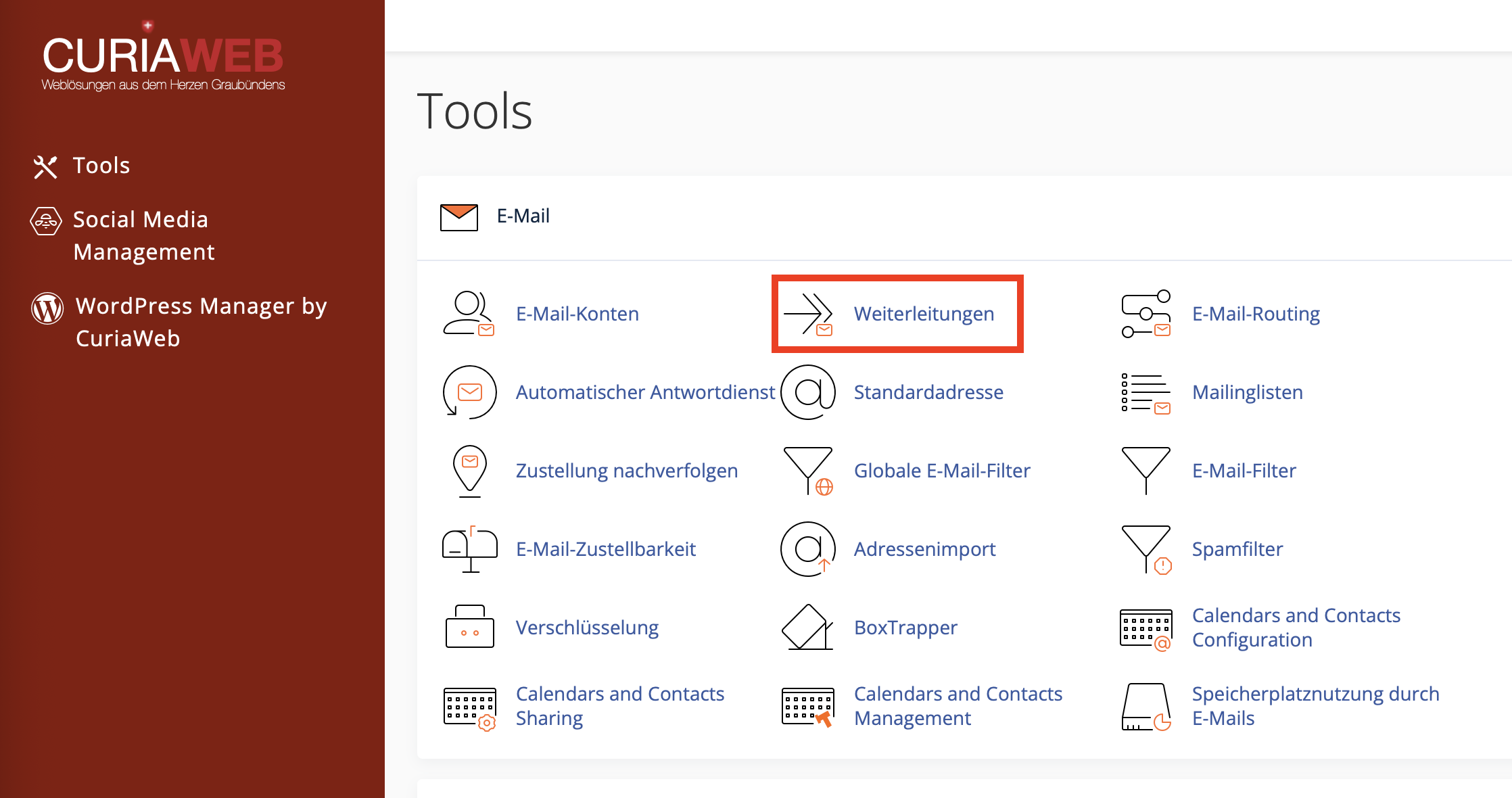
Passo 2: Aggiungere un nuovo inoltro
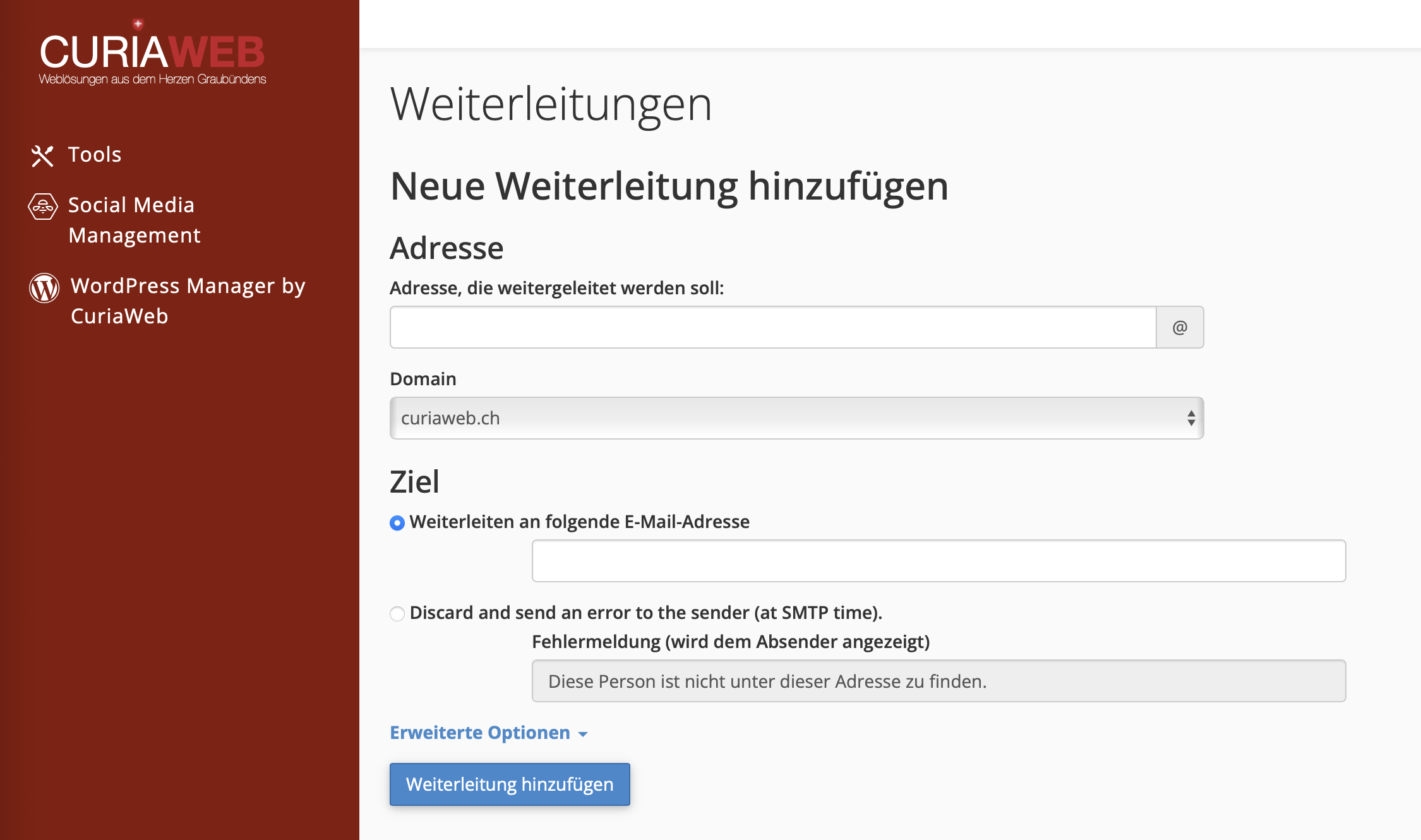
Fare clic su Aggiungi inoltro per creare un nuovo reindirizzamento. Successivamente inserire l'indirizzo che si desidera inoltrare e definire la destinazione.
- In cPanel fare clic su Inoltri.
- Selezionare Aggiungi inoltro.
- Inserire il nome dell'indirizzo da reindirizzare, ad esempio supporto.
- Selezionare il dominio appropriato, ad esempio tuodominio.ch.
- Sotto Inoltra all'indirizzo e-mail, inserire l'indirizzo di destinazione.
- Fare clic su Aggiungi inoltro per salvare l'impostazione.
Se ad esempio si desidera inoltrare supporto@tuodominio.ch a max@example.com, inserire supporto nel primo campo, selezionare il dominio tuodominio.ch e inserire max@example.com come indirizzo di destinazione.
Inoltrare un indirizzo a più destinatari
Se un indirizzo deve essere inoltrato a più persone, a seconda dell'interfaccia di cPanel è possibile creare più inoltri per lo stesso indirizzo di origine. In questo modo ogni destinatario definito riceverà una copia del messaggio in arrivo.
Esempio: vendita@tuodominio.ch deve andare a tre collaboratori. In questo caso si creano inoltri da vendita@tuodominio.ch verso ciascun indirizzo di destinazione desiderato.
Inoltro con o senza casella di posta locale
Un inoltro può esistere indipendentemente dal fatto che per l'indirizzo di origine sia presente o meno un account e-mail locale. Il comportamento differisce:
- L'indirizzo ha una propria casella di posta: L'e-mail viene salvata nella casella di posta e inoltre inviata alla destinazione dell'inoltro.
- L'indirizzo non ha una propria casella di posta: L'e-mail viene inviata solo alla destinazione dell'inoltro.
Se si desidera mantenere una copia nella casella di posta di CURIAWEB, creare prima un account e-mail e successivamente l'inoltro. Se non si necessita di un archivio locale, è sufficiente l'inoltro senza una propria casella di posta.
Opzioni avanzate per gli inoltri
Durante la creazione di un inoltro, a seconda della versione di cPanel, potrebbero essere disponibili opzioni avanzate. Queste sono pensate per casi d'uso speciali e dovrebbero essere utilizzate consapevolmente.
| Opzione | Descrizione | Nota |
|---|---|---|
| Invia a un programma | Inoltra il messaggio in entrata a uno script o a un programma. | Per sistemi di ticket o automazioni tecniche, solo per configurazioni avanzate. |
| Scarta | Il messaggio non viene recapitato. Opzionalmente può essere inviato un messaggio di errore al mittente. | Utilizzare con cautela, poiché i messaggi possono andare perduti. |
Inoltro di dominio: reindirizzare tutti gli indirizzi di un dominio
Oltre ai singoli inoltri, cPanel offre anche gli Inoltri di dominio. In questo modo è possibile inoltrare in blocco le e-mail di un dominio agli stessi utenti di un altro dominio.
Esempio: I messaggi a nome@vecchio-dominio.ch devono andare automaticamente a nome@nuovo-dominio.ch. In questo modo non è necessario creare ogni indirizzo singolarmente, a condizione che le parti locali degli indirizzi corrispondano.
Esempio:
- info@vecchio-dominio.ch diventa info@nuovo-dominio.ch
- supporto@vecchio-dominio.ch diventa supporto@nuovo-dominio.ch
- vendita@vecchio-dominio.ch diventa vendita@nuovo-dominio.ch
Gli inoltri di dominio sono pratici in caso di cambi di dominio, cambi di marchio o varianti di dominio aggiuntive. Verificare tuttavia attentamente se tutti gli indirizzi di destinazione desiderati esistono effettivamente sul nuovo dominio.
Testare e tracciare gli inoltri
Dopo aver creato un inoltro, si dovrebbe testarlo. A tal fine, inviare un messaggio da un indirizzo esterno all'indirizzo inoltrato e verificare se arriva a destinazione.
In cPanel, nell'elenco dei propri inoltri, si trova l'opzione Traccia. Questa consente di verificare il percorso che compie un messaggio e se l'inoltro viene eseguito correttamente.
- Recapito riuscito: Il messaggio è stato inoltrato alla destinazione.
- Indirizzo di destinazione errato: L'inoltro non può essere recapitato.
- Destinazione esterna: Il messaggio viene consegnato a un server di posta esterno.
- Destinazione locale: Il messaggio rimane all'interno dell'ambiente del server locale.
Se un inoltro non funziona, verificare prima l'ortografia dell'indirizzo di destinazione e se l'indirizzo di destinazione può ricevere e-mail.
Modificare o eliminare un inoltro
A seconda della versione di cPanel, gli inoltri esistenti non possono essere modificati direttamente. Se si desidera modificare la destinazione, eliminare l'inoltro esistente e successivamente crearne uno nuovo con la destinazione corretta.
Inoltri e spam: cosa occorre considerare
In caso di inoltro a provider esterni, può accadere che i messaggi di spam inoltrati influenzino la recapitabilità. Il provider esterno potrebbe vedere CURIAWEB o il server di inoltro come la fonte di trasmissione, anche se il messaggio originale proviene da un altro mittente.
Se si ricevono molte e-mail di spam e le si inoltra automaticamente, può essere utile filtrare lo spam lato server prima dell'inoltro. In questo modo si riducono i messaggi indesiderati nella casella di posta di destinazione e si evitano inutili problemi di recapito.
Inoltro, alias o lista di distribuzione: cosa ha senso?
Per casi semplici, è sufficiente un normale inoltro. Se più persone devono accedere insieme ai messaggi o gestire le risposte in modo coordinato, una casella di posta condivisa o un sistema di ticket è spesso più adatto.
| Soluzione | Adatto per | Nota |
|---|---|---|
| Inoltro | Semplice reindirizzamento a uno o più indirizzi | Rapido da configurare, ma nessuna cronologia di gestione comune |
| Casella di posta propria | Indirizzo personale o utilizzato in modo permanente | Login proprio, spazio di archiviazione e accesso Webmail |
| Sistema di ticket | Supporto, richieste clienti, gestione in team | Meglio per responsabilità tracciabili e stato di avanzamento |
Problemi frequenti con gli inoltri e-mail
| Problema | Possibile causa | Soluzione |
|---|---|---|
| L'inoltro non arriva | Indirizzo di destinazione scritto in modo errato o la casella di destinazione non accetta e-mail | Verificare l'indirizzo di destinazione e inviare un'e-mail di test |
| I messaggi arrivano doppi | Esiste una casella di posta locale e in aggiunta un inoltro | Verificare se questo doppio recapito è desiderato |
| L'inoltro a un indirizzo esterno viene rifiutato | Il provider esterno rifiuta il messaggio a causa di politiche di spam o recapito | Verificare il filtro spam ed evitare catene di inoltro non necessarie |
| La destinazione deve essere modificata | L'inoltro esistente non può essere modificato direttamente | Eliminare il vecchio inoltro e creare un nuovo inoltro |
| L'inoltro di dominio non funziona come previsto | L'indirizzo di destinazione non esiste o il routing del dominio/DNS non corrisponde | Verificare gli indirizzi di destinazione, il dominio e il routing delle e-mail |
Best practices per gli inoltri e-mail
Gli inoltri sono facili da configurare, ma dovrebbero essere pianificati consapevolmente. Soprattutto con gli indirizzi aziendali è importante che i messaggi arrivino in modo affidabile e vengano gestiti in modo tracciabile.
Procedura consigliata:
- Per indirizzi importanti, verificare se una casella di posta propria sia più sensata.
- Scrivere e testare attentamente le destinazioni di inoltro.
- In caso di destinatari multipli, definire responsabilità chiare.
- Evitare il più possibile le catene di inoltro.
- Controllare e rimuovere regolarmente i vecchi inoltri.
- Mantenere attivo il filtro spam, soprattutto per le destinazioni di inoltro esterne.
Riepilogo
Con gli inoltri e-mail in cPanel è possibile reindirizzare automaticamente i messaggi ad altri indirizzi. Questo è ideale per indirizzi alias, indirizzi funzionali, indirizzi di team o cambi di dominio. Un inoltro può essere utilizzato con o senza una propria casella di posta locale.
Se esiste un account e-mail per l'indirizzo di origine, la casella di posta riceve una copia e anche l'inoltro la riceve. Se non esiste alcuna casella di posta, il messaggio viene solo inoltrato. Gli inoltri esistenti vengono solitamente eliminati e ricreati in caso di modifiche alla destinazione.
Testare ogni nuovo inoltro con un indirizzo e-mail esterno e, in caso di problemi, verificare l'indirizzo di destinazione, il filtro spam, il routing del dominio e le possibili catene di inoltro.
Avete bisogno di aiuto per configurare inoltri complessi?
Il supporto di CURIAWEB vi assiste volentieri con inoltri, inoltri di dominio, problemi di recapito o per valutare se sia più adatta una casella di posta, un inoltro o un sistema di ticket.
Suggerimento: Create un'e-mail di test da un indirizzo esterno dopo ogni nuovo inoltro. In questo modo riconoscerete immediatamente se il messaggio arriva correttamente a destinazione.
