


Setting up Autoresponders in cPanel: Creating Automatic Replies and Out-of-Office Notices
With an Autoresponder in cPanel, you can set up automatic email replies. This is particularly useful when you cannot respond regularly to incoming messages during vacations, holidays, business trips, or other absences. As soon as an email is received at the corresponding address, the system automatically sends a predefined reply back to the sender.
At CURIAWEB, you can easily manage autoresponders via cPanel or directly through Webmail. This allows both administrators and individual email users to set up a professional out-of-office notification without having to install additional software.
When is an autoresponder useful?
Autoresponders are frequently used for classic out-of-office notifications. However, they are also suitable for other situations where senders should receive immediate feedback.
- Vacation and Holidays: Inform contacts of your absence and the date of your return.
- Public Holidays or Company Closures: Share when your company will be reachable again.
- Support or Contact Addresses: Automatically confirm receipt of an inquiry.
- Part-time or Limited Availability: Draw attention to longer response times.
- Project or Event Addresses: Provide automatic notices regarding processing times or responsibilities.
A well-phrased autoresponder ensures transparency and reduces follow-up questions. Especially in a business environment, a clear automatic reply looks professional and customer-friendly.
Important Note on Automatic Replies
An autoresponder replies to incoming messages automatically. Therefore, the text should be drafted carefully. Avoid confidential information, internal details, or notes that are not intended for unknown senders.
To prevent automatic replies from reacting unnecessarily to spam, cPanel incorporates protective mechanisms. Messages classified accordingly by the spam filter can be ignored by autoresponders. This helps avoid unnecessary automatic replies to unsolicited messages.
Step 1: Log in to cPanel
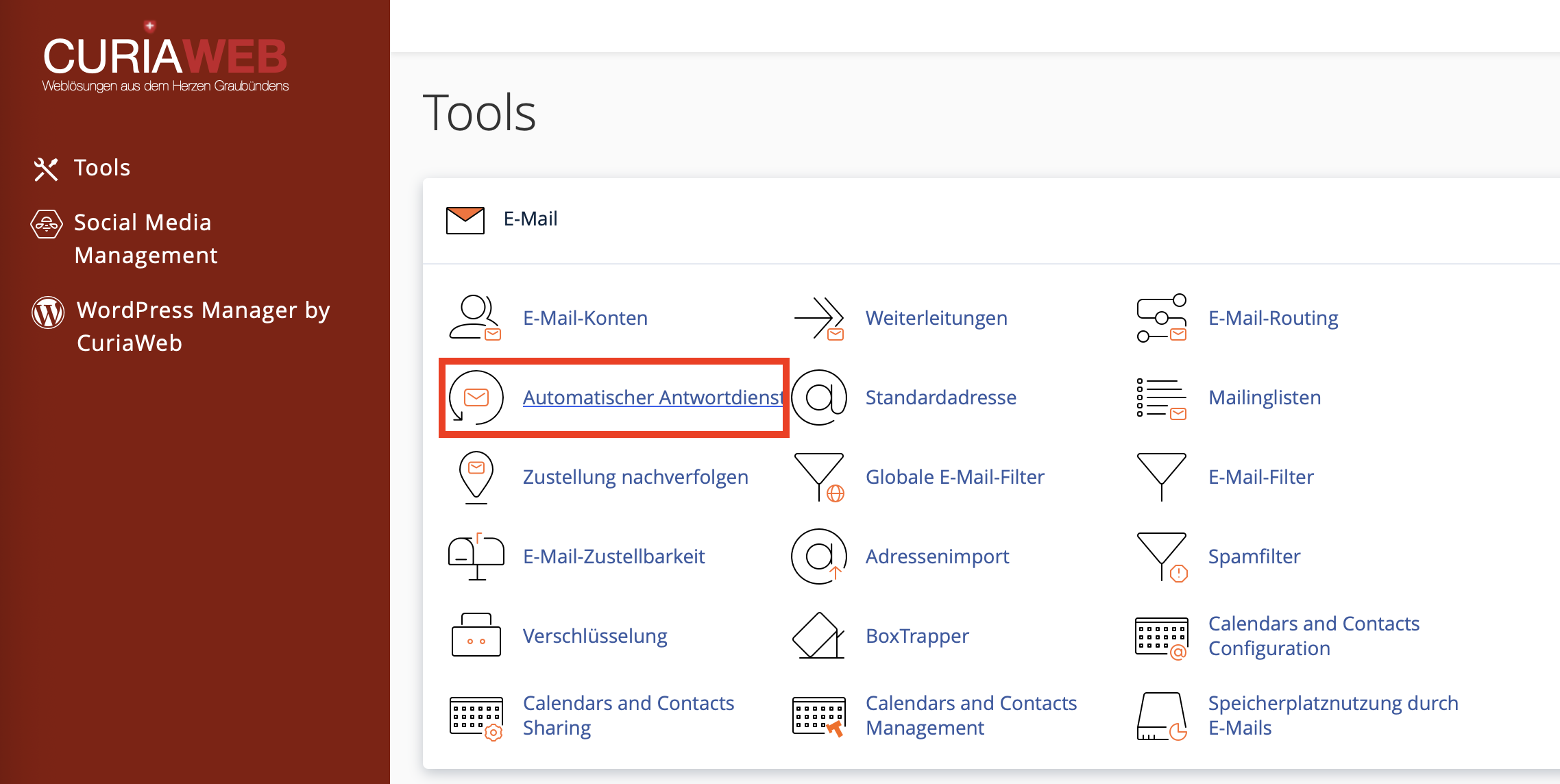
First, log in to your CURIAWEB client area or directly into cPanel. Then, open the Email section in cPanel. There you will find the Autoresponders menu item.
Depending on the cPanel interface used, the presentation may vary slightly. However, the feature is usually located in the Email section along with other email tools such as Email Accounts, Forwarders, Spam Filters, and Email Deliverability.
Step 2: Add an Autoresponder
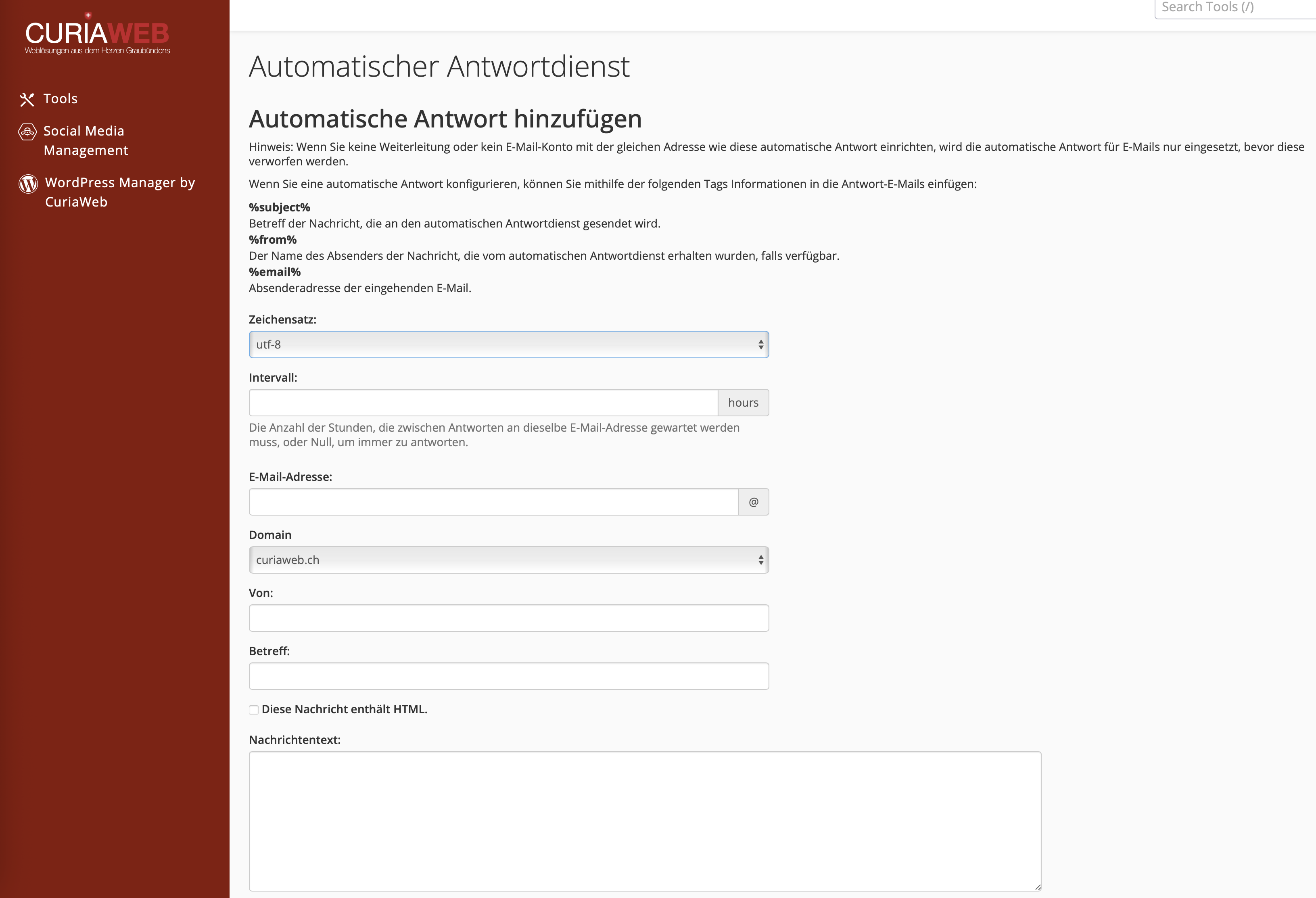
In the Autoresponders overview, click on Add Autoresponder. This opens a form where you can configure the automatic reply.
If multiple domains are configured in your hosting, make sure you select the correct domain or email address. The autoresponder always applies to the specifically configured address.
Step 3: Define the Interval
The Interval field determines how long cPanel should wait before sending an automatic reply to the same sender again. This setting is important so that a new out-of-office notice is not sent immediately every time in the event of repeated messages.
Recommendation:
Frequently set the interval to 24 hours. This ensures a sender receives your automatic reply a maximum of once per day. This prevents unnecessary duplicate replies and reduces the risk of automatic reply loops.
A very short interval can cause a sender to receive the same automatic reply multiple times if they send several messages. Conversely, an interval that is too long might mean that a sender does not receive renewed information for a later, new inquiry. For classic out-of-office notices, 24 hours is usually a good choice.
Step 4: Select the Email Address
In the Email field, enter the local part of the address for which the autoresponder should apply. For example, if you want to create an automatic reply for info@yourdomain.ch, enter info (depending on the cPanel layout) and select the matching domain to the right of it.
Make sure that the address is spelled correctly. An autoresponder only works for the exact address for which it was set up.
Step 5: Define Sender Name and Subject
In the From field, specify the name that should appear to the recipient as the sender name of the automatic reply. This can be your personal name, a team name, or the company name.
In the Subject field, you should use a clear and understandable subject line. Good examples are:
- Out of Office: John Doe
- Automatic Reply: Your message has been received
- Thank you for your email
- Vacation Absence until August 15th
A clear subject line helps the sender to instantly classify the automatic reply correctly.
Step 6: Compose the Message Text
In the Body or Message field, capture the actual text of the automatic reply. The text should be friendly, brief, and informative.
Example of an out-of-office notification:
Hello,
Thank you for your message. I am currently out of the office and will return on August 15th. Your email will not be read regularly during this time.
In urgent cases, please contact support@yourdomain.ch.
Best regards,
John Doe
Avoid excessively long texts. An autoresponder message should contain all key information, but should not be unnecessarily comprehensive. Particularly important are the period of absence, a potential representative, and a note as to whether the email will be forwarded or processed upon return.
Using Placeholders in the Autoresponder
cPanel supports certain placeholders that allow you to insert dynamic information from the original email into your automatic reply. This can make the message more personal or informative.
%subject%– inserts the subject of the original email%from%– inserts the name of the sender, if available%email%– inserts the email address of the sender
These placeholders are optional. For classic out-of-office notices, a simple, static text is usually sufficient. If you use placeholders, review the message very carefully to ensure the text remains understandable to recipients.
HTML or Plain Text?
Depending on the cPanel version, you can specify whether the message should be interpreted as HTML. For simple out-of-office notices, plain text is generally enough. If you intentionally want to use formatting, links, or paragraphs as HTML, you must make sure that the code is structured correctly.
For most business out-of-office notices, a simple plain text without complex formatting is recommended. This ensures that the automatic reply is displayed cleanly in as many email clients as possible.
Setting Start and End Times
An autoresponder can be active immediately or scheduled for a specific period. This is particularly practical for vacations or planned absences. You can set a start date and an end date so that the automatic reply does not have to be switched on and off manually.
Under Start and Stop, select the Custom option if the autoresponder should only be active during a specific timeframe. Then define the date and time.
If you do not set an end date or leave the autoresponder permanently active, the automatic reply will continue to be sent until you manually deactivate or delete it. Therefore, check whether the setting is still correct upon your return.
Saving the Autoresponder
Once you have filled out all fields, click on Create/Modify, depending on whether you are setting up a new autoresponder or editing an existing one. cPanel saves the configuration and activates the autoresponder according to your schedule.
After saving, it is recommended to test the autoresponder. To do this, send a message from an external email address to the configured address and check whether the automatic reply arrives correctly.
Editing or Deleting Autoresponders
Existing autoresponders are displayed in the Autoresponders overview. There you can edit or delete available automatic replies. Editing is useful if the timeframe, message text, or representative changes.
When an out-of-office notice is no longer needed, you should delete or deactivate it. This prevents senders from continuing to receive an outdated automatic reply.
Setting up Autoresponders Directly via Webmail
An autoresponder can be set up not only through the central cPanel account, but also directly via Webmail. This is especially useful if individual email users are to manage their out-of-office notifications themselves without gaining access to the entire hosting account.
This variant is particularly suitable for employees who want to set up their own vacation absence or personal automatic reply themselves.
Common Errors with Autoresponders
If an autoresponder does not work as expected, check the basic settings first. Common causes include:
- Incorrect Email Address: The autoresponder was set up for a different address.
- Schedule Not Active: The start or end date lies outside the desired period.
- Interval Too Long: The same sender does not receive a reply again immediately.
- Spam Filter Intervenes: Certain messages are not replied to automatically due to suspicion of spam.
- Outdated Text: The out-of-office notice was not adjusted or removed after your return.
- Testing with the Same Address: Depending on the interval, the same test address will not receive a reply multiple times.
Best Practices for Professional Out-of-Office Notices
A good automatic reply is brief, clear, and helpful. It should inform the sender that their message has arrived, when a reply can be expected, and whom they can contact in urgent cases.
Recommended Content of an Out-of-Office Notice:
- Friendly greeting
- Notice of absence or limited availability
- Date of return or expected response time
- Alternative contact address for urgent cases
- Friendly sign-off with your name or team name
Avoid phrasings like "I am on vacation and my mailbox is not being monitored" if the message can go to unknown external senders. A neutral and professional wording is better, for example: "I am currently unreachable and will reply to your message upon my return."
Summary
With the cPanel Autoresponder, you set up automatic replies for your email addresses quickly and reliably. The feature is ideally suited for out-of-office notices, vacation messages, receipt confirmations, or notices of limited availability.
Key elements are a clear message, a sensible interval, and correct scheduling. If you define the start and end dates accurately, cPanel activates and deactivates the automatic reply automatically. Furthermore, individual users can manage their autoresponders directly via Webmail.
Need help setting up an automatic reply?
CURIAWEB support will gladly assist you if your autoresponder does not work as expected or if you have questions about the configuration in cPanel or Webmail.
Tip: Test your automatic reply after saving using an external email address. This allows you to see immediately if the subject, message, and scheduling work correctly.
