


Default Address (Catch-All): How Do I Intercept Misaddressed Emails?
The Default Address in cPanel, often referred to as a Catch-All address, determines what happens to emails sent to a non-existent address on your domain. Such messages are usually caused by typos, outdated contacts, or incorrectly saved email addresses.
A typical example: Someone wants to write to info@yourdomain.ch, but makes a typo and sends the message to infp@yourdomain.ch. If this address does not exist, the default address configuration decides whether the message is rejected, forwarded, or processed otherwise.
Briefly explained:
A catch-all address intercepts emails sent to non-existent recipients on your domain. This can be helpful, but it also significantly increases the risk of receiving spam.
What is a Default Address in cPanel?
The default address is a setting configured per domain. It defines how the mail server should react when an email is sent to an address that does not exist in your cPanel account as an email account, forwarder, or other valid recipient address.
Without a proper setting, it can be unclear whether such messages are rejected, discarded, or delivered to a specific mailbox. cPanel therefore offers you several options to deliberately control how undeliverable messages are handled.
When Does a Catch-All Address Make Sense?
A catch-all address can be useful if you want to ensure that accidentally misaddressed emails still reach you. This can be initially helpful, especially in small organizations or with newly set up domains.
Typical use cases include:
- Intercepting typos: Messages sent to misspelled addresses are not immediately lost.
- Identifying old addresses: You can see if customers or partners are still using outdated email addresses.
- Monitoring a new domain: In the initial phase, you can check which recipient addresses are actually being used.
- Special projects: Incoming messages to variable addresses can be collected centrally.
Nevertheless, a catch-all should not be activated without careful consideration. The feature can attract a large volume of unwanted messages, because spam senders frequently test random addresses like admin@, sales@, office@, webmaster@, or similar variations.
Why Catch-All Can Also Be Problematic
The biggest disadvantage of a catch-all address is the increased volume of spam. If any random address under your domain is accepted, messages sent to entirely made-up recipients will also be delivered.
Beware of Spam:
A catch-all mailbox can receive a massive amount of spam, as spammers often test random recipient addresses under known domains. If the volume of spam increases heavily, you should change the default address to a rejection setting.
For business email communication, it is therefore often better to create only the specific email accounts and forwarders that are actually needed. Non-existent recipients should in many cases be rejected so that incorrect addresses become visible and spam is reduced.
Step 1: Accessing the Default Address in cPanel
First, log in to your cPanel. Then, navigate on the cPanel home page to the "Email" section and click on "Default Address".
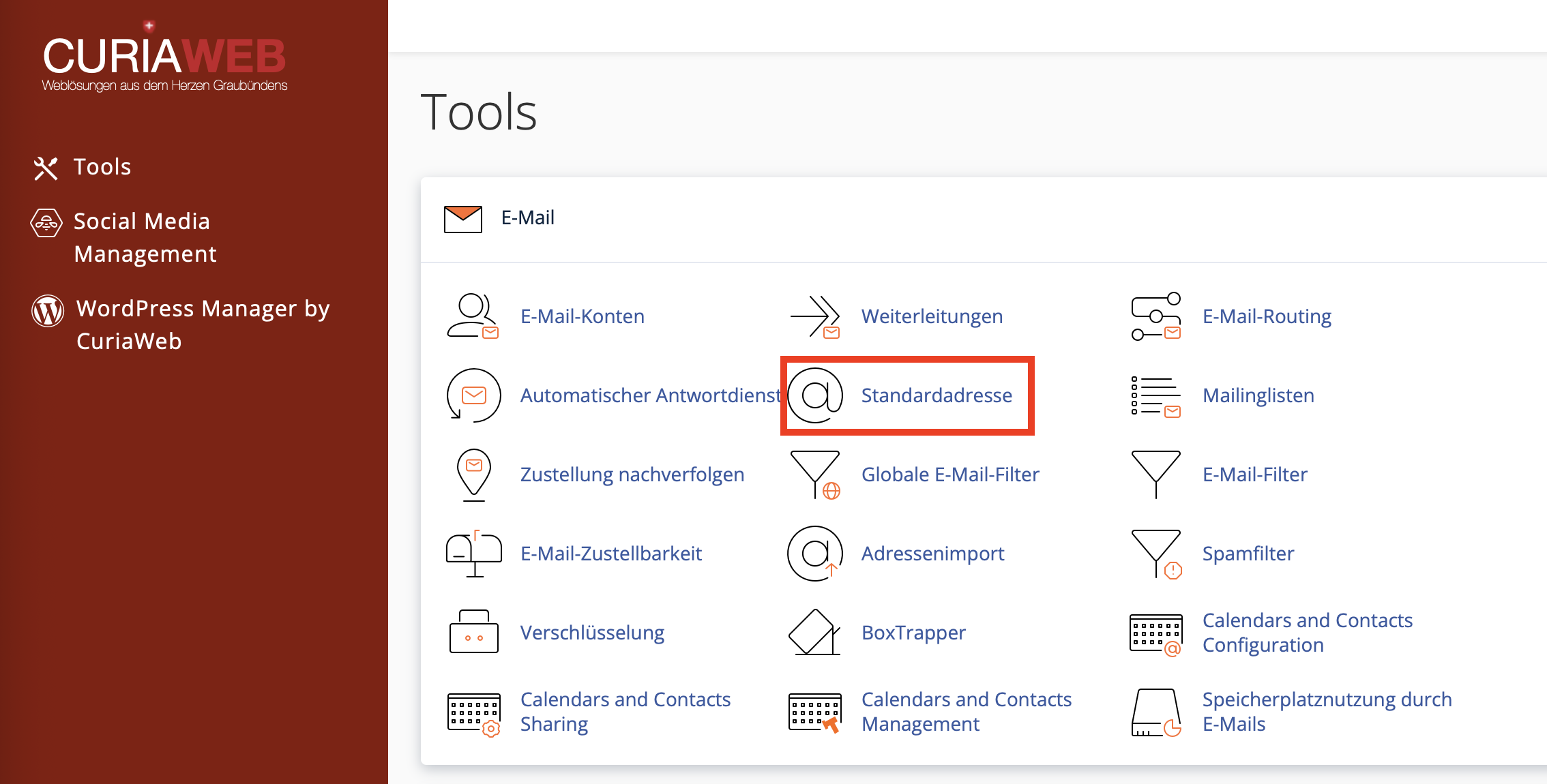
In this section, you can select which domain you want to configure the default address for and how cPanel should handle messages sent to non-existent recipients.
Step 2: Selecting the Domain
If multiple domains are set up in your cPanel account, select the desired domain first. The default address configuration always applies to the selected domain.
Example: A setting for yourdomain.ch affects emails sent to non-existent addresses like test123@yourdomain.ch. Other domains in the same cPanel account can have their own settings.
Important:
Carefully verify that you have selected the correct domain before saving. Especially with multiple websites or addon domains, an incorrect selection can lead to unexpected email behavior.
Step 3: Choosing the Appropriate Action for Misaddressed Emails
cPanel provides several options for handling messages sent to non-existent recipients. The main options are discarding the message with an error message or forwarding it to a defined email address.
Key Options:
- 1. Discard the message with an error message:
The sender receives an automatic error message stating that the address does not exist. This setting is recommended in many cases because invalid recipients are not silently accepted. - 2. Forward to email address:
All messages sent to non-existent recipients are forwarded to a mailbox defined by you. This is the classic catch-all function.
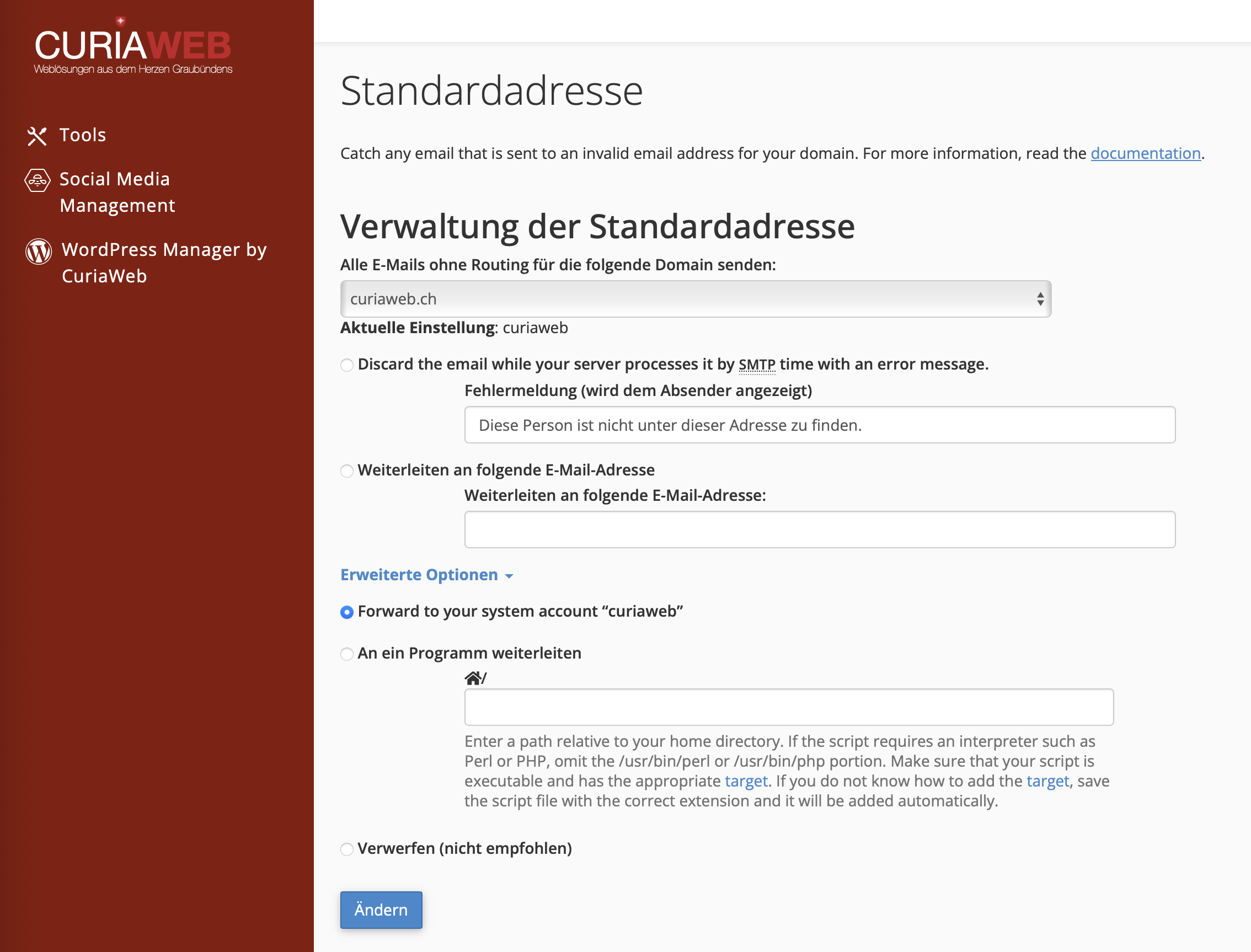
Recommended Setting: Discard Message with an Error Message
For most production domains, it is best practice to reject messages sent to non-existent recipients with an error message. This informs the sender that the address used is incorrect, allowing them to resend the message to the proper address.
This setting also reduces unnecessary deliveries to your mailbox. Especially for domains that are already publicly known, an active catch-all forwarder can otherwise quickly lead to a very high volume of spam.
| Setting | Advantage | Recommendation |
|---|---|---|
| Discard with error message | Reduces spam and informs legitimate senders about incorrect addresses. | Recommended for most domains. |
| Forward to address | Misaddressed messages can still be read. | Use selectively only if the benefit outweighs the spam risk. |
Activating Catch-All: Forward to Email Address
If you deliberately want to use the catch-all feature, select the option to forward to an email address. Then, enter the target mailbox where all misaddressed messages should be collected.
Example: If you enter info@yourdomain.ch as the destination address, messages sent to non-existent recipients like contactform?@yourdomain.ch, infp@yourdomain.ch, or sales123@yourdomain.ch will be forwarded to this mailbox.
Recommendation with active Catch-All:
Whenever possible, use a separate mailbox or a clearly defined destination address. This makes it easier to identify which messages were received via the catch-all function.
Advanced Options
Under the advanced options, cPanel provides additional possibilities. These are intended more for special technical use cases and should only be used if you know exactly what they do.
- Forward to your system account: Forwards messages to the internal cPanel system account. This option is usually only relevant for specific administrative or system-related cases.
- Pipe to a Program: Passes the message to a script or program. This variation is used, for example, for automated processes or specific ticketing workflows.
- Discard without response: Depending on the cPanel configuration, there might be an option to discard messages without notification. This should be used with caution, as legitimate senders receive no feedback.
Caution with Advanced Options:
Forwarding to programs or scripts should only be set up if you know exactly how the target script works. Defective scripts can cause delivery issues or security risks.
Catch-All vs. Individual Forwarders?
It is often better to set up specific individual email forwarders instead of activating a full catch-all address. This gives you more control and reduces unnecessary spam delivery.
| Solution | Suitable for | Assessment |
|---|---|---|
| Catch-All Address | Short-term interception of unknown or misspelled addresses. | Flexible, but more prone to spam. |
| Targeted Forwarders | Known addresses like sales@, support@, or billing@. | More controlled and usually highly recommended. |
| Dedicated Email Accounts | Addresses that actively send, receive, and need to be managed separately. | Ideal for regularly used mailboxes. |
Best Practices for the Default Address
The default address should be deliberately configured. An incorrect setting can either lead to important messages being lost, or your mailbox being flooded with unnecessary spam.
- Reject for production domains: Non-existent recipients should generally be rejected with an error message.
- Use Catch-All selectively: Only enable catch-all if you have a specific purpose for it.
- Monitor spam volume: After activation, check if an unusually high number of unwanted messages arrive.
- Use a separate target address: This keeps your main mailbox tidier.
- Create forwarders for known typos: Instead of using catch-all permanently, common typo addresses can be forwarded selectively.
- Check regularly: Monitor the setting, especially after domain transfers or changes to your email structure.
Typical Real-World Examples
Example 1: Small company with few email addresses
A company uses info@ and billing@. Instead of activating catch-all permanently, only these addresses are set up. Misaddressed emails are rejected so that senders recognize typos.
Example 2: New domain in the launch phase
A new domain is introduced for a project. Catch-all is enabled for a short period to see which addresses customers actually use. Later, frequently used addresses are properly created, and catch-all is disabled again.
Example 3: Heavy spam on unknown addresses
A domain receives mass messages to made-up recipients like admin@, sales@, or test@. In this case, catch-all should be disabled, and non-existent recipients should be rejected with an error message.
Common Problems and Solutions
I am suddenly getting a lot of spam:
Check if catch-all is active. If many messages are delivered to made-up addresses, change the default address to "Discard the message with an error message".
Misaddressed customer messages should still arrive:
You can temporarily enable catch-all or set up targeted forwarders for common typos, such as infp@yourdomain.ch to info@yourdomain.ch.
I manage multiple domains:
Check the default address for each domain separately. The setting only applies to the selected domain.
Messages end up in the wrong mailbox:
Check the destination address of the default address configuration and verify if additional forwarders or filters are set up.
Senders receive error messages:
This is normal behavior for the recommended rejection option. The error message informs the sender that the address used does not exist.
Summary
The default address in cPanel determines what happens to emails sent to non-existent recipients on your domain. As a catch-all, it can forward misaddressed messages to a defined mailbox. This can be helpful, but it comes with a significantly increased risk of spam.
For most domains, it is recommended to reject non-existent recipients with an error message. If you want to use catch-all, you should use the function selectively, monitor the spam volume, and switch to targeted forwarders if necessary.
Need Help with the Default Address or Catch-All Configuration?
CURIAWEB Support is happy to assist you with properly setting up your default address, reducing spam, or configuring targeted email forwarders.
Create Support Ticket