


E-Mail-Konto einrichten: Automatische und manuelle Konfiguration für Outlook, iPhone, Android und weitere Programme
Wenn Sie Ihre CURIAWEB E-Mail-Adresse nicht nur über Webmail, sondern auch in einem E-Mail-Programm oder auf einem mobilen Gerät nutzen möchten, müssen Sie das Konto mit den passenden Serverdaten verbinden. Das betrifft zum Beispiel Microsoft Outlook, Apple Mail, Mozilla Thunderbird, die Gmail-App, ein iPhone, ein iPad oder ein Android-Smartphone.
cPanel bietet dafür zwei Wege: eine automatische Konfiguration über vorbereitete Profile beziehungsweise Skripte und eine manuelle Konfiguration mit IMAP-, SMTP-, Port- und SSL/TLS-Daten. Diese Anleitung erklärt beide Varianten und zeigt Ihnen, welche Einstellungen für CURIAWEB E-Mail-Konten in den meisten Fällen verwendet werden.
Wann benötigen Sie diese Einstellungen?
Sie benötigen die E-Mail-Konfigurationsdaten immer dann, wenn Sie Ihr Postfach ausserhalb von Webmail verwenden möchten. Dazu gehören E-Mail-Programme auf dem Computer, Apps auf dem Smartphone oder Tablet sowie andere Anwendungen, die E-Mails senden oder empfangen sollen.
- Outlook: für Windows oder macOS
- Apple Mail: auf macOS, iPhone oder iPad
- Mozilla Thunderbird: auf Windows, macOS oder Linux
- Gmail-App: für externe E-Mail-Konten auf Android
- Android-Mail-Apps: zum Beispiel Samsung E-Mail oder andere Mail-Apps
- Weitere Clients: spezielle CRM-, Ticket-, Shop- oder Systemanwendungen
Die Grunddaten bleiben dabei meist gleich: vollständige E-Mail-Adresse, Passwort, Posteingangsserver, Postausgangsserver, Ports und Verschlüsselung.
IMAP oder POP3: Welche Variante ist empfehlenswert?
Bei der Einrichtung werden Sie häufig gefragt, ob das Konto als IMAP oder POP3 eingerichtet werden soll. Für die meisten modernen Anwendungen empfehlen wir IMAP.
Bei IMAP bleiben Ihre E-Mails auf dem Server gespeichert und werden mit mehreren Geräten synchronisiert. Wenn Sie eine Nachricht in Outlook lesen, auf dem iPhone löschen oder in Webmail verschieben, wird diese Änderung auf den anderen Geräten ebenfalls sichtbar.
POP3 lädt E-Mails dagegen meist lokal auf ein einzelnes Gerät herunter. Je nach Einstellung können Nachrichten danach vom Server entfernt werden. Das kann zu fehlenden E-Mails auf anderen Geräten führen und ist für die Nutzung mit mehreren Geräten meist nicht ideal.
| Protokoll | Beschreibung | Empfehlung |
|---|---|---|
| IMAP | E-Mails bleiben auf dem Server und werden mit mehreren Geräten synchronisiert. | Empfohlen für Outlook, iPhone, Android, Apple Mail, Thunderbird und Webmail. |
| POP3 | E-Mails werden lokal abgerufen und je nach Einstellung vom Server entfernt. | Nur für spezielle Einzelplatz-Szenarien sinnvoll. |
Der schnellste Weg: Automatische Konfiguration über cPanel
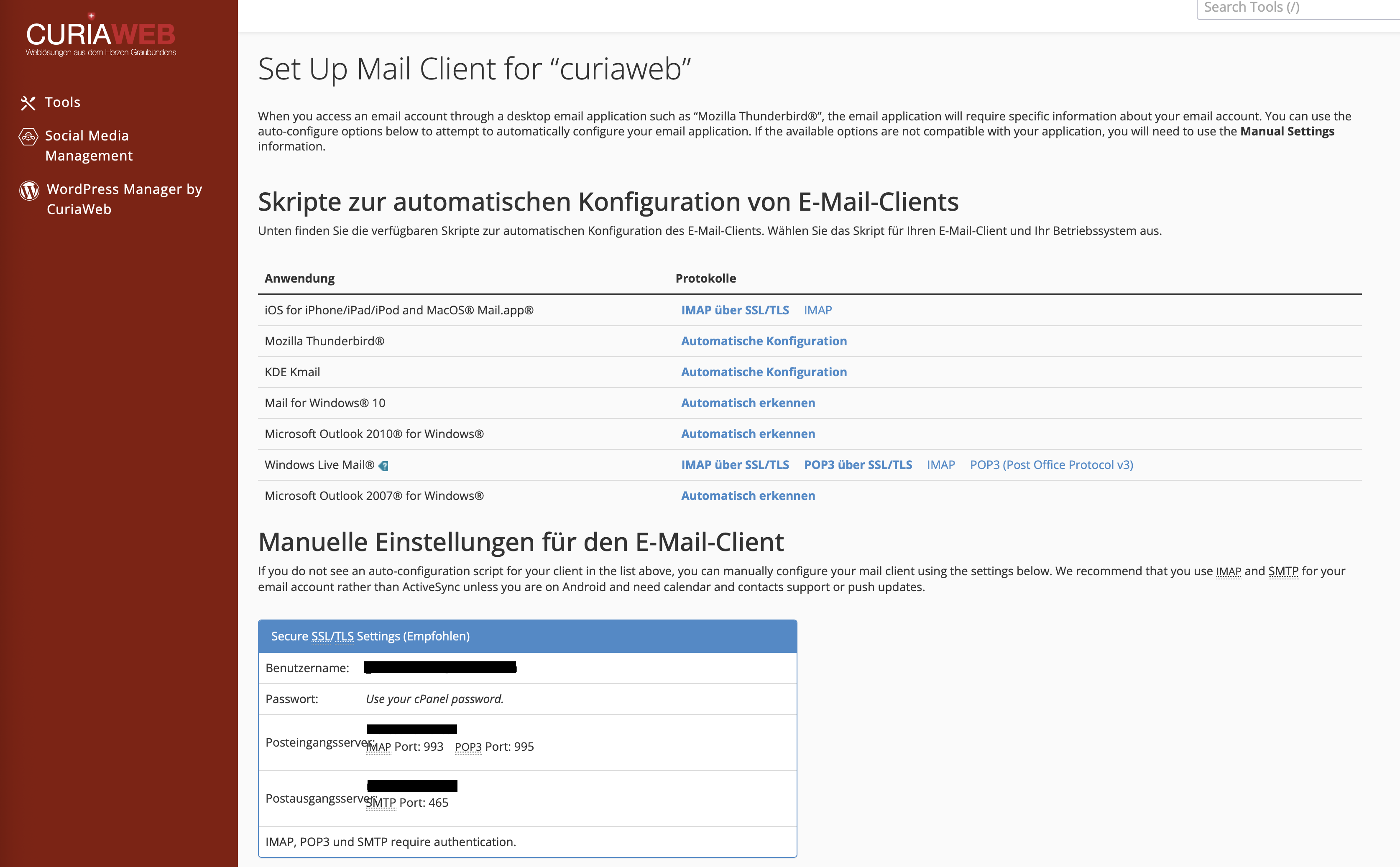
cPanel stellt im Bereich E-Mail-Konten eine Funktion bereit, mit der Sie E-Mail-Programme und Geräte einfacher verbinden können. Je nach Gerät und Anwendung werden dort automatische Konfigurationsprofile oder Anleitungen angezeigt.
Diese Methode ist besonders praktisch, wenn Ihr Gerät oder Programm direkt unterstützt wird. In diesem Fall müssen Sie weniger Serverdaten manuell eintragen. Trotzdem sollten Sie darauf achten, immer die Variante mit IMAP über SSL/TLS zu wählen.
- Melden Sie sich in Ihrem CURIAWEB-Kundenbereich oder direkt in cPanel an.
- Öffnen Sie den Bereich E-Mail-Konten.
- Suchen Sie das gewünschte E-Mail-Konto.
- Klicken Sie neben der Adresse auf Geräte verbinden beziehungsweise Connect Devices.
- Suchen Sie Ihr Gerät oder Programm in der angezeigten Liste.
- Wählen Sie nach Möglichkeit IMAP über SSL/TLS.
- Laden Sie das angebotene Profil oder Skript herunter, sofern verfügbar.
- Führen Sie die Konfiguration auf dem gewünschten Gerät aus.
- Geben Sie bei Aufforderung das Passwort Ihres E-Mail-Kontos ein.
Wichtiger Hinweis zu automatischen Profilen
Automatische Konfigurationsprofile können die Einrichtung vereinfachen, sind aber nicht in jeder Situation die beste Lösung. Manche neueren Programme, Apps oder Betriebssystemversionen unterstützen ältere Skripte nicht mehr oder verarbeiten sie anders als erwartet.
Wenn die automatische Einrichtung nicht funktioniert, verwenden Sie stattdessen die manuelle Konfiguration. Diese ist zuverlässig, transparent und lässt sich in praktisch jedem modernen E-Mail-Programm eintragen.
Manuelle Konfiguration: Standardwerte für CURIAWEB E-Mail-Konten
Wenn Ihr Programm nicht automatisch eingerichtet werden kann oder Sie die Einstellungen lieber selbst eintragen möchten, verwenden Sie die folgenden Standardwerte. Ersetzen Sie ihredomain.ch durch Ihre tatsächliche Domain.
| Einstellung | Wert |
|---|---|
| Kontotyp | IMAP |
| E-Mail-Adresse | Ihre vollständige E-Mail-Adresse |
| Benutzername | Ihre vollständige E-Mail-Adresse |
| Passwort | Passwort Ihres E-Mail-Kontos |
| Posteingangsserver IMAP | mail.ihredomain.ch |
| IMAP-Port | 993 |
| IMAP-Verschlüsselung | SSL/TLS |
| Postausgangsserver SMTP | mail.ihredomain.ch |
| SMTP-Port | 465 |
| SMTP-Verschlüsselung | SSL/TLS |
| SMTP-Authentifizierung | Ja, Anmeldung mit vollständiger E-Mail-Adresse und Passwort |
Falls Ihr E-Mail-Programm alternativ den SMTP-Port 587 mit STARTTLS anbietet, kann auch diese Variante funktionieren. Für eine einfache manuelle Einrichtung ist jedoch häufig Port 465 mit SSL/TLS die klarere Einstellung.
Benutzername: Immer die vollständige E-Mail-Adresse verwenden
Ein sehr häufiger Fehler bei der Einrichtung ist ein unvollständiger Benutzername. Viele Programme schlagen automatisch nur den Teil vor dem @-Zeichen vor. Für CURIAWEB E-Mail-Konten sollten Sie jedoch die vollständige E-Mail-Adresse verwenden.
Beispiel:
- Richtig: info@ihredomain.ch
- Falsch: info
Tragen Sie den vollständigen Benutzernamen sowohl beim Posteingangsserver als auch beim Postausgangsserver ein. Der Versand über SMTP benötigt ebenfalls eine Anmeldung.
Posteingang und Postausgang: Warum beide wichtig sind
Beim Einrichten eines E-Mail-Kontos werden zwei Serverbereiche konfiguriert. Der Posteingangsserver ist für das Empfangen von Nachrichten zuständig. Der Postausgangsserver beziehungsweise SMTP-Server ist für das Senden von E-Mails zuständig.
Es kann daher vorkommen, dass der Empfang funktioniert, der Versand aber fehlschlägt. In diesem Fall sind meist die SMTP-Einstellungen falsch oder unvollständig. Prüfen Sie dann insbesondere Port, Verschlüsselung, Benutzername, Passwort und die aktivierte SMTP-Authentifizierung.
Anweisungen per E-Mail senden
Im Bereich Geräte verbinden beziehungsweise in den manuellen Einstellungen kann cPanel die Konfigurationsdaten auch per E-Mail versenden. Das ist praktisch, wenn Sie die Daten auf einem Smartphone benötigen oder die Einrichtung an eine andere Person weitergeben möchten.
Verwenden Sie dafür eine Adresse, auf die Sie bereits Zugriff haben. Geben Sie diese im Feld E-Mail-Anweisungen ein und senden Sie sich die technischen Daten zu.
Spezielle Hinweise für Outlook
Outlook erkennt E-Mail-Konten nicht immer automatisch korrekt. Verwenden Sie deshalb bei Problemen die manuelle Einrichtung und wählen Sie IMAP. Prüfen Sie bei Versandproblemen immer den SMTP-Server.
- Windows: Datei > Konto hinzufügen > Erweiterte Optionen > manuelle Einrichtung
- macOS: Outlook > Einstellungen > Konten > E-Mail-Konto hinzufügen
- Wichtig: SMTP-Authentifizierung mit vollständiger E-Mail-Adresse aktivieren
Für eine detaillierte Schritt-für-Schritt-Anleitung verwenden Sie den separaten Knowledgebase-Artikel zur Einrichtung von Microsoft Outlook.
Spezielle Hinweise für iPhone und iPad
Auf iPhone und iPad richten Sie das Konto über Einstellungen > Mail > Accounts > Account hinzufügen ein. Wählen Sie Andere und danach Mail-Account hinzufügen.
Wenn iOS die Daten nicht automatisch erkennt, wählen Sie IMAP und tragen Sie Posteingangsserver und Postausgangsserver manuell ein. Auch beim SMTP-Server sollten Benutzername und Passwort eingetragen werden, selbst wenn iOS diese Felder teilweise als optional darstellt.
Für detaillierte iOS-Menüs, Signaturen und Ordnerprobleme verwenden Sie den separaten Knowledgebase-Artikel zur Einrichtung auf dem iPhone.
Spezielle Hinweise für Android
Auf Android hängt die genaue Einrichtung von der verwendeten App ab. Viele Geräte nutzen die Gmail-App, Samsung E-Mail oder eine andere Mail-App. Wählen Sie bei der Einrichtung Andere, Sonstige oder Manuelles Setup und richten Sie das Konto als IMAP-Konto ein.
Achten Sie auf Port 993 mit SSL/TLS für IMAP und Port 465 mit SSL/TLS für SMTP. Verwenden Sie auch hier als Benutzernamen immer die vollständige E-Mail-Adresse.
Für detaillierte Android- oder Gmail-App-Schritte verwenden Sie die separaten Knowledgebase-Artikel zu Android und zur Gmail-App.
Spezielle Hinweise für Apple Mail und Thunderbird
Apple Mail und Mozilla Thunderbird lassen sich zuverlässig manuell konfigurieren. In beiden Programmen sollten Sie IMAP, SSL/TLS und die vollständige E-Mail-Adresse als Benutzername verwenden.
- Apple Mail: Mail > Account hinzufügen > Anderer Mail-Account
- Thunderbird: Neu > Bestehendes E-Mail-Konto > Manuell konfigurieren
- Wichtig: Spezialordner wie Gesendet, Entwürfe und Papierkorb korrekt zuordnen
Wenn Ordner nicht sauber synchronisieren, prüfen Sie in Apple Mail das Postfach-Verhalten und in Thunderbird die Ordner-Abonnements sowie die Einstellungen für Kopien und Ordner.
Häufige Probleme bei der Einrichtung
| Problem | Mögliche Ursache | Lösung |
|---|---|---|
| Konto kann nicht verbunden werden | Servername, Benutzername oder Passwort ist falsch | Serverdaten prüfen und vollständige E-Mail-Adresse als Benutzername verwenden |
| E-Mails werden empfangen, aber nicht gesendet | SMTP-Einstellungen sind falsch oder Anmeldung fehlt | SMTP-Port 465, SSL/TLS, Benutzername, Passwort und Authentifizierung prüfen |
| Zertifikatswarnung erscheint | Servername passt nicht zum Zertifikat oder wurde falsch geschrieben | Servername exakt als mail.ihredomain.ch eintragen |
| Gelöschte E-Mails erscheinen wieder | IMAP-Ordner oder Papierkorb sind falsch zugeordnet | Ordnerzuordnung im jeweiligen E-Mail-Programm prüfen |
| Passwort wird immer wieder abgefragt | Falsches Passwort oder alte gespeicherte Zugangsdaten | Passwort prüfen und gespeicherte Zugangsdaten im Programm aktualisieren |
Passwort ändern oder vergessen
Wenn Sie das Passwort Ihres E-Mail-Kontos vergessen haben, können Sie es in cPanel über den Bereich E-Mail-Konten neu setzen. Danach müssen Sie das neue Passwort in allen verbundenen Geräten und Programmen aktualisieren.
Denken Sie daran, dass viele E-Mail-Programme das Passwort getrennt für Posteingang und Postausgang speichern. Nach einer Passwortänderung sollte daher immer sowohl der Empfang als auch der Versand getestet werden.
Sicherheit und Verschlüsselung
Verwenden Sie nach Möglichkeit immer SSL/TLS für IMAP und SMTP. Dadurch wird die Verbindung zwischen Ihrem Gerät und dem Mailserver verschlüsselt. Besonders auf öffentlichen WLANs, in Hotels, Cafés oder unterwegs ist dies wichtig.
Zusätzlich sollten Sie starke Passwörter verwenden und diese nicht auf fremden Geräten speichern. Wenn Mitarbeitende ein Unternehmen verlassen oder Geräte verloren gehen, sollten die betroffenen E-Mail-Passwörter zeitnah geändert werden.
Empfohlene Sicherheitsregeln:
- Immer SSL/TLS verwenden.
- Starke, individuelle Passwörter einsetzen.
- Passwörter nicht per unsicherer Nachricht weitergeben.
- Nach Geräteverlust Passwort sofort ändern.
- Bei Mitarbeiteraustritt E-Mail-Zugänge prüfen oder deaktivieren.
Zusammenfassung
CURIAWEB E-Mail-Konten lassen sich mit vielen Programmen und Geräten verbinden. Der einfachste Weg führt über cPanel > E-Mail-Konten > Geräte verbinden. Wenn die automatische Konfiguration nicht passt oder nicht verfügbar ist, verwenden Sie die manuelle Einrichtung mit IMAP, SMTP, SSL/TLS und Ihrer vollständigen E-Mail-Adresse als Benutzername.
Für die meisten Nutzer ist IMAP die richtige Wahl, weil Nachrichten zwischen Webmail, Outlook, iPhone, Android, Apple Mail, Thunderbird und weiteren Geräten synchron bleiben. Bei Problemen sollten Sie zuerst Benutzername, Passwort, Servername, Ports und SMTP-Authentifizierung prüfen.
Sie kommen bei der E-Mail-Einrichtung nicht weiter?
Der CURIAWEB-Support unterstützt Sie gerne bei der manuellen Konfiguration, bei Fehlermeldungen oder bei Problemen mit Outlook, iPhone, Android, Apple Mail, Thunderbird und weiteren E-Mail-Programmen.
Tipp: Testen Sie nach jeder Einrichtung immer Empfang und Versand. Senden Sie eine E-Mail an eine externe Adresse und prüfen Sie anschliessend, ob eine Antwort korrekt in Ihrem Postfach ankommt.
