


Global Email Filters in cPanel: Setting rules for all mailboxes simultaneously
With global email filters in cPanel, you can create rules that apply not just to a single mailbox, but to incoming messages for the entire domain. This allows you to centrally manage recurring patterns, unwanted terms, specific senders, or technical characteristics.
While standard email filters are created for a specific email account, global filters apply domain-wide. This is particularly useful if you want to apply a rule to several or all addresses in your domain, for example, to block specific spam patterns, discard messages with certain subject lines, or forward emails based on technical criteria.
What are global email filters?
Global email filters are server-side rules that cPanel applies to incoming messages for a domain. The server checks whether a message meets specific conditions. If it does, the defined action is executed.
For example, a rule can check if the subject contains a certain word, if the sender belongs to a specific domain, or if a specific header is present. The message can then be delivered, discarded, forwarded, or passed to a program.
Difference between standard and global email filters
The most important difference is the scope. A standard email filter is set up for a specific mailbox. A global filter, on the other hand, applies to the domain and can therefore influence multiple mailboxes.
| Filter type | Scope | Typical usage |
|---|---|---|
| Email filters by user | Only one specific email account | Personal sorting, forwarding, or rules per mailbox |
| Global email filters | All matching messages of a domain | Domain-wide rules against spam, specific senders, or central automation |
For most individual sorting tasks, you should use standard email filters first. Global filters make sense when a rule should truly apply to several or all addresses of a domain.
When are global filters useful?
Global email filters are particularly useful when you want to handle recurring messages centrally. Typical areas of application include:
- Blocking messages with clearly recognizable spam terms in the subject line
- Discarding emails from specific unwanted senders or domains
- Forwarding specific messages to a central mailbox
- Filtering automated system notifications for multiple addresses
- Domain-wide rules for old or unused contact addresses
- Technical rules for headers, recipients, or specific patterns
If a rule only affects a single mailbox, a standard email filter is usually the better choice. Global filters should be used purposefully and sparingly.
Opening global email filters in cPanel
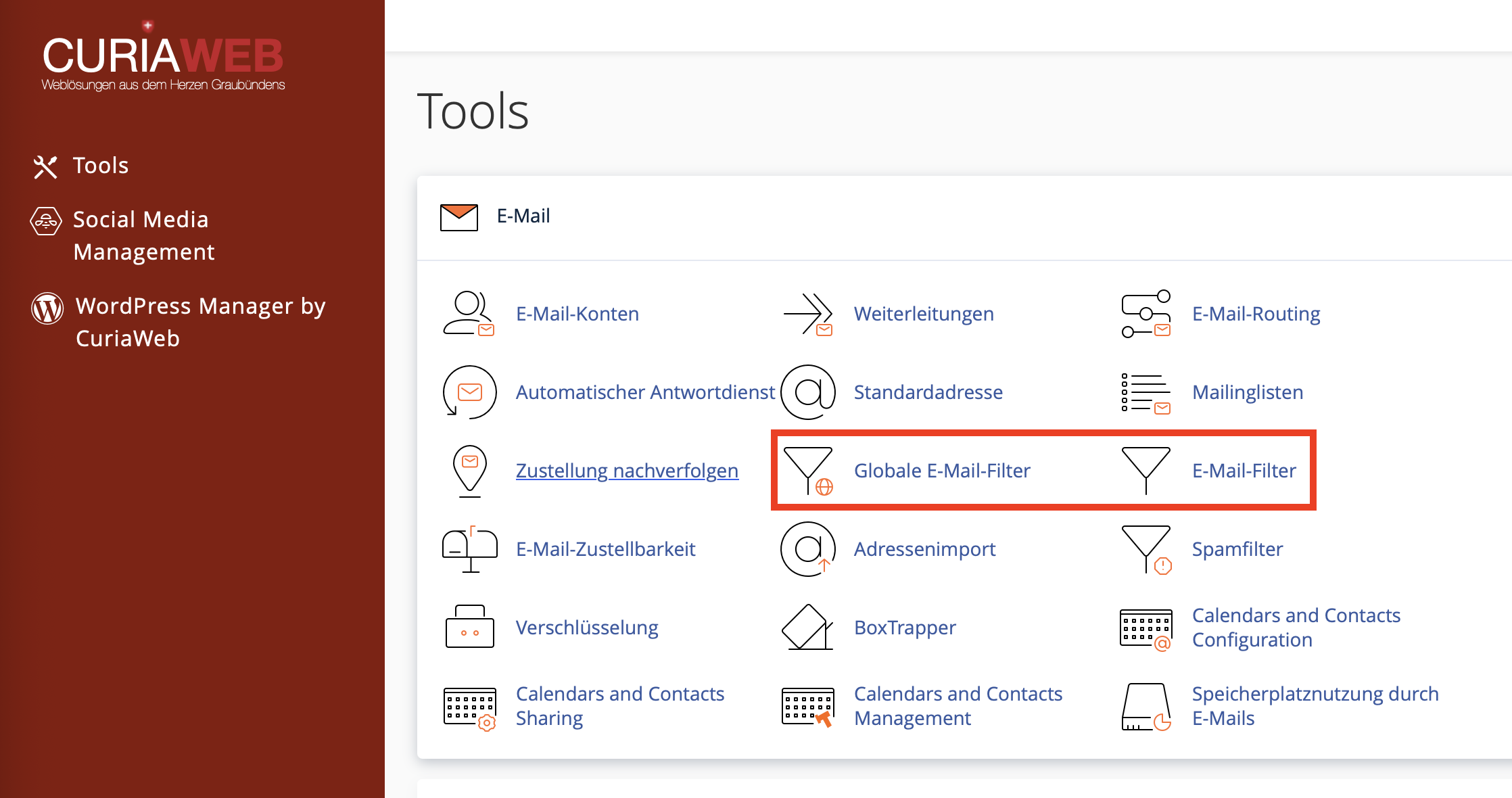
First, log in to your CURIAWEB client area or directly into cPanel. Then, in the Email section, open the Global Email Filters function.
There, you can see existing global filters and create new rules. Check existing filters regularly so that old or no longer needed rules do not have unintended consequences.
- Log in to cPanel.
- Open the Email section.
- Click on Global Email Filters.
- Click on Create a New Filter.
- Assign a unique name.
- Define the rule and the desired action.
- Test the filter before productive use.
- Click on Create.
Step 1: Assign a unique filter name
For every global filter, assign a name that clearly describes its function. This makes management easier later, especially when multiple rules are active.
Good examples for filter names are:
- Discard spam subject giveaway
- Forward old domain to info
- Block sender domain
- Sort system notifications centrally
Avoid unclear names like "Filter 1" or "Test". With global rules, comprehensible documentation is particularly important.
Step 2: Define the rule
The rule determines when the global filter should take effect. Depending on the cPanel version, you can check various fields, for example, sender, recipient, subject, message body, or headers.
| Criterion | Example | Possible use |
|---|---|---|
| Subject | contains "giveaway" | Recognize spam patterns based on subject |
| From | contains "example.com" | Handle specific senders or domains |
| To | contains "sales@" | Distinguish based on target address |
| Body | contains a certain term | Recognize forms or recurring system texts |
| Header | specific technical header | Advanced technical filter rules |
Step 3: Choose the action
The action determines what happens to a message if the rule is met. Especially with global filters, you should prefer safe actions before discarding or deleting messages directly.
| Action | Description | Recommendation |
|---|---|---|
| Discard message | The message is deleted and not delivered. | Use only for clearly unwanted messages. |
| Deliver to folder | The message is delivered to a specific folder. | Safe option for testing and sorting. |
| Redirect to email | The message is forwarded to another address. | Suitable for central collection or monitoring addresses. |
| Return error message | The message is rejected and the sender receives a notification. | Use only for intentionally blocked deliveries. |
Example: Discarding spam with a specific subject
A typical global filter can discard messages with recurring spam terms in the subject. Example: You repeatedly receive spam emails with the word "giveaway" in the subject.
Example rule:
- Rule: Subject contains "giveaway"
- Action: Discard message
If you are unsure whether legitimate messages might be affected, you should first not delete the message, but deliver it to a separate folder or forward it to a monitoring address.
Wildcard redirects and regular expressions
For advanced use cases, global filters can work with regular expressions. This allows you to define patterns that capture multiple similar addresses or senders.
An example: You want to recognize senders like test_user1@example.com, test_user2@example.com, or similar variants. A regular expression can be used for this.
test_user.+@example\.comThe character sequence .+ stands for any character. The dot in example\.com is masked with a backslash so that it is interpreted as an actual dot and not as a wildcard.
Why multiple simple filters are often better
Complex global rules are harder to check and more difficult to maintain later. In many cases, it is better to create multiple simple and clearly named filters instead of using one large rule with many conditions.
This has several advantages:
- Each rule is easier to understand.
- Errors can be found more quickly.
- Individual filters can be specifically deactivated or adjusted.
- The order of rules remains easier to follow.
- Tests are simpler and more meaningful.
Testing global filters
Before putting a global filter into production, you should check it using the Filter Test function. You can enter a sample message and see if the rule acts as expected.
After testing, cPanel shows a technical protocol. This protocol indicates whether conditions were met and whether an action would be triggered.
1 Condition is false: $header_subject: contains "Test"
...
10 Filtering has not set up significant delivery.
11 Normal delivery will occur.
This result means the condition was not met and the message would be delivered normally.
Correctly interpreting test results
| Test result | Meaning | Next step |
|---|---|---|
| Normal delivery will occur | The filter did not trigger. | Check if the condition is too narrow or the wrong field was selected. |
| Significant delivery or action set up | The filter triggered and an action would be executed. | Check if the action is truly desired. |
If the filter does not react as expected, check the spelling, the selected operator, the checked field, and the order of the rules.
Global filters and BCC recipients
A common misconception concerns BCC recipients. The BCC field is usually not transmitted as a visible header to all recipients upon receipt. Therefore, filter rules cannot reliably act based on the BCC field.
If you want to filter messages based on recipient information, use visible fields like To or technical headers, provided they are reliably present. Global email filters are generally not suitable for BCC-based logic.
Common mistakes with global email filters
| Problem | Possible cause | Solution |
|---|---|---|
| Filter doesn't trigger | Wrong field, wrong operator, or condition too narrow | Use filter test and simplify rule |
| Too many messages filtered | Rule is too general or Regex too broad | Refine condition and test with examples |
| Important emails disappear | Global deletion rule discards legitimate messages | Deactivate rule, perform test, and track delivery |
| BCC rule doesn't work | BCC is usually not a filterable field upon receipt | Use other criteria like visible recipients or headers |
| Rules influence each other | Filter order or overlapping conditions | Check order and separate rules clearly |
Best practices for global filters
Global filters are a powerful tool, but should be used in a controlled manner. Especially with commercially used domains, it is important that no legitimate messages are accidentally lost.
Recommended procedure:
- Use global filters only if the rule should truly apply domain-wide.
- Name filters clearly.
- Test with safe actions like delivering to a folder or forwarding.
- Use deletion rules only after a successful test.
- Check Regex rules with extra care.
- Use multiple simple filters instead of one complex rule.
- Delete old or unneeded filters regularly.
- Use "Track Delivery" if messages go missing.
Combining global filters and spam filters
Global email filters can reduce spam, but they do not replace a full-fledged spam filter. Spam filters evaluate messages based on many technical and content characteristics. Global filters, on the other hand, only execute the rules you define yourself.
A combination is often useful: the spam filter handles general spam detection, while global filters specifically process recurring patterns that are particularly relevant to your domain.
Summary
Global email filters in cPanel allow you to set rules for the entire domain. This allows messages for multiple mailboxes to be processed, sorted, forwarded, or discarded simultaneously.
Because global filters act domain-wide, they should be planned and tested with extra care. Use clear filter names, simple conditions, and safe test actions. Deletion rules and Regex patterns should only be used when you are sure no legitimate messages are affected.
For individual mailbox rules, standard email filters are usually better suited. Global filters are the right choice when a rule is intentionally intended to apply to all or several addresses of a domain.
Would you like to set up global filters safely?
The CURIAWEB support team is happy to help you with planning, testing filter rules, or implementing Regex patterns so that important emails are not accidentally lost.
Tip: Always test global filters with sample messages before deploying them. Especially deletion rules and Regex patterns should never be activated unchecked.
