


MySQL Database Wizard in cPanel: Step-by-Step to Your First Database
Many websites require a database to store content, settings, user accounts, orders, or other dynamic information. Typical examples include WordPress, Joomla, Drupal, WooCommerce, PrestaShop, or custom-developed PHP applications.
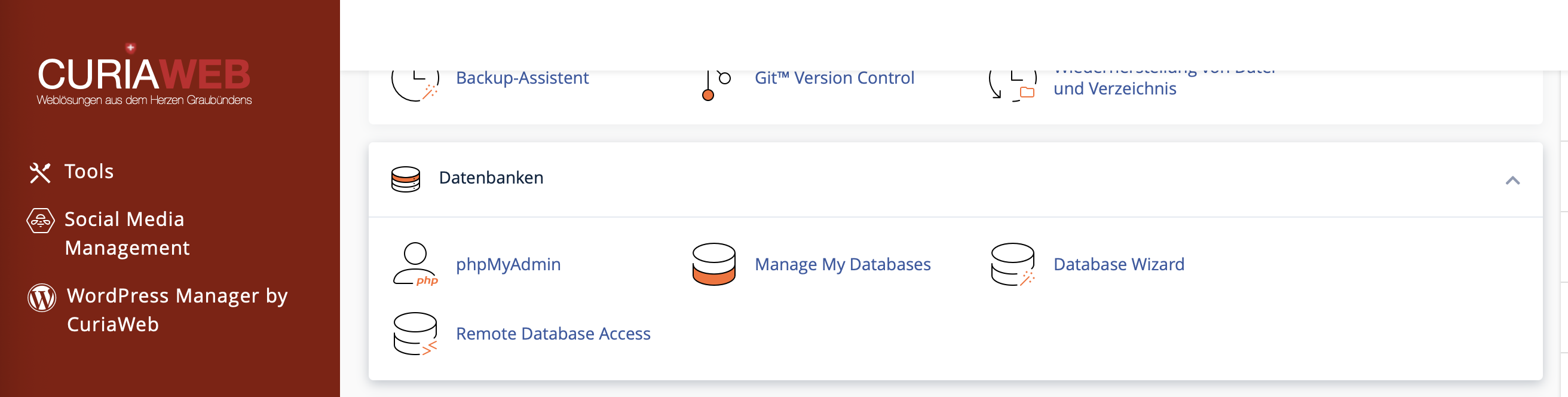
The MySQL Database Wizard or Database Wizard in cPanel guides you step-by-step through creating a database, a database user, and the associated privileges. This is especially useful if you are setting up your first database and want to ensure you don't miss any important settings.
When Do You Need a MySQL or MariaDB Database?
A database is always required when your website needs to dynamically store content or settings. While simple HTML websites often function without a database, modern CMS, blog, shop, and customer portal systems almost always require one.
- WordPress: stores posts, pages, users, settings, and plugin data.
- Online Shops: store products, orders, customer accounts, and shopping carts.
- Forums and Community Systems: store user profiles, posts, and messages.
- Custom Web Applications: store application data, form inputs, or configurations.
Guide: Creating a Database in cPanel in 4 Steps
In cPanel, open the Databases section and select the MySQL Database Wizard or Database Wizard. Then enter a name for your new database.
Important: If database prefixes are enabled in cPanel, your cPanel username followed by an underscore will automatically be added before the database name. For example,
website becomes user_website.In the next step, create a database user. This user will later be used by your website to access the database.
Assign a strong password and save it securely, as you will need it later in your website's configuration file.
Practical Tip: If possible, use the Password Generator in cPanel. You usually do not need to memorize database passwords; you only need to enter them into your application's configuration file, such as wp-config.php for WordPress.
Now you determine which rights the database user receives for the database. For typical CMS installations like WordPress, Joomla, Drupal, or e-commerce systems, you usually select ALL PRIVILEGES.
This allows the application to create tables, insert, modify, and delete data, and execute queries. Without the appropriate permissions, error messages may occur later during the installation or usage of the website.
After assigning the privileges, cPanel confirms the successful link between the database and the user. The database is now ready for use.
Note down the following details for your web application:
- Database Name: e.g.,
user_website - Database User: e.g.,
user_dbuser - Password: the database password you just set
- Database Host: in many cases
localhost
Entering Database Details in WordPress or Other Applications
After creating the database, you must enter the database details into your website or web application. For WordPress, this is done either during the installation process or directly in the wp-config.php file.
The most important entries for WordPress are:
DB_NAME
DB_USER
DB_PASSWORD
DB_HOST
Make sure to use the full database name and the full database username, including the cPanel prefix. A common mistake is entering only the custom name you chose and forgetting the prefix.
Good to Know About Database Names, Usernames, and Prefixes
cPanel can automatically apply a prefix to database names and database usernames. This prefix is usually based on your cPanel username and is followed by an underscore.
| Input in the Wizard | Full Name in cPanel | Note |
|---|---|---|
website |
user_website |
Example of a database name |
dbuser |
user_dbuser |
Example of a database user |
/, ", ', or `. This reduces the risk of compatibility issues with CMS systems, scripts, and import files.What Is the Difference Between a Database and a Database User?
The database is the storage location for tables and data. The database user is the account that a website uses to access this database. Both must be linked to each other so that your application can function correctly.
If a website cannot establish a connection to the database, it is often not due to the database itself, but rather due to an incorrect password, a missing prefix, or because the user has not been assigned to the database.
Common Mistakes with Your First Database
- Forgetting the prefix:
websitewas entered in the configuration file instead ofuser_website. - Incorrect user: The database user was created but not assigned to the correct database.
- Insufficient privileges: The user does not have all the permissions required by the CMS.
- Password copied incorrectly: A space or an incorrect special character was accidentally included.
- Incorrect database host: For normal cPanel websites,
localhostis usually correct unless your application requires otherwise.
Managing the Database Later
After creation, you can continue to manage your database via cPanel. Different sections are available depending on your purpose:
- MySQL Databases: Manage databases, users, and privileges.
- phpMyAdmin: View, edit, import, or export tables and database content.
- Backups: Create or restore database backups, provided this feature is available in your hosting package.
Are you trying to install a website, but the database connection is not working?
The CURIAWEB technical team will be happy to assist you with setting up and verifying your cPanel database.
