


Dynamic DNS (DDNS): Reach Your Home Network or NAS Through Your Own Domain
Dynamic DNS allows you to link a subdomain such as nas.yourdomain.ch automatically to the current IP address of your internet connection. This lets you reach your home network, NAS, VPN or office device through a fixed domain name even if your public IP address changes.
Many private internet connections and some office connections do not receive a permanently fixed IP address from the internet provider. Instead, the public IP address may change after a disconnection, router restart or after a certain period of time. For normal internet use this is not a problem. However, if you want to access a device in your network from outside, such as a NAS, VPN server or internal system, a changing IP address quickly becomes inconvenient.
Dynamic DNS, or DDNS, solves this problem. A DNS record is updated automatically when your router, NAS or another device calls the webcall URL generated by cPanel. cPanel detects the current public IP address of your connection and updates the DDNS record accordingly.
DDNS does not automatically secure your home network. It only ensures that a domain name points to your current IP address. If you make services reachable from the internet, router, firewall, user accounts, passwords, updates and SSL/TLS must be secured carefully.
What Is Dynamic DNS?
Dynamic DNS is a method that automatically updates a DNS record when the public IP address of a network changes. Instead of remembering the current IP address, you use a fixed name such as home.yourdomain.ch, nas.yourdomain.ch or vpn.yourdomain.ch.
The principle is simple: your router, NAS or a device in your network calls a special URL regularly or whenever the IP changes. This URL is generated by cPanel and is unique to your DDNS subdomain. When the call is made, cPanel updates the associated DNS record with the current IP address of the connection.
Typical Use Cases for DDNS
- NAS access: Access a Synology, QNAP or other NAS via
nas.yourdomain.ch. - VPN access: Connect to a private VPN server via
vpn.yourdomain.ch. - Home server: Access a home server, development server or lab system.
- Office location: Reach a small office server without a fixed IP address.
- Monitoring: Access internal status pages or devices if securely exposed.
- Remote administration: Manage selected systems through secured connections.
Important: DDNS does not replace port forwarding
Dynamic DNS only updates the DNS name to your current IP address. For a device to be reachable from the internet, router, firewall and the relevant service must be configured correctly. Whether and which ports should be opened depends on the specific use case.
Requirements for Dynamic DNS in cPanel
For DDNS to work reliably, several requirements must be met:
- The domain must exist and be manageable in your cPanel account.
- The DNS zone of the domain must be managed through cPanel or the relevant nameservers.
- Your router, NAS or another device must be able to call the webcall URL regularly.
- A valid SSL certificate should be available for encrypted connections.
- External access to your home network must be configured securely.
If your domain uses external nameservers, for example with another DNS provider or through Cloudflare, you must check whether the cPanel DDNS feature can actually affect your DNS setup. DDNS only works usefully if cPanel can update the relevant DNS record.
Step by Step: Create a DDNS Domain in cPanel
- Log in to your cPanel account.
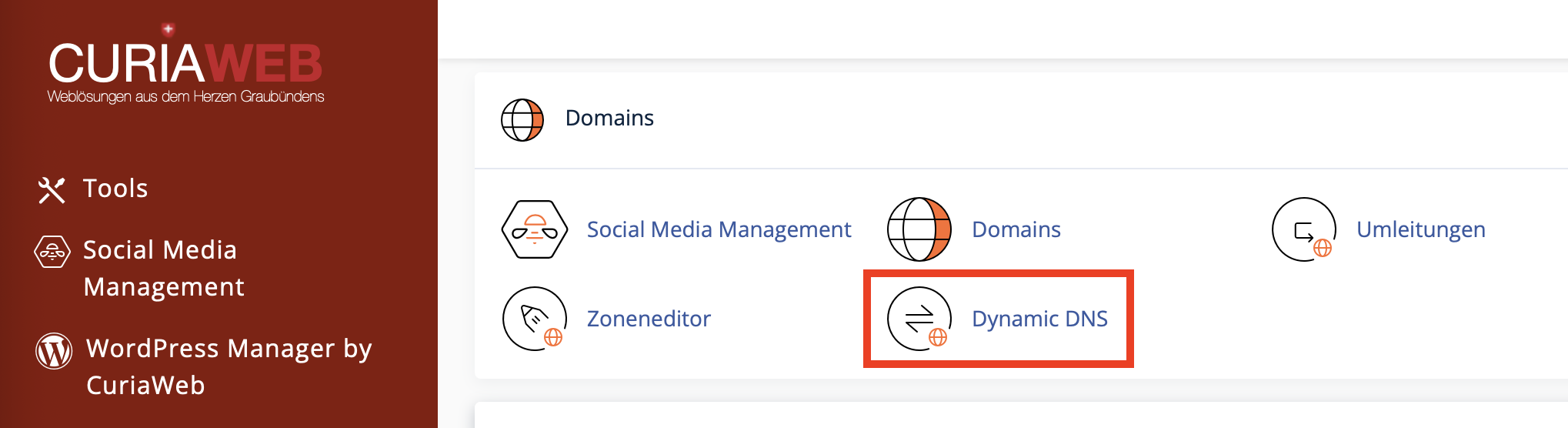
- In the Domains section, open Dynamic DNS.
- Click Create.
- Enter a unique subdomain, for example
nas,homeorvpn. - Select the desired main domain, for example
yourdomain.ch. - Optionally enter a description such as Home NAS, Office Router or VPN Server.
- Click Create to add the DDNS domain.
- After creation, cPanel displays the generated DDNS domain and its webcall URL.
If you create the subdomain nas for yourdomain.ch, the DDNS address becomes nas.yourdomain.ch. After a successful update, this address points to the current public IP address of your connection.
The Webcall URL: The Most Important Part of DDNS
After creating a DDNS domain, cPanel generates a unique webcall URL. This URL is the technical key used to update the DNS record. When your router, NAS or another device calls this URL, cPanel detects the current IP address of the calling connection and updates the DDNS record accordingly.
Such a call can be made with curl, for example:
curl -s https://yourdomain.ch/cpanelwebcall/YOUR_SECRET_CODEThe actual webcall URL is generated by cPanel and must not be guessed or created manually. Always copy it directly from the Dynamic DNS interface.
Do not share the webcall URL publicly. Anyone who knows this URL may be able to trigger update calls for your DDNS domain. If you suspect the URL has been compromised, recreate it in cPanel.
Configure Router, NAS or Server
To keep the DDNS address current, a device in your network must call the webcall URL regularly. Many routers, firewall systems and NAS devices provide a DDNS or custom DDNS function. Depending on the manufacturer, the interface may be called Dynamic DNS, DDNS, Custom Update URL or Custom Provider.
In principle, you only need the webcall URL generated by cPanel. Some devices also require a username, password, hostname or provider details. Because cPanel works with a unique webcall URL, the exact configuration depends strongly on the device.
General procedure
- Open the administration interface of your router, NAS or server.
- Find the Dynamic DNS or DDNS section.
- If possible, choose a custom provider or custom URL function.
- Enter the webcall URL from cPanel.
- Save the configuration.
- Run a test if your device offers this option.
- Then check in cPanel whether Last Run Time or Last Update Time has changed.
Manual Update with curl or Cron Job
If your router does not provide a suitable DDNS function, you can let another device inside your network call the webcall URL regularly. On Linux, macOS or many NAS systems, this can be done with a cron job.
*/10 * * * * curl -s "https://yourdomain.ch/cpanelwebcall/YOUR_SECRET_CODE" > /dev/null 2>&1This example calls the webcall URL every ten minutes. Adjust the interval sensibly. A very short interval is usually unnecessary, while a very long interval may delay an IP address update.
SSL Certificate and Secure Connection
cPanel recommends using a secure connection over HTTPS. In the DDNS table, depending on availability, you can display and copy the certificate of the DDNS domain through View SSL Certificate.
Some routers or devices require a certificate to call the webcall URL over an encrypted connection. If your device validates certificates, the certificate information shown in cPanel may be relevant.
If cPanel does not show an SSL certificate for your DDNS domain, check the SSL/TLS Status section in cPanel. Depending on your hosting configuration, a certificate for the DDNS subdomain can be checked or requested through AutoSSL.
Security When Accessing a Home Network, NAS or VPN
DDNS only ensures that your current IP address remains reachable through a fixed name. The actual security of your home network depends on the services you expose and how they are configured.
Pay special attention to the following points:
- Only open ports that are truly required.
- Use strong passwords and, if possible, two-factor authentication.
- Keep router, NAS, firewall and applications up to date.
- Use HTTPS, VPN or other encrypted connections.
- Avoid exposing unprotected administration interfaces directly to the internet.
- Regularly check logs and login attempts.
Recommendation
If you want to access several internal services, a VPN is often safer than many individual port forwards. DDNS can then be used to make the VPN server reachable under a fixed name such as vpn.yourdomain.ch.
Managing DDNS: Recreate URL or Delete Entry
In the Dynamic DNS overview, cPanel displays existing DDNS domains with information such as domain, IP address, webcall URL, SSL certificate and last update times. You can manage DDNS entries through the Action menu.
Recreate URL
If you suspect that your webcall URL has become known or is no longer secure, you can generate a new webcall URL using Recreate URL. Afterwards, you must enter the new URL in your router, NAS or script.
Delete DDNS domain
If you no longer need a DDNS domain, you can delete it. This removes the DDNS function for that subdomain. Before doing so, check whether devices, scripts, router rules or external connections still use this address.
Common Problems and Solutions
1. The IP address does not update
Check whether the webcall URL is actually being called by the device. If needed, test the URL manually in a browser or with curl. Also check whether the router or NAS logs connection errors.
2. The DDNS domain points to the wrong IP
If the webcall URL is not called from your home network but from another server or external service, cPanel may store the wrong IP address. The call should come from the network whose public IP address should be updated.
3. Router does not support a custom DDNS URL
Some routers only support predefined DDNS providers. In this case, a device inside the network can call the webcall URL regularly via script or cron job.
4. Access does not work although the IP is correct
In that case, the issue is often not DDNS but firewall, port forwarding, NAT, service configuration or the target device. Check whether the desired service works locally and whether the required ports are forwarded correctly.
5. HTTPS certificate is not accepted by the device
Check whether a valid certificate exists for the DDNS subdomain. If your device wants to import a certificate, use the View SSL Certificate function in cPanel.
Frequently Asked Questions About Dynamic DNS
Is DDNS the same as a fixed IP address?
No. DDNS does not replace a fixed IP address. It only updates a domain name automatically to the current dynamic IP address.
Can I use DDNS for a NAS?
Yes. DDNS is often suitable for NAS systems, provided router, firewall and NAS are configured securely.
Does my router need to support DDNS?
Not necessarily. If the router does not provide a suitable function, another device in the network can call the webcall URL regularly.
Is DDNS secure?
DDNS itself is only an update mechanism. Security depends on which services you expose and how well they are protected.
Can CURIAWEB Support configure my router?
CURIAWEB Support can assist with the cPanel and DNS side. The exact configuration of your router, NAS or firewall depends on the manufacturer and device.
Register a New Domain
For Dynamic DNS, you need a domain or subdomain that you can use for your home network, NAS, VPN or office device. With CURIAWEB, you can check and register your desired domain directly online.
