


Disk Space Usage: Monitoring Hosting Limits and Freeing Up Space
The Disk Usage feature in cPanel helps you monitor the storage space occupied by your hosting account and quickly locate large resource consumers. This is particularly important if your web hosting package has a specific disk space quota or if your website, emails, backups, or databases grow over time.
A full hosting account can lead to serious issues. New files may fail to upload, CMS updates can fail, temporary files cannot be written, backups may no longer be created correctly, or email inboxes might stop receiving new messages. Therefore, you should check your disk space usage regularly and not wait to react until the limit has already been reached.
In this article, you will learn how to correctly interpret disk space usage in cPanel, which areas are most commonly responsible for high storage consumption, and how to safely free up space again.
If your disk space quota is completely exhausted, you should act promptly. A full hosting account can prevent applications from writing new data. This potentially affects uploads, emails, cache files, database operations, log files, or automatic backups.
What Does Disk Usage Show in cPanel?
The cPanel Disk Usage feature shows you how much storage space is being used across the various areas of your hosting account. This display helps identify large folders and conspicuous storage hogs.
Depending on your hosting configuration, various areas may be included in the disk space calculation, such as:
- Website files in the home directory,
- Files in the
public_htmlfolder, - Subdomains and addon domains,
- Email inboxes,
- Databases,
- Backups and archives,
- Log files,
- Temporary files,
- Cache files from CMS systems or plugins.
Disk space usage is therefore a diagnostic tool. It does not just show you that storage space is occupied, but also helps you identify where this space is being consumed.
Why Regular Monitoring Is Important
Many storage issues do not arise suddenly from a single large file, but rather creep up over time. A website grows over months, email inboxes accumulate attachments, backup plugins retain too many archives, cache directories expand, or error logs grow unnoticed.
Regular checks help you spot these trends early on. This allows you to take action before the hosting limit is reached.
A check is particularly useful:
- Before major website updates,
- After a relaunch or import,
- When backups fail,
- When files can no longer be uploaded,
- When emails are no longer being delivered,
- When WordPress, Joomla, or another CMS displays error messages,
- When cPanel displays a disk space warning,
- Regularly for rapidly growing websites or online shops.
How to Open Disk Usage in cPanel
To open the disk space analysis:
- Log in to your cPanel account.
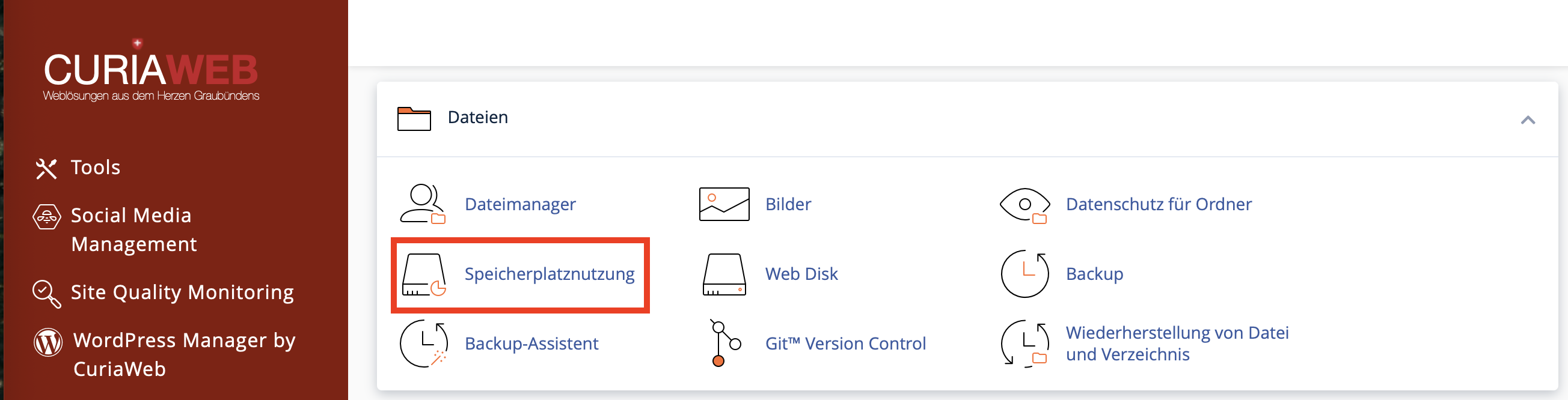
- Go to the Files section.
- Click on Disk Usage.
- Wait for cPanel to calculate and display the storage values.
- Check the overview first, and then the detailed directory list.
The calculation may take some time depending on the account size and the number of files. For very large accounts or many small files, the display might appear delayed.
Understanding the Overview Correctly
In the upper section of the Disk Usage page, you will often find a summary of important account areas. This overview highlights which main sections are using the most storage.
Large attachments, full trash folders, spam folders, or extensive sent folders can take up a lot of space.
Images, videos, PDFs, downloads, CMS files, themes, plugins, and upload folders are usually located in the web directory.
Databases can grow due to posts, products, orders, logs, statistics, revisions, or plugin data.
Old backup files, database exports, and large error logs are common hidden storage hogs.
If an area is particularly large, you should investigate it more closely. However, the overview alone does not always reveal which specific file or folder is responsible.
Detailed Directory Analysis
In the lower section of the Disk Usage page, you will often find a detailed list of your directories. There you can see how much space each folder occupies. This view is especially useful when you want to narrow down storage consumption step by step.
Typical workflow:
- Scroll down to the detailed directory overview.
- Look for particularly large folders.
- Click on a folder name if cPanel offers a direct link to the File Manager.
- In the File Manager, check which files or subfolders are particularly large.
- Only delete data whose purpose you know or that you have backed up beforehand.
The displayed values may vary slightly from the visible file size. File systems store data in blocks. Therefore, a very small file can occupy more space on the disk than its pure file size would suggest.
Common Storage Hogs in Hosting Accounts
If your disk space is growing unusually fast, it pays to look into typical causes. Many of these can be safely cleaned up if you know what to look for.
| Area | Typical Cause | Recommendation |
|---|---|---|
| Large attachments, trash, spam, old sent folders. | Check inboxes, empty trash and spam, archive old attachments. | |
| Website Uploads | Images, videos, PDFs, downloads, and media folders. | Check large files, remove unneeded media, optimize images. |
| Backups | ZIP files, TAR archives, backup plugin saves. | Save important backups locally and remove old archives from the server. |
| Logs | Large error_log files caused by recurring PHP errors. |
Check log file, delete it, and fix the cause if it grows again. |
| Cache | Cache files from WordPress, Joomla, shops, or performance plugins. | Clear the cache through the respective CMS or plugin. |
| Databases | Revisions, logs, sessions, shop data, plugin tables. | Perform database cleanups only target-oriented and with a backup. |
Checking and Cleaning Up Email Storage
Email accounts are frequently underestimated. Large attachments, old messages, spam folders, and trash can take up a significant amount of storage space.
How to free up space in your emails:
- Empty the trash and spam folders.
- Check the Sent folder, as it often contains large attachments.
- Archive old emails locally if you do not need them on the server long-term.
- Delete email accounts that are no longer needed.
- Check if an email client is set to permanently leave messages on the server.
Do not delete email data directly through the File Manager. Instead, use Webmail, your email client, or the designated cPanel functions.
Checking Website Files and Releasing Storage
Website files are usually located in the public_html folder or in the document root of an addon domain or subdomain. Large media files, old installations, and forgotten archives can consume a lot of space there.
Pay close attention to:
- Old ZIP files,
- Database exports with
.sqlextension, - Backup files with
.tar.gz,.bak, or.oldextensions, - Old test folders like
test,old,backup, orstaging, - Large images or videos,
- Downloads that are no longer needed,
- Cache folders from CMS plugins.
Download important files locally before deleting them. Database exports and full website backups, in particular, should not be kept permanently in the publicly accessible web directory.
Databases as a Storage Factor
Databases can grow significantly depending on the website. For WordPress, Joomla, shop systems, or other database-driven applications, content, settings, users, orders, form entries, logs, or plugin data are stored in databases.
Typical causes of large databases include:
- Numerous post revisions,
- Old spam comments,
- Statistics or log tables,
- Session data,
- Shop orders and customer details,
- Plugin tables that were not cleanly removed,
- Temporary or orphaned data.
Never delete or empty database tables without a current backup and without knowing exactly what the table is used for. Faulty database cleanups can corrupt websites, shops, or logins.
For database cleanups, you should use the maintenance functions of your application or a suitable, trustworthy tool whenever possible. For business-critical websites, extreme caution is advised.
What to Do If the Disk Space Limit Is Exceeded?
If cPanel reports that your storage quota has been exceeded, you should proceed systematically and quickly.
- Open Disk Usage in cPanel.
- Identify the largest storage area.
- First, check obvious candidates like old backups, ZIP files, cache folders, and
error_logfiles. - Empty email trash and spam folders if emails are consuming a lot of space.
- Download important archives locally and remove them from the server.
- Clear caches via the respective CMS or plugin if possible.
- Afterward, check the disk space display again.
If you are unsure which files can be safely deleted, do not delete them on a hunch. In this case, a check by support is much wiser than a risky intervention.
Why Doesn't the Storage Display Update Immediately?
After deleting files, it can happen that the disk space display does not immediately reflect the new free space. This can have several reasons:
- The storage calculation is updated with a time delay.
- Deleted files are still in the trash.
- A cache or quota display has not been recalculated yet.
- A process continues to write new data.
- A large log file is generated again right after deletion.
Wait a few minutes and check the display again. Also, make sure to verify whether deleted files are in the trash and continue to occupy space there.
What You Should Not Delete Thoughtlessly
A full storage disk tempts people to quickly delete large folders. However, this can be dangerous. Some areas are vital for the operation of your hosting account or your website.
| File or Folder | Why Caution Is Needed |
|---|---|
mail |
Contains email data. Do not delete directly in the File Manager. |
.cpanel |
Contains cPanel-related configurations and should not be manually modified. |
etc |
May contain configuration data. |
public_html |
Main area of your website. Only remove known files purposefully. |
| Database tables | Can contain important website, shop, or customer data. |
If you are uncertain, download a file locally first or rename it as a test instead of deleting it permanently right away. For critical files, a backup should always be created beforehand.
Reducing Storage Space Permanently
In addition to acute cleanup actions, you can prevent your storage space from filling up quickly again by improving your workflows.
- Optimize images before uploading them.
- Avoid storing large videos directly on your web hosting if they can be embedded externally.
- Limit the number of automatically saved backups.
- Remove old staging and test installations.
- Regularly empty email trash and spam folders.
- Check cache plugins and their retention periods.
- Delete old database exports after downloading them.
- Check
error_logfiles regularly.
When Is a Hosting Upgrade Useful?
Not every storage issue can be solved by deleting files. If your project is genuinely growing, a larger hosting package can be useful and the better long-term solution.
An upgrade may be useful if:
- Your website permanently contains more media, products, or downloads,
- Multiple websites are operated within the same hosting account,
- Email accounts regularly require a lot of storage space,
- Backups need more room for ongoing operations,
- You quickly hit the limit again despite cleaning up,
- Your business is growing and requires more resources.
A brief storage analysis is still useful before upgrading. This avoids old digital garbage growing permanently and occupying unnecessary space.
Recommended Maintenance Schedule
For many websites, a simple regular check is sufficient:
- Monthly: Check Disk Usage in cPanel.
- Monthly: Control email trash and spam folders.
- After Updates: Check whether backup files or log files were generated.
- Quarterly: Remove old ZIP files, database exports, and test folders.
- On Warning Messages: Perform a disk space analysis immediately.
For fast-growing websites, shops, or a high number of email accounts, more frequent monitoring may be beneficial.
FAQ on Disk Usage in cPanel
What happens if my hosting storage is full?
Depending on the affected application, uploads, emails, updates, backups, cache files, or write operations may fail. Fully exhausted storage space should therefore be cleaned up or expanded promptly.
Why do the displayed file size and occupied space differ?
File systems store data in blocks. A small file can physically occupy more storage space than its pure file size. Therefore, displayed values can vary slightly.
Why is more space not displayed immediately after deletion?
The storage display can be updated with a delay. Furthermore, deleted files might still be in the trash, or a process could be generating new files. Check the display again after a few minutes.
Should I keep old backups on the server?
Only as long as they are truly required. Important backups should be stored locally or in a secure external location. Old ZIP or database exports should not be kept permanently in the web directory.
Can I delete email storage via the File Manager?
You should avoid doing that. Clean up emails via Webmail, an email client, or the provided cPanel functions. Direct deletion of mail directories can damage mailboxes.
When should I contact support?
Contact support if you are not sure which files can be deleted, if databases are affected, if storage is full again immediately after a cleanup, or if an upgrade needs to be evaluated.
The cPanel Disk Usage feature helps you monitor the occupied space of your hosting account and find large storage consumers. Check email accounts, website files, backups, log files, cache folders, and databases in particular. Only delete data whose purpose you know, and back up important files locally beforehand. If your project is growing long-term, a hosting upgrade can also be useful after a cleanup.
If you are not sure which data can be deleted, or if your hosting package permanently requires more storage, the CURIAWEB support team will gladly assist you with analysis and advice.
Create Support Request