


Web Disk (WebDAV): Mounting Hosting Storage as a Network Drive
With the Web Disk in cPanel, you can mount the storage space of your hosting account directly into your operating system using the WebDAV protocol. This makes server files appear similar to a network drive or external storage in Windows Explorer, the macOS Finder, or in compatible apps on mobile devices.
Instead of managing files via the cPanel File Manager in your browser or opening a separate FTP program, Web Disk allows you to work directly from within your local file system. You can open, upload, download, move, or delete files – depending on the permissions assigned to the respective Web Disk account.
Web Disk is particularly suitable for simple file storage, shared working folders, smaller uploads, document sections, or convenient access to specific hosting directories. However, for classic website deployments, very large file transfers, or professional development workflows, FTP, FTPS, or SFTP is often better suited.
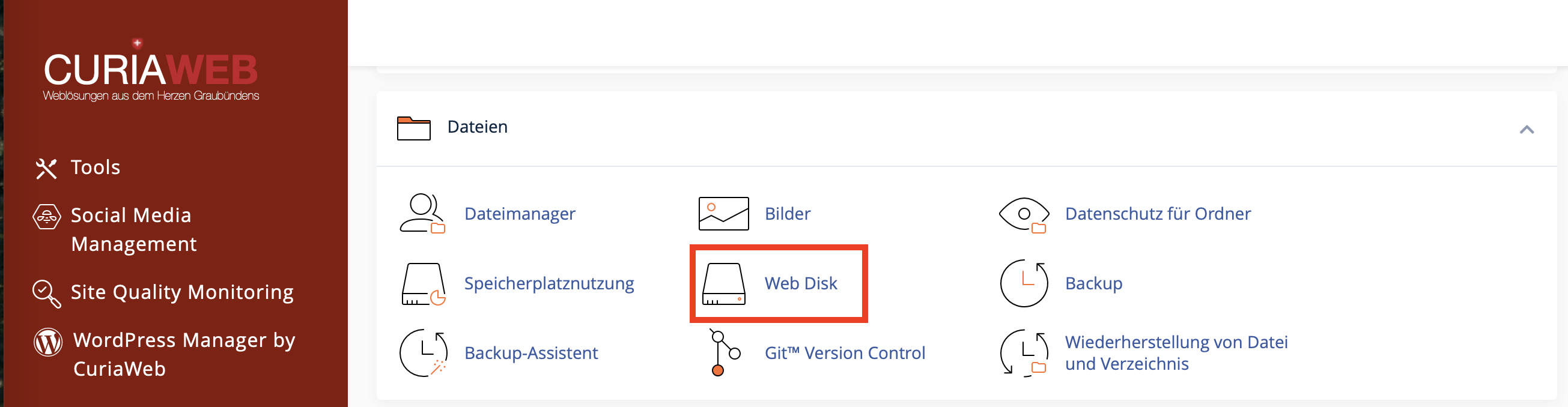
Web Disk is based on WebDAV. WebDAV extends HTTP or HTTPS with file management functionalities. This allows a server folder to be mounted just like a network drive.
What is Web Disk Suitable For?
Web Disk is useful when you or other authorized persons want straightforward access to specific files in the hosting account without having to work directly with cPanel or FTP.
Typical use cases include:
- Shared file storage for smaller project files,
- Access to specific download or document folders,
- Providing a separate folder for employees or clients,
- Conveniently uploading and downloading individual files,
- Managing files via Windows Explorer or macOS Finder,
- Mobile access via WebDAV-compatible apps,
- A simple alternative to the cPanel File Manager for specific folders.
The main advantage is that you can create separate Web Disk accounts. This means you do not have to hand out your main cPanel login credentials and can restrict access precisely to a specific folder.
Comparison: Web Disk, FTP/SFTP, and File Manager
Web Disk is not always the best solution for every scenario. Depending on your workflow, the File Manager, FTP/FTPS, or SFTP might be more appropriate.
| Tool | Suitable For | Note |
|---|---|---|
| Web Disk / WebDAV | Mounting as a network drive, simple file storage, accessing specific folders. | Convenient, but depending on the operating system and network, not always as stable as FTP/SFTP. |
| cPanel File Manager | Quick individual actions directly in the browser. | Ideal for minor changes, uploads, ZIP files, and file editing. |
| FTP / FTPS | Regular file transfers, a large number of files, collaborating with agencies. | FTPS should always be preferred over unencrypted FTP. |
| SFTP | Secure file transfer via SSH, developer workflows. | Requires SSH/SFTP access and is technically not the same as FTP. |
If you simply want to open a folder conveniently like a drive, Web Disk is very practical. On the other hand, if you regularly transfer many website files or work with code, an FTP/SFTP client is often more robust.
Main Account and Additional Web Disk Accounts
In cPanel, there is usually a main Web Disk account connected to your primary cPanel account. This account has extensive access rights and should be used with appropriate caution.
For employees, clients, agencies, or project-based access, it is better to create additional Web Disk accounts. These can be restricted to specific directories and assigned appropriate permissions.
- Main Account: Corresponds to the primary cPanel login and usually cannot be deleted.
- Additional Web Disk Account: Separate access for a specific user or purpose.
- Directory Binding: Defines which folder the account is allowed to see and use.
- Permission: Determines whether files can only be read or also modified.
Do not share your main cPanel account credentials if a restricted Web Disk account is sufficient. Create a separate account for each person or purpose with access restricted only to the required folder.
Creating an Additional Web Disk Account
An additional Web Disk account is useful when someone needs access to a specific folder but does not require full access to your hosting account.
Step-by-Step Instructions
- Log in to cPanel.
- Open the Web Disk feature in the Files section.
- Go to the section for additional Web Disk accounts.
- Enter a username.
- Choose a strong password or use the password generator.
- Specify the desired Directory.
- Select either Read/Write or Read Only permission.
- Click on Create.
The specified directory is particularly important. It determines which files the user can see and edit via Web Disk. If you only want to grant a user access to a project folder, you should not share the entire home directory or the whole public_html folder.
Permissions: Read/Write or Read Only?
When creating or editing a Web Disk account, you can set permissions. These determine what the user is allowed to do within the assigned directory.
| Permission | What is allowed? | Suitable For |
|---|---|---|
| Read/Write | View, download, upload, modify, and delete files. | Active project work, upload areas, employees with editing rights. |
| Read Only | View, download, and list files, but not modify them. | Client approvals, document viewing, download areas. |
Only grant write permissions when they are actually needed. A user with write permissions can modify or delete files. For many pure download or viewing areas, Read Only is completely sufficient.
Connecting: Configuring Client Access
cPanel makes setting up easy with the Configure Client Access function. There you can select your operating system and retrieve the appropriate connection details.
Depending on the interface, the following options are available to you:
- Selection of the operating system, for example Windows, macOS, iOS, or Android,
- Download of a configuration script,
- Display of manual connection data,
- Server address and port,
- Username of the Web Disk account.
If the automatic setup does not work, you can usually set up the connection manually using the displayed credentials.
Important Ports: 2078 for SSL, 2077 Unencrypted
Special ports are typically used for Web Disk/WebDAV in cPanel.
| Connection | Port | Recommendation |
|---|---|---|
| WebDAV via SSL/TLS | 2078 |
Recommended. Always use the encrypted connection whenever possible. |
| WebDAV Unencrypted | 2077 |
Not recommended, as data is not fully encrypted during transmission. |
For secure usage, you should always use Web Disk via SSL/TLS and port 2078 if possible. Make sure that local firewalls, security programs, or corporate networks do not block this port.
Always use Web Disk encrypted via SSL/TLS. Unencrypted connections should be avoided, especially when transmitting login details or confidential files.
Mounting Web Disk on Windows
On Windows, WebDAV connections can be mounted as a network drive or a network location. The exact steps may vary slightly depending on your Windows version.
General Process
- Open the Web Disk feature in cPanel.
- Click on Configure Client Access next to the desired account.
- Select Windows, if offered.
- Either use the provided configuration script or copy the manual connection details.
- Open Windows Explorer.
- Add a network location or map a network drive.
- Enter the WebDAV address along with the SSL port
2078. - Log in with the username and password of the Web Disk account.
If Windows cannot establish a connection, first check the username, password, port, SSL connection, and local firewall. Some networks block non-standard ports.
Mounting Web Disk on macOS
On macOS, WebDAV can be mounted directly within the Finder.
General Process
- Open the Finder.
- In the menu bar, select Go and then click Connect to Server.
- Enter the WebDAV address, ideally encrypted via HTTPS and port
2078. - Click Connect.
- Enter the username and password of the Web Disk account.
- After a successful login, the Web Disk storage will appear in the Finder.
If the connection is unstable or files do not save reliably, a specialized WebDAV client or alternatively FTP/SFTP might be the better solution.
Web Disk on iOS and Android
WebDAV can also be used on mobile devices, provided a suitable app is installed. Many file manager apps support WebDAV connections and enable access to server files.
When using mobile apps, pay special attention to:
- Using an encrypted connection,
- Securely storing your login credentials,
- Device lock settings and protection in case the device is lost,
- Not automatically syncing sensitive files without verification,
- Avoiding public Wi-Fi networks without additional security measures.
Digest Authentication: When is it Needed?
Digest authentication is a specific technical topic that is primarily relevant to Windows and unencrypted WebDAV connections. Some Windows versions require Digest Authentication when Web Disk is used over an unencrypted connection.
Digest authentication does not protect the entire data transmission. It primarily protects the password during login but does not replace a fully encrypted SSL/TLS connection. Therefore, always use SSL via port
2078 whenever possible.If your domain has a valid SSL certificate and you can use Web Disk via port 2078, Digest Authentication is normally not required. However, if you use an unencrypted connection instead, Windows may demand Digest Authentication.
For security reasons, unencrypted WebDAV connections should always be avoided.
Security and Access Control
Since Web Disk grants direct access to your hosting account files, Web Disk accounts should be managed carefully. Especially with write permissions, there is always a risk that files might be modified or deleted by mistake.
- Create separate accounts for individual people or specific purposes.
- Restrict each account strictly to the folder that is actually required.
- Assign Read Only permissions if no editing is necessary.
- Use strong, unique passwords.
- Change or delete access privileges as soon as they are no longer needed.
- Always use SSL/TLS via port
2078whenever possible. - Never share your main cPanel login details.
- In case of issues, check whether your firewall or security software is blocking access.
Typical Problems and Solutions
| Problem | Possible Cause | Solution |
|---|---|---|
| Connection fails | Incorrect host, username, password, or port. | Re-check the data from Configure Client Access. |
| Port 2078 unreachable | Firewall, router, or corporate network is blocking the port. | Check your firewall or test using a different network. |
| Windows reports incorrect disk space | Depending on the system, WebDAV cannot always query server capacities accurately. | Check your actual disk space directly inside cPanel. |
| Files cannot be saved | The account has read-only access or insufficient folder permissions. | Verify the permissions of the Web Disk account. |
| Connection is slow | WebDAV overhead, network latency, or very large files. | Use FTP/SFTP for large transfers. |
| Automatic script fails | Operating system settings, security software, or incompatible environment. | Try a manual setup using the provided connection details. |
When Should You Choose FTP or SFTP Over Web Disk?
Web Disk is convenient, but it is not ideal for every purpose. In certain scenarios, FTP, FTPS, or SFTP is much better suited.
You should prefer FTP/FTPS or SFTP if:
- You want to transfer a very large number of files,
- You are uploading extensive website projects,
- You regularly work with code and scripts,
- You need stable transfer rates across multiple subfolders,
- You are using deployment or professional development workflows,
- WebDAV runs unstably under your current operating system.
Use Web Disk if you simply want to link a specific folder conveniently like a drive and simple file operations are your main focus.
Best Practices for Web Disk/WebDAV
- Always use Web Disk encrypted via port
2078. - Create separate accounts instead of sharing your main cPanel credentials.
- Restrict accounts to specific directories.
- Grant write permissions only when they are absolutely necessary.
- Check available storage space directly in cPanel, not just via Windows or macOS.
- Use FTP/SFTP for massive amounts of data or professional website deployments.
- Delete Web Disk accounts that are no longer needed.
- Change passwords as soon as an access privilege is no longer required.
- After making file changes, verify that your website continues to function correctly.
FAQ about Web Disk and WebDAV in cPanel
What is the difference between Web Disk and WebDAV?
Web Disk is the name of the cPanel feature. WebDAV is the underlying technical protocol used to manage files over HTTP or HTTPS.
Is Web Disk secure?
Web Disk should always be used via an encrypted SSL/TLS connection, usually over port 2078. Additionally, you should use strong passwords and restrict access to specific folders.
Why does Windows show the wrong free storage space?
This can happen with WebDAV because the protocol or its operating system integration cannot always query the exact server capacity. Check your actual storage space directly in cPanel.
Can I use Web Disk as a replacement for FTP?
Partially, yes. For simple file storage and accessing specific folders, Web Disk is practical. For many files, large transfers, or development work, FTP, FTPS, or SFTP is usually better suited.
What does Read Only mean?
An account with Read Only permissions can view, list, and download files, but cannot upload, modify, or delete them. This is ideal for pure download or viewing areas.
Do I need to enable Digest Authentication?
Usually not, provided you can use an encrypted SSL connection via port 2078. Digest Authentication is primarily relevant for unencrypted WebDAV connections under Windows, but it does not replace proper full encryption.
With cPanel Web Disk, you can map your hosting storage via WebDAV as a network drive or network location. The feature is especially well-suited for simple file sharing, client or employee access, and convenient file management via Windows Explorer, macOS Finder, or WebDAV-compatible apps. Whenever possible, always use Web Disk encrypted via port
2078, create separate accounts, and only grant permissions that are actually required.If the automatic setup fails, port 2078 is blocked, or you need a secure access concept for employees or clients, the CURIAWEB support team will be happy to assist you.
