


Managing Contact Information & Notifications in cPanel
In cPanel, you can specify the email address where important system notifications should be sent. This includes alerts regarding disk space, email quotas, SSL certificates, security events, or technical issues that might impact your hosting account.
Keeping your contact information up to date is crucial for responding quickly to critical events. If your web space is almost full, an SSL certificate fails to renew correctly, or an unusual login occurs, you should receive this information as fast as possible.
Why Up-to-Date Contact Information is Crucial
cPanel uses your saved contact details to notify you about important system events. These alerts help you detect downtime, security vulnerabilities, or unexpected limitations before they become major problems.
- Disk space almost full: You can take action before emails, file uploads, or website functionalities are disrupted.
- SSL issues: Get notified immediately if automatic certificate renewals fail or are delayed.
- Security-related logins: Detect unauthorized or unusual dashboard logins much faster.
- System events contact: Ensure critical cPanel alerts reach the right person right away.
- Preventing consequential damage: Early warnings help you prevent minor technical snags from blowing up into major issues.
How to Change Your Contact Information in cPanel
Follow these steps to update your contact address and notification preferences:
- Log in to your cPanel account.
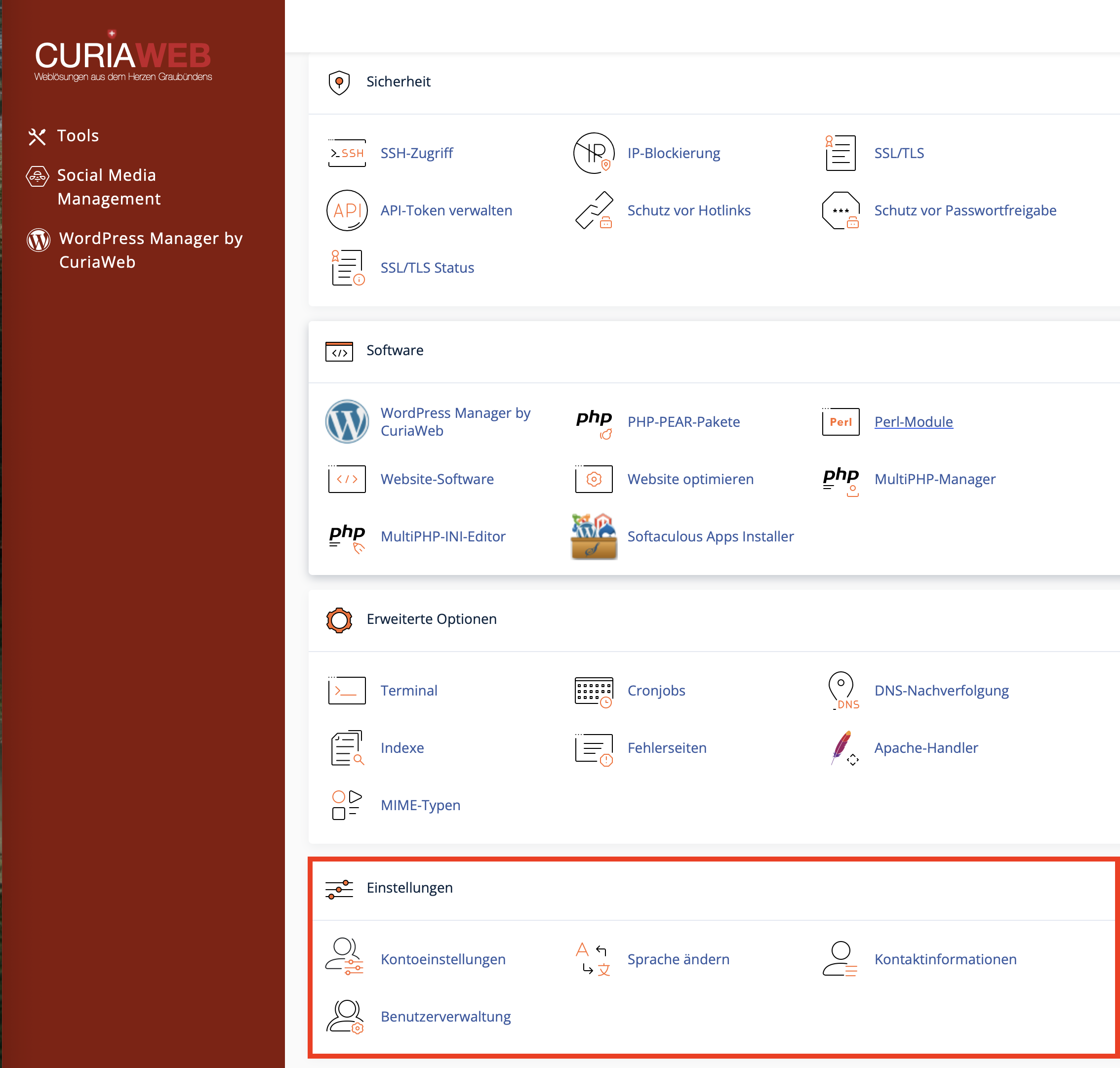
- Navigate to the Preferences section and click on Contact Information.
- Enter your primary contact email address in the first field.
- Optionally, add a secondary contact email address in the next field.
- Select your preferred notification settings below by checking or unchecking the boxes.
- Click Save to apply your changes.
Recommended Notification Settings
Available options may vary slightly depending on your cPanel version and server configuration. Generally, it is best to keep critical warnings enabled so you are always informed ahead of time.
Alerts you when web space, email storage, or other account quotas are running low.
Keeps you informed about issues with your SSL certificates or automated certificate renewals.
Can send a message whenever someone logs into your cPanel account or when security events occur.
Depending on setup, alerts regarding email volume limits, delivery failures, or account restrictions may be available.
Understanding AutoSSL Notifications
AutoSSL automatically provisions and renews SSL certificates for your domains, provided all technical prerequisites are met. Under your contact information settings, you can customize which AutoSSL status messages you want to receive.
The exact options depend on your specific cPanel version. Usually, you can choose to only be bothered by errors, or to receive notifications for successful routine renewals as well.
| Setting | Description | Recommendation |
|---|---|---|
| Only errors or critical issues | You will only receive notifications if AutoSSL fails or if manual intervention is required. | Highly practical for most users, as it prevents inbox clutter from routine tasks. |
| All AutoSSL notifications | You will also receive confirmation emails for successful or routine AutoSSL updates. | Best suited for technical users who prefer a complete audit trail of every automated process. |
| Disable AutoSSL notifications | You will receive few to no alerts regarding SSL certificate generation events. | Not recommended, as you might miss critical SSL failures until it affects your visitors. |
Which Email Address Should You Choose?
Picking the right contact email is key. Relying solely on an inbox created under the same hosting package poses a serious risk: if that specific account encounters a technical glitch, the alert explaining the error cannot be delivered to you.
| Address Type | Rating | Key Detail |
|---|---|---|
| External Email Address | Recommended | Stays completely operational even if your primary hosting account or domain goes offline. |
| Business Email on the same hosting | Conditionally Recommended | Looks professional, but may fail to receive critical alerts during an account-wide server disruption. |
| Secondary Contact Address | Highly Smart | Significantly increases the chance of reliably catching crucial automated system alerts. |
Typical cPanel Notifications
Depending on your active settings and hosting plan, your dashboard can trigger various notification categories. Note that wording might change across different server versions.
- Disk space warnings: Triggers when your absolute storage or a specific email inbox nears its quota limit.
- SSL/AutoSSL logs: Status reports on certificate issuance, validation blocks, or excluded domains.
- Login notifications: Security alerts tracking administrative access to your cPanel workspace.
- Contact info changes: Instant confirmations sent when account metadata is altered.
- Resource usage limits: Notifications about hitting system limits like CPU or memory caps, if monitored.
What to Do If You Are Not Receiving Notifications
If expected system alerts are failing to reach your inbox, walk through these basic verification steps:
- Double-check that the contact email address is spelled perfectly.
- Inspect your spam, junk, or promotional mail folders.
- Make sure your receiving mailbox is not full.
- Verify that the specific notification category is checked in cPanel.
- Add a temporary alternative email address to test system delivery.
Security Best Practices
- Always keep your cPanel contact information current.
- Use an external or fallback email address as a safety net.
- Keep security-relevant event logs and login warnings active.
- Act immediately on disk space, SSL renewal, and login alerts.
- Periodically check that your configured endpoints remain valid.
- Do not forward raw cPanel alerts to third parties, as they contain confidential technical details about your server structure.
Summary
Your cPanel Contact Information preferences define where your server directs vital system notifications. Maintaining accurate endpoints allows you to tackle disk space constraints, SSL warning flags, and suspicious login vectors long before they damage operations.
For best results, keep automated warnings enabled and link at least one independent external email address as your safe delivery point.
Unsure which cPanel notifications you should keep active?
The CURIAWEB Technical Team is happy to assist you in configuring your contact preferences securely.
