


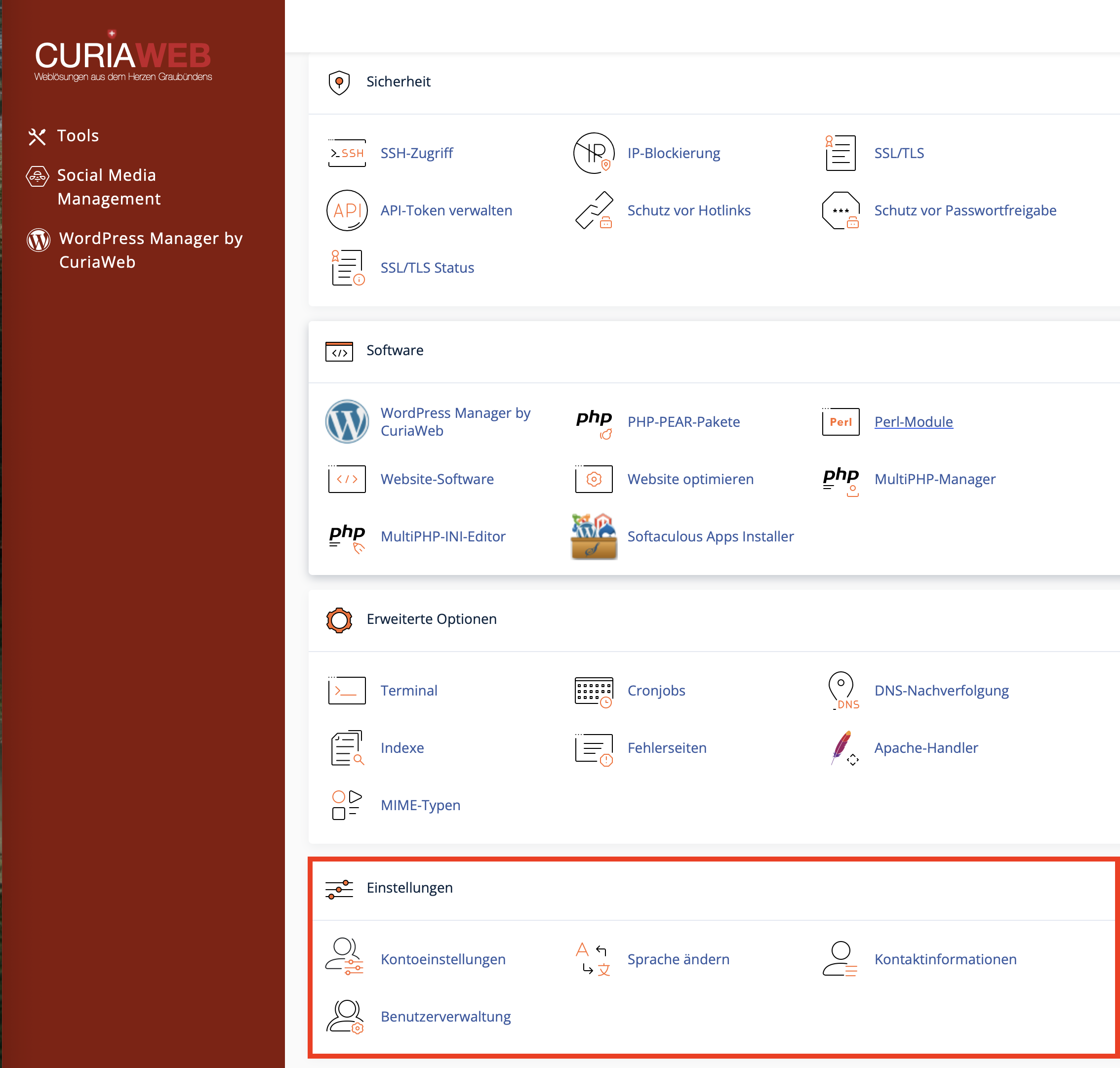
User Manager in cPanel: Manage Email, FTP, and Web Disk Centrally
With the User Manager in cPanel, you can manage additional user accounts for specific services of your hosting account. This allows you, for example, to grant an employee, developer, or project partner access to Email, FTP, or Web Disk without handing out your primary cPanel login credentials.
The User Manager is particularly useful when you want to manage individual access rights clearly, link existing service accounts, or restrict permissions to specific tools.
When is the User Manager useful?
The User Manager is helpful when multiple people or applications require access to individual services but should not have access to the entire hosting account.
- Employees: An employee needs their own email mailbox.
- Web Developers: A developer should only access a specific project directory via FTP.
- Project Partners: An external partner needs to upload or retrieve files via Web Disk.
- Organization: Existing Email, FTP, or Web Disk accounts need to be merged for a clearer overview.
Creating a New User or Subaccount
To create a new user, open the User Manager section in cPanel and click on Add User. Then, enter the required details and specify which services should be enabled.
| Section | Description |
|---|---|
| Identity | Enter the name, username, and the desired domain. Make sure to select the correct domain if you have multiple domains. |
| Contact Email | This address is used for password information or reset functions, among other things. Use an accessible and up-to-date email address. |
| Security | You can assign a secure password or invite the user to create their own password, provided this option is available. |
| Services | Enable only the services that the user actually requires, such as Email, FTP, or Web Disk. |
Configuring Services in the User Manager
For each subaccount, you can define which services should be available. This keeps you in control of access, disk space, and directories.
Creates or manages an email mailbox for the user. Depending on your cPanel configuration, you can set a storage quota and enable access via Webmail.
Enables file transfers via FTP. Access can be restricted to a specific directory, for example,
/public_html/project1.Provides access to files via Web Disk. Depending on the settings, the user can read, upload, modify, or only view files.
Setting Up Email Access
When you enable the Email service, an email mailbox is created for the user or linked to an existing account. The user can then access this mailbox via Webmail or an email client.
- Mailbox Name: Formed by the username and domain, for example,
max@yourdomain.ch. - Disk Space: Can be limited or flexibly configured depending on your preferences.
- Password: Should be strong and known only to the respective user.
- Webmail: Allows access to emails directly in the web browser.
Restricting FTP Access to a Directory
FTP accounts should be restricted to the specific directory that the respective user actually needs. This prevents an external developer or partner from accidentally accessing other websites or sensitive files.
/public_html/project1. As a result, the user does not automatically see all the files in your hosting account.Pay close attention to secure passwords for FTP access and delete accounts that are no longer needed after a project is completed.
Setting Up Web Disk Access
With Web Disk, files can be managed similarly to a network drive. Depending on the operating system and cPanel configuration, access can be achieved via a Web Disk address or by integrating it into the operating system's file manager.
For Web Disk access, you can specify whether the user has read-write or read-only permissions:
- Read/Write Access: The user can view, upload, modify, and delete files.
- Read Only: The user can view or download files but cannot make any changes.
Linking Existing Accounts
If an email account, FTP account, or Web Disk account already exists with the same name, cPanel can detect these accounts in the User Manager and offer to link them. This allows multiple services to be clearly assigned to a single subaccount.
This is particularly convenient if accounts were originally created separately and are to be managed centrally later on.
Login Details and Access Methods for Subaccounts
The login process differs depending on the enabled service. The User Manager does not create a full cPanel login, but rather access to the respectively approved services.
| Service | Typical Access Route | Note |
|---|---|---|
| Webmail | https://yourdomain.ch:2096 |
Log in using the full email address and password. |
| FTP | FTP program such as FileZilla, Cyberduck, or WinSCP | Log in using the FTP username, password, and server address. |
| Web Disk | Web Disk address or operating system integration | Depending on the configuration, port 2078 can be used for secure Web Disk access. |
Editing or Deleting Existing Users
In the User Manager, you can see an overview of existing users and enabled services. From there, you can edit existing accounts, change passwords, enable or disable services, and remove users that are no longer needed.
- Edit User: Adjust the name, contact address, password, and services.
- Disable Services: Remove access to Email, FTP, or Web Disk individually.
- Delete User: Remove subaccounts that are no longer required.
- Check Access Regularly: Particularly useful after a project ends or when employees change.
Security Recommendations for Subaccounts
- Create a dedicated user for each person instead of sharing login credentials.
- Enable only the services that are truly required.
- Restrict FTP access to the necessary directory.
- Use strong, unique passwords.
- Remove access rights after a project is completed or when an employee leaves the company.
- Do not hand out the primary cPanel login credentials if a subaccount is sufficient.
Summary
The User Manager in cPanel helps you manage Email, FTP, and Web Disk access centrally. You can create subaccounts, enable specific services, and maintain better control over access rights without sharing your primary cPanel login.
Especially for employees, developers, and external partners, the User Manager is a practical and more secure way to provide exactly the access needed for the respective task.
Do you need support setting up FTP access, a Webmail account, or a Web Disk user?
The CURIAWEB technical team will gladly assist you with the secure setup of your cPanel users.
