


WordPress Toolbar Explained: Quick Access to Dashboard, Posts, and Editing
The WordPress Toolbar, formerly often called the Admin Bar, is the black bar at the top of the screen that you see as soon as you are logged into WordPress. It appears both in the dashboard and on the public website, as long as you are logged in.
The Toolbar is a practical tool for quickly switching between the live view and editing mode. Instead of navigating through the dashboard every time, you can directly edit a page, create a new post, check comments, open the Customizer, or access your user profile.
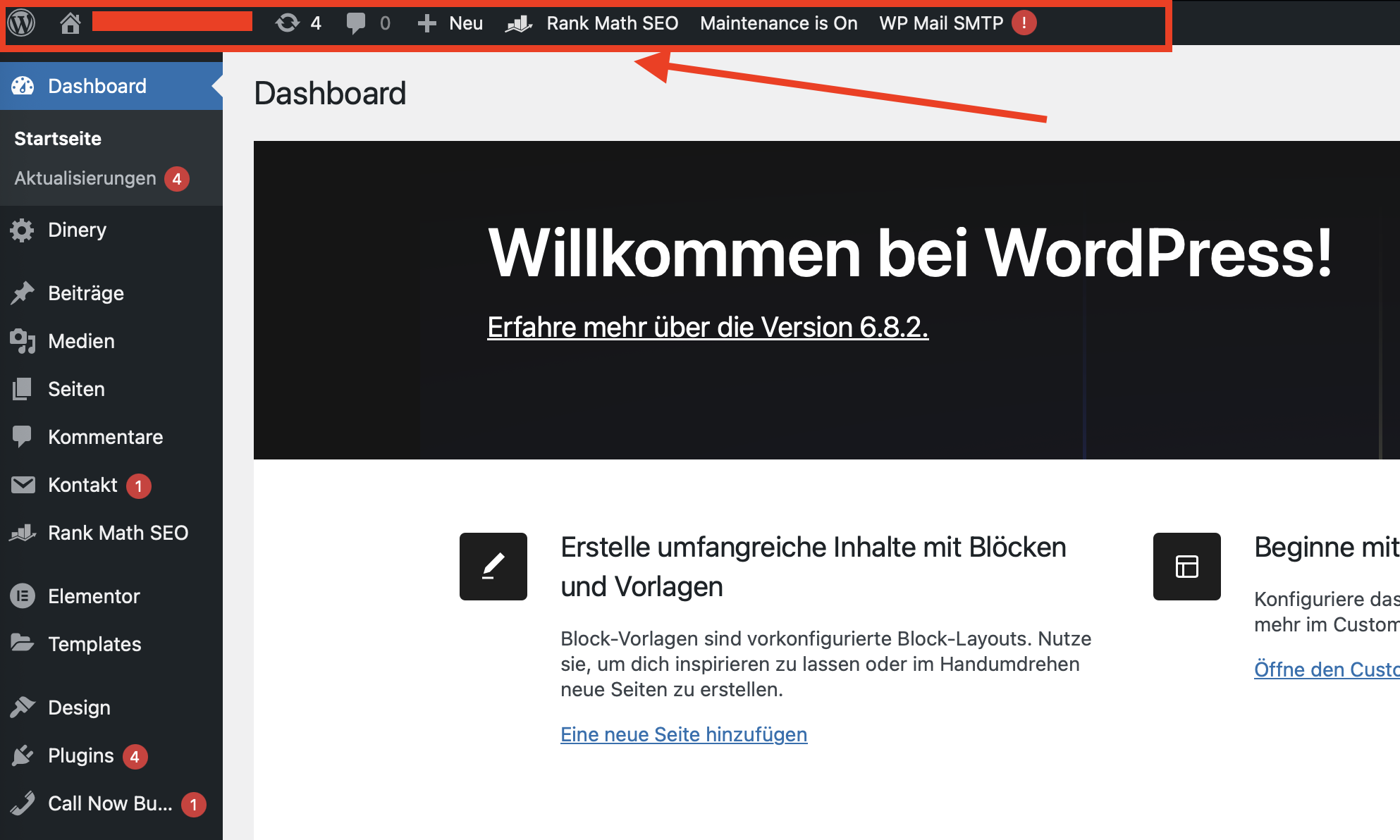
The WordPress Toolbar provides quick access to important functions in both the frontend and backend.
What is the WordPress Toolbar?
The Toolbar is a horizontal quick-access bar at the top of the page. It appears automatically when you are logged into WordPress. Depending on the user role, active theme, and installed plugins, it may display a varying number of options.
Typical tasks of the Toolbar:
- switch between the website and the dashboard,
- edit the current page directly,
- create new posts or pages,
- moderate comments,
- open the Customizer,
- access the user profile,
- log out securely,
- reach plugin functions directly.
The Most Important Areas of the Toolbar
| Area | Function |
|---|---|
| WordPress Logo | Links to WordPress information, documentation, and support resources. |
| Website Name | Switch between the dashboard and the public website. |
| Comments | Direct access to pending or new comments. |
| + New | Quickly create new posts, pages, media, or users. |
| Edit | Opens the editor for the currently viewed page or post. |
| Profile Menu | Access to the user profile and the logout function. |
Switching Between Frontend and Backend
One of the most useful features is the quick switch between the website view and the dashboard. When working in the dashboard, the website name in the Toolbar takes you to the public view of your website. When you are on the website, the same area takes you back to the dashboard.
This saves time, especially when you are editing content and want to immediately check how it looks to visitors.
Editing the Current Page Directly
When you are logged in and viewing a page or post in the frontend, an Edit button often appears in the Toolbar. Clicking it opens the appropriate editor directly.
This is particularly helpful for:
- corrections on existing pages,
- text changes,
- image adjustments,
- SEO optimizations,
- reviewing landing pages,
- updating old blog articles.
If the edit link does not appear, you might not have the appropriate user role, or the content may be controlled by a specific theme, plugin, or template.
“+ New”: Creating Content Faster
Via + New, you can create new content directly without opening the dashboard menu first.
Depending on your installation, the options available here may include:
- new post,
- new page,
- new media,
- new user,
- new product in WooCommerce,
- additional content types from plugins.
This feature is ideal if you maintain content regularly or want to quickly set up a new page.
Opening Comments via the Toolbar
The speech bubble in the Toolbar displays comments. If there are new or pending comments, you can jump straight to comment moderation.
There you can manage comments by:
- approving them,
- replying to them,
- marking them as spam,
- moving them to the trash,
- editing them.
If your website does not use a comment function or if comments are disabled, this area will naturally play a minor role.
Opening the Customizer and Design Options
Many themes display a direct link to the Customizer or other design options in the Toolbar. Through this, you can edit colors, logos, menus, widgets, headers, or additional theme settings.
Depending on the theme, this area may have a different name or contain extra options, such as:
- Customizer,
- Edit Site,
- Theme Options,
- Edit Header,
- Edit Template.
With modern block themes, the Site Editor may take center stage instead of the classic Customizer.
Hiding the Toolbar in the Frontend
Some users find the Toolbar distracting in the public website view, especially when checking layouts or taking screenshots. You can hide the Toolbar for your own user profile in the frontend.
Here is how to do it:
- Go to Users > Profile in the dashboard.
- Look for the Toolbar section.
- Uncheck the box next to Show Toolbar when viewing site.
- Click Update Profile at the bottom.
This setting only applies to your own user account. Other logged-in users will still be able to see their Toolbar.
The Toolbar is Only Visible to Logged-In Users
The Toolbar is not shown to normal visitors. If you see it on your website, it is because you are logged in.
To verify, you can open your website in a private browser window or log out of WordPress. The Toolbar should then disappear.
Why the Toolbar Sometimes Looks Different
The Toolbar can look different depending on the website. Plugins, themes, and user roles can add their own entries or hide existing ones.
Examples:
- SEO plugins show analysis or indexing options.
- Caching plugins show "Purge Cache".
- WooCommerce adds shop functionalities.
- Page builders show "Edit with Elementor" or similar links.
- Security plugins show alerts or quick access links.
- Users with restricted roles see fewer options.
If an entry is missing, it is usually due to user permissions, plugin settings, or because the respective function is not active.
Toolbar and User Roles
Not all users see the same options. An administrator has significantly more access than an author, contributor, or subscriber.
Examples:
- Administrator: sees almost all management functions.
- Editor: sees primarily content and comment sections.
- Author: can manage their own posts.
- Contributor: sees only limited content functions.
- Subscriber: usually only has access to their own profile.
This is an important security mechanism. Not every user should have access to design, plugins, or settings.
Toolbar in WooCommerce
When WooCommerce is installed, additional quick access options may appear. Depending on the configuration, administrators or shop managers will see links to orders, products, or shop reports.
This can be useful for:
- quick product editing,
- checking new orders,
- switching between the shop frontend and product management,
- reviewing product pages after changes.
After making changes to products, the cart, or the checkout, you should always test the page from a visitor's perspective.
Toolbar with Page Builders
Page builders like Elementor, Divi, or other systems often add their own editing links. This allows you to open a page directly in the respective builder.
Typical links:
- “Edit with Elementor”,
- “Enable Visual Builder”,
- “Edit Template”,
- “Edit Header”,
- “Edit Footer”.
If you cannot edit a page using the normal WordPress editor, check if it was created with a page builder.
Logging Out Securely
On the far right of the Toolbar, you will find your user profile. There you can open your profile or log out.
Logging out is especially important when you:
- are working on a public or shared computer,
- use a public workspace,
- test support access,
- switch between user roles,
- want to take screenshots without the admin view.
Do not stay logged in unnecessarily on external devices.
Common Problems with the Toolbar
| Problem | Possible Cause | Solution |
|---|---|---|
| Toolbar is not displayed in the frontend | Disabled in profile or user not logged in | Check profile settings and verify login. |
| Edit link is missing | No permission or special template | Check user role and page type. |
| Toolbar covers layout | Theme or CSS does not account for the admin bar correctly | Check theme/CSS or hide Toolbar in profile. |
| Too many entries | Plugins are adding their own menu items | Check plugin settings or deactivate unnecessary plugins. |
SEO and Workflow
The Toolbar is not a direct SEO factor. However, it helps with efficient workflows: content can be reviewed, edited, and updated faster. This supports clean content management.
Practical SEO benefits in daily use:
- update old posts faster,
- edit pages directly from the live view,
- correct internal links more quickly,
- check meta data faster via SEO plugins,
- clear cache purposefully after making changes,
- immediately review presentation after adjustments.
Recommended Usage
- Check live view: View the page in the frontend after every change.
- Use the Edit link: Correct mistakes directly from the live view.
- Use + New: Create new content faster.
- Know the profile menu: Log out securely and maintain profile data.
- Test private view: Occasionally check the website without being logged in.
- Hide the Toolbar if necessary: Disable it in your profile for layout checks or screenshots.
Frequently Asked Questions about the WordPress Toolbar
Do visitors see the WordPress Toolbar?
No. The Toolbar is only visible to logged-in users.
Why do I see the Toolbar on my website?
Because you are logged into WordPress. Open the page in a private browser window to check the visitor view.
How do I hide the Toolbar?
Go to Users > Profile and uncheck the box next to Show Toolbar when viewing site.
Why are certain Toolbar functions missing?
This is often due to your user role, theme settings, or because the respective plugin is not active.
Can I create new pages via the Toolbar?
Yes. Via + New, you can create new posts, pages, and depending on your setup, other content types.
Why do I see “Edit with Elementor”?
This link appears when Elementor is active and the current page can be edited with Elementor.
Can the Toolbar affect my layout?
For logged-in users, it can affect the visible height. Normal visitors do not see the Toolbar. Therefore, additionally test layouts while logged out or in a private window.
Work Efficiently with WordPress
The Toolbar saves time in the daily maintenance of your website. With WordPress Hosting from CURIAWEB, you additionally benefit from a Swiss server location, fast NVMe infrastructure, SSL included, cPanel access, and personal support.
Buy WordPress HostingQuestions about the setup? Our CURIAWEB Support will be happy to help you personally.
