


Creating a WordPress Backup: How to properly secure your website, database, and files
A backup is your technical insurance for WordPress. It creates a copy of your website at a specific point in time. If something goes wrong after an update, content is accidentally deleted, a plugin causes errors, or a website is compromised, a recent backup can be crucial.
Many website owners only think about backups when a problem has already occurred. By then, it is often too late. A good backup strategy ensures that you do not have to start from scratch if your website is corrupted, deleted, or misconfigured.
Why backups are essential for WordPress
WordPress is flexible and powerful. That is exactly why a website consists of many moving parts: WordPress core, themes, plugins, database, media, configuration files, PHP version, caching, and sometimes additional interfaces. An error in any of these areas can affect the entire website.
Backups protect you from:
- failed WordPress updates,
- faulty plugin or theme updates,
- accidentally deleted posts, pages, or media,
- database errors,
- malware or hacker attacks,
- broken code customizations,
- problems after changing the PHP version,
- failed WooCommerce modifications,
- errors during migrations or relaunches,
- human operating errors.
A backup is not a substitute for updates, security measures, or clean maintenance. It is the fallback solution when things go wrong despite all precautions.
What is included in a complete WordPress backup?
A WordPress backup is only complete when both files and the database are included. Many misunderstandings arise because only one part is backed up.
| Component | Contains | Why is it important? |
|---|---|---|
| Files | WordPress files, themes, plugins, uploads, images, PDFs, configuration | Without files, the design, extensions, and media are missing. |
| Database | Posts, pages, settings, users, comments, WooCommerce data | Without the database, content and settings are missing. |
The wp-content folder is particularly important. It contains themes, plugins, and uploads. In turn, the database contains almost all content and settings.
Backup is not the same as Export
WordPress offers an XML export under Tools > Export. This is useful if you want to transfer posts, pages, or content to another WordPress installation. However, it is not a complete backup.
A WordPress export typically contains content, but completely lacks:
- plugins,
- themes,
- uploaded files,
- server configuration,
- complete database options,
- WooCommerce order details,
- cache and security settings,
wp-config.php,.htaccess.
For a true restoration, you need a complete backup of both files and the database.
Method 1: Creating a backup via Softaculous
If WordPress was installed via Softaculous, creating a backup through it is particularly convenient. The advantage: the backup is made directly via the hosting panel and can capture files and the database together.
How to create a backup with Softaculous:
- Log in to your cPanel.
- Open the Softaculous Apps Installer.
- Click on All Installations or the installations overview at the top.
- Find the desired WordPress installation.
- Click on the Backup icon.
- Select whether files and the database should be backed up.
- Start the process by clicking Backup Installation.
- If needed, download the completed backup locally as well.
Method 2: Creating a backup via cPanel
cPanel also provides options for backing up files, databases, and sometimes entire accounts. Which functions are visible depends on the hosting package and server configuration.
Typical cPanel backup sections:
- Backup or Backup Wizard,
- File Manager for file backups,
- phpMyAdmin for database exports,
- MySQL Databases to check database assignment,
- JetBackup or similar systems, if available in your package.
A cPanel backup is especially useful if you need to secure not just WordPress, but also email, subdomains, DNS zones, or multiple installations within the same hosting account.
Method 3: Using backup plugins
Backup plugins are popular because they can be operated directly from the WordPress dashboard. They are particularly suitable for automated schedules and external storage destinations.
Well-known backup plugins:
- UpdraftPlus: Very widely used and easy for scheduled backups to cloud storage.
- BackWPup: Flexible and highly configurable.
- Duplicator: Frequently used for migrations and package backups.
- BlogVault: External backup solution, particularly interesting for larger or business-critical websites.
Plugins can send backups to external storage, for example:
- Dropbox,
- Google Drive,
- Microsoft OneDrive,
- Amazon S3,
- SFTP,
- external backup storage.
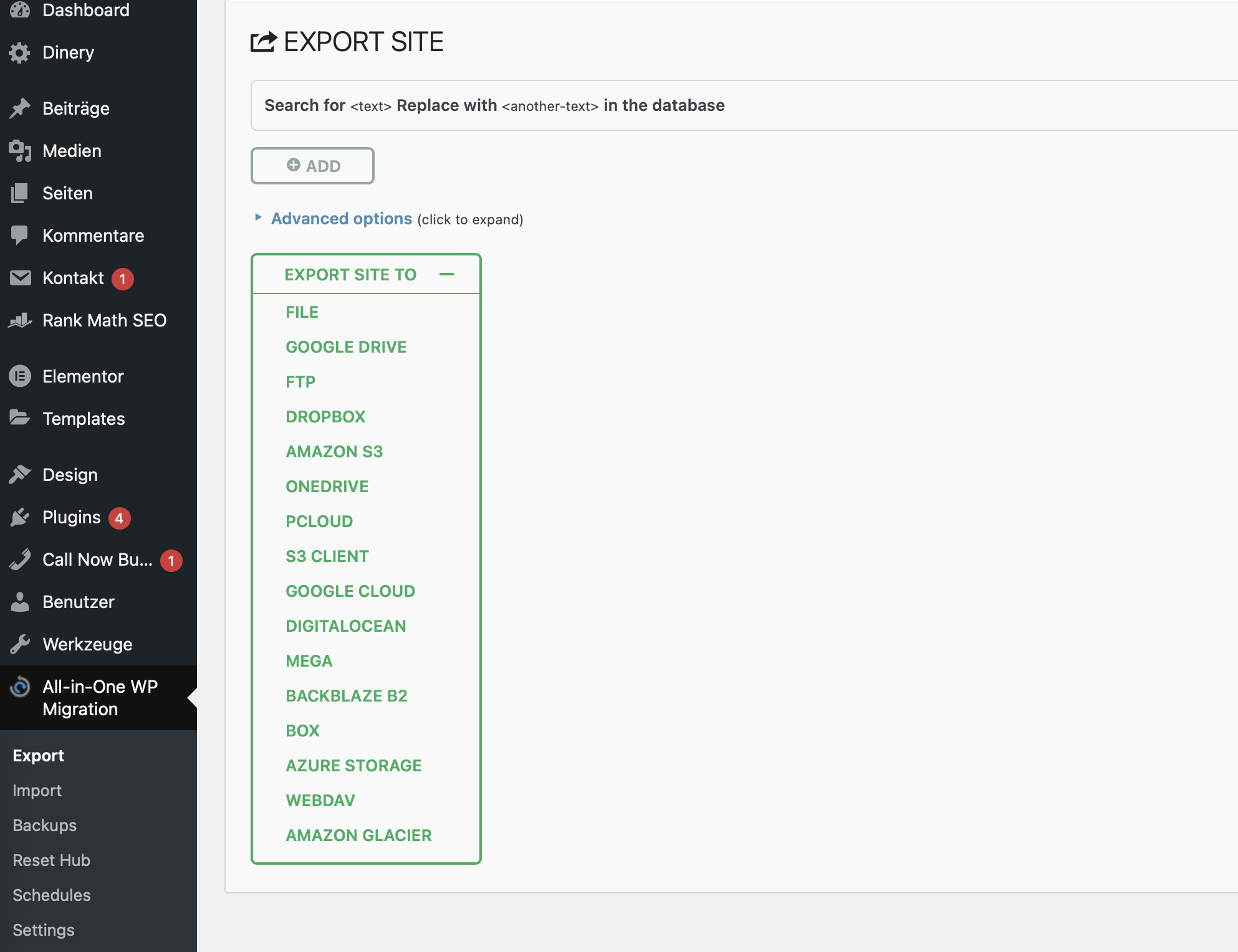
Backup plugins: Advantages and risks
Backup plugins are practical, but not always the best standalone solution. They run within WordPress. If WordPress itself is broken, the backup plugin may no longer be accessible either.
| Advantages | Risks |
|---|---|
| Automated schedules possible | Can fail due to server limits on very large websites |
| Cloud storage easily integrated | Runs inside WordPress |
| Operated via dashboard | Misconfigured plugins might not back up everything |
| Very convenient for smaller websites | Backups on the same server are at risk in case of server issues |
A combination is ideal: server-side backups plus your own external backups.
Method 4: Manual backup for advanced users
With a manual backup, you back up files and the database separately. This method is particularly useful if WordPress is no longer accessible or if you require maximum control.
Backing up files
You can download WordPress files using the cPanel File Manager or via FTP/SFTP. The following are particularly important:
wp-content/uploads/,wp-content/themes/,wp-content/plugins/,wp-config.php,.htaccess, if available,- other customized files.
In a standard installation, WordPress is often located in the public_html folder. With multiple websites or addon domains, the path may vary.
Backing up the database
Export the database using phpMyAdmin:
- Open cPanel.
- Launch phpMyAdmin.
- Select the correct WordPress database.
- Click on Export.
- Choose the quick export method for simple cases.
- Download the SQL file.
If necessary, you can find the name of the database used in the wp-config.php file under the DB_NAME entry.
Which backup method is the best?
There is no single perfect method for all websites. The right strategy depends on how critical your website is, how often content changes, and whether orders or customer data are processed.
| Website Type | Recommended Backup Strategy |
|---|---|
| Small company website | Regular server-side backups plus a manual backup before updates. |
| Active blog | Automated backups, with additional external securing. |
| WooCommerce shop | Very frequent database backups, external backup, special caution with orders. |
| Membership site | Frequent database backups due to user and transaction data. |
| Development project | Backup before every change, plus staging and version control. |
How often should backups be created?
The appropriate frequency depends on how often your website changes. A static website requires less frequent backups than a shop with daily orders.
Rules of thumb:
- Rarely changed website: weekly or before every change.
- Active blog: daily or several times a week.
- WooCommerce shop: at least daily, more frequently with high order volumes.
- Membership platform: frequent database backups due to user activity.
- Before updates: always create a manual backup.
- Before migrations: create a complete backup.
It is not just the frequency that matters, but also the restorability. A backup that has never been tested is unreliable in an emergency.
The 3-2-1 backup rule
A proven backup rule is: 3 copies, 2 different storage locations or media, 1 copy outside the main server.
In practice, this means:
- one live website,
- one backup with the hosting provider or backup system,
- one additional copy externally, for example locally or in cloud storage.
Creating backups before updates
You should always create an up-to-date backup before running updates. This applies particularly to:
- WordPress core updates,
- WooCommerce updates,
- payment provider plugins,
- theme updates,
- page builder updates,
- PHP version changes,
- major plugin modifications,
- code adjustments,
- database optimizations.
For WooCommerce shops, updates should ideally be tested in a staging environment first. This avoids checkout issues on the live site.
Backups for WooCommerce shops
WooCommerce shops require special attention because orders, customer data, and stock levels change constantly. If you restore a backup from yesterday, today's orders may be lost.
For shops, you should consider:
- more frequent database backups,
- special caution during restorations,
- checking orders before a restore,
- using staging instead of direct live tests,
- never restoring an old database without careful thought,
- checking payment providers and webhooks after a restore,
- testing order emails.
For very active shops, real-time or incremental backups can be useful.
Storing backups securely
Backup files often contain sensitive data: user accounts, email addresses, customer data, orders, internal content, database credentials, and configurations. Therefore, backups should be stored securely.
Recommendations:
- Do not store backups publicly in the web directory,
- encrypt backups if possible,
- restrict access,
- use cloud storage with strong passwords and 2FA,
- delete old backups regularly,
- do not send backup files unprotected via email,
- keep local copies safe.
Database backups in particular can contain confidential information and should be protected accordingly.
Testing backup restoration
A backup is only valuable if it can be restored. Therefore, important websites should occasionally be restored as a test in a staging environment or separate installation.
During a restore test, check:
- Can the database be imported?
- Are all files present?
- Does the login work?
- Are media files visible?
- Do forms work?
- Does WooCommerce work?
- Are permalinks correct?
- Are there any PHP errors?
- Does SSL work?
This allows you to recognize early on whether your backup strategy is genuinely reliable.
Retention period: How long to keep backups?
Backups should not be collected indefinitely because they consume storage space and contain sensitive data. At the same time, it is risky to have only one recent backup. If an error goes unnoticed, the latest backup may already be affected.
A sensible retention strategy might look like this:
- daily backups for the last 7 days,
- weekly backups for the last 4 weeks,
- monthly backups for important milestones,
- plus a backup before major changes.
The specific strategy depends on the website, storage space, data privacy, and business significance.
Common mistakes with WordPress backups
- Only files secured: Content and settings are missing because the database is not included.
- Only database secured: Images, themes, and plugins are missing.
- Backup only on the same server: In case of server problems, the backup is also at risk.
- Never tested restoration: In an emergency, it is unclear whether the backup works.
- Too infrequent backups: Recent content or orders can be lost.
- WooCommerce underestimated: Orders change constantly.
- Backups stored publicly: Security and data privacy risk.
- No backup created before updates: Returning to the old state becomes difficult.
- Old backups never deleted: Storage space and data privacy issue.
SEO and backups
Backups are not a direct SEO factor, but they protect your visibility. If a website is offline for days after an error or content is lost, it can negatively impact rankings, trust, and crawling.
Backups help with SEO by:
- reducing downtime,
- making deleted content recoverable,
- reverting faulty updates,
- resolving malware damage faster,
- securing relaunches,
- preserving old URL structures and content.
Particularly for extensive guide pages, blogs, and shops, an up-to-date backup is an important part of technical SEO precaution.
GEO: Why backups are also important for content quality
GEO (Generative Engine Optimization) relies on reliable, complete, and permanently accessible content. If content is lost due to errors, attacks, or failed updates, the quality of the website suffers.
A good backup strategy supports GEO indirectly by:
- preserving high-quality content,
- providing rapid recovery after errors,
- protecting against data loss,
- ensuring stable website availability,
- maintaining secure update processes,
- lowering risk during technical adjustments.
Recommended backup strategy
- Use regular server-side backups: Check available backup functions in your hosting.
- Back up manually before every major change: Especially before updates, migrations, or PHP changes.
- Secure both files and database: WordPress is only fully restorable with both together.
- Save an external copy: Store the backup additionally locally or in cloud storage.
- Define a backup schedule: Adapt frequency to website activity.
- Treat WooCommerce specially: Orders and customer data change constantly.
- Protect backups: Restrict access and pay attention to sensitive data.
- Test restoration: Check in staging at least occasionally.
- Clean up old backups: Keep storage space and data privacy in mind.
- Document: Note down where backups are located and how they are restored.
Frequently Asked Questions about WordPress backups
What is a WordPress backup?
A WordPress backup is a security copy of your website at a specific point in time. It should contain files and the database.
Is a WordPress export sufficient as a backup?
No. The export mainly contains content, but does not completely include plugins, themes, uploads, configuration, and database options.
What do I need to back up?
Back up the WordPress files and the database. wp-content, wp-config.php, and the MySQL database are particularly important.
How often should I create a backup?
This depends on the website. Rarely changed websites require less frequent backups than active blogs or WooCommerce shops.
Should I make a backup before updates?
Yes. An up-to-date backup should always be available before WordPress, plugin, theme, WooCommerce, and PHP updates.
Are backup plugins sufficient?
Backup plugins are helpful but should ideally be combined with server-side backups and external copies.
Where should I store backups?
Not exclusively on the same server. Store at least one copy externally, for example locally or in a secure cloud storage.
Can CURIAWEB help with the restoration?
Yes. If you need assistance with the restoration, CURIAWEB support can review the case and assist you with the next steps.
Host worry-free with CURIAWEB
A good backup concept begins with a stable hosting environment. With CURIAWEB, you benefit from a Swiss server location, cPanel management, Softaculous tools, and a powerful infrastructure for WordPress. Available server-side backup features can be used depending on your package and configuration – making your own backup before major changes remains mandatory.
Discover Secure WordPress HostingNeed help with a restoration? Our CURIAWEB Support will gladly assist you in reviewing your options.
