


Condividere calendario e contatti: Come rendere disponibili le risorse per il team
Con la condivisione di calendari e contatti in cPanel è possibile condividere calendari e rubriche con altri account e-mail all'interno dello stesso account cPanel. Ciò consente di gestire in modo centralizzato appuntamenti, calendari del team, risorse interne o liste di contatti comuni, rendendoli accessibili a più persone.
Questa funzione è particolarmente utile per aziende, associazioni, studi medici, agenzie o team che operano con più indirizzi e-mail e desiderano utilizzare le informazioni condivise in modo efficiente. Invece di gestire manualmente più volte gli appuntamenti o i contatti, le raccolte selezionate possono essere condivise e dotate di permessi di lettura o modifica a seconda delle esigenze.
In breve:
Una raccolta condivisa è un calendario o una rubrica a cui un altro account e-mail ha accesso. A seconda dei permessi, tale account può solo visualizzare la raccolta o anche modificarla.
Quando è utile la condivisione di calendari e contatti?
I calendari e i contatti condivisi aiutano a organizzare le informazioni in modo uniforme all'interno del team. Evitano la duplicazione dei dati e garantiscono che più persone possano accedere allo stesso livello di dati aggiornati.
I settori di utilizzo tipici sono:
- Calendari del team: Gestire appuntamenti comuni, riunioni o scadenze interne.
- Pianificazione di sale o risorse: Gestire i calendari per sale riunioni, veicoli aziendali o attrezzature condivise.
- Pianificazione di ferie e assenze: Coordinare in modo chiaro le assenze di più collaboratori.
- Liste di contatti centralizzate: Gestire insieme i contatti dei clienti, i fornitori o i membri di un'associazione.
- Organizzazione dei reparti: Mettere a disposizione calendari e contatti per l'assistenza, le vendite, l'amministrazione o i team di progetto.
Requisito importante: stesso account cPanel
La condivisione di calendari e contatti è possibile solo tra account e-mail che si trovano all'interno dello stesso account cPanel. Ciò significa che sia il proprietario della raccolta sia il destinatario della condivisione devono obbligatoriamente essere account e-mail registrati nello stesso account cPanel.
Requisito importante:
La condivisione è possibile solo tra account e-mail ospitati sullo stesso account cPanel. Pertanto, è necessario disporre di almeno due indirizzi e-mail configurati nello stesso account di hosting per utilizzare questa funzione in modo sensato.
Esempio: Se info@tuodominio.ch e support@tuodominio.ch sono creati nello stesso account cPanel, un calendario o una rubrica possono essere condivisi tra questi due account.
Differenza tra Proprietario e Destinatario
Durante la condivisione, si distingue tra il proprietario di una raccolta e il destinatario della condivisione stessa.
| Ruolo | Significato |
|---|---|
| Proprietario | L'account e-mail a cui appartiene il calendario o la rubrica. |
| Raccolta | Il calendario specifico o la rubrica specifica che si desidera condividere. |
| Destinatario condivisione | L'account e-mail che deve ricevere l'accesso alla raccolta. |
| Permesso | Stabilisce se il destinatario può solo leggere la raccolta o anche modificarla. |
Quali permessi esistono?
Al momento della condivisione, è possibile stabilire se un altro account e-mail riceverà un accesso di sola lettura o se potrà anche modificare la raccolta.
- Solo lettura: Il destinatario può visualizzare gli appuntamenti o i contatti, ma non può modificarli.
- Consenti modifica: Il destinatario può non solo vedere gli elementi, ma anche modificarli.
Raccomandazione:
Assegnare i diritti di scrittura solo alle persone o agli account che devono effettivamente gestire i dati. Per la sola consultazione, ad esempio per i calendari del team o le panoramiche delle risorse, l'accesso in sola lettura è spesso sufficiente.
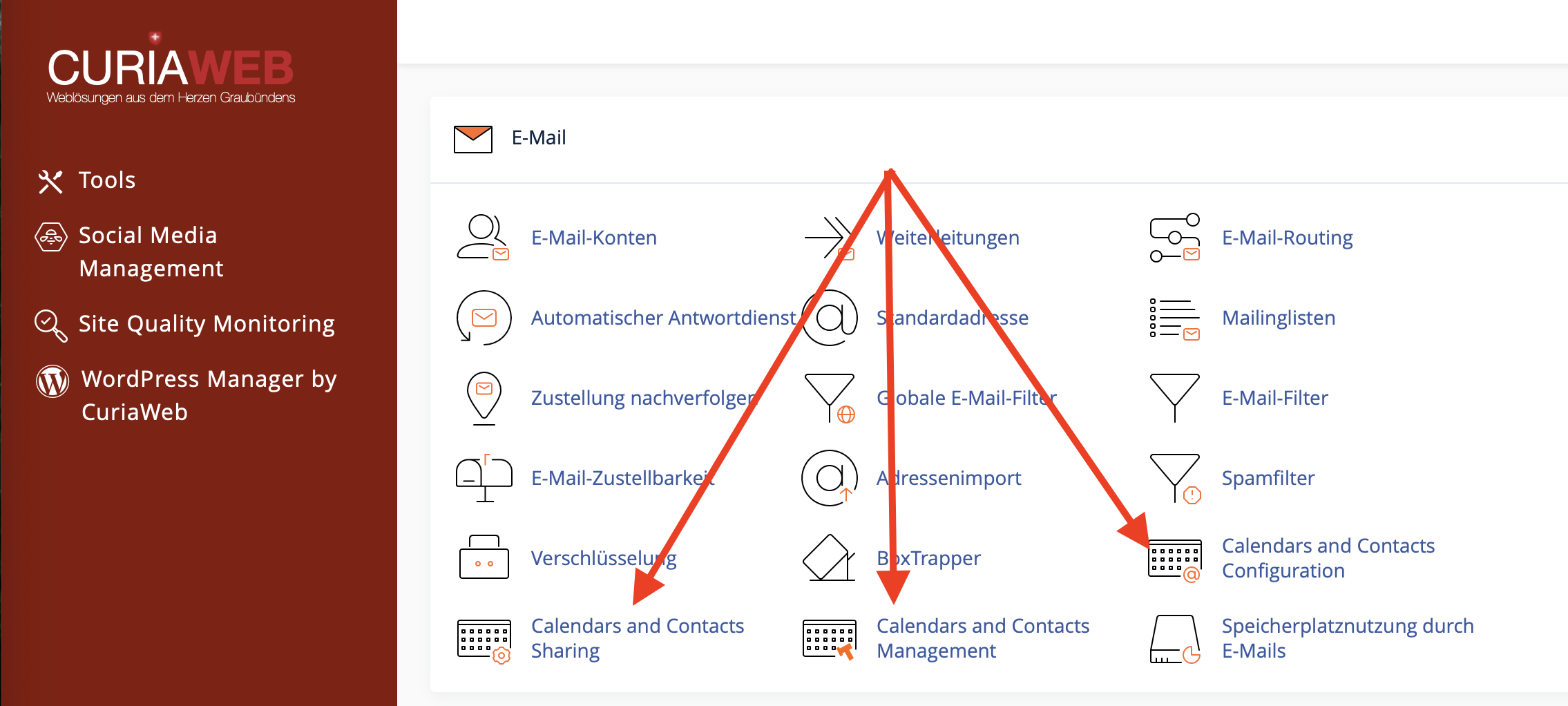
Passo 1: Aprire la sezione per calendari e contatti
Per prima cosa, accedere al proprio cPanel. Successivamente, aprire la sezione dedicata ai calendari e ai contatti o la funzione per la condivisione delle raccolte.
La denominazione esatta può variare leggermente a seconda della lingua e della versione di cPanel. La sezione pertinente è quella in cui le raccolte di calendari e contatti possono essere gestite e condivise con altri account e-mail.
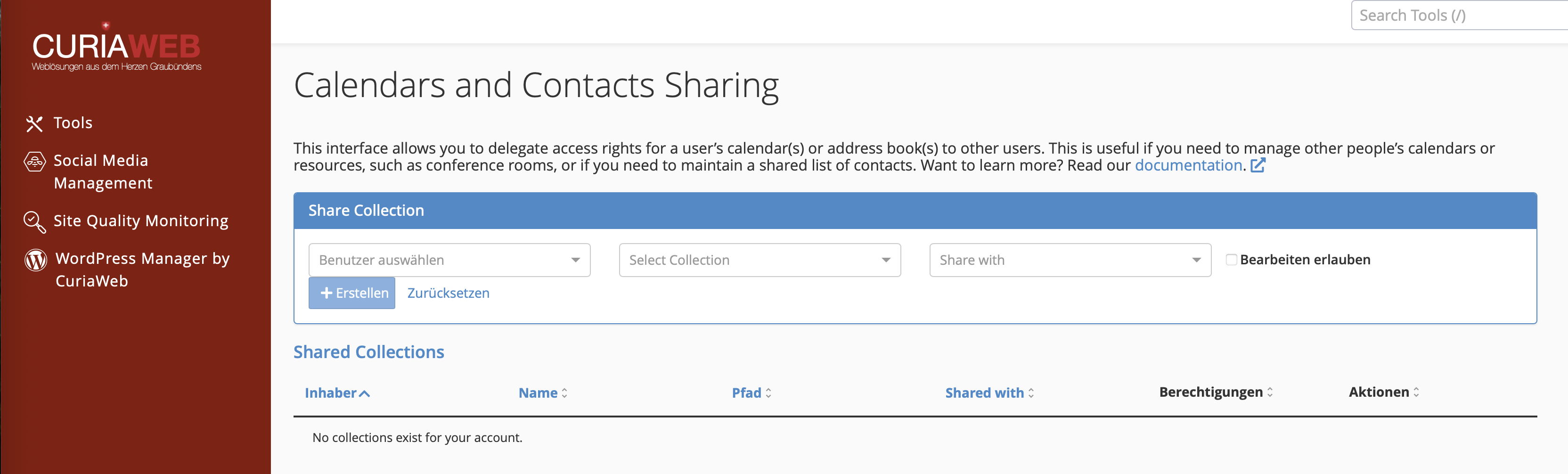
Passo 2: Selezionare il proprietario della raccolta
Selezionare prima il proprietario della raccolta. Si tratta dell'account e-mail a cui appartiene attualmente il calendario o la rubrica.
Se ad esempio un calendario comune viene gestito sotto team@tuodominio.ch, selezionare questo account come proprietario.
Passo 3: Selezionare il calendario o la rubrica
Nel passo successivo, selezionare la raccolta specifica che si desidera condividere. Può trattarsi di un calendario o di una rubrica.
Prestare attenzione a scegliere la raccolta corretta. Soprattutto in presenza di più calendari o liste di contatti, una denominazione chiara è d'aiuto, ad esempio Calendario del team, Pianificazione ferie, Contatti clienti o Sala riunioni.
Passo 4: Selezionare il destinatario della condivisione
Selezionare ora l'account e-mail che deve ottenere l'accesso alla raccolta. Anche questo account deve trovarsi all'interno dello stesso account cPanel.
Esempio: Il calendario di team@tuodominio.ch può essere condiviso con collaboratore@tuodominio.ch, purché entrambi gli account siano creati nello stesso account cPanel.
Passo 5: Stabilire il permesso
Decidere quindi se il destinatario può solo leggere la raccolta o anche modificarla. Attivare "Consenti modifica" se il destinatario deve ottenere i diritti di scrittura. Lasciare questa opzione disattivata se si desidera solo l'accesso in lettura.
Questa decisione è importante, poiché i diritti di scrittura influiscono direttamente sui contenuti della raccolta. Chi possiede i permessi di modifica può cambiare gli elementi esistenti e, a seconda dell'applicazione, aggiungerne di nuovi.
Passo 6: Creare la condivisione
Dopo aver selezionato il proprietario, la raccolta, il destinatario e il permesso, fare clic su "Crea". La condivisione verrà quindi creata in cPanel e mostrata nella panoramica delle raccolte condivise.
Procedura di condivisione:
- Scegliere il proprietario: Selezionare l'account a cui appartiene il calendario o la rubrica.
- Scegliere la raccolta: Selezionare il calendario o la rubrica specifica.
- Condividi con: Selezionare l'account e-mail che deve ricevere l'accesso.
- Stabilire il permesso: Attivare i diritti di scrittura o lasciare solo l'accesso in lettura.
- Crea: Salvare la condivisione.
Gestire le raccolte condivise
Dopo aver creato una condivisione, questa comparirà nella tabella "Raccolte condivise". Lì è possibile vedere quali calendari o rubriche sono condivisi con quali account e quali sono i permessi applicati.
Tramite questa panoramica è possibile modificare i permessi in un secondo momento o rimuovere completamente una condivisione.
| Azione | Descrizione | Utilizzo tipico |
|---|---|---|
| Consenti modifica | Concede successivamente i diritti di scrittura all'utente selezionato. | Quando un membro del team deve gestire attivamente appuntamenti o contatti. |
| Nega modifica | Revoca i diritti di scrittura. L'utente potrà solo leggere la raccolta. | Quando si desidera impedire le modifiche, ma consentire comunque la visualizzazione. |
| Elimina | Rimuove completamente la condivisione. | Quando un account non ha più bisogno di accedere alla raccolta. |
Accesso in sola lettura o diritti di modifica: Cos'è meglio?
La scelta tra l'accesso in sola lettura o i diritti di modifica dipende dallo scopo della condivisione. Per molti calendari del team è sufficiente l'accesso in lettura. I diritti di scrittura dovrebbero essere concessi solo se più persone devono gestire attivamente i dati.
| Scenario | Permesso raccomandato |
|---|---|
| I membri del team devono solo vedere gli appuntamenti | Solo lettura |
| Più persone devono inserire o modificare gli appuntamenti | Consenti modifica |
| Una lista clienti centralizzata deve essere gestita in comune | Consenti modifica, ma solo per le persone responsabili |
| Il calendario per una sala riunioni deve essere solo visibile | Solo lettura |
Nota sugli inviti agli appuntamenti
Per i calendari condivisi, occorre notare che gli inviti agli appuntamenti non possono essere gestiti allo stesso modo da tutti gli utenti in ogni situazione. In un calendario condiviso, è possibile invitare i partecipanti a un evento solo se si è l'autore della specifica voce inserita.
Nota sugli inviti agli appuntamenti:
In un calendario condiviso, è possibile invitare partecipanti a un evento solo se si è l'autore della rispettiva voce del calendario.
Per i team è quindi utile stabilire regole chiare: Chi crea gli appuntamenti? Chi può modificare le voci? E quali calendari servono solo a scopo informativo?
Condivisioni in Webmail, app di calendario e programmi esterni
Dopo che una raccolta è stata condivisa, può diventare visibile nella Webmail, nei programmi di calendario o tramite CalDAV/CardDAV a seconda dell'applicazione utilizzata. La visualizzazione effettiva dipende dalla rispettiva app e dal suo supporto per le risorse condivise.
Se una raccolta condivisa non viene mostrata immediatamente, verificare i seguenti punti:
- Sul dispositivo è configurato l'account e-mail corretto?
- La sincronizzazione è stata aggiornata nell'app?
- L'applicazione utilizzata supporta i calendari o le rubriche condivise?
- La condivisione è stata creata nello stesso account cPanel?
- È presente solo l'accesso in lettura o sono stati concessi i diritti di modifica?
Best Practices per calendari e contatti condivisi
Affinché la collaborazione funzioni in modo affidabile, le condivisioni dovrebbero essere pianificate accuratamente e verificate con regolarità.
- Utilizzare nomi chiari: Nominare i calendari e le rubriche in modo univoco, ad esempio Calendario del team Vendite o Contatti clienti Assistenza.
- Concedere i permessi con parsimonia: Assegnare i diritti di scrittura solo alle persone che ne hanno realmente bisogno.
- Verificare regolarmente: Rimuovere le condivisioni per gli account che non vengono più utilizzati attivamente.
- Stabilire le responsabilità: Definire chi crea, modifica o elimina i dati.
- Evitare i duplicati: Utilizzare se possibile una lista di contatti centralizzata anziché più versioni gestite in parallelo.
- Effettuare un backup prima di modifiche importanti: Esportare o salvare i contatti importanti prima di apportare ampie modifiche.
Protezione dei dati nei contatti e nei calendari condivisi
I calendari e i contatti contengono spesso informazioni riservate. Tra queste vi sono dati dei clienti, appuntamenti privati, numeri di telefono, indirizzi e-mail, note interne o accordi commerciali. Pertanto, le condivisioni dovrebbero essere concesse in modo consapevole e solo agli account autorizzati.
Verificare, in particolare per le liste di contatti centralizzate, se tutti i destinatari hanno realmente bisogno dei dati in esse contenuti. Anche per i calendari dovrebbe essere chiaro se gli appuntamenti riservati possono essere visibili ad altri utenti.
Consiglio per la sicurezza:
Controllare le condivisioni regolarmente, in particolare dopo cambi di personale, conclusioni di progetti o modifiche nelle strutture del team.
Problemi frequenti e soluzioni
L'indirizzo e-mail desiderato non compare come destinatario:
Verificare se l'account e-mail esiste all'interno dello stesso account cPanel. Le condivisioni tra account cPanel diversi non sono previste tramite questa funzione.
La raccolta condivisa non viene mostrata al destinatario:
Aggiornare la Webmail o l'app di calendario/contatti utilizzata. Verificare inoltre se l'applicazione supporta le raccolte condivise.
Il destinatario può vedere gli elementi, ma non può modificarli:
È probabile che sia stato concesso solo l'accesso in lettura. Attivare l'opzione "Consenti modifica" in cPanel se si desiderano i diritti di scrittura.
Un utente non può creare appuntamenti con partecipanti:
Si noti che nei calendari condivisi gli inviti agli appuntamenti sono possibili solo da parte dell'autore della specifica voce inserita.
Alcuni elementi sono stati modificati o eliminati per errore:
Verificare chi possiede i permessi di modifica e ridurli se necessario. Per calendari o liste di contatti sensibili, l'accesso in sola lettura è spesso la scelta più sicura.
Riepilogo
Con la condivisione di calendari e contatti in cPanel è possibile condividere calendari e rubriche all'interno dello stesso account cPanel con altri account e-mail. Ciò consente di utilizzare in modo efficiente e comune calendari del team, risorse, piani per le ferie o liste di contatti centralizzate.
È importante assegnare i permessi in modo mirato: l'accesso in lettura è adatto per la sola consultazione, i diritti di scrittura per una collaborazione attiva. Verificare le condivisioni regolarmente e rimuovere gli accessi che non sono più necessari.
Serve aiuto con i calendari o i contatti condivisi?
Il supporto di CURIAWEB è a completa disposizione se si desidera condividere e configurare correttamente calendari, contatti o risorse del team in cPanel.
Crea un ticket di supporto