


Kalender & Kontakte synchronisieren: CalDAV und CardDAV Einrichtung
Mit CalDAV und CardDAV können Sie Kalender und Kontakte Ihres E-Mail-Kontos mit verschiedenen Geräten synchronisieren. So bleiben Termine, Adressbücher und Kontaktinformationen auf dem Smartphone, Tablet, Computer und im Webmail möglichst einheitlich und aktuell.
Dieser Artikel erklärt, was CalDAV und CardDAV sind, wo Sie die benötigten Zugangsdaten in Webmail finden und wie Sie Kalender und Kontakte auf gängigen Geräten wie iPhone, iPad, Mac und Thunderbird einrichten.
Kurz erklärt:
CalDAV synchronisiert Kalenderdaten wie Termine und Ereignisse. CardDAV synchronisiert Kontakte und Adressbücher. Beide Protokolle helfen dabei, Kalender und Kontakte über mehrere Geräte hinweg zentral zu verwenden.
Was ist CalDAV?
CalDAV ist ein Synchronisationsprotokoll für Kalender. Es ermöglicht, Termine zwischen Webmail, mobilen Geräten und Desktop-Anwendungen abzugleichen. Wenn Sie beispielsweise auf dem iPhone einen Termin erfassen, kann dieser anschliessend auch im Webmail oder auf einem anderen verbundenen Gerät erscheinen.
CalDAV eignet sich besonders für geschäftliche Kalender, persönliche Terminplanung, Projekttermine und gemeinsame Arbeitsabläufe, bei denen Termine nicht nur lokal auf einem Gerät gespeichert werden sollen.
Was ist CardDAV?
CardDAV ist ein Synchronisationsprotokoll für Kontakte. Damit können Sie Adressbücher zwischen Webmail, Smartphone, Tablet und Computer synchronisieren. Neue oder geänderte Kontakte stehen dadurch auf mehreren Geräten zur Verfügung, sofern diese korrekt mit demselben Konto verbunden sind.
CardDAV ist hilfreich, wenn Sie geschäftliche Kontakte zentral verwalten möchten und vermeiden wollen, dass wichtige Telefonnummern oder E-Mail-Adressen nur auf einem einzelnen Gerät gespeichert sind.
Voraussetzungen für die Synchronisation
Damit die Einrichtung funktioniert, benötigen Sie ein aktives E-Mail-Konto in Ihrem Hosting-Paket sowie Zugriff auf Webmail. Ausserdem muss das verwendete Gerät oder Programm CalDAV beziehungsweise CardDAV unterstützen.
- Aktives E-Mail-Konto: Die vollständige E-Mail-Adresse dient in der Regel als Benutzername.
- Passwort: Verwenden Sie das Passwort des jeweiligen E-Mail- beziehungsweise Webmail-Kontos.
- Serveradresse: Die benötigte Adresse finden Sie in der Kalender- und Kontaktkonfiguration im Webmail.
- Internetverbindung: Für die Synchronisation ist eine aktive Verbindung zum Server erforderlich.
- Unterstützte Anwendung: Das Gerät oder Programm muss CalDAV und/oder CardDAV unterstützen.
Wo finde ich die CalDAV- und CardDAV-Zugangsdaten?
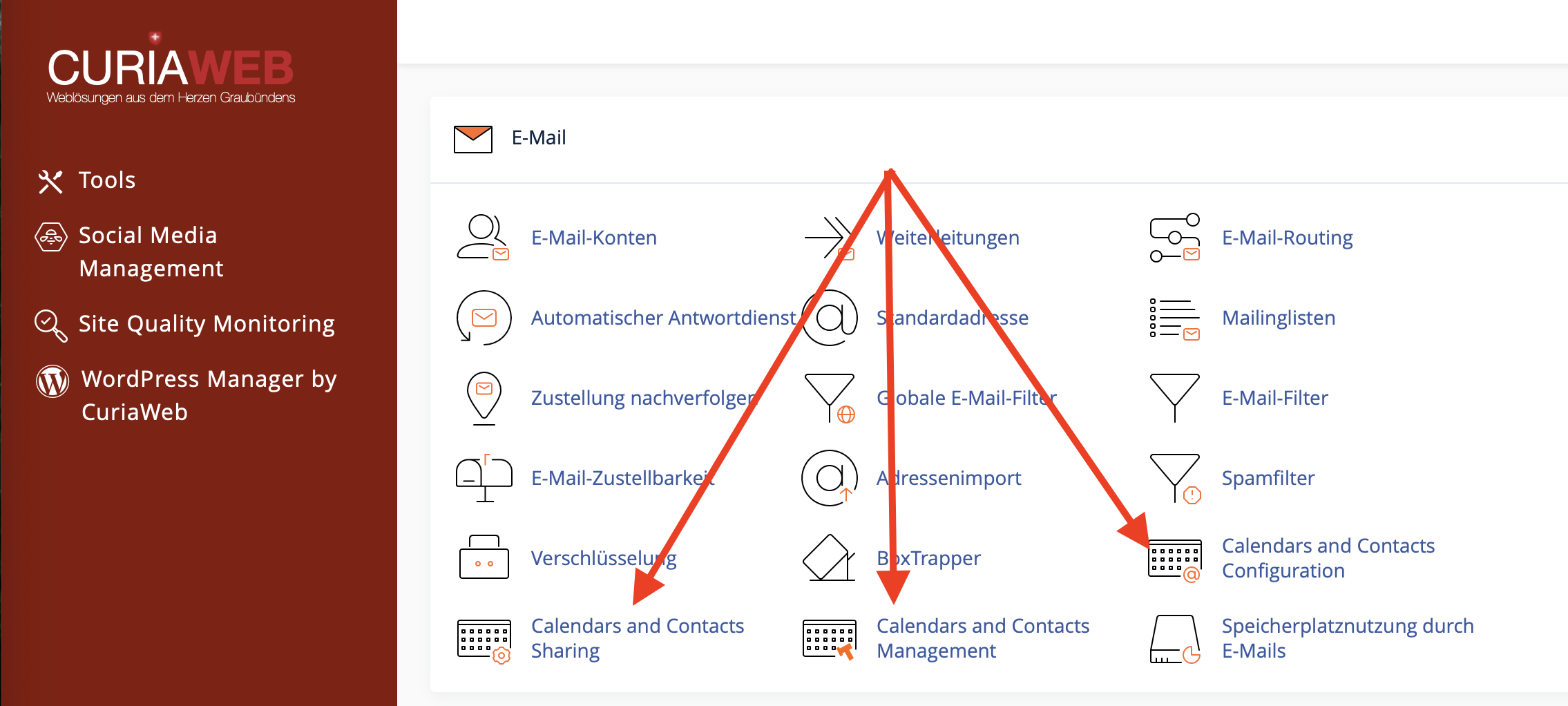
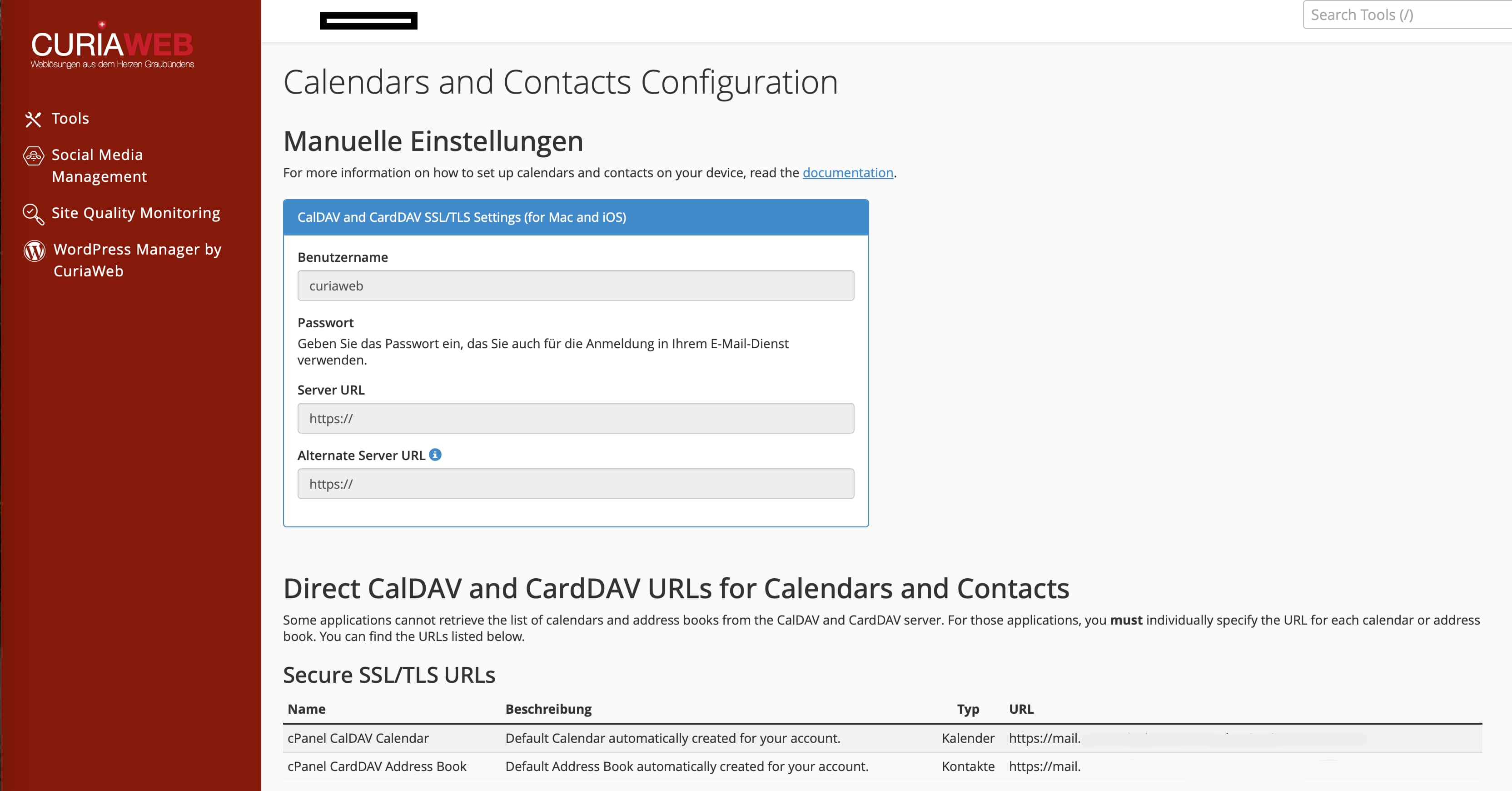
Die individuellen Zugangsdaten finden Sie direkt im Webmail Ihres E-Mail-Kontos. Melden Sie sich dazu im Webmail an und öffnen Sie den Bereich „Kalender- und Kontaktkonfiguration“. Dort werden die für Ihr Konto passenden Serverinformationen angezeigt.
Typische Zugangsdaten:
- Benutzername: Ihre vollständige E-Mail-Adresse
- Passwort: Passwort Ihres E-Mail- beziehungsweise Webmail-Kontos
- Server-URL:
https://ihredomain.ch:2080
Wichtig:
Verwenden Sie nach Möglichkeit immer die Serverdaten, die Ihnen direkt in Ihrem eigenen Webmail angezeigt werden. Die Beispieladresse https://ihredomain.ch:2080 dient nur als Orientierung und muss durch Ihre eigene Domain beziehungsweise die im Webmail angezeigte Adresse ersetzt werden.
Unterschied zwischen Kalender- und Kontakt-Synchronisation
CalDAV und CardDAV werden oft zusammen genannt, erfüllen aber unterschiedliche Aufgaben. Bei der Einrichtung müssen Sie daher darauf achten, ob Sie Kalender, Kontakte oder beides synchronisieren möchten.
| Protokoll | Zweck | Typische Inhalte |
|---|---|---|
| CalDAV | Kalender synchronisieren | Termine, Ereignisse, Kalenderdaten |
| CardDAV | Kontakte synchronisieren | Adressbücher, Namen, Telefonnummern, E-Mail-Adressen |
Wenn Sie sowohl Termine als auch Kontakte synchronisieren möchten, richten Sie in vielen Programmen zwei separate Konten ein: eines für CalDAV und eines für CardDAV.
Einrichtung auf Apple iPhone und iPad
iPhone und iPad unterstützen CalDAV und CardDAV direkt über die iOS-Einstellungen. Sie benötigen dafür keine zusätzliche App.
CalDAV-Kalender auf iPhone oder iPad einrichten
- Öffnen Sie die Einstellungen auf Ihrem iPhone oder iPad.
- Gehen Sie zu Mail beziehungsweise Apps > Mail, je nach iOS-Version.
- Öffnen Sie Accounts.
- Tippen Sie auf Account hinzufügen.
- Wählen Sie Andere.
- Tippen Sie auf CalDAV-Account hinzufügen.
- Tragen Sie Server, Benutzername und Passwort ein.
- Speichern Sie die Einrichtung.
CardDAV-Kontakte auf iPhone oder iPad einrichten
- Öffnen Sie die Einstellungen.
- Gehen Sie zu Kontakte oder über Mail > Accounts, je nach iOS-Version.
- Tippen Sie auf Accounts und anschliessend auf Account hinzufügen.
- Wählen Sie Andere.
- Tippen Sie auf CardDAV-Account hinzufügen.
- Geben Sie Ihre Serveradresse, vollständige E-Mail-Adresse und Ihr Passwort ein.
- Speichern Sie die Einrichtung.
Beim Server tragen Sie die im Webmail angezeigte Adresse ein. Wird die Adresse manuell eingegeben, kann je nach Anzeige beispielsweise eine Schreibweise wie ihredomain.ch:2080 erforderlich sein. Verwenden Sie dabei Ihre eigene Domain und nicht den Platzhalter aus diesem Artikel.
Einrichtung auf Apple Mac beziehungsweise macOS
Auch unter macOS lassen sich Kalender und Kontakte über die Systemeinstellungen beziehungsweise Systemeinstellungen-App hinzufügen.
CalDAV und CardDAV unter macOS einrichten
- Öffnen Sie die Systemeinstellungen beziehungsweise Systemeinstellungen > Internetaccounts.
- Klicken Sie auf Account hinzufügen oder Anderen Account hinzufügen.
- Wählen Sie je nach gewünschter Funktion CalDAV-Account oder CardDAV-Account.
- Wählen Sie bei Bedarf die manuelle Einrichtung.
- Tragen Sie Serveradresse, Benutzername und Passwort ein.
- Schliessen Sie die Einrichtung ab und prüfen Sie anschliessend Kalender oder Kontakte.
Wenn die automatische Erkennung nicht funktioniert, verwenden Sie die manuelle Einrichtung und tragen Sie die Serveradresse aus der Webmail-Konfiguration ein. Achten Sie auf die korrekte Schreibweise der Domain und auf den angegebenen Port.
Einrichtung in Thunderbird
Mozilla Thunderbird kann neben E-Mails auch Kalender und Adressbücher verwalten. Damit eignet sich Thunderbird besonders für Nutzerinnen und Nutzer, die E-Mail, Kalender und Kontakte in einer Anwendung bündeln möchten.
CalDAV-Kalender in Thunderbird hinzufügen
- Öffnen Sie Thunderbird.
- Wechseln Sie in den Bereich Kalender.
- Erstellen Sie einen neuen Kalender.
- Wählen Sie Im Netzwerk.
- Tragen Sie die CalDAV-Adresse aus der Webmail-Konfiguration ein.
- Geben Sie Ihre vollständige E-Mail-Adresse und das Passwort ein, wenn Thunderbird danach fragt.
- Speichern Sie den Kalender und prüfen Sie die Synchronisation.
CardDAV-Adressbuch in Thunderbird hinzufügen
- Öffnen Sie in Thunderbird den Bereich Adressbuch.
- Erstellen Sie ein neues Adressbuch.
- Wählen Sie die Option für ein CardDAV-Adressbuch.
- Tragen Sie die CardDAV-Adresse aus Webmail ein.
- Melden Sie sich mit der vollständigen E-Mail-Adresse und dem zugehörigen Passwort an.
- Speichern Sie die Einrichtung und prüfen Sie, ob Kontakte angezeigt werden.
Einrichtung auf Android-Geräten
Viele Android-Geräte unterstützen CalDAV und CardDAV nicht in jeder Standard-App direkt oder nur abhängig vom Hersteller und der installierten Kalender- beziehungsweise Kontakte-App. Prüfen Sie daher zuerst, ob Ihre verwendete App CalDAV oder CardDAV unterstützt.
Falls Ihre App diese Protokolle unterstützt, erfolgt die Einrichtung in der Regel über die Kontenverwaltung des Geräts oder direkt innerhalb der Kalender- beziehungsweise Kontakte-App. Dort tragen Sie die Serveradresse, Ihre vollständige E-Mail-Adresse und das Passwort ein.
Hinweis zu Android:
Da Android je nach Hersteller, Version und App unterschiedlich aufgebaut ist, können die Menübezeichnungen abweichen. Entscheidend ist, dass die verwendete App CalDAV beziehungsweise CardDAV unterstützt und die Serverdaten korrekt eingetragen werden.
Welche Daten müssen eingetragen werden?
Bei der manuellen Einrichtung werden meist ähnliche Felder abgefragt. Die Bezeichnungen können je nach Gerät oder Programm leicht variieren.
| Feld | Eintrag |
|---|---|
| Server | Serveradresse aus der Webmail-Konfiguration, z. B. https://ihredomain.ch:2080 |
| Benutzername | Vollständige E-Mail-Adresse, z. B. info@ihredomain.ch |
| Passwort | Passwort des E-Mail- beziehungsweise Webmail-Kontos |
| Protokoll | CalDAV für Kalender, CardDAV für Kontakte |
| SSL/TLS | Wenn angeboten, verschlüsselte Verbindung verwenden |
Hinweis zu SSL-Zertifikaten und Sicherheitsmeldungen
Bei der Einrichtung kann es vorkommen, dass ein Gerät eine Sicherheitsmeldung zum SSL-Zertifikat anzeigt. Das kann beispielsweise passieren, wenn die eingegebene Serveradresse nicht exakt zur Zertifikatsadresse passt oder wenn ein Gerät die Verbindung besonders streng prüft.
Wichtig bei Zertifikatswarnungen:
Bestätigen Sie Sicherheitswarnungen nur, wenn Sie sicher sind, dass die Serveradresse korrekt ist und zu Ihrem Hosting gehört. Prüfen Sie im Zweifel die Angaben in Webmail oder wenden Sie sich an den CURIAWEB-Support.
Insbesondere bei Apple-Geräten kann die Synchronisation bestimmter Zusatzfunktionen, wie Erinnerungen, je nach Konfiguration und Zertifikatsprüfung eingeschränkt sein. Für Kalender und Kontakte sollten Sie immer die direkt im Webmail angezeigten Konfigurationsdaten verwenden.
Häufige Probleme und Lösungen
Kalender oder Kontakte werden nicht synchronisiert:
Prüfen Sie zuerst Benutzername, Passwort und Serveradresse. Häufig liegt das Problem an einem Tippfehler, einer fehlenden Portangabe oder einer nicht exakt übernommenen URL.
Das Passwort wird nicht akzeptiert:
Verwenden Sie das Passwort des betroffenen E-Mail-Kontos. Falls Sie unsicher sind, setzen Sie das Passwort in cPanel neu und aktualisieren Sie es anschliessend auch auf allen Geräten.
Das Gerät findet den Server nicht automatisch:
Wählen Sie die manuelle Einrichtung und tragen Sie die Serveradresse aus dem Webmail ein. Automatische Erkennung funktioniert nicht bei jeder Gerätekombination zuverlässig.
Es werden nur Kalender, aber keine Kontakte synchronisiert:
CalDAV und CardDAV sind getrennte Protokolle. Richten Sie zusätzlich ein CardDAV-Konto ein, wenn Sie Kontakte synchronisieren möchten.
Es werden Kontakte, aber keine Termine synchronisiert:
Richten Sie zusätzlich ein CalDAV-Konto ein und prüfen Sie, ob der Kalender in der jeweiligen Kalender-App aktiviert ist.
Einträge erscheinen doppelt:
Doppelte Einträge entstehen häufig, wenn Kontakte oder Kalender gleichzeitig aus mehreren Quellen synchronisiert werden. Prüfen Sie, welche Konten auf dem Gerät aktiv sind, und deaktivieren Sie nicht benötigte Synchronisationsquellen.
Best Practices für CalDAV und CardDAV
Damit die Synchronisation zuverlässig funktioniert, sollten Sie einige grundlegende Punkte beachten.
- Nur eine Hauptquelle verwenden: Vermeiden Sie parallele Pflege derselben Kontakte in mehreren getrennten Konten.
- Serverdaten exakt übernehmen: Kopieren Sie die Angaben aus Webmail möglichst genau.
- Starke Passwörter nutzen: Kalender und Kontakte können sensible geschäftliche Informationen enthalten.
- Geräte regelmässig prüfen: Kontrollieren Sie nach Änderungen, ob Termine und Kontakte weiterhin synchronisiert werden.
- Vor grösseren Änderungen sichern: Exportieren oder sichern Sie wichtige Kontakte, bevor Sie Konten entfernen oder neu einrichten.
- Nicht verwendete Konten entfernen: Alte oder doppelte Synchronisationskonten können zu Konflikten führen.
Datenschutz und geschäftliche Nutzung
Kalender und Kontakte enthalten oft vertrauliche Informationen, darunter Kundendaten, Telefonnummern, interne Termine und geschäftliche Notizen. Verwenden Sie deshalb sichere Passwörter und richten Sie die Synchronisation nur auf Geräten ein, die Sie kontrollieren.
Bei geschäftlich genutzten Smartphones und Computern empfiehlt es sich ausserdem, Bildschirmsperren zu aktivieren und verlorene Geräte schnell aus allen relevanten Konten zu entfernen oder Passwörter zu ändern.
Zusammenfassung
Mit CalDAV und CardDAV synchronisieren Sie Kalender und Kontakte Ihres E-Mail-Kontos bequem zwischen Webmail, Smartphone, Tablet und Desktop-Anwendungen. CalDAV ist für Termine zuständig, CardDAV für Kontakte. Die wichtigsten Angaben wie Serveradresse, Benutzername und weitere Konfigurationsdaten finden Sie direkt im Webmail unter „Kalender- und Kontaktkonfiguration“.
Wenn Sie die Serverdaten korrekt übernehmen, Ihre vollständige E-Mail-Adresse als Benutzername verwenden und das passende Passwort eintragen, lassen sich Kalender und Kontakte auf vielen Geräten zuverlässig einrichten.
Benötigen Sie Hilfe bei CalDAV oder CardDAV?
Der CURIAWEB-Support unterstützt Sie gerne, wenn Kalender oder Kontakte nicht korrekt synchronisiert werden oder Sie die passenden Serverdaten nicht finden.
Support-Ticket erstellen