


Restore Files and Folders: How to Use the cPanel Backup Restore
It can happen quickly: an important file is accidentally deleted, a configuration file is edited incorrectly, or a part of the website no longer works as expected after an update. In such cases, the File and Directory Restoration feature in cPanel can help retrieve individual files or entire folders from existing backups.
The major advantage of this feature is that you do not necessarily have to reset your entire hosting account. Instead, you can target specific elements for restoration, such as an index.php file, an images folder, a plugin directory, or a specific subfolder of your website.
Especially for minor errors, this targeted restoration is often much more practical than a full account restore. However, you should still proceed with caution, as restored files can overwrite existing files at the destination.
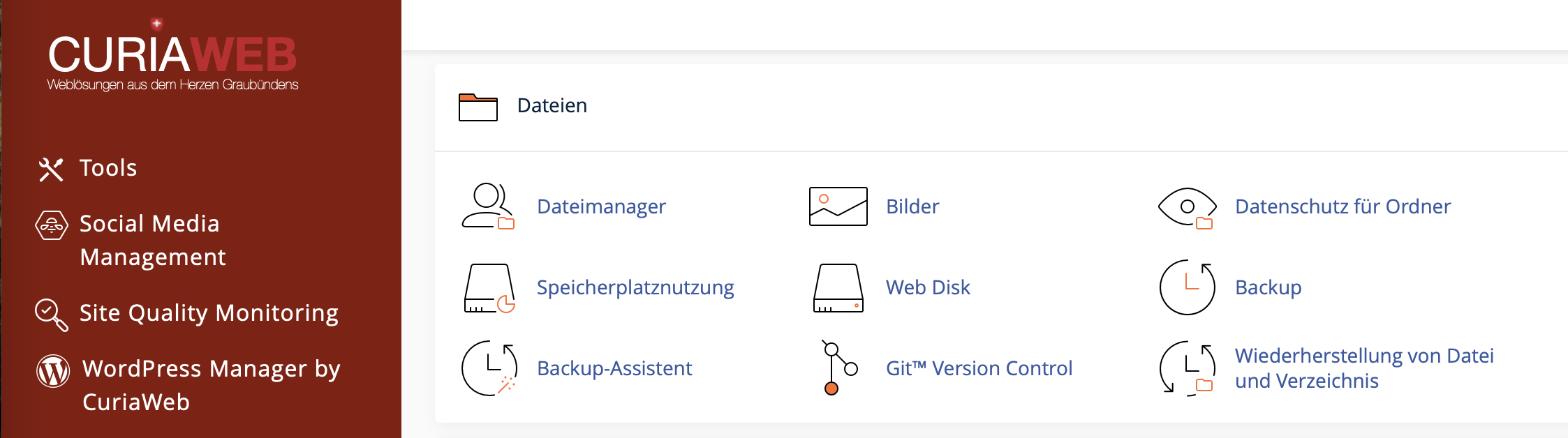
Important Safety Rules Before Restoring
- Existing files may be overwritten: If a file already exists at the destination, it can be replaced by the version from the backup.
- Not every directory can be restored via this interface: The
.cpanelandmaildirectories are not restored through this tool. - Only local backups are displayed: The function works with backup files that are locally available on the server.
- Recent changes may be lost: If you restore an older version, any newer changes made to that file or folder might be replaced.
When is file and folder restoration practical?
Restoring individual files or directories is particularly useful when only a limited part of your website is affected. You then do not have to reset the entire account, thereby preventing other areas from being unnecessarily reverted to an older state.
Typical use cases include:
- You accidentally deleted a file in the File Manager.
- A file was edited incorrectly, causing errors on the website.
- A plugin, theme, or module folder has become corrupted.
- An image folder or download folder was modified by mistake.
- After an update, you want to revert a specific folder to a previous state.
- An important configuration file needs to be retrieved from an older backup.
Conversely, if databases, email content, or the entire hosting account are affected, this feature might not be sufficient. In such instances, a different recovery method may be necessary.
What exactly is restored?
The cPanel File and Directory Restoration function restores files and folders from available backups of your hosting account. You first select what should be restored, and then choose which backup date the restoration should be performed from.
It is important to note: When you restore a folder, it affects the selected folder contents as of that specific backup date. For individual files, only that specific file is restored. The exact scope depends on the element you select and the available backup version.
This restoration is not the same as a full account restore. It is intended for specific corrections, not for a complete reset of all website, database, and email data.
Understanding the cPanel Restoration Interface
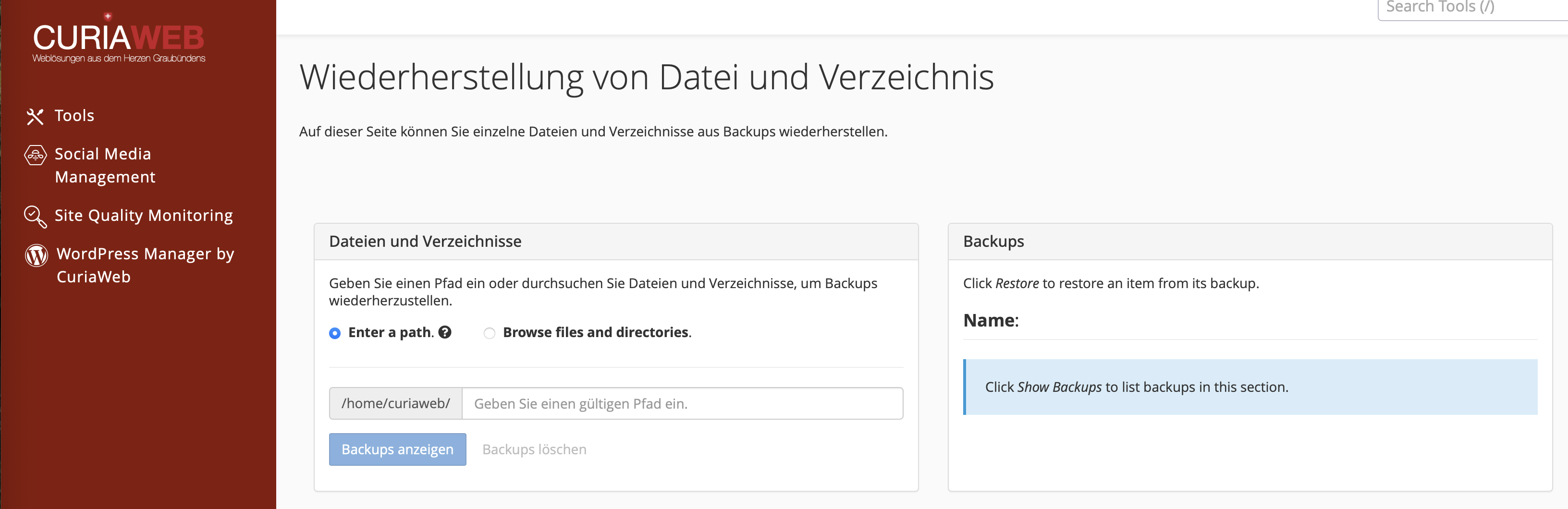
The interface is divided into two main areas. This allows you to separately select which element should be restored and which backup version should be used for it.
In this area, you choose which file or folder should be restored. You can either enter a path directly or navigate through your folder structure.
This section displays the available backups for the selected element. Here you select the desired backup date.
Preparation: What to check before restoring
Before restoring a file or a folder from a backup, you should briefly check whether restoration is truly the right course of action. Caution is especially important for live production websites, because visitors, orders, forms, or ongoing changes could be affected.
- Check the affected path: Make sure you select the correct file or folder.
- Create a current copy if possible: If the existing file is still there, download it or make a copy of it in the File Manager before restoring.
- Note down the desired backup date: Think about when the file was last known to be working correctly.
- Avoid unnecessarily large restores: Only restore what is actually affected.
- Test the website immediately afterwards: Check not only the homepage, but also any affected subpages and features.
If you are unsure whether you should really overwrite a file, download the current version to your local computer first. This allows you to revert to the current state if needed.
Option A: Restore a file or folder via its direct path
Entering the direct path is the fastest method if you know exactly where the file or folder is located. The path is specified relative to the home directory of your cPanel account. For a website in the main root directory, public_html is usually the relevant folder.
Examples of possible paths:
public_html/index.phppublic_html/.htaccesspublic_html/wp-config.phppublic_html/imagespublic_html/wp-content/themes
Step-by-Step Instructions
- Log in to cPanel.
- Open the File and Directory Restoration feature.
- In the Files and Directories section, select the Enter Path option.
- Enter the path relative to the home directory, for example
public_html/index.php. - Click on Show Backups.
- In the Backups section, select the desired backup date.
- Click on Restore.
- Confirm the restoration when you are certain.
- Afterwards, check your website or application.
This method is particularly efficient when you want to restore a specific file, for example, after a faulty edit to a configuration file.
Option B: Select a file or folder by browsing
If you do not know the exact path, you can click through the folder structure of your hosting account. This method is slightly slower, but more visual and intuitive for many users.
Step-by-Step Instructions
- Log in to cPanel.
- Open the File and Directory Restoration feature.
- Select Browse Files and Directories.
- Navigate through the displayed folder structure.
- Click on folder names to view their contents.
- Select the desired file or folder.
- Click on Show Backups.
- Select the desired backup date.
- Start the restoration process.
- Once completed, check whether the file or folder has been correctly restored.
This option is ideal when you are unsure whether a file resides in the main directory, a subfolder, or inside an application structure.
Practical Example: Restoring a broken index.php
Example: Website shows an error after an edit
Suppose your website shows only an error message or a blank page after making a change to the index.php file. If you know that the website was working correctly the previous day, you can attempt to restore the public_html/index.php file from the previous day's backup.
Once restored, the file is instantly active at its original location. Afterwards, check your browser to see if the website is accessible again. If other files or a database are also affected, restoring this single file might not be enough.
Practical Example: Resetting .htaccess after a misconfiguration
A frequent cause for a 500 Internal Server Error is a faulty .htaccess file. If you did not create your own backup before making a change, cPanel restoration can help.
- Select the path, for example
public_html/.htaccess. - Display the available backups.
- Choose a date on which the website was still working properly.
- Restore the file.
- Test the homepage, subpages, and redirects afterwards.
If the website still displays an error after doing this, the cause might lie in another file, PHP settings, a plugin, or within the application itself.
What you should not restore using this feature
File and directory restoration is not suitable for all types of data. It is primarily designed for files and folders within the home directory. For more complex rollbacks, there are other methods available.
- Email accounts: The
maildirectory is not restored through this interface. - cPanel system data: The
.cpaneldirectory is excluded. - Databases: Database contents are not reverted by simply restoring website files.
- Complete accounts: A full account restoration is required for a complete reset.
Especially with dynamic websites like WordPress, Joomla, e-commerce systems, or custom PHP applications, a file restoration is not always sufficient. Content such as posts, products, orders, or settings are often stored in databases. If these are affected, you must also check if a database restore is required.
Important notes for WordPress websites
With WordPress, websites consist of files and a database. Themes, plugins, uploads, and core WordPress files reside in the file system, while posts, pages, settings, users, and many plugin data are saved in the database.
File and directory restoration can help with, for example:
- Corrupted theme files
- Deleted images in the
wp-content/uploadsfolder - Faulty plugin files
- A corrupted
.htaccessfile - Accidentally deleted WordPress core files
However, it does not automatically restore WordPress posts, page content, WooCommerce orders, or database settings. If such content is missing or altered, a pure file restoration may not be sufficient.
What to do if no matching backup is displayed?
If no backup is displayed for the desired file or folder, it can have several causes:
- No local backup is available for this path.
- The file did not exist yet at the time the backup was taken.
- The path entered contains a typo.
- You are looking in the wrong directory.
- The required backup is not stored locally on the server.
- Restoring this area is not supported through this interface.
In this case, check the path first. Pay close attention to case sensitivity, subfolders, and file extensions. If you are unsure, use the browse feature to click through the folder structure.
After restoration: Points you should test
After a successful restoration, you should not only check whether the file is present again. Test whether your website or application actually functions correctly.
- Load the affected page in your browser.
- Clear the website, plugin, or browser cache if necessary.
- Test subpages, forms, and login areas.
- Check images, downloads, or embedded media files.
- For WordPress, verify that themes and plugins load correctly.
- Look out for any new error messages.
If the website still does not function properly after the restoration, the restored file alone might not be the cause. In this situation, the issue should be investigated more closely.
Best Practices for handling backups safely
- Always create your own backup before making major changes.
- Do not modify important files directly without keeping a copy.
- Note down when an error first occurred.
- Whenever possible, restore only the specifically affected files or folders.
- Avoid unnecessary restorations of entire directories.
- Verify all affected website features after performing a restore.
- Contact support if databases, emails, or entire accounts are affected.
FAQ on File and Folder Restoration in cPanel
Will existing files be overwritten?
Yes, if a file already exists at the destination, it can be replaced by the version from the backup. Therefore, create a copy of the current file beforehand if possible.
Can I use this to restore my emails?
No, the mail and .cpanel directories are not restored using this function. A different procedure is required for email or full account restorations.
Can I use this to fully restore a WordPress site?
Not fully. WordPress consists of files and a database. With this tool, you can restore files and folders, but it does not automatically restore database content such as posts, pages, settings, or store orders.
What does a path relative to the home directory mean?
This means you specify the path starting from the main root directory of your cPanel account. For the main website, public_html is often the relevant folder. A file in the website's main root directory would therefore be specified as public_html/index.php, for example.
What do I do if an error is still displayed after the restoration?
Then it is possible that more than just the restored file was affected. Check other files, the database, PHP versions, plugins, themes, or error logs. If you are unsure, you should contact support.
With cPanel File and Directory Restoration, you can retrieve individual files or folders selectively from local backups. This is ideal when a file has been deleted or damaged, without having to reset the entire hosting account. Since existing files can be overwritten, you should carefully verify which element and backup date you select before performing any restore.
If you cannot find a matching backup, need a full account restoration, or are unsure which file should be restored, CURIAWEB Support will be happy to assist you.
Create Support Request