


Account Preferences in cPanel: Managing Privacy, Notifications & Account Type
In cPanel's Account Preferences, you can customize various personal settings for your cPanel access. Depending on your cPanel version and server configuration, these options may include privacy settings, notification styling, language options, or account type details.
These options primarily affect the usage and visual layout of the cPanel interface. Your website, email accounts, databases, domains, and files are normally not modified by these settings.
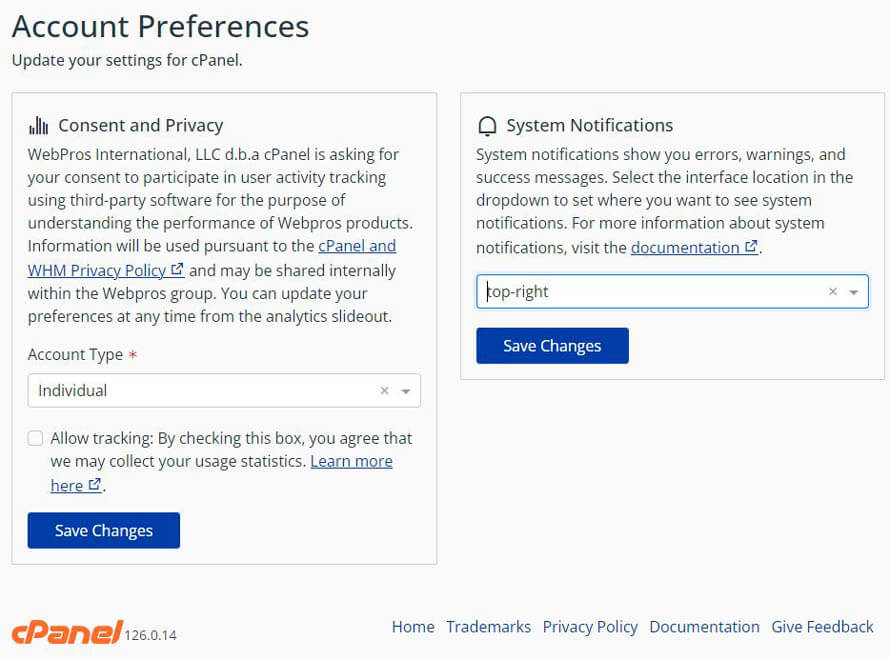
How to Open Account Preferences in cPanel
Depending on your cPanel theme, you can usually access the account preferences via the user icon or profile menu located in the top-right corner of the cPanel dashboard.
- Log in to your cPanel account.
- Click the user icon or your displayed username in the top-right corner.
- Select Account Preferences or a similarly named option.
- Adjust the desired settings to your liking.
- Save the changes.
Account, Preferences, Language, or Notifications.1. Privacy and Interface Analytics
Some cPanel installations offer options for Interface Analytics. These are usage analyses of the cPanel dashboard that help developers improve features and overall usability.
Whether this feature is available and what data is processed depends entirely on your specific cPanel and server setup. If this option is displayed, you can decide whether you want to consent to the data analysis or opt-out.
| Setting | Meaning | Note |
|---|---|---|
| Allow analytics | The usage of certain interface features can be statistically analyzed. | Only relevant if this feature is supported and enabled on the server side. |
| Deny analytics | No usage data will be shared through this specific telemetry function. | Can be changed again at any time depending on the interface configuration. |
2. Account Type: Individual or Business
In some cPanel environments, you can select an Account Type or intended use case, such as Individual or Business. This information helps tailor the layout, layout hints, or available documentation to your specific usage context.
If this option is present in your dashboard, select the appropriate account type and save your changes.
Select Individual if you use the hosting for personal use, or Business if the account is used for a company, organization, medical practice, club, or commercial project.
This setting normally does not change any technical hosting features, contract details, or domain owner records. It serves primarily for layout display or profile categorization within the cPanel interface.
3. System Notifications: Setting the Alert Position
cPanel displays success messages, warnings, or error alerts across different areas of the dashboard. Depending on your version, you can define where these notifications should appear.
Typical examples include:
- Top right: Messages appear discreetly at the edge of the interface.
- Centered on screen: Messages are displayed prominently as an overlay and may require manual dismissal.
- Standard position: cPanel uses the default display settings of the active theme.
4. Language and Region
Depending on your cPanel version, language or regional settings can also be adjusted via the account preferences or through a separate menu item like Change Language.
Changing the language only affects the cPanel user interface. Your website, WordPress installation, Webmail dashboard, databases, or email contents will not be automatically translated.
| Setting | Impact |
|---|---|
| cPanel Language | Changes the language of the management interface, provided translations are available. |
| Regional Display | May affect display styles or formatting choices, depending on system availability. |
| Website Language | Is not affected by this setting. This is managed inside the respective application, such as WordPress. |
What Is Not Part of Account Preferences?
Several security-focused or technical operations are often not located directly within the account preferences, but rather in their own dedicated cPanel tools.
| Task | Typical Tool in cPanel |
|---|---|
| Changing your password | Password & Security |
| Enabling Two-Factor Authentication | Two-Factor Authentication |
| Changing contact email for alerts | Contact Information |
| Managing email accounts | Email Accounts |
| Managing FTP users | FTP Accounts or User Manager |
Security Best Practices for cPanel Account Preferences
- Regularly verify that your contact details are up to date.
- Enable security-related notifications whenever they are available.
- Use a strong, unique password for your primary cPanel login.
- Activate Two-Factor Authentication (2FA) if the feature is provided by your host.
- Do not share your main cPanel credentials with third parties.
- Create separate subaccounts or dedicated service access roles for employees or partners.
Frequently Asked Questions About Account Preferences
Does changing the account type modify my hosting plan?
Normally no. The account type option is used for internal filtering or profile alignment within the interface and does not alter technical limits or billing contracts.
Can I turn off the telemetry analytics?
If the option is available on your server, you can usually toggle it on or off yourself. Its visibility depends entirely on your global server configurations.
Why am I missing some of these preferences?
cPanel features change based on version, active skin/theme, selected hosting plan, and individual server restrictions set by your host.
Will my live website be changed by altering these settings?
No. Account preferences only impact your cPanel interface appearance and dashboard configurations, not the contents or features of your website.
Summary
The Account Preferences in cPanel help you adjust your hosting interface workflow to better fit your personal needs. Depending on your environment, you can manage interface telemetry, notification placement, account type context, and language or regional configurations.
For critical security tools such as password modification, Two-Factor Authentication, or core alert contact paths, cPanel provides standalone tools that should be maintained separately.
Looking to secure your cPanel account further or having trouble finding a specific option?
The CURIAWEB Technical Team is always ready to guide you through your cPanel environment.
