


Sichere Zusammenarbeit im CURIAWEB Kundencenter ohne Passwort-Weitergabe
Wenn mehrere Personen an Ihrer Website, Ihren Domains oder Ihrem Hosting arbeiten, stellt sich schnell die Frage nach dem richtigen Zugriff. Vielleicht soll Ihr Webdesigner technische Einstellungen verwalten, Ihr interner Mitarbeiter Support-Tickets eröffnen oder Ihre Buchhaltung Rechnungen einsehen. Gleichzeitig möchten Sie aber Ihr persönliches Hauptpasswort nicht weitergeben und nicht jeder Person Zugriff auf alle Bereiche Ihres CURIAWEB Kontos erlauben.
Genau dafür bietet das CURIAWEB Kundencenter eine Benutzerverwaltung. Damit können Sie zusätzliche Benutzer zu Ihrem Konto einladen und ihnen individuelle Berechtigungen zuweisen. So behalten Sie die volle Kontrolle darüber, welche Person welche Bereiche sehen oder verwalten darf. Das ist sicherer, übersichtlicher und professioneller als die Weitergabe Ihres eigenen Logins.
Warum sollten Sie Ihr Passwort nicht weitergeben?
Die Weitergabe eines Passworts ist aus Sicherheitsgründen nicht empfehlenswert. Sobald mehrere Personen dasselbe Login verwenden, ist später kaum nachvollziehbar, wer welche Änderung vorgenommen hat. Ausserdem erhält die andere Person mit Ihrem Hauptlogin in der Regel Zugriff auf alle Bereiche Ihres Kontos, zum Beispiel auf Rechnungen, Zahlungsinformationen, Kundendaten, Domains, Hosting-Produkte und Support-Tickets.
Mit einem separaten Benutzerzugang vermeiden Sie dieses Risiko. Jede eingeladene Person verwendet ihr eigenes Login und erhält nur die Berechtigungen, die sie tatsächlich benötigt. Ihr eigenes Hauptpasswort bleibt geheim, und Sie können den Zugriff jederzeit wieder ändern oder vollständig entziehen.
Typische Anwendungsfälle für zusätzliche Benutzer
Die Benutzerverwaltung ist besonders nützlich, wenn Sie mit externen Dienstleistern oder mehreren Personen im Unternehmen zusammenarbeiten. Sie können zum Beispiel einem Webdesigner Zugriff auf technische Bereiche geben, ohne dass diese Person Ihre Rechnungen oder Zahlungsdaten sieht.
- Ein Webdesigner soll Hosting- oder Domain-Einstellungen prüfen.
- Eine Agentur soll Support-Tickets zu technischen Fragen eröffnen.
- Ein Mitarbeiter soll bestimmte Produkte verwalten.
- Die Buchhaltung soll Rechnungen einsehen und herunterladen können.
- Ein Administrator soll Domains, DNS oder Hosting-Dienste verwalten.
- Ein externer Techniker soll nur temporär Zugriff erhalten.
Durch individuell angepasste Rechte stellen Sie sicher, dass jede Person nur Zugriff auf die Bereiche erhält, die für ihre Aufgabe notwendig sind.
So fügen Sie einen neuen Benutzer im CURIAWEB Kundencenter hinzu
Um einer weiteren Person Zugriff auf Ihr CURIAWEB Konto zu geben, laden Sie diese Person über die Benutzerverwaltung ein. Die eingeladene Person erhält anschliessend eine Einladung per E-Mail und kann einen eigenen Zugang verwenden.
- Melden Sie sich im CURIAWEB Kundencenter mit Ihrem Hauptkonto an.
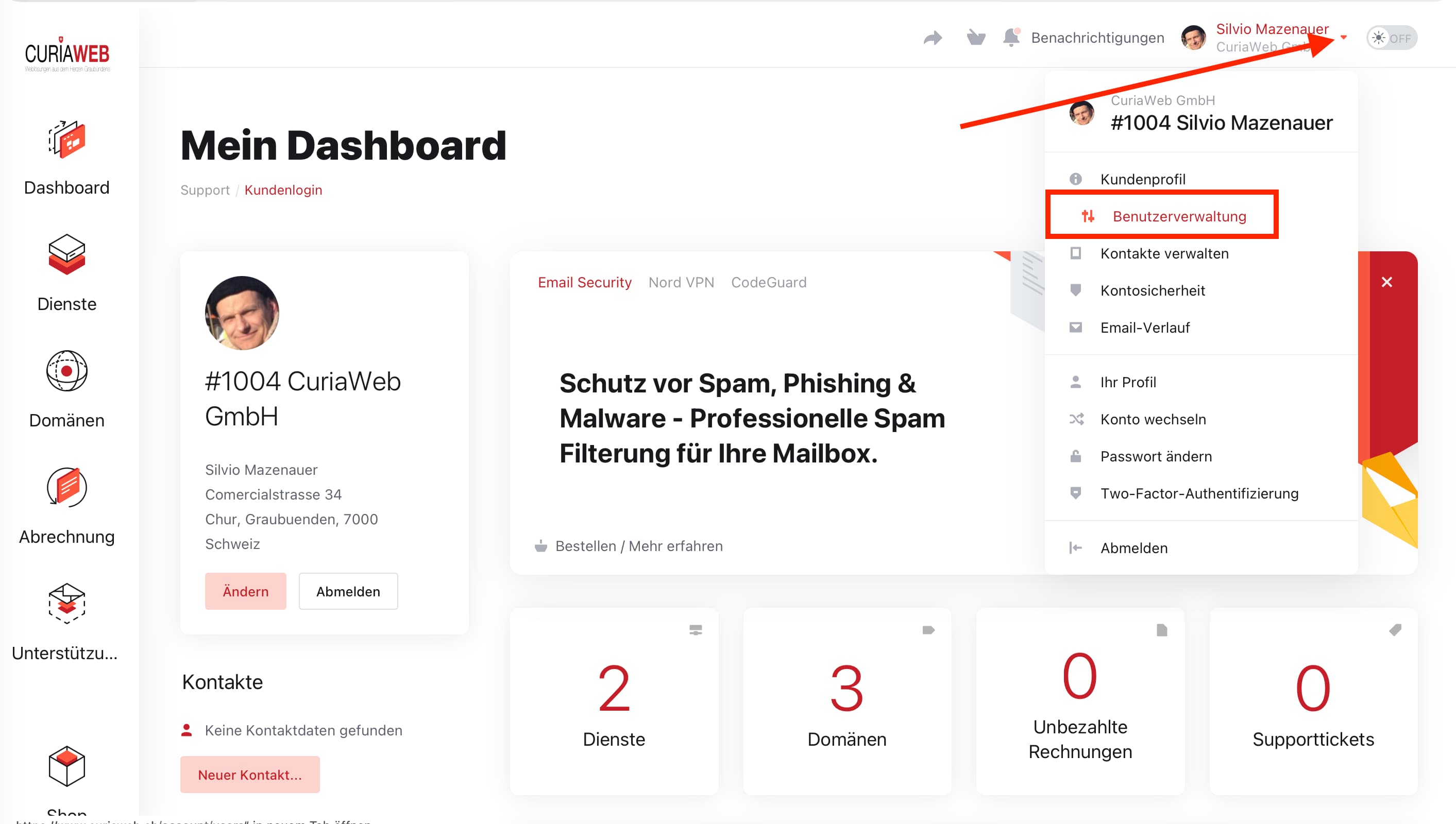
- Klicken Sie oben rechts auf Ihr Profil- oder Benutzer-Menü.
- Öffnen Sie den Bereich „Benutzerverwaltung“.
- Geben Sie die E-Mail-Adresse der Person ein, die Sie einladen möchten.
- Wählen Sie „Berechtigungen anpassen“, um die Zugriffsrechte individuell festzulegen.
- Bestimmen Sie, welche Bereiche die Person sehen oder verwalten darf.
- Klicken Sie auf „Einladung senden“.
Die eingeladene Person erhält danach eine E-Mail mit weiteren Schritten. Erst wenn die Einladung angenommen wurde, kann sie mit den zugewiesenen Rechten auf Ihr Konto zugreifen.
Welche Berechtigungen können vergeben werden?
Je nach Bedarf können Sie festlegen, ob ein zusätzlicher Benutzer nur bestimmte Aufgaben erledigen darf oder umfassendere Rechte erhält. Die verfügbaren Berechtigungen können je nach Kundencenter-Version und Kontotyp variieren, typischerweise lassen sich jedoch Bereiche wie Support, Domains, Produkte, Rechnungen oder Kontoverwaltung separat steuern.
Beispiele für mögliche Berechtigungen:
- Support-Tickets anzeigen oder erstellen
- Domains verwalten
- Hosting-Produkte und Dienste einsehen
- Technische Einstellungen prüfen
- Rechnungen anzeigen oder herunterladen
- Zahlungen und Bestellungen verwalten
- Kontakte oder Benutzer verwalten
Für externe Dienstleister ist es meist sinnvoll, nur die wirklich benötigten technischen Berechtigungen zu vergeben. Für Buchhaltungszwecke können dagegen Rechnungsrechte ausreichend sein, ohne Zugriff auf technische Einstellungen zu erlauben.
Empfehlung: Rechte nach dem Minimalprinzip vergeben
Bei der Vergabe von Benutzerrechten empfehlen wir das sogenannte Minimalprinzip. Das bedeutet: Eine Person sollte nur die Rechte erhalten, die für ihre Aufgabe wirklich notwendig sind. Wenn Ihr Webdesigner lediglich Support-Tickets erstellen oder technische Informationen einsehen muss, benötigt er keinen Zugriff auf Rechnungen oder Zahlungsdaten.
Dieses Vorgehen erhöht die Sicherheit Ihres CURIAWEB Kontos und reduziert das Risiko unbeabsichtigter Änderungen. Gleichzeitig bleibt die Zusammenarbeit effizient, weil jede Person genau die Werkzeuge erhält, die sie benötigt.
Zugriff später ändern oder entfernen
Wenn eine Zusammenarbeit endet oder eine Person andere Aufgaben übernimmt, können Sie die Berechtigungen jederzeit überprüfen und anpassen. Öffnen Sie dazu erneut die Benutzerverwaltung im CURIAWEB Kundencenter. Dort sehen Sie, welche Personen Zugriff auf Ihr Konto haben.
Sie können bestehende Rechte ändern oder den Zugriff vollständig entfernen. Das ist besonders wichtig, wenn externe Dienstleister nur vorübergehend an Ihrer Website gearbeitet haben oder ein Mitarbeiter das Unternehmen verlässt.
Häufige Fragen zur Benutzerverwaltung
Muss ich meinem Webdesigner mein Passwort geben?
Nein. Sie können Ihren Webdesigner als zusätzlichen Benutzer einladen und ihm gezielt die benötigten Rechte zuweisen. Ihr eigenes Passwort bleibt dabei geheim.
Kann ein zusätzlicher Benutzer meine Rechnungen sehen?
Nur wenn Sie ihm entsprechende Berechtigungen geben. Über die Berechtigungsverwaltung können Sie steuern, ob eine Person Rechnungen einsehen darf oder nicht.
Kann ich den Zugriff später wieder entziehen?
Ja. Sie können Benutzerrechte jederzeit ändern oder den Zugang vollständig entfernen.
Ist ein eigener Benutzerzugang sicherer als Passwort-Weitergabe?
Ja. Jeder Benutzer verwendet ein eigenes Login, und Sie behalten die Kontrolle über die vergebenen Rechte. Dadurch ist die Zusammenarbeit sicherer und besser nachvollziehbar.
Zusammenfassung
Mit der Benutzerverwaltung im CURIAWEB Kundencenter können Sie sicher mit Webdesignern, Agenturen, Mitarbeitern oder Ihrer Buchhaltung zusammenarbeiten, ohne Ihr Hauptpasswort weiterzugeben. Sie bestimmen individuell, welche Person Zugriff auf Support, Domains, Hosting-Produkte, Rechnungen oder andere Bereiche erhält.
So bleibt Ihr CURIAWEB Konto geschützt, während externe und interne Personen effizient an den notwendigen Aufgaben arbeiten können. Für eine sichere Zusammenarbeit empfehlen wir, Benutzerrechte regelmässig zu prüfen und nur die Berechtigungen zu vergeben, die tatsächlich benötigt werden.
