


Setting up email forwarders in cPanel: Automatically redirect messages to other addresses
With an email forwarder in cPanel, you can have incoming messages automatically sent to one or more other email addresses. This is practical if you want to use an address like info@yourdomain.ch, support@yourdomain.ch, or sales@yourdomain.ch without necessarily having to manage an individual mailbox with a separate login.
Forwarders are particularly suitable for functional addresses, team addresses, or simple alias addresses. A message sent to the forwarded address is automatically redirected to the defined destination. Depending on the setup, the original address can additionally have its own mailbox or exist exclusively as a forwarder.
Forwarder or individual email account?
Before you set up a forwarder, you should decide whether the address requires its own mailbox or should only serve as a forwarder. Both variants have different effects.
| Variant | Description | Suitable for |
|---|---|---|
| Email Account | The address has its own mailbox with a login, storage space, and access via webmail or an email client. | Employees, personal mailboxes, permanently used addresses |
| Forwarder | Incoming messages are automatically forwarded to another address. | Alias addresses, functional addresses, simple redirections |
| Account plus Forwarder | The message lands in the local mailbox and is additionally forwarded. | Archiving in the mailbox plus a copy to other recipients |
Typical use cases for email forwarders
Forwarders make a lot of sense when multiple public addresses need to point to a few actual mailboxes. This allows you to communicate clear contact addresses without having to manage an individual mailbox for every single address.
- info@yourdomain.ch is forwarded to a personal address.
- sales@yourdomain.ch goes to the sales team.
- support@yourdomain.ch is sent to a ticket system or a support mailbox.
- accounting@yourdomain.ch is forwarded to the responsible person.
- Old addresses are redirected to new addresses after a transition.
- Multiple domain variants forward emails to the same users.
Especially for small businesses, clubs, or projects, a clean forwarding structure can help organize communication in a clear and professional manner.
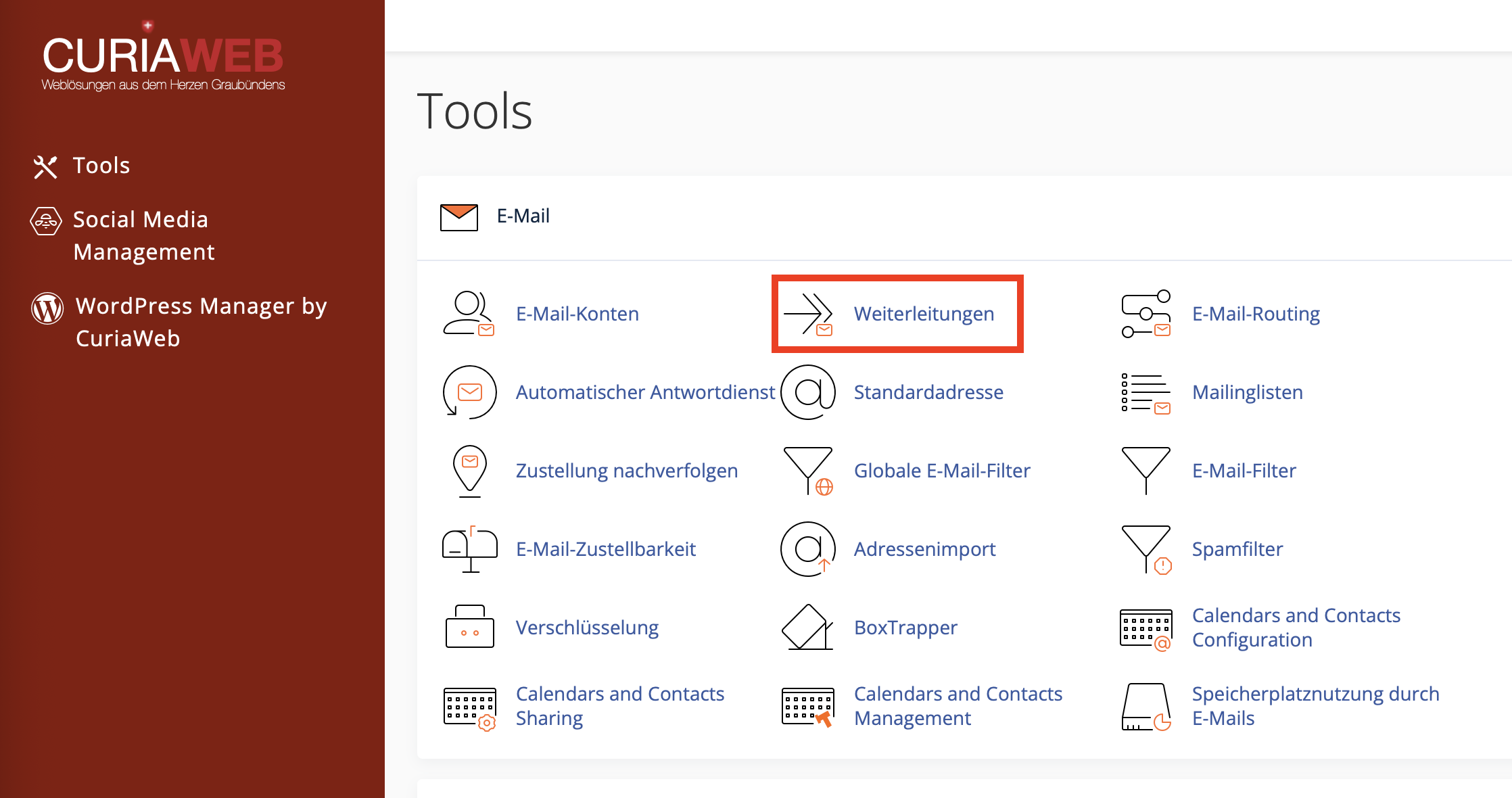
Step 1: Open Forwarders in cPanel
First, log in to your CURIAWEB client area or directly into cPanel. Then open the Email section and click on Forwarders.
In the overview, you can see existing forwarders and add new ones. If multiple domains are configured in your hosting package, make sure to select the correct domain.
Step 2: Add a new forwarder
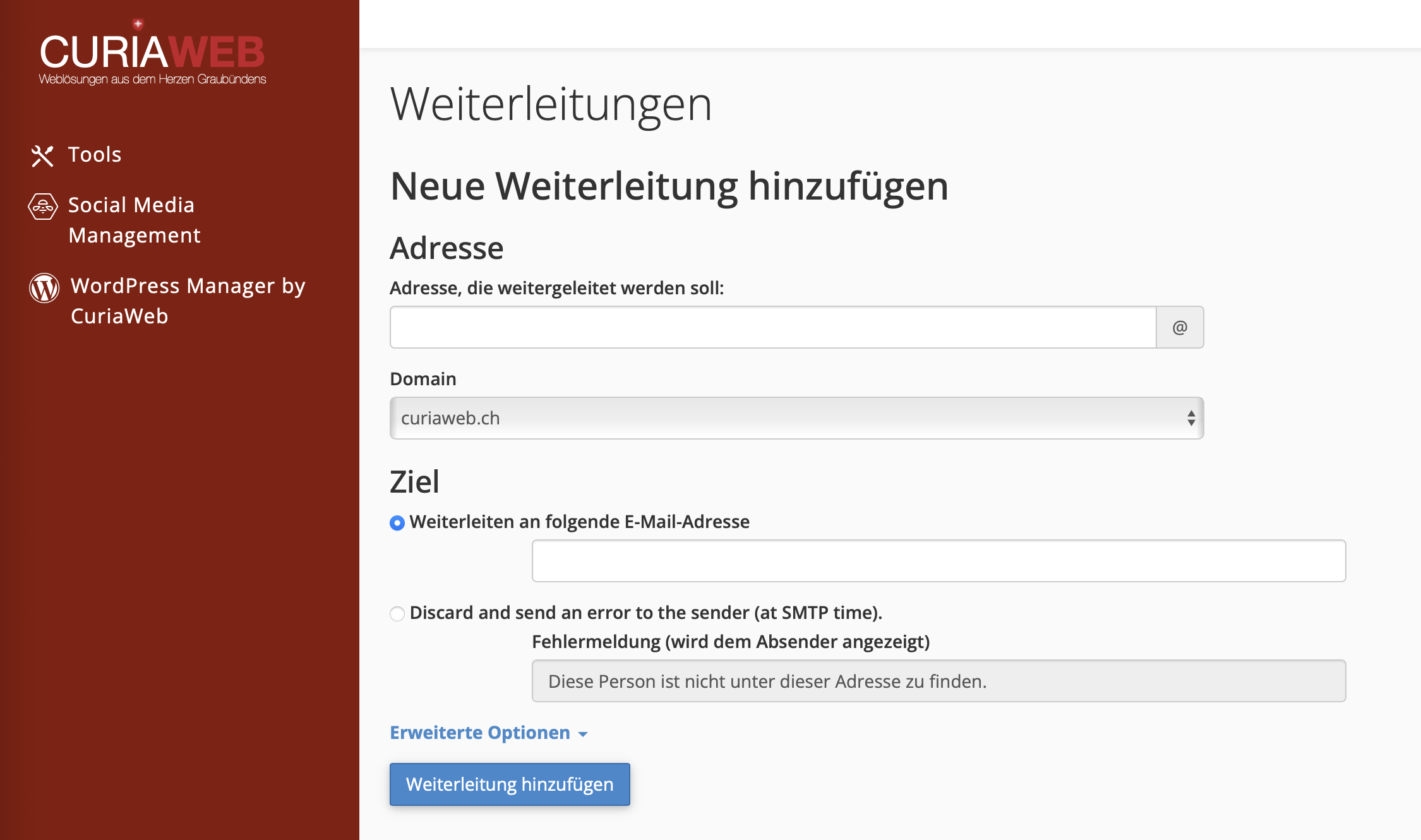
Click on Add Forwarder to create a new redirection. Then enter the address you want to forward and define the destination.
- Click on Forwarders in cPanel.
- Select Add Forwarder.
- Enter the name of the address to be redirected, for example, support.
- Select the appropriate domain, for example, yourdomain.ch.
- Under Forward to Email Address, enter the destination address.
- Click on Add Forwarder to save the setting.
For example, if you want to forward support@yourdomain.ch to max@example.com, enter support in the first field, select the domain yourdomain.ch, and enter max@example.com as the destination address.
Forwarding one address to multiple recipients
If an address needs to be forwarded to multiple people, you can create multiple forwarders for the same source address, depending on the cPanel interface. This ensures that each defined recipient receives a copy of the incoming message.
Example: sales@yourdomain.ch should go to three employees. In this case, you create forwarders from sales@yourdomain.ch to each desired destination address.
Forwarding with or without a local mailbox
A forwarder can exist regardless of whether a local email account exists for the source address. The behavior differs as follows:
- Address has its own mailbox: The email is stored in the mailbox and additionally sent to the forwarding destination.
- Address does not have its own mailbox: The email is only sent to the forwarding destination.
If you want to keep a copy in the CURIAWEB mailbox, create an email account first and then add the forwarder. If you do not need local storage, the forwarder without its own mailbox is sufficient.
Advanced options for forwarders
When creating a forwarder, advanced options may be available depending on the cPanel version. These are intended for special use cases and should be used deliberately.
| Option | Description | Note |
|---|---|---|
| Pipe to a Program | Forwards the incoming message to a script or program. | For ticket systems or technical automation, only for advanced setups. |
| Discard | The message is not delivered. Optionally, an error message can be sent to the sender. | Use with caution, as messages can be lost. |
Domain Forwarding: Forwarding all addresses of a domain
In addition to individual forwarders, cPanel also offers Domain Forwarders. This allows emails from one domain to be forwarded entirely to the same users of another domain.
Example: Messages to name@old-domain.ch should automatically go to name@new-domain.ch. This means you do not have to create each address individually, as long as the local parts of the addresses match.
Example:
- info@old-domain.ch becomes info@new-domain.ch
- support@old-domain.ch becomes support@new-domain.ch
- sales@old-domain.ch becomes sales@new-domain.ch
Domain forwarders are practical for domain changes, brand rebrands, or additional domain variants. However, check carefully whether all desired destination addresses actually exist on the new domain.
Testing and tracking forwarders
After creating a forwarder, you should test it. To do this, send a message from an external address to the forwarded address and check whether it arrives at the destination.
In cPanel, you will find the Trace option next to your forwarder in the list. This allows you to check the path a message takes and whether the forwarding is carried out correctly.
- Successful delivery: The message was forwarded to the destination.
- Faulty destination address: The forwarder cannot be delivered.
- External destination: The message is handed over to an external mail server.
- Local destination: The message remains within the local server environment.
If a forwarder does not work, first check the spelling of the destination address and whether the destination address can receive emails.
Changing or deleting a forwarder
Depending on the cPanel version, existing forwarders cannot be edited directly. If you want to change the destination, delete the existing forwarder and then create a new one with the correct destination.
Forwarders and spam: What you should consider
When forwarding to external providers, it can happen that forwarded spam messages affect deliverability. The external provider may see CURIAWEB or the forwarding server as the transmitting source, even though the original message came from a different sender.
If you receive a lot of spam emails and forward them automatically, it may be useful to filter spam on the server side before forwarding. This reduces unwanted messages at the destination mailbox and avoids unnecessary delivery problems.
Forwarder, alias, or distribution list: What makes sense?
For simple cases, a normal forwarder is sufficient. If several people need to access messages together or coordinate responses, a shared mailbox or a ticket system is often better suited.
| Solution | Suitable for | Note |
|---|---|---|
| Forwarder | Simple redirection to one or more addresses | Quick to set up, but no shared processing history |
| Individual Mailbox | Personal or permanently used address | Individual login, storage space, and webmail access |
| Ticket System | Support, customer inquiries, team processing | Better for traceable responsibilities and processing status |
Common problems with email forwarders
| Problem | Possible Cause | Solution |
|---|---|---|
| Forwarding does not arrive | Destination address misspelled or destination mailbox does not accept emails | Check the destination address and send a test email |
| Messages land twice | A local mailbox and additionally a forwarder exist | Check whether this double delivery is desired |
| Forwarding to external address is rejected | External provider rejects message due to spam or delivery policies | Check spam filters and avoid unnecessary forwarding chains |
| Destination needs to be changed | Existing forwarder cannot be edited directly | Delete old forwarder and create a new forwarder |
| Domain forwarder does not work as expected | Destination address does not exist or domain routing/DNS does not match | Check destination addresses, domain, and email routing |
Best practices for email forwarders
Forwarders are easy to set up, but should be planned consciously. Especially with business addresses, it is important that messages arrive reliably and are processed traceably.
Recommended procedure:
- For important addresses, check whether an individual mailbox makes more sense.
- Write and test forwarding destinations carefully.
- Define clear responsibilities for multiple recipients.
- Avoid forwarding chains as much as possible.
- Regularly check and remove old forwarders.
- Keep spam filters active, especially for external forwarding destinations.
Summary
With email forwarders in cPanel, you can automatically forward messages to other addresses. This is ideal for alias addresses, functional addresses, team addresses, or domain changes. A forwarder can be used with or without its own local mailbox.
If an email account exists for the source address, the mailbox receives a copy and the forwarder does too. If no mailbox exists, the message is only forwarded. Existing forwarders are usually deleted and recreated when destination changes occur.
Test each new forwarder with an external email address and, in case of problems, check the destination address, spam filters, domain routing, and possible forwarding chains.
Do you need help setting up complex forwarders?
CURIAWEB support will gladly assist you with forwarders, domain forwarders, delivery problems, or with the question of whether a mailbox, a forwarder, or a ticket system is better suited.
Tip: Create a test email from an external address after every new forwarder. This way, you can immediately see whether the message arrives correctly at the destination.
