


Email Routing in cPanel: Determining Where Your Emails Arrive
The Email Routing feature in cPanel allows you to specify how the server handles incoming emails for your domain. Simply put, this setting determines whether the CURIAWEB server should accept emails for your domain locally or if they need to be delivered to an external mail server.
This setting is particularly critical if you do not manage your emails directly through CURIAWEB, but instead use external services such as Microsoft 365, Google Workspace, your own corporate mail server, or another specialized email provider. In such cases, DNS records and email routing must match perfectly to ensure reliable message delivery.
What Does Email Routing Mean?
Email routing defines the decision process of where incoming emails for a domain are delivered. This decision is closely linked to your domain's MX records. MX stands for Mail Exchanger and specifies which mail servers are designated to accept emails on behalf of a domain.
While the MX records in the DNS tell the internet which servers are responsible for your emails, the email routing configuration in cPanel instructs the local server whether it should process emails for this domain itself or treat them as externally managed.
Why Is Email Routing So Important?
If routing is configured incorrectly, delivery issues will occur. A typical example: your domain uses Microsoft 365, but cPanel is still set to Local Mail Exchanger. In this scenario, the local server may erroneously accept the emails itself or deliver them internally, even though they should be routed to Microsoft 365.
Conversely, issues can also arise if you wish to receive your emails at CURIAWEB but the routing is set to External Mail Exchanger. cPanel will then treat the domain as external, disrupting local delivery to your CURIAWEB mailboxes.
- Local routing incorrectly set: Emails fail to reach the external provider.
- External routing incorrectly set: Local CURIAWEB mailboxes do not receive messages properly.
- DNS and routing conflict: Delivery can become highly unreliable or fail completely.
- Multiple mail services in parallel: Without clear ownership, hard-to-trace errors will occur.
When Do You Need to Change Email Routing?
In many cases, you do not need to change the email routing manually. If you use your domain and your email accounts entirely with CURIAWEB, the local mail exchanger is usually the correct choice.
A change becomes relevant primarily when you migrate the email reception for your domain to an external service or when your DNS records intentionally point to external mail servers.
| Situation | Typical Routing Setting |
|---|---|
| Emails are used at CURIAWEB via cPanel mailboxes | Local Mail Exchanger |
| Emails run through Microsoft 365 | External Mail Exchanger |
| Emails run through Google Workspace | External Mail Exchanger |
| A dedicated external mail server is responsible | External Mail Exchanger or Backup Mail Exchanger depending on the setup |
| Server should temporarily store emails if the primary mail server is unavailable | Backup Mail Exchanger |
Opening Email Routing in cPanel
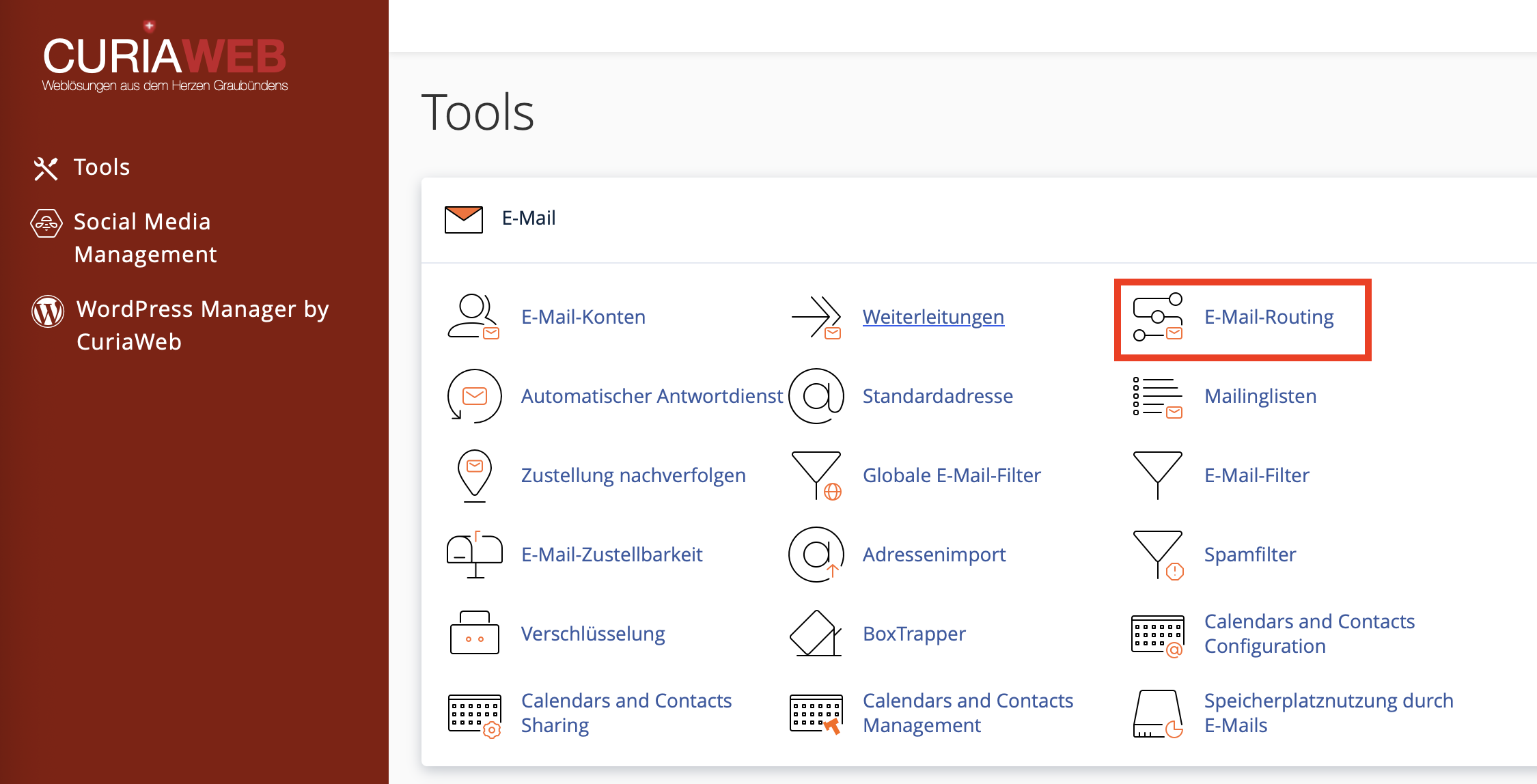
To check or change the routing configuration, first log in to your CURIAWEB client area or directly into cPanel. Next, navigate to the Email section and select Email Routing.
Then, select the desired domain. This step is particularly important if you have multiple domains configured within your hosting package. The setting applies specifically to the selected domain.
- Log in to cPanel.
- Open the Email section.
- Click on Email Routing.
- Select the desired domain.
- Check the current routing configuration.
- Select the appropriate option if required.
- Save the changes.
The Four Routing Options in cPanel
cPanel generally provides four routing options. The correct option depends entirely on where your emails are supposed to be received.
The system checks the existing MX records and attempts to deduce whether the domain should be processed locally or externally. If the active MX record points to the local server, the domain is treated as local. If the MX record points to an external provider, it is treated as external.
Choose this setting if CURIAWEB or the cPanel server should accept emails for your domain locally and deliver them to your configured mailboxes. This is the correct setting if you access your emails using CURIAWEB Webmail, Outlook, Apple Mail, Thunderbird, Android, or iPhone via cPanel mailboxes.
This setting is used when the server should only accept emails temporarily and forward them to the primary mail server later. This is a specialized use case, for example, for setups with an external primary mail server supported by a backup server during outages.
Choose this setting if CURIAWEB should not accept emails for this domain locally because an external service is responsible. This is typically the case for Microsoft 365, Google Workspace, or an external mail server. Delivery then occurs in accordance with the external MX records defined in the DNS.
Local Mail Exchanger: When CURIAWEB Hosts Your Emails
The Local Mail Exchanger is the correct configuration if you have set up your email accounts directly in cPanel at CURIAWEB and wish to receive your messages there.
Typical indicators for local routing:
- You use email accounts created within cPanel.
- You retrieve emails via CURIAWEB Webmail.
- You connect Outlook, Thunderbird, Apple Mail, iPhone, or Android directly to the CURIAWEB mail server.
- Your domain's MX records point to the CURIAWEB mail server.
If these criteria apply to your setup, routing should not be set to external, as this would impair local email delivery.
External Mail Exchanger: When Microsoft 365, Google Workspace, or Another Provider Is Responsible
The External Mail Exchanger is the correct configuration when incoming emails should not arrive at CURIAWEB, but rather at an external mail service. This includes platforms like Microsoft 365, Google Workspace, or third-party external mail servers.
In this scenario, your domain's MX records in the DNS must point to the external provider. Additionally, cPanel needs to know that it is not locally responsible for this domain. This is precisely why the routing is set to External Mail Exchanger.
Backup Mail Exchanger: Only for Specialized Setups
The Backup Mail Exchanger option is intended for specific mail server architectures. Under this configuration, the server holds emails temporarily if the primary mail server is unreachable, and attempts to forward them at a later time.
This option is not intended for standard web hosting mailboxes and should only be deployed if you fully understand how your mail server cluster is structured. In standard CURIAWEB hosting scenarios, this setting is rarely required.
Automatically Detect Configuration: Practical, but Verify
The Automatically Detect Configuration option can be helpful because cPanel attempts to pick the correct routing setting based on your MX records. Nonetheless, you should always review the result, especially after making changes to your DNS or MX records.
If you know exactly whether emails should be processed locally or externally, explicitly choosing a fixed setting is often clearer than relying on automatic detection. This is particularly true during migrations to Microsoft 365, Google Workspace, or other external mail services.
The Connection Between Email Routing and the DNS Zone Editor
Email routing alone does not determine which external mail servers on the internet are responsible for your domain. That responsibility lies with the MX records in your DNS. You manage these via cPanel using the Zone Editor or through your domain's DNS management interface.
Routing and DNS records must complement each other:
| DNS / MX Records | cPanel Email Routing | Result |
|---|---|---|
| MX points to CURIAWEB | Local Mail Exchanger | Emails are delivered locally |
| MX points to Microsoft 365 or Google Workspace | External Mail Exchanger | Emails are delivered externally |
| MX points externally, routing is set to local | Local Mail Exchanger | Delivery failures or local delivery issues possible |
Typical Scenarios and Correct Settings
| Scenario | Recommended Setting | Note |
|---|---|---|
| Standard CURIAWEB web hosting with email accounts in cPanel | Local Mail Exchanger | Default for local mailboxes |
| Domain uses Microsoft 365 for email | External Mail Exchanger | MX records must point to Microsoft 365 |
| Domain uses Google Workspace for email | External Mail Exchanger | MX records must point to Google Workspace |
| Website hosted at CURIAWEB, email with external provider | External Mail Exchanger | Website and email can be operated separately |
| Dedicated corporate mail server with backup delivery | Backup Mail Exchanger | Only for advanced mail server setups |
Common Errors in Email Routing
Email routing issues are often difficult to detect because email delivery depends on multiple components. When troubleshooting, always evaluate the DNS, MX records, and routing as a whole.
| Problem | Possible Cause | Solution |
|---|---|---|
| Emails to Microsoft 365 are not arriving | Routing is still set to local or MX records are incorrect | Check MX records and set routing to external |
| Local cPanel mailboxes do not receive emails | Routing is set to external | Set routing to Local Mail Exchanger if CURIAWEB is responsible |
| Website works, but email does not | DNS for web and mail are separated and email records are wrong | Check MX records and email routing |
| Email delivery only works partially | Multiple conflicting MX records or incorrect priorities | Clean up MX records and set priorities correctly |
| No emails are received after configuration change | DNS modifications are still propagating or routing is incorrect | Wait for DNS propagation and verify the configuration |
Best Practices Before Making Changes
Before modifying your email routing, ensure you understand both your current and desired mail server configurations. Especially with production corporate mailboxes, an incorrect setting can immediately impact email reception.
Verify the following before switching:
- Where should emails be received moving forward?
- Do the MX records point to the correct provider?
- Are all required mailboxes present at the destination provider?
- Has an appropriate time been chosen for the migration?
- Have affected users been notified?
- Is it clear how to revert the function if issues arise?
Summary
The Email Routing feature in cPanel determines whether CURIAWEB processes emails for your domain locally or routes them to an external mail server. The correct setting depends entirely on where your email accounts are actually operated.
If you use your emails directly with CURIAWEB, Local Mail Exchanger is the correct choice. If you use Microsoft 365, Google Workspace, or another external mail service, the routing must generally be set to External Mail Exchanger, and the DNS MX records must point correctly to the external provider.
Only change this setting with a clear target configuration in mind. If you are uncertain, it is highly recommended to have your DNS and routing configurations verified before disrupting active email reception.
">Are you planning a migration to Microsoft 365, Google Workspace, or an external mail server?
CURIAWEB support will gladly assist you in verifying your MX records, email routing, and ensuring a seamless transition for your email reception.
Tip: When experiencing email issues, always check both areas: the MX records in the DNS and the email routing configuration in cPanel. Both must match your intended mail server setup.
