


Track Email Delivery: Where Did My Message Go?
When an email does not arrive, is delivered with a delay, or ends up in the recipient's spam folder, the cause is not always immediately apparent. With the cPanel Track Delivery feature, you can check what happened to incoming and outgoing messages. This function displays delivery attempts, errors, forwards, filter events, and technical reports from the mail server.
This analysis is particularly helpful when you want to know if a message was successfully sent, if the destination server accepted it, or if it was blocked by a filter, a full mailbox, an incorrect address, or another delivery rule.
When Should You Track Delivery?
This function is suitable whenever an email was not delivered as expected or when you require technical details regarding the delivery. It is especially useful for recurring issues or unclear error messages.
- A sent email does not reach the recipient.
- A sender claims to have sent you a message, but it is not visible in your inbox.
- An email is delivered with a delay.
- A message is treated as spam or handled by a filter.
- A forward does not work as expected.
- A mailbox is full or a destination address does not exist.
- You need technical information for CURIAWEB support.
Track Delivery does not replace a full external mail server analysis, but it provides vital clues directly from your cPanel environment.
Distinction from Email Deliverability and Spam Filters
The Track Delivery feature shows concrete delivery events for individual messages. It thus differs from the Email Deliverability feature, which checks basic technical DNS elements such as SPF, DKIM, and PTR.
The spam filter also serves a different purpose. It evaluates incoming messages and can tag, move, or block them. However, in Track Delivery, you can see if a message was affected by these mechanisms.
| Feature | Main Task | Typical Question |
|---|---|---|
| Track Delivery | Analyzes concrete delivery events for individual emails. | Where did this message go? |
| Email Deliverability | Checks SPF, DKIM, PTR, and basic DNS settings for outgoing emails. | Why do my emails end up in spam? |
| Spam Filter / Email Filter | Evaluates or processes messages based on rules. | Why was this message filtered? |
How to Open Track Delivery in cPanel
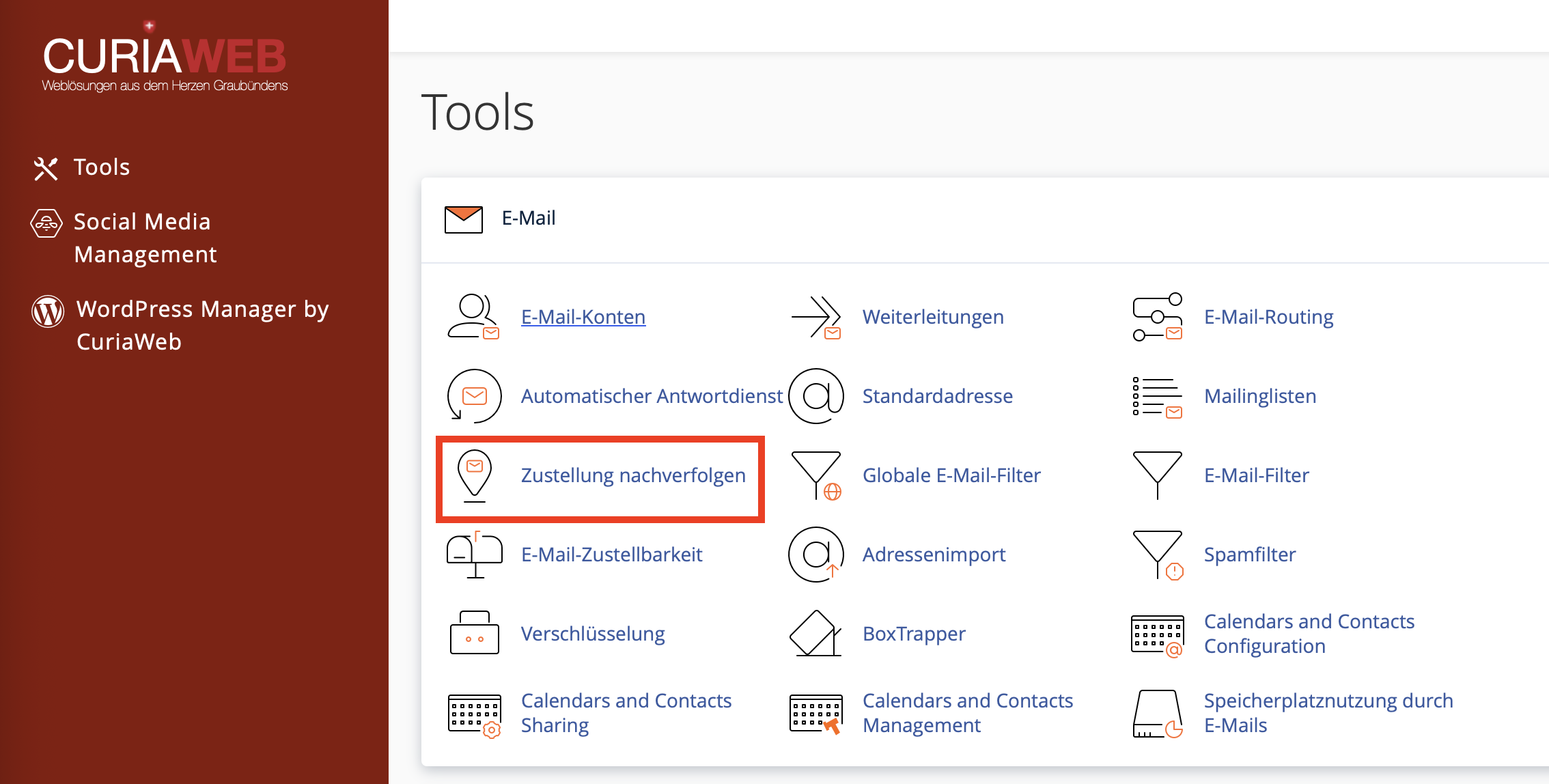
First, log in to your CURIAWEB client area or directly into cPanel. Then, open the Email section and click on Track Delivery.
Depending on your cPanel version, the function might be named Zustellung nachverfolgen in German. In the overview, you can run delivery reports and filter by specific recipient addresses.
- Log in to cPanel.
- Open the Email section.
- Click on Track Delivery.
- Optionally, enter a recipient address.
- Click on Run Report.
- Review the events, status messages, and details.
Searching Specifically for a Recipient Address
If you want to investigate a specific delivery problem, enter the relevant address in the Recipient Email (optional) field. Then, click on Run Report.
cPanel will now display matching delivery attempts in chronological order. This allows you to see if the message was accepted, delayed, rejected, forwarded, or filtered.
The Most Important Columns in the Delivery Report
The delivery report contains several columns with technical information. Particularly important are Event, Sender, Recipient, Sent Time, Result, and Actions.
| Column | Meaning |
|---|---|
| Event | Shows the delivery status, for example, Success, Deferred, Failure, or Filtered. |
| Sender | The email address from which the message originated. |
| Recipient | The destination address to which the message was supposed to be delivered. |
| Result | Technical feedback from the mail server regarding the delivery. |
| Actions | Here you can open further details, for instance, by clicking on the Info icon. |
Understanding Status Icons and Events
In the Event column, you can see at a glance what happened to the message. The exact appearance may vary slightly depending on your cPanel version.
| Event | Meaning | What to do? |
|---|---|---|
| Success | The message was accepted by the destination server or delivered locally. | If the recipient does not see it, check their spam folder or internal email rules. |
| Deferred | Delivery was temporarily delayed, for example, due to greylisting or temporary server issues. | Wait; the server will usually automatically attempt delivery again. |
| Failure | The message could not be delivered. | Open the detailed error message and investigate the cause. |
| Filtered | The message was affected by spam filters, email filters, or a custom rule. | Check spam filters, email filters, and forwards. |
| In Progress | The message is still in the delivery process. | Check again later, especially with external destination servers. |
Opening Technical Details via the Info Icon
For a more precise analysis, click on the Info icon in the Actions column. There you will see technical details about the respective delivery attempt. The feedback from the mail server in the Result field is particularly important.
Such messages may seem technical at first, but they often contain clear indications of the root cause. Examples include non-existent recipients, full mailboxes, rejected messages, or suspected spam.
550 5.1.1 The email account that you tried to reach does not exist.
This message typically means that the destination address does not exist or is not recognized by the destination server. In such cases, the recipient address should be checked for typos.
Common Error Messages and Their Meaning
| Message or Note | Possible Meaning | Recommended Check |
|---|---|---|
| 550 5.1.1 | Recipient address does not exist. | Check the address for typos and contact the recipient. |
| Mailbox full | The destination mailbox is full. | Ask the recipient to free up storage space. |
| Connection timed out | The destination server was unreachable. | Check again later; usually a temporary issue. |
| Greylisted | The destination server is intentionally delaying acceptance. | Wait; delivery will usually be automatically retried. |
| Spam score | The message was scored based on spam characteristics. | Check content, attachments, links, and sender authentication. |
Spam Scoring in the Delivery Report
In some details, you will see indications of a spam score. A high spam score can cause a message to be tagged, moved, rejected, or filtered. Depending on the configuration, SpamAssassin or another filter might be involved.
If legitimate messages are being flagged as spam, you should additionally check the email deliverability of your domain. SPF, DKIM, and PTR can heavily influence how trustworthy your outgoing emails appear.
Using the Email History Diagram
The email history diagram graphically illustrates the path taken by a message. This makes it easier to see which stations an email passed through and whether forwards, local filters, or spam checks were involved.
This graphic presentation is especially helpful when multiple rules interact. For example, a message might first be accepted locally, then processed by a filter, and subsequently forwarded.
- Check if the message was delivered locally.
- Detect whether a forward was triggered.
- See if a filter or spam check was involved.
- Use this information for troubleshooting with support.
When a Message Is Shown as Successful but Is Not Visible
A successful delivery status means that the mail server accepted or passed along the message. However, this does not always mean that the message is in the visible inbox. It might have ended up in the recipient's spam folder, a custom rule folder, an archive, or another mailbox directory.
In this case, check:
- The recipient's spam or junk folder
- Email filters and rules in the destination mailbox
- Forwards or alias addresses
- Archive or subfolders
- Synchronization issues in the email client
- Webmail as a comparison to the local mail app
When the Table Remains Empty
If Track Delivery does not show any matching entries, it can have various causes. The recipient's email address might have been entered incorrectly, the message might fall outside the displayed timeframe, or the message was not processed via the cPanel server in question.
In this case, check:
- Is the recipient address spelled correctly?
- Are you searching for the correct address or domain?
- Was the email actually sent or received via this hosting account?
- Is the message located with an external provider such as Microsoft 365 or Google Workspace?
- Is the domain's email routing configured correctly?
Typical Causes for Disappearing Emails
| Symptom | Possible Cause | Recommended Check |
|---|---|---|
| Email was sent, but the recipient does not see it | Message was accepted but filtered in the destination mailbox | Check spam folder and rules on the recipient side |
| Email does not reach you | Email filter, spam filter, forwarding, or full mailbox | Check delivery report, spam folder, and storage space |
| Email arrives late | Greylisting or temporarily unreachable destination server | Check "Deferred" status and monitor later |
| Email is rejected | Recipient address incorrect, mailbox full, or security policy | Evaluate the error message in the info field |
| Forwarding does not work | Wrong destination, external rejection, or filter rule | Track the forwarding and check the destination address |
What Information Should You Send to Support?
If you do not understand an error message or if the cause remains unclear, CURIAWEB support can investigate the delivery more effectively using the technical details. If possible, do not just send a general description, but provide concrete details about the affected message.
Helpful Details for Analysis:
- Sender address
- Recipient address
- Date and approximate time of sending
- Subject line of the message
- Error message from the info field
- Screenshot or text from the delivery report
- Indication of whether external services like Microsoft 365, Google Workspace, or forwards are involved
Best Practices for Troubleshooting
When dealing with email delivery issues, a structured approach is essential. First, check if the message appears in the delivery report at all. Then, you can determine whether the problem originated locally, at the destination server, or due to filters.
- Search by recipient address.
- Check status and event.
- Open the info icon and read the result.
- In case of errors, copy the exact error message.
- Check spam filters, email filters, forwards, and mailbox storage.
- For external mail services, additionally check their admin or mail logs.
Summary
With the cPanel Track Delivery feature, you can check the path of individual emails and specifically analyze delivery problems. You can see whether a message was successfully delivered, delayed, rejected, or affected by filters.
The technical details in the info field are particularly helpful. There you will find feedback from the mail server, spam ratings, or indications of errors like non-existent addresses, full mailboxes, or temporary delivery problems.
If a message cannot be found, check the delivery report as well as spam folders, filter rules, forwards, mailbox storage, email routing, and, if applicable, external providers like Microsoft 365 or Google Workspace.
Don't understand a delivery message or has an email disappeared?
CURIAWEB support will gladly analyze your delivery reports, error messages, filter events, and email routing settings so that the cause can be quickly identified.
Tip: In case of problems, always copy the exact message from the info field. This technical feedback is often the fastest way to find the root cause.
