


Setting up an Email Account: Automatic and Manual Configuration for Outlook, iPhone, Android, and Other Applications
If you want to use your CURIAWEB email address not only via webmail but also in an email client or on a mobile device, you need to connect the account with the correct server settings. This applies, for example, to Microsoft Outlook, Apple Mail, Mozilla Thunderbird, the Gmail app, an iPhone, an iPad, or an Android smartphone.
cPanel offers two ways to achieve this: an automatic configuration via pre-configured profiles or scripts, and a manual configuration using IMAP, SMTP, port, and SSL/TLS data. This guide explains both options and shows you which settings are used for CURIAWEB email accounts in most cases.
When Do You Need These Settings?
You always need the email configuration details when you want to use your mailbox outside of webmail. This includes email programs on your computer, apps on your smartphone or tablet, and other applications that need to send or receive emails.
- Outlook: for Windows or macOS
- Apple Mail: on macOS, iPhone, or iPad
- Mozilla Thunderbird: on Windows, macOS, or Linux
- Gmail App: for external email accounts on Android
- Android Mail Apps: for example, Samsung Email or other mail apps
- Other Clients: specific CRM, ticket, shop, or system applications
The basic data usually remains the same: full email address, password, incoming mail server, outgoing mail server, ports, and encryption.
IMAP or POP3: Which Option Is Recommended?
During the setup process, you will often be asked whether the account should be configured as IMAP or POP3. For most modern applications, we recommend IMAP.
With IMAP, your emails remain stored on the server and are synchronized across multiple devices. If you read a message in Outlook, delete it on your iPhone, or move it in webmail, this change will also be visible on your other devices.
POP3, on the other hand, usually downloads emails locally to a single device. Depending on your settings, messages may then be removed from the server. This can lead to missing emails on other devices and is generally not ideal for multi-device use.
| Protocol | Description | Recommendation |
|---|---|---|
| IMAP | Emails remain on the server and are synchronized across multiple devices. | Recommended for Outlook, iPhone, Android, Apple Mail, Thunderbird, and webmail. |
| POP3 | Emails are retrieved locally and removed from the server depending on settings. | Only useful for specific single-workstation scenarios. |
The Fastest Way: Automatic Configuration via cPanel
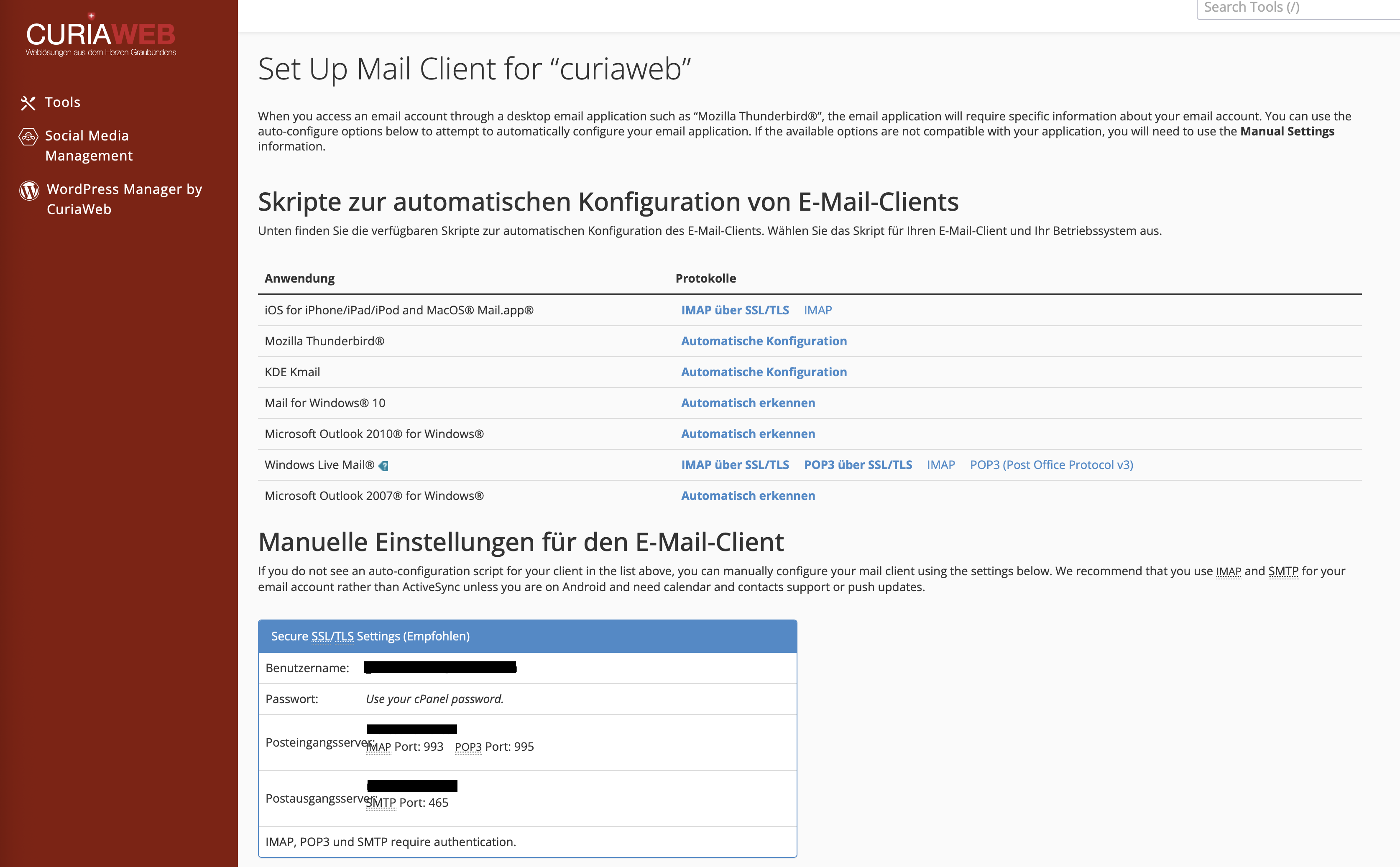
cPanel provides a feature in the Email Accounts section to make it easier to connect email clients and devices. Depending on the device and application, automatic configuration profiles or instructions are displayed there.
This method is particularly useful if your device or application is directly supported. In this case, you need to enter fewer server details manually. However, you should always make sure to select the option with IMAP over SSL/TLS.
- Log in to your CURIAWEB client area or directly into cPanel.
- Open the Email Accounts section.
- Find the desired email account.
- Click Connect Devices next to the address.
- Look for your device or program in the displayed list.
- If possible, choose IMAP over SSL/TLS.
- Download the provided profile or script, if available.
- Run the configuration on the desired device.
- Enter your email account password when prompted.
Important Note on Automatic Profiles
Automatic configuration profiles can simplify setup, but they are not always the best solution in every situation. Some newer programs, apps, or operating system versions no longer support older scripts or handle them differently than expected.
If the automatic setup does not work, use the manual configuration instead. This method is reliable, transparent, and can be configured in practically any modern email client.
Manual Configuration: Default Settings for CURIAWEB Email Accounts
If your application cannot be set up automatically or if you prefer to enter the settings yourself, use the following default values. Replace yourdomain.ch with your actual domain name.
| Setting | Value |
|---|---|
| Account Type | IMAP |
| Email Address | Your full email address |
| Username | Your full email address |
| Password | Password of your email account |
| Incoming Server IMAP | mail.yourdomain.ch |
| IMAP Port | 993 |
| IMAP Encryption | SSL/TLS |
| Outgoing Server SMTP | mail.yourdomain.ch |
| SMTP Port | 465 |
| SMTP Encryption | SSL/TLS |
| SMTP Authentication | Yes, login with full email address and password |
If your email program alternatively offers SMTP port 587 with STARTTLS, this option can also work. However, for a straightforward manual setup, port 465 with SSL/TLS is often the clearer and preferred setting.
Username: Always Use the Full Email Address
A very common mistake during setup is an incomplete username. Many clients automatically suggest only the part before the @ symbol. However, for CURIAWEB email accounts, you must use the full email address.
Example:
- Correct: info@yourdomain.ch
- Incorrect: info
Enter the full username for both the incoming and outgoing mail servers. Sending emails via SMTP also requires authentication.
Incoming and Outgoing Mail: Why Both Are Important
When setting up an email account, two server areas are configured. The incoming mail server is responsible for receiving messages. The outgoing mail server or SMTP server is responsible for sending emails.
Therefore, it can happen that receiving emails works fine, but sending fails. In this case, the SMTP settings are usually incorrect or incomplete. Check the port, encryption, username, password, and ensure that SMTP authentication is enabled.
Send Instructions by Email
In the Connect Devices section or within the manual settings, cPanel can also send the configuration details via email. This is useful if you need the settings on a smartphone or want to forward the setup details to another person.
Use an address you already have access to. Enter it into the Email Instructions field and send the technical data to yourself.
Specific Notes for Outlook
Outlook does not always detect email accounts automatically and correctly. Therefore, if you experience problems, use the manual setup and select IMAP. Always check the SMTP server if you have delivery issues.
- Windows: File > Add Account > Advanced options > Let me set up my account manually
- macOS: Outlook > Preferences > Accounts > Add Email Account
- Important: Enable SMTP authentication using the full email address
For a detailed step-by-step guide, please refer to the separate Knowledgebase article on setting up Microsoft Outlook.
Specific Notes for iPhone and iPad
On iPhone and iPad, you can set up the account via Settings > Mail > Accounts > Add Account. Choose Other and then Add Mail Account.
If iOS does not automatically detect the settings, select IMAP and enter the incoming and outgoing servers manually. Username and password should also be filled in for the SMTP server, even if iOS displays these fields as optional.
For detailed iOS menus, signatures, and folder synchronization issues, use the separate Knowledgebase article on iPhone setup.
Specific Notes for Android
On Android, the exact setup depends on the app you use. Many devices use the Gmail app, Samsung Email, or another mail application. During setup, select Other or Manual Setup and configure the account as an IMAP account.
Make sure to use port 993 with SSL/TLS for IMAP and port 465 with SSL/TLS for SMTP. Always use your full email address as the username here as well.
For detailed Android or Gmail app steps, please use the separate Knowledgebase articles for Android and the Gmail app.
Specific Notes for Apple Mail and Thunderbird
Apple Mail and Mozilla Thunderbird can be reliably configured manually. In both applications, you should use IMAP, SSL/TLS, and your full email address as the username.
- Apple Mail: Mail > Add Account > Other Mail Account
- Thunderbird: New > Existing Email Account > Configure manually
- Important: Correctly map special folders like Sent, Drafts, and Trash
If folders do not sync properly, check mailbox behaviors in Apple Mail, or folder subscriptions and copy/folder settings in Thunderbird.
Common Troubleshooting Issues
| Problem | Possible Cause | Solution |
|---|---|---|
| Account cannot be connected | Incorrect server name, username, or password | Verify server details and ensure the full email address is used as the username |
| Emails are received but cannot be sent | SMTP settings are wrong or authentication is missing | Check SMTP port 465, SSL/TLS, username, password, and authentication settings |
| Certificate warning appears | Server name does not match the certificate or is misspelled | Enter the server name exactly as mail.yourdomain.ch |
| Deleted emails reappear | IMAP folders or Trash are incorrectly mapped | Check folder mapping within the respective email program |
| Password prompt keeps reappearing | Incorrect password or outdated stored credentials | Verify password and update stored credentials in the program |
Changing or Resetting Your Password
If you have forgotten the password for your email account, you can reset it in cPanel under the Email Accounts section. After doing so, you must update the new password on all connected devices and applications.
Keep in mind that many email clients save the password separately for incoming and outgoing mail. Therefore, after a password change, you should always test both receiving and sending emails.
Security and Encryption
Whenever possible, always use SSL/TLS for IMAP and SMTP. This encrypts the connection between your device and the mail server. This is especially important on public Wi-Fi networks, in hotels, cafes, or while traveling.
Additionally, you should use strong passwords and avoid saving them on third-party devices. When employees leave a company or devices are lost, the affected email passwords should be changed promptly.
Recommended Security Practices:
- Always use SSL/TLS.
- Deploy strong, unique passwords.
- Do not share passwords via insecure messaging.
- Change your password immediately if a device is lost.
- Review or disable email access when an employee leaves.
Summary
CURIAWEB email accounts can be linked with many applications and devices. The easiest way is via cPanel > Email Accounts > Connect Devices. If automatic configuration does not fit or is unavailable, use the manual setup with IMAP, SMTP, SSL/TLS, and your full email address as the username.
For most users, IMAP is the right choice because messages stay synced between webmail, Outlook, iPhone, Android, Apple Mail, Thunderbird, and other devices. If you encounter issues, you should first check the username, password, server name, ports, and SMTP authentication.
Stuck with your email setup?
The CURIAWEB support team is happy to assist you with manual configuration, error messages, or troubleshooting issues with Outlook, iPhone, Android, Apple Mail, Thunderbird, and other email programs.
Tip: Always test both sending and receiving after any setup. Send an email to an external address and check if a reply arrives correctly in your mailbox.
