


Address Importer in cPanel: Bulk Import Email Accounts and Forwarders
If you want to set up multiple email addresses, mailboxes, or forwarders for your domain, you do not have to create them individually and manually in cPanel. With the Address Importer, you can upload a prepared list to CURIAWEB and automatically generate multiple email accounts or email forwarders from it.
This feature is particularly useful when setting up a new domain, migrating existing email structures, or creating multiple addresses at the same time for a company, club, school, or project. Instead of configuring each mailbox one by one, you simply prepare a spreadsheet and import it directly via cPanel.
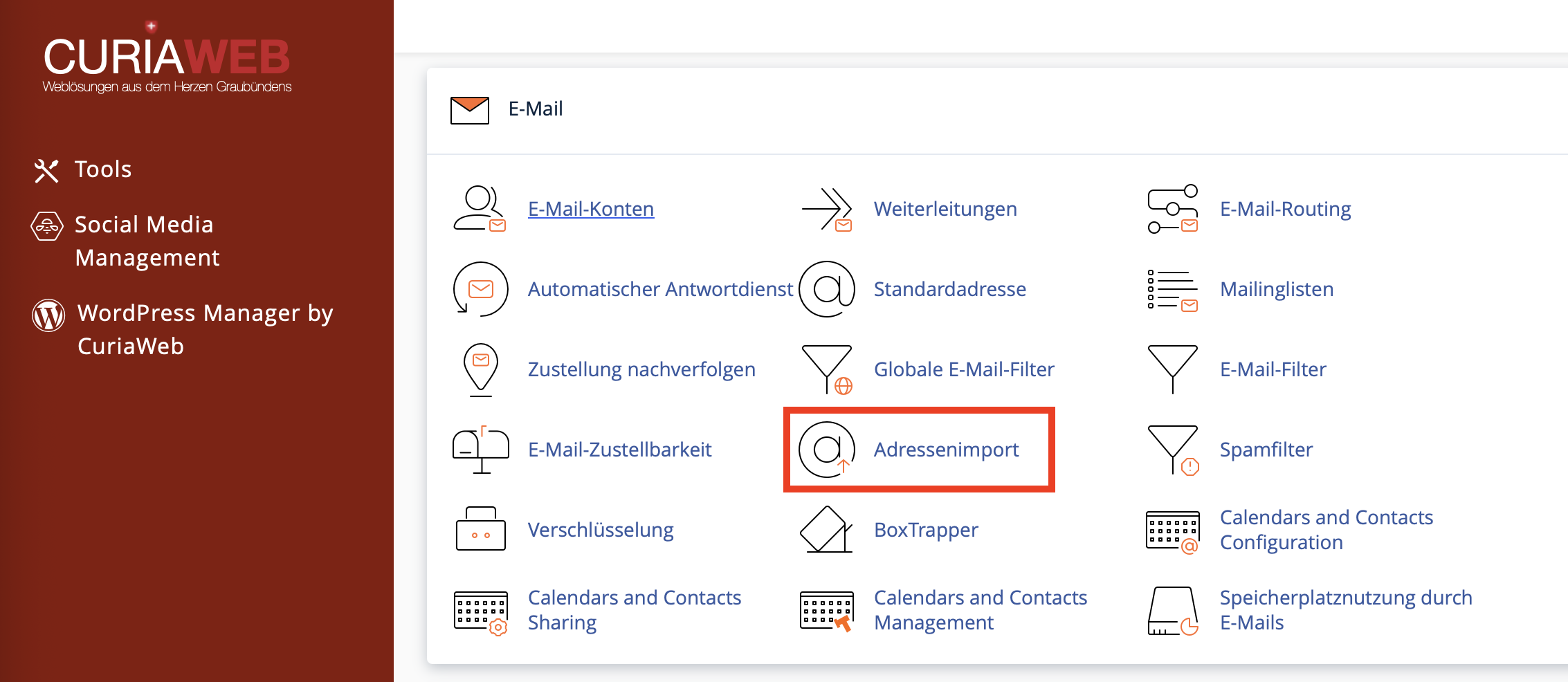
What is the cPanel Address Importer?
The Address Importer is a feature in cPanel that allows you to import multiple email accounts or email forwarders using a prepared file. Depending on your cPanel version, supported formats include CSV files as well as spreadsheet formats such as Microsoft Excel files.
During the import process, cPanel reads each row of your file and automatically creates the corresponding entries. For email accounts, information such as the username, password, and storage quota can be provided. For forwarders, it determines which address should redirect incoming messages to which destination.
Typical Use Cases
The Address Importer is highly recommended when you need to set up a larger number of email addresses in a short amount of time. Typical examples include:
- Setting up multiple employee mailboxes for a company
- Migrating existing email addresses when switching to CURIAWEB
- Creating role-based addresses such as info@, support@, accounting@, or sales@
- Bulk setting up forwarders to existing external mailboxes
- Preparing a new domain or hosting environment
1. Preparing the Import File
To ensure cPanel can process your data correctly, the import file must be cleanly structured. Each email address or forwarder must be entered on its own line. Individual details are separated by columns, for example using commas in a CSV file.
Recommended information for importing email accounts:
- Username: for example info, support, or john.doe
- Password: the desired password for the respective email account
- Quota / Storage space: storage size in megabytes, for example 250 for 250 MB
Depending on the import file and cPanel settings, the domain part can either be included in the file or selected later during the import process for the target domain. For example, if you want to create the address info@yourdomain.ch, the file might only need to contain info, provided the desired domain is selected during the import step.
Example of a simple CSV file using a comma as a delimiter:
name1,Password123,100
name2,Password456,250
name3,Password789,500
If you prefer to work with column headers, the file can be structured like this, for example:
Username,Password,Quota
info,SecurePassword123,500
support,AnotherPassword456,1000
accounting,ExamplePassword789,750
2. Notes on Passwords and Security
When bulk importing email accounts, you should handle passwords with extreme care. Do not use simple or reused passwords. A secure password should be sufficiently long and consist of uppercase letters, lowercase letters, numbers, and special characters.
If you are creating email accounts for employees or clients, it is highly recommended to enforce a password change after the first login or use individual secure passwords from the start. This prevents identical or easily guessable credentials from remaining in circulation.
3. Opening the Address Importer in cPanel
First, log in to your CURIAWEB client area or directly into cPanel. Next, navigate to the Email section in cPanel and select the Address Importer option.
The exact menu item name may vary slightly depending on the cPanel theme you use. Generally, you will find the Address Importer in the Email section alongside other tools such as Email Accounts, Forwarders, Autoresponders, or Spam Filters.
4. Selecting the Import Type
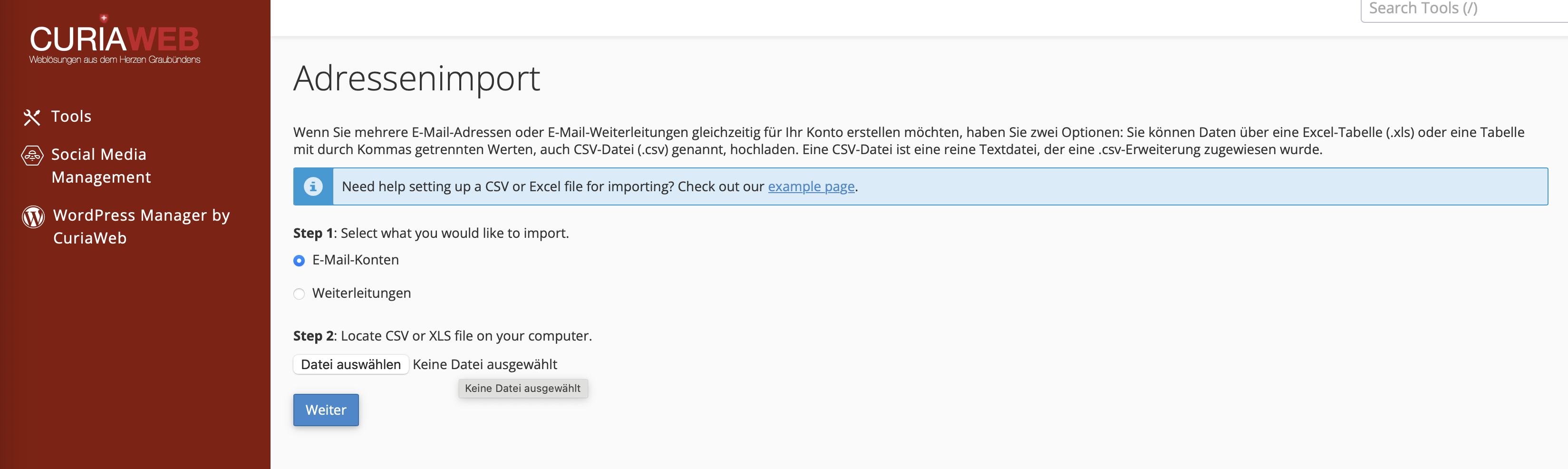
In the first step, choose the type of data you want to import. cPanel distinguishes between:
- Email Accounts: This creates new mailboxes with a username, password, and storage quota.
- Forwarders: This creates redirects that automatically pass incoming messages along to another destination email address.
Select the appropriate import type carefully. A file for email accounts differs in content from a file for forwarders, because forwarders do not create a mailbox with a password, but rather define a forwarding target.
5. Uploading the File and Choosing the Delimiter
Next, click on Choose File and upload your prepared import file. Then, specify the delimiter used in your file. For CSV files, this is often a comma, but depending on your spreadsheet software or regional settings, a semicolon might be used instead.
- Select whether you want to import Email Accounts or Forwarders.
- Click on Choose File and upload your prepared file.
- Select the correct delimiter, such as a comma or semicolon.
- Check the box Treat the first row as column headers if your file contains headers like Username, Password, or Quota.
- Click Next to proceed with mapping the columns.
6. Mapping Columns Correctly
After uploading, cPanel displays a preview of the recognized data. In this step, you must define the meaning of each column. This assignment process is often referred to as mapping.
You will find drop-down menus above each column. There you can specify, for example, which column contains the email username, which column holds the password, and which column should be used for the storage quota size.
Review the mapping carefully before proceeding. An incorrect column assignment can cause passwords, usernames, or storage limits to be imported incorrectly.
7. Selecting the Target Domain and Completing the Import
In the final step, choose the desired target domain. This is particularly important if you have multiple domains or addon domains configured in your hosting package. The imported email accounts or forwarders will be created for the selected domain.
Click Next and then Finish. cPanel will now process the file and automatically set up the respective email accounts or forwarders.
Once completed, you should verify the newly created entries in the Email Accounts or Forwarders section to ensure all records were successfully and correctly imported.
Common Import Errors
If the import does not work as expected, the issue is usually related to the structure of the file. Please check the following points in particular:
- Incorrect delimiter: The file uses semicolons, but cPanel expects commas, or vice versa.
- Blank rows: Remove empty lines at the end or within the file.
- Missing required fields: Email accounts require at least a username and a password.
- Invalid characters: Avoid special characters in the username that are not allowed in email addresses.
- Incorrect quota value: Storage values should be specified as a plain number in megabytes, as expected by the cPanel import wizard.
- Incorrectly mapped columns: Double-check your mapping very carefully before finalizing the process.
Best Practices for a Clean Import
For a smooth experience, it is advisable to start with just a few test addresses first. Create a small CSV file with two or three entries and check if cPanel processes them correctly. If the test is successful, you can proceed to import your full list.
Additionally, make sure your file is formatted consistently. Do not mix delimiters, avoid unnecessary spaces, and do not use different spellings within the same column. The cleaner your import file is prepared, the lower the risk of errors.
Recommended Workflow:
- Create a CSV file with clear column headers.
- Use strong, unique passwords.
- Verify delimiters and character encoding.
- Test the import with just a few entries first.
- Check all email accounts or forwarders after the import.
Difference Between an Email Account and a Forwarder
An email account is an actual mailbox. Messages are stored on the server and can be accessed via Webmail, IMAP, or POP3. An email account requires a password and usually a defined storage quota limit.
In contrast, a forwarder is not an independent mailbox. Incoming messages are automatically redirected to another destination email address. This is practical for role-based addresses or aliases, but it does not replace a full-featured mailbox.
Therefore, consider before importing whether you need a dedicated mailbox for each address or if a forwarder is sufficient. For employees, an individual email account is usually appropriate. For generic addresses like contact@, info@, or sales@, a forwarder may be the better choice depending on your organization.
Summary
With the cPanel Address Importer, you can create email accounts and forwarders efficiently and save time when dealing with large quantities. The key to a successful import is a cleanly prepared file with correct columns, matching delimiters, and complete details.
Especially for companies, clubs, schools, organizations, or domain migrations, this feature eliminates a great deal of manual labor. By preparing your import file carefully and mapping the columns correctly during the import process, you can quickly and reliably set up new email structures in your CURIAWEB hosting.
Need assistance importing your email accounts or forwarders?
CURIAWEB support is happy to assist you if any questions arise during the import or if a file is not processed correctly.
Tip: Whenever possible, use the sample files provided directly by cPanel within the Address Importer tool. This helps you avoid formatting errors and lets you see the expected column structure immediately.
