


Email Storage Full? How to Clean Up Your Mailboxes Efficiently
When an email account's storage space is full, new messages may no longer be delivered, or senders might receive an error message. Frequently, large attachments, old sent messages, full trash folders, or mailboxes that have grown over several years are the root cause.
With the Email Disk Usage feature in cPanel, you can specifically check which folders are occupying the most storage. Instead of searching for and deleting each message individually, you get a clear overview of your mailbox folders and can efficiently remove old, large, or already read messages.
How Do You Recognize a Full Email Mailbox?
A full email storage usually makes itself noticed quickly. Depending on the situation, various error messages or symptoms can occur. It becomes particularly critical when the mailbox can no longer accept any new messages.
- New emails no longer arrive in the mailbox.
- Senders receive an error message due to exceeded mailbox quota.
- Your email program displays synchronization errors.
- Webmail or IMAP respond slowly.
- Deleting messages does not seem to free up storage space.
- Folders like Sent, Trash, or Spam are very large.
If you notice such signs, you should first check which mailbox is affected and which folders are consuming the most storage space.
Typical Causes of High Email Storage Consumption
Email storage often grows unnoticed over a long period. Attachments in particular can take up a lot of storage space, even if the actual message is short. In addition, sent messages are frequently stored on the server as well.
| Cause | Description | Recommended Action |
|---|---|---|
| Large Attachments | PDFs, images, ZIP files, or Office documents take up a lot of space. | Target and delete large messages or back them up locally. |
| Sent Emails | Outgoing messages with attachments are saved in the "Sent" folder. | Check the "Sent" folder regularly. |
| Trash | Deleted messages often remain stored in the trash. | Empty the trash permanently. |
| Spam Folder | Unwanted messages can accumulate over a longer period of time. | Clean up the spam folder regularly. |
| Old Archive Folders | Long-standing email archives can become very large. | Archive old messages or remove them selectively. |
Step 1: Open Email Disk Usage in cPanel
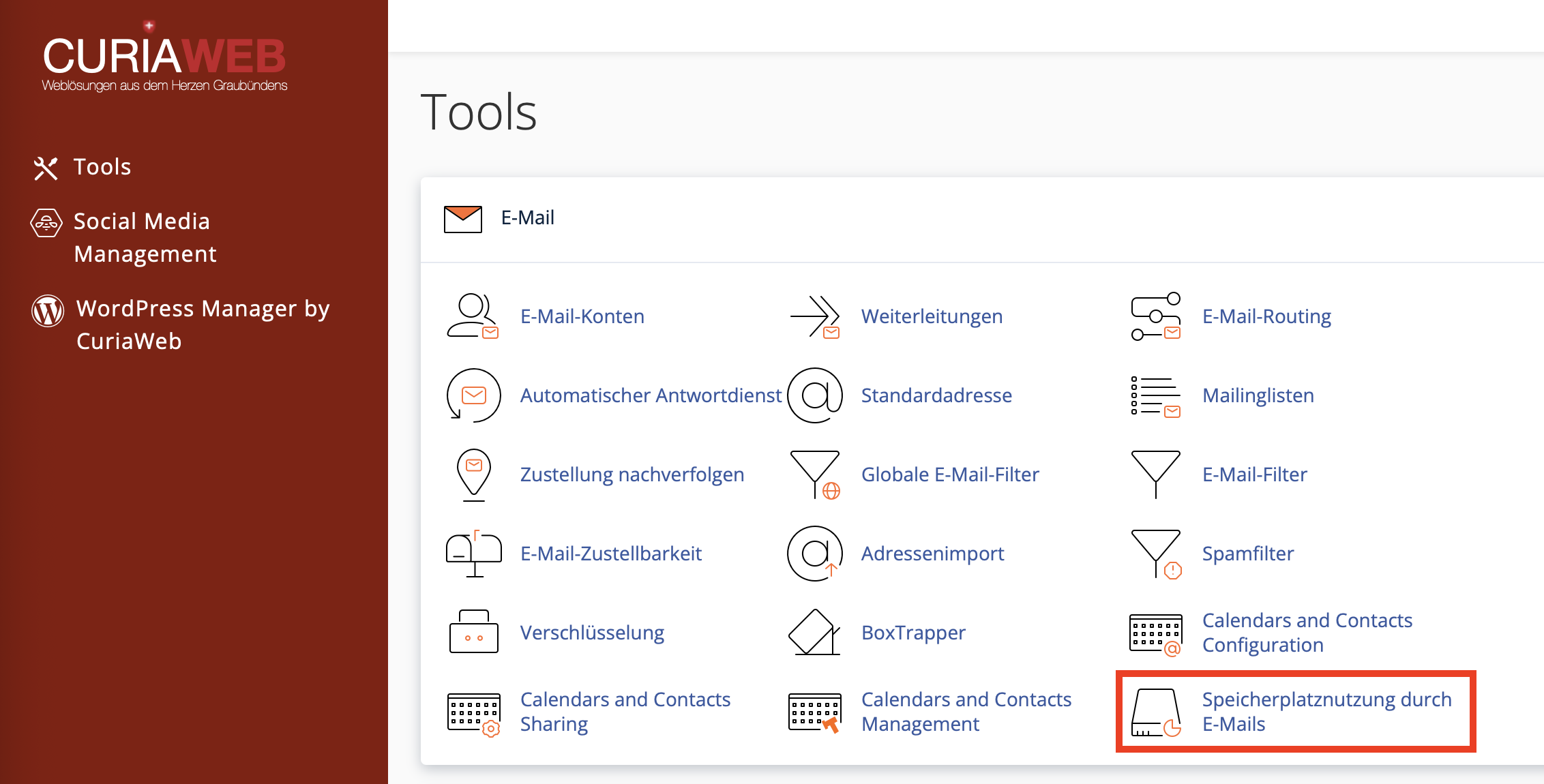
First, log in to your CURIAWEB client area or directly into cPanel. Then, open the Email section and click on Email Disk Usage.
There you will see an overview of the storage usage of your email accounts. Depending on the cPanel version, you can select a specific mailbox and then check the individual folders.
- Log in to cPanel.
- Open the Email section.
- Click on Email Disk Usage.
- Select the desired email account.
- Check which folders are occupying the most storage.
Step 2: Select Mailbox and Folder
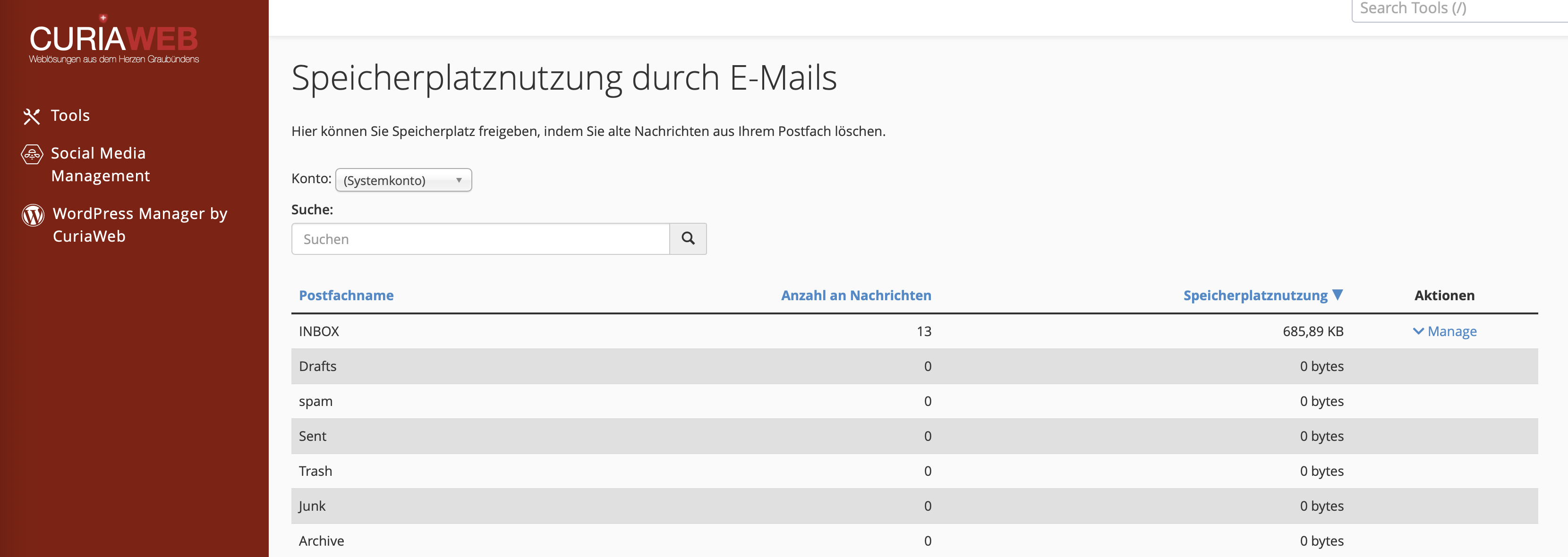
Select the desired email mailbox from the Account dropdown menu. cPanel will then display a list of folders, for example, Inbox, Sent, Trash, Spam, Drafts, or custom subfolders you created.
Check which folders are occupying the most storage. In many cases, it is not the Inbox, but the Sent folder, the Trash, or an old archive folder that are the actual storage hogs.
Step 3: Manage and Clean Up Folders Selectively
Click on Manage next to the desired folder. cPanel will then offer you various options to permanently remove messages based on specific criteria.
This function is particularly useful if you want to remove many old messages or large attachments without having to open every single email manually.
| Option | Meaning | Suitable for |
|---|---|---|
| 1 year old or older | Deletes messages that are one year old or older. | Old newsletters, old notifications, historical records |
| 30 MB or larger | Deletes messages with a size of 30 MB or larger. | Emails with large attachments |
| Previously viewed | Deletes messages that have already been read. | Folders with many emails that have already been processed |
| All messages | Deletes all messages in the selected folder. | Only for Trash, Spam, or clearly dispensable folders |
Step 4: Permanently Delete
After choosing a cleanup option, click on Delete Permanently. cPanel will then remove the matching messages directly from the selected folder.
Depending on the number and size of the messages, the process may take some time. Do not interrupt the action and check the storage space display again afterwards to see how much storage has been freed up.
Custom Search for Precise Cleanup
Advanced users can use a custom query to define even more precisely which messages should be removed. cPanel uses search queries that are based on the Dovecot search format.
A typical example is searching for particularly large messages:
larger 10MThis query can be used to find or remove messages over 10 MB. Such large messages often contain attachments and therefore free up a significant amount of storage space.
Which Folders Should You Check First?
When a mailbox is full, you should proceed in a structured manner. First check the folders that experience shows take up the most storage or can be cleaned up most easily.
- Trash: Often contains already deleted messages that still occupy storage.
- Spam / Junk: Can contain many unwanted messages.
- Sent: Frequently contains large attachments that you sent yourself.
- Inbox: Check for large received attachments or old messages.
- Archive Folders: Old archives can grow significantly over the years.
The Sent folder in particular is often overlooked. If you regularly send large attachments, this folder can quickly occupy a lot of storage space.
Why Deleting in the Email Program is Sometimes Not Enough
When you delete emails in Outlook, Apple Mail, Thunderbird, or on your smartphone, they are often initially only moved to the trash. This does not yet free up any storage space because the messages remain on the server.
Only when the trash is emptied or the messages are permanently deleted is the storage actually freed up. Additionally, some programs may map local or server-side folders differently, which complicates the cleanup.
Before Deleting: Back Up Important Emails
Before performing major deletion actions, you should check whether important messages or attachments need to be backed up. This applies particularly to business correspondence, invoices, contracts, support histories, or legally relevant communication.
Depending on your workflow, you can archive important emails locally in an email program, export them as a file, or save attachments separately. Pay attention to internal archiving and retention obligations.
Check and Adjust Mailbox Quota
In addition to deleting messages, the storage limit of the affected email account can also play a role. In cPanel, email accounts can be assigned a specific quota depending on the hosting package.
To do this, open the Email Accounts section and check the affected mailbox. If your hosting package provides sufficient total storage, the quota of the individual email account may potentially be increased.
However, if the total hosting storage is running low, a higher mailbox quota will not be enough. In this case, files, backups, or other mailboxes must be checked, or an upgrade of the hosting package may be useful.
Best Practices for Long-Term Storage Maintenance
To prevent your email mailbox from filling up again, regular maintenance is recommended. A clear structure is particularly helpful for business mailboxes with many attachments.
Recommended Procedure:
- Empty the trash and spam folders regularly.
- Back up large attachments locally and remove old emails.
- Check the "Sent" folder regularly.
- Do not keep newsletters and automatic notifications permanently.
- Define clear folder and retention rules for archiving.
- Monitor the mailbox quota and total storage regularly.
Common Problems and Solutions
| Problem | Possible Cause | Solution |
|---|---|---|
| New emails no longer arrive | Mailbox quota is exhausted | Check disk usage and delete old or large messages |
| Storage remains full after deleting | Messages are still in the trash or in other folders | Check Trash, Spam, and Sent and delete permanently |
| A folder is unusually large | Many attachments or old messages | Manage folder and clean up based on large or old messages |
| Deleted emails reappear in the mail program | IMAP synchronization or trash mapping is faulty | Check folder mapping in the email program |
| Storage is insufficient in the long term | Mailbox or hosting package is too small for the usage | Check storage structure or consider a hosting upgrade |
Summary
With the Email Disk Usage feature in cPanel, you can quickly see which mailboxes and folders are occupying the most storage. This allows you to selectively remove old, large, or no longer needed messages without having to manually search through the entire mailbox.
Particularly important are the Trash, Spam folder, Sent folder, and messages with large attachments. However, only delete emails that you are sure you no longer need, as the Delete Permanently function removes messages directly from the server.
If storage space is regularly tight despite cleanup, you should additionally check the mailbox quota, the total hosting storage, and if necessary, a suitable upgrade.
Is your email storage space still full despite cleanup?
CURIAWEB support will gladly help you analyze your storage usage, mailbox quota, or assess whether a hosting upgrade makes sense.
Tip: Check the "Sent" folder and large attachments first. That is often where the most storage space can be freed up with just a few deletions.
