


Domains & Subdomains: Adding New Websites to Your Hosting Account
In cPanel, additional domains, subdomains and alternative domain names are managed centrally in the Domains section. This is where you define which domain should display which content and which directory contains the files for each website.
The domain management area in cPanel is one of the most important parts of your hosting package. It controls which domains are connected to your web hosting, which folders are used for individual websites and whether an additional domain should display its own website or the same content as an existing domain.
You can use this function to add a second website to your hosting account, create a subdomain such as blog.yourdomain.ch, prepare a test environment or point an alternative domain to your main website. To use it correctly, it is important to understand the difference between a domain, subdomain, addon domain, alias domain and document root.
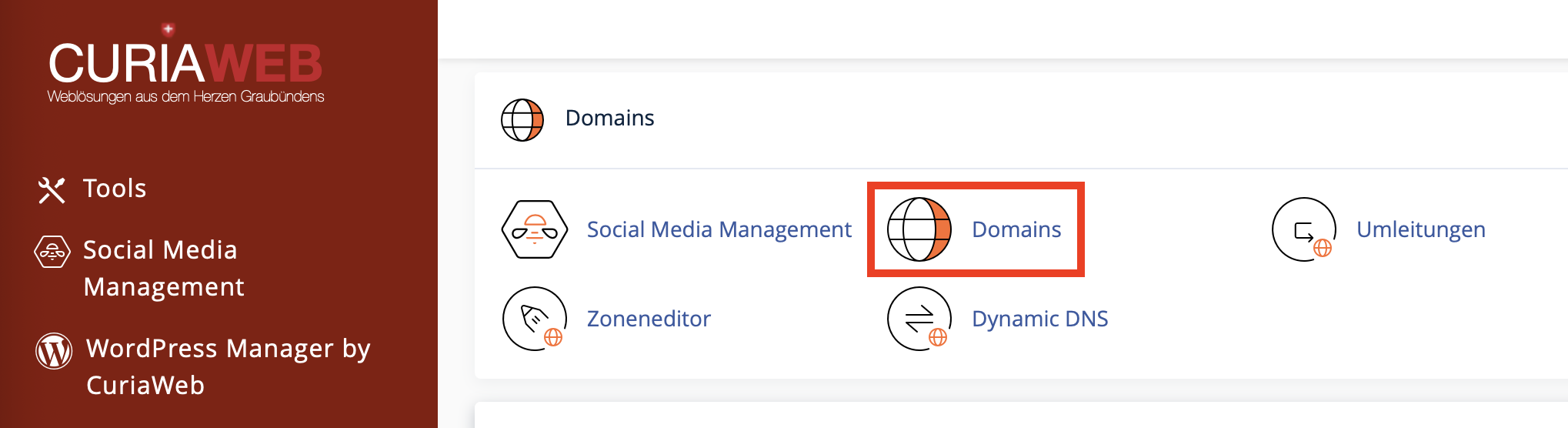
What Can You Manage in the Domains Section?
In the Domains section of cPanel, you can manage different domain types depending on your hosting package and server configuration. These include the main domain, additional domains, subdomains and domains that use the same directory as another domain.
Main domain
The primary domain of your hosting account. It usually points to the public_html/ directory.
Addon domain
An additional domain with its own directory. It is used for a separate website within the same hosting package.
Alias domain
An additional domain that uses the same document root as another domain and can therefore display the same content.
Subdomain
A subsection of a domain, for example shop.yourdomain.ch, blog.yourdomain.ch or test.yourdomain.ch.
What Is the Document Root?
The document root is the server directory from which a domain’s website files are loaded. When a visitor opens your domain in a browser, the web server looks in this folder for the relevant files, such as index.php, index.html or the files of a WordPress installation.
For the main domain, the document root is often public_html/. Additional domains and subdomains can receive their own subdirectories, such as public_html/my-second-domain.ch/ or public_html/blog/.
The document root determines which content a domain displays. If two domains use the same document root, they can display the same website content. If each domain has its own document root, separate websites can be operated.
Adding a New Domain to Your Hosting Account
If you want to add an additional domain to your hosting account, the domain must first be registered and technically point to your hosting. This is done either through nameservers or through suitable DNS records such as an A record.
An additional domain is useful if you want to run another website within the same hosting package, for example for a second company, a new project, a landing page or a separate brand.
Step by Step: Create a New Domain
- Log in to your cPanel account.
- In the Domains section, open Domains.
- Click Create A New Domain.
- Enter the full domain name, for example
my-second-domain.ch. - Decide whether the domain should receive its own document root or share the document root of the main domain.
- If you want a separate website, disable Share document root with the main domain.
- Check the suggested folder or enter your own directory.
- Click Submit.
- Upload your website files to the displayed directory or install your CMS there.
Important: Adding a domain does not register it
When you add a domain in cPanel, this does not register a new domain. The domain must be registered separately and must point to your hosting via DNS. Only then can it work correctly on the public internet.
When Is an Additional Domain Useful?
An additional domain with its own document root is useful when you want to operate several independent websites within the same hosting package. The files remain separate, management is clearer and each website can be built independently.
Typical examples include:
- a second company website,
- a new brand or project,
- a separate landing page,
- an independent online shop,
- a separate WordPress installation,
- a website for an event or campaign.
However, keep the resource limits of your hosting package in mind. Multiple websites share the same server resources. If you operate several larger websites, a more powerful hosting package may be advisable.
Creating and Using Subdomains Correctly
A subdomain is a subsection of your domain. It appears before the actual domain name. For example, yourdomain.ch can become blog.yourdomain.ch, shop.yourdomain.ch or test.yourdomain.ch.
Subdomains are useful when a specific area should be clearly separated from the main website. Technically, subdomains can have their own document root and therefore display different content from the main domain.
Typical Uses for Subdomains
blog.yourdomain.chfor a separate blog,shop.yourdomain.chfor an online shop,support.yourdomain.chfor help or support areas,test.yourdomain.chfor development or test environments,portal.yourdomain.chfor a customer portal,app.yourdomain.chfor a web application.
Step by Step: Create a Subdomain
- Open the Domains section in cPanel.
- Click Create A New Domain.
- Enter the full subdomain, for example
blog.yourdomain.ch. - Disable Share document root with the main domain if the subdomain should display its own content.
- Check the suggested directory.
- Save the subdomain.
- Upload the required files to the subdomain’s document root or install your application there.
For test environments, use clear names such as test.yourdomain.ch or staging.yourdomain.ch. Protect such areas with a password if needed so unfinished content is not publicly visible.
Alias Domain or Separate Website?
When creating a new domain, the Share document root option is the key decision. If this option remains enabled, the new domain uses the same directory as your main domain. It can therefore display the same content. This corresponds to an alias domain.
If you want to run a completely separate website, disable this option. cPanel then creates or uses a separate directory for the new domain.
| Goal | Recommended setting | Result |
|---|---|---|
| New independent website | Do not share document root | Own folder, own content |
| Alternative domain for the same website | Share document root | Same content as main domain |
| Subdomain with its own area | Use separate document root | Separate area, own files |
Force HTTPS Redirect
In the cPanel domain list, depending on your configuration, you may see the Force HTTPS Redirect option. When enabled, visitors are automatically redirected from the unencrypted http:// address to the encrypted https:// address.
This is useful for security and trust. Modern websites should be reachable via HTTPS whenever possible. However, a valid SSL certificate must exist for the relevant domain.
Only enable HTTPS redirection after a valid SSL certificate exists for the domain. Otherwise, visitors may see browser security warnings.
Managing Domains
Using the Manage button next to a domain, you can check or adjust additional settings. Depending on the cPanel version and account permissions, this includes the document root and HTTPS redirection.
Typical management tasks include:
- checking the document root,
- changing the document root if available,
- enabling or disabling HTTPS redirection,
- removing a domain from cPanel,
- checking related settings and paths.
If you change the document root, make sure that the website files are actually present in the new target folder. Otherwise, the domain may display a blank page, an error message or the wrong content.
Removing a Domain from cPanel
When you remove a domain in cPanel, the connection between that domain and your hosting account is usually removed. This does not automatically delete or cancel the domain at the registrar. Website files in the server directory are also normally not deleted automatically.
Check whether website files, email addresses, redirects, DNS records or applications are still connected to this domain. Depending on the configuration, related email accounts or functions may no longer appear or work as expected after removal.
DNS: Why the Domain Must Point to Your Hosting
A domain only works with your hosting if it points to the correct server. If the domain is registered with CURIAWEB and uses the correct nameservers, this is usually already configured. If the domain is registered with another provider, the nameservers or DNS records must be adjusted there.
For a website, the A record is often decisive. It defines which IPv4 address the domain points to. For email, MX records and additional entries such as SPF, DKIM or DMARC may also be relevant.
Common Mistakes and How to Avoid Them
1. Domain added in cPanel but DNS not updated
If the domain does not point to the correct server, it will not work publicly even if it is correctly created in cPanel. Check nameservers and A records at the registrar.
2. Wrong document root selected
If a domain points to the wrong folder, it may display incorrect content or no website at all. Always check the document root before uploading files or installing a CMS.
3. Alias domain created although a separate website was intended
If the document root is shared with the main domain, the new domain will not show separate content. A separate website requires a separate document root.
4. HTTPS redirect enabled without SSL certificate
HTTPS redirection should only be enabled once the SSL certificate is valid. Otherwise, browsers may display security warnings.
5. Test subdomain publicly indexable
Test or staging subdomains should not be indexed by search engines unintentionally. Use password protection or appropriate settings in your website application if needed.
Frequently Asked Questions About Domains and Subdomains in cPanel
Can I host multiple websites in one hosting package?
Yes, provided your hosting package supports additional domains and has enough resources. Each additional website should ideally use its own document root.
Is a subdomain a separate domain?
No. A subdomain is a subsection of an existing domain, such as blog.yourdomain.ch.
Is a domain automatically registered when I create it in cPanel?
No. cPanel connects a domain to your hosting but does not register it. The domain must be registered separately.
Can I remove a domain later?
Yes. Before doing so, check whether the website, email, DNS or redirects are still actively used.
Which is better: subdomain or subdirectory?
It depends on the purpose. A subdomain is suitable for clearly separated areas such as shop.yourdomain.ch. A subdirectory such as yourdomain.ch/shop is often useful when the area is closely connected to the main website.
Register a New Domain
To use a new domain, an additional website or an alias domain in cPanel, the desired domain must first be registered. With CURIAWEB, you can check and register your domain directly online.
