


Dynamic DNS (DDNS): Heimnetzwerk oder NAS über eigene Domain erreichen
Mit Dynamic DNS können Sie eine Subdomain wie nas.ihredomain.ch automatisch mit der aktuellen IP-Adresse Ihres Internetanschlusses verknüpfen. So erreichen Sie Ihr Heimnetzwerk, NAS, VPN oder Bürogerät über einen festen Domainnamen, auch wenn sich Ihre öffentliche IP-Adresse ändert.
Viele private Internetanschlüsse und auch manche Büroanschlüsse erhalten vom Internetanbieter keine dauerhaft feste IP-Adresse. Stattdessen kann sich die öffentliche IP-Adresse nach einer Trennung, einem Router-Neustart oder nach einer bestimmten Zeit ändern. Für normale Internetnutzung ist das unproblematisch. Wenn Sie jedoch von außen auf ein Gerät in Ihrem Netzwerk zugreifen möchten, zum Beispiel auf ein NAS, einen VPN-Server oder ein internes System, wird eine wechselnde IP-Adresse schnell unpraktisch.
Dynamic DNS, kurz DDNS, löst genau dieses Problem. Dabei wird ein DNS-Eintrag automatisch aktualisiert, sobald Ihr Router, NAS oder ein anderes Gerät die von cPanel bereitgestellte Webcall-URL aufruft. cPanel erkennt dadurch die aktuelle öffentliche IP-Adresse Ihres Anschlusses und aktualisiert den DDNS-Eintrag.
DDNS macht Ihr Heimnetzwerk nicht automatisch sicher. Es sorgt nur dafür, dass ein Domainname auf Ihre aktuelle IP-Adresse zeigt. Wenn Sie Dienste aus dem Internet erreichbar machen, müssen Router, Firewall, Benutzerkonten, Passwörter, Updates und SSL/TLS sorgfältig abgesichert werden.
Was ist Dynamic DNS?
Dynamic DNS ist ein Verfahren, bei dem ein DNS-Eintrag automatisch aktualisiert wird, wenn sich die öffentliche IP-Adresse eines Netzwerks ändert. Statt sich die aktuelle IP-Adresse merken zu müssen, verwenden Sie einen festen Namen wie home.ihredomain.ch, nas.ihredomain.ch oder vpn.ihredomain.ch.
Das Prinzip ist einfach: Ihr Router, NAS oder ein Gerät in Ihrem Netzwerk ruft regelmäßig oder bei einer IP-Änderung eine spezielle URL auf. Diese URL wird von cPanel erzeugt und ist eindeutig für Ihre DDNS-Subdomain. Sobald der Aufruf erfolgt, aktualisiert cPanel den zugehörigen DNS-Eintrag mit der aktuellen IP-Adresse des Anschlusses.
Typische Anwendungsfälle für DDNS
- NAS-Zugriff: Zugriff auf ein Synology-, QNAP- oder anderes NAS über
nas.ihredomain.ch. - VPN-Zugang: Verbindung zu einem privaten VPN-Server über
vpn.ihredomain.ch. - Home-Server: Zugriff auf einen Heimserver, Entwicklungsserver oder ein Labor-System.
- Bürostandort: Erreichbarkeit eines kleinen Büroservers ohne feste IP-Adresse.
- Monitoring: Zugriff auf interne Statusseiten oder Geräte, sofern sicher freigegeben.
- Remote-Verwaltung: Verwaltung bestimmter Systeme über gesicherte Verbindungen.
Wichtig: DDNS ersetzt keine Portfreigabe
Dynamic DNS aktualisiert nur den DNS-Namen auf Ihre aktuelle IP-Adresse. Damit ein Gerät aus dem Internet erreichbar ist, müssen Router, Firewall und der jeweilige Dienst korrekt konfiguriert sein. Ob und welche Ports freigegeben werden sollten, hängt vom jeweiligen Einsatzzweck ab.
Voraussetzungen für Dynamic DNS in cPanel
Damit DDNS zuverlässig funktioniert, müssen einige Voraussetzungen erfüllt sein:
- Die Domain muss in Ihrem cPanel-Account vorhanden und verwaltbar sein.
- Die DNS-Zone der Domain muss über cPanel beziehungsweise die zuständigen Nameserver verwaltet werden.
- Ihr Router, NAS oder ein anderes Gerät muss die Webcall-URL regelmäßig aufrufen können.
- Für verschlüsselte Verbindungen sollte ein gültiges SSL-Zertifikat vorhanden sein.
- Der externe Zugriff auf Ihr Heimnetzwerk muss sicher konfiguriert werden.
Wenn Ihre Domain externe Nameserver verwendet, zum Beispiel bei einem anderen DNS-Anbieter oder über Cloudflare, müssen Sie prüfen, ob die cPanel-DDNS-Funktion für Ihre konkrete DNS-Konfiguration überhaupt wirksam ist. DDNS kann nur dann sinnvoll arbeiten, wenn cPanel den betreffenden DNS-Eintrag tatsächlich aktualisieren kann.
Schritt-für-Schritt: DDNS-Domain in cPanel erstellen
- Melden Sie sich in Ihrem cPanel-Konto an.
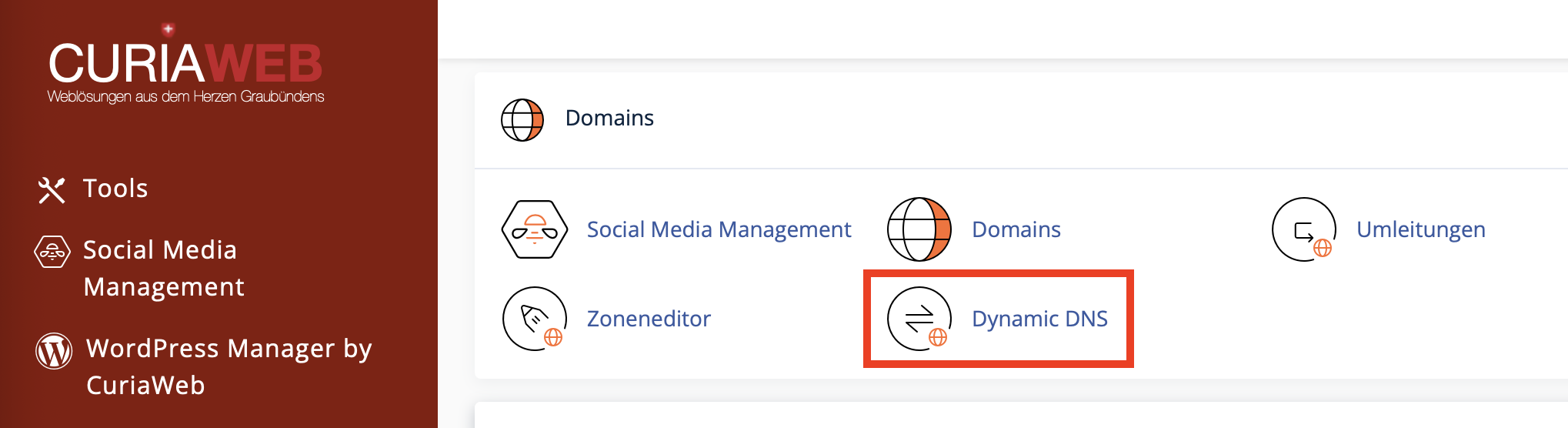
- Öffnen Sie im Bereich Domains die Funktion Dynamic DNS.
- Klicken Sie auf Erstellen oder Create.
- Geben Sie eine eindeutige Subdomain ein, zum Beispiel
nas,homeodervpn. - Wählen Sie die gewünschte Hauptdomain aus, zum Beispiel
ihredomain.ch. - Optional können Sie eine Beschreibung eintragen, zum Beispiel NAS Zuhause, Büro-Router oder VPN-Server.
- Klicken Sie auf Erstellen, um die DDNS-Domain anzulegen.
- Nach dem Erstellen zeigt cPanel die erzeugte DDNS-Domain und die dazugehörige Webcall-URL an.
Wenn Sie die Subdomain nas für ihredomain.ch erstellen, entsteht daraus die DDNS-Adresse nas.ihredomain.ch. Diese Adresse zeigt nach erfolgreicher Aktualisierung auf die aktuelle öffentliche IP-Adresse Ihres Anschlusses.
Die Webcall-URL: Der wichtigste Bestandteil von DDNS
Nach dem Erstellen einer DDNS-Domain generiert cPanel eine eindeutige Webcall-URL. Diese URL ist der technische Schlüssel zur Aktualisierung des DNS-Eintrags. Wenn Ihr Router, NAS oder ein anderes Gerät diese URL aufruft, erkennt cPanel die aktuelle IP-Adresse des aufrufenden Anschlusses und aktualisiert den DDNS-Eintrag entsprechend.
Ein solcher Aufruf kann zum Beispiel mit curl erfolgen:
curl -s https://ihredomain.ch/cpanelwebcall/DEIN_GEHEIMER_CODEDie tatsächliche Webcall-URL wird von cPanel erzeugt und darf nicht geraten oder selbst erstellt werden. Kopieren Sie sie immer direkt aus der Dynamic-DNS-Oberfläche.
Geben Sie die Webcall-URL nicht öffentlich weiter. Wer diese URL kennt, kann unter Umständen Aktualisierungsaufrufe für Ihre DDNS-Domain auslösen. Wenn Sie vermuten, dass die URL kompromittiert wurde, erstellen Sie in cPanel eine neue URL.
Router, NAS oder Server konfigurieren
Damit die DDNS-Adresse aktuell bleibt, muss ein Gerät in Ihrem Netzwerk die Webcall-URL regelmäßig aufrufen. Viele Router, Firewall-Systeme und NAS-Geräte bieten dafür eine DDNS- oder Custom-DDNS-Funktion. Je nach Hersteller kann die Oberfläche unterschiedlich heißen, zum Beispiel Dynamic DNS, DDNS, Custom Update URL oder Benutzerdefinierter Anbieter.
Grundsätzlich benötigen Sie nur die von cPanel erzeugte Webcall-URL. Einige Geräte verlangen zusätzlich Benutzername, Passwort, Hostname oder Provider-Angaben. Da cPanel mit einer eindeutigen Webcall-URL arbeitet, hängt die genaue Konfiguration stark vom Gerät ab.
Allgemeiner Ablauf
- Öffnen Sie die Verwaltungsoberfläche Ihres Routers, NAS oder Servers.
- Suchen Sie den Bereich Dynamic DNS oder DDNS.
- Wählen Sie nach Möglichkeit einen benutzerdefinierten Anbieter oder eine Custom-URL-Funktion.
- Tragen Sie die Webcall-URL aus cPanel ein.
- Speichern Sie die Konfiguration.
- Führen Sie einen Testlauf aus, sofern Ihr Gerät diese Möglichkeit bietet.
- Prüfen Sie anschließend in cPanel, ob Last Run Time oder Last Update Time aktualisiert wurde.
Manuelle Aktualisierung mit curl oder Cronjob
Falls Ihr Router keine passende DDNS-Funktion bietet, können Sie die Webcall-URL auch von einem Gerät innerhalb Ihres Netzwerks regelmäßig aufrufen lassen. Unter Linux, macOS oder auf vielen NAS-Systemen kann dies beispielsweise mit einem Cronjob erfolgen.
*/10 * * * * curl -s "https://ihredomain.ch/cpanelwebcall/DEIN_GEHEIMER_CODE" > /dev/null 2>&1Dieses Beispiel ruft die Webcall-URL alle zehn Minuten auf. Passen Sie das Intervall sinnvoll an. Ein zu kurzes Intervall ist meist nicht notwendig, ein zu langes Intervall kann dazu führen, dass eine geänderte IP-Adresse erst verspätet aktualisiert wird.
SSL-Zertifikat und sichere Verbindung
cPanel empfiehlt die Verwendung einer sicheren Verbindung über HTTPS. In der DDNS-Tabelle können Sie je nach Verfügbarkeit über SSL-Zertifikat anzeigen beziehungsweise View SSL Certificate das Zertifikat der DDNS-Domain anzeigen und kopieren.
Einige Router oder Geräte verlangen ein Zertifikat, um die Webcall-URL über eine verschlüsselte Verbindung aufzurufen. Falls Ihr Gerät eine Zertifikatsprüfung durchführt, können die angezeigten Zertifikatsinformationen relevant sein.
Wenn cPanel für Ihre DDNS-Domain kein SSL-Zertifikat anzeigt, prüfen Sie den Bereich SSL/TLS Status in cPanel. Dort kann je nach Hosting-Konfiguration ein Zertifikat für die DDNS-Subdomain geprüft oder über AutoSSL angefordert werden.
Sicherheit beim Zugriff auf Heimnetzwerk, NAS oder VPN
DDNS sorgt nur dafür, dass Ihre aktuelle IP-Adresse über einen festen Namen erreichbar bleibt. Die eigentliche Sicherheit Ihres Heimnetzwerks hängt von den freigegebenen Diensten und deren Konfiguration ab.
Beachten Sie besonders folgende Punkte:
- Öffnen Sie nur Ports, die wirklich benötigt werden.
- Verwenden Sie starke Passwörter und, wenn möglich, Zwei-Faktor-Authentifizierung.
- Halten Sie Router, NAS, Firewall und Anwendungen aktuell.
- Verwenden Sie HTTPS, VPN oder andere verschlüsselte Verbindungen.
- Vermeiden Sie ungeschützte Verwaltungsoberflächen direkt aus dem Internet.
- Prüfen Sie regelmäßig Protokolle und Anmeldeversuche.
Empfehlung
Wenn Sie auf mehrere interne Dienste zugreifen möchten, ist ein VPN oft sicherer als viele einzelne Portfreigaben. DDNS kann dann verwendet werden, um den VPN-Server unter einem festen Namen wie vpn.ihredomain.ch erreichbar zu machen.
DDNS verwalten: URL neu erstellen oder Eintrag löschen
In der Dynamic-DNS-Übersicht zeigt cPanel die vorhandenen DDNS-Domains mit Informationen wie Domain, IP-Adresse, Webcall-URL, SSL-Zertifikat und Zeitpunkten der letzten Aktualisierung an. Über das Menü Aktionen können Sie DDNS-Einträge verwalten.
URL neu erstellen
Wenn Sie vermuten, dass Ihre Webcall-URL bekannt geworden ist oder nicht mehr sicher ist, können Sie über URL neu erstellen beziehungsweise Recreate URL eine neue Webcall-URL erzeugen. Danach müssen Sie die neue URL in Ihrem Router, NAS oder Script eintragen.
DDNS-Domain löschen
Wenn Sie eine DDNS-Domain nicht mehr benötigen, können Sie sie löschen. Diese Aktion entfernt die DDNS-Funktion für diese Subdomain. Prüfen Sie vorher, ob Geräte, Scripts, Router-Regeln oder externe Verbindungen diese Adresse noch verwenden.
Häufige Fehler und Lösungen
1. Die IP-Adresse aktualisiert sich nicht
Prüfen Sie, ob die Webcall-URL tatsächlich vom Gerät aufgerufen wird. Testen Sie die URL bei Bedarf manuell im Browser oder mit curl. Kontrollieren Sie außerdem, ob Router oder NAS Verbindungsfehler protokollieren.
2. Die DDNS-Domain zeigt auf die falsche IP
Wenn die Webcall-URL nicht aus Ihrem Heimnetzwerk, sondern von einem anderen Server oder externen Dienst aufgerufen wird, kann cPanel die falsche IP-Adresse übernehmen. Der Aufruf sollte von dem Netzwerk erfolgen, dessen öffentliche IP-Adresse aktualisiert werden soll.
3. Router unterstützt keine Custom-DDNS-URL
Manche Router unterstützen nur vordefinierte DDNS-Anbieter. In diesem Fall kann ein Gerät im Netzwerk die Webcall-URL regelmäßig per Script oder Cronjob aufrufen.
4. Zugriff funktioniert trotz korrekter IP nicht
Dann liegt das Problem häufig nicht bei DDNS, sondern bei Firewall, Portfreigabe, NAT, Dienstkonfiguration oder dem Zielgerät. Prüfen Sie, ob der gewünschte Dienst im lokalen Netzwerk funktioniert und ob die nötigen Ports korrekt freigegeben sind.
5. HTTPS-Zertifikat wird vom Gerät nicht akzeptiert
Prüfen Sie, ob für die DDNS-Subdomain ein gültiges Zertifikat vorhanden ist. Falls Ihr Gerät ein Zertifikat importieren möchte, verwenden Sie die Funktion SSL-Zertifikat anzeigen in cPanel.
Häufige Fragen zu Dynamic DNS
Ist DDNS dasselbe wie eine feste IP-Adresse?
Nein. DDNS ersetzt keine feste IP-Adresse. Es aktualisiert nur einen Domainnamen automatisch auf die jeweils aktuelle dynamische IP-Adresse.
Kann ich DDNS für ein NAS verwenden?
Ja. DDNS eignet sich häufig für NAS-Systeme, sofern Router, Firewall und NAS sicher konfiguriert sind.
Muss mein Router DDNS unterstützen?
Nicht zwingend. Wenn der Router keine passende Funktion bietet, kann ein anderes Gerät im Netzwerk die Webcall-URL regelmäßig aufrufen.
Ist DDNS sicher?
DDNS selbst ist nur ein Aktualisierungsmechanismus. Die Sicherheit hängt davon ab, welche Dienste Sie freigeben und wie gut diese geschützt sind.
Kann der CURIAWEB-Support meinen Router konfigurieren?
Der CURIAWEB-Support kann Sie bei der cPanel- und DNS-Seite unterstützen. Die genaue Konfiguration Ihres Routers, NAS oder Ihrer Firewall hängt jedoch vom jeweiligen Hersteller und Gerät ab.
Neue Domain registrieren
Für Dynamic DNS benötigen Sie eine Domain oder Subdomain, die Sie für Ihr Heimnetzwerk, NAS, VPN oder Bürogerät verwenden können. Bei CURIAWEB können Sie Ihre Wunschdomain direkt online prüfen und registrieren.
