


Targeted Access Control for Your Hosting
With the IP Blocker, you can prevent specific IP addresses or entire address ranges from accessing your website. The system automatically adds these blocks to your .htaccess file, so the server rejects requests from these sources immediately before they can strain your website resources.
When is a manual block useful?
Use the blocker for targeted comment spam, brute-force attempts on your login area, or if you notice that a specific host is causing an unusual amount of traffic.
Use the blocker for targeted comment spam, brute-force attempts on your login area, or if you notice that a specific host is causing an unusual amount of traffic.
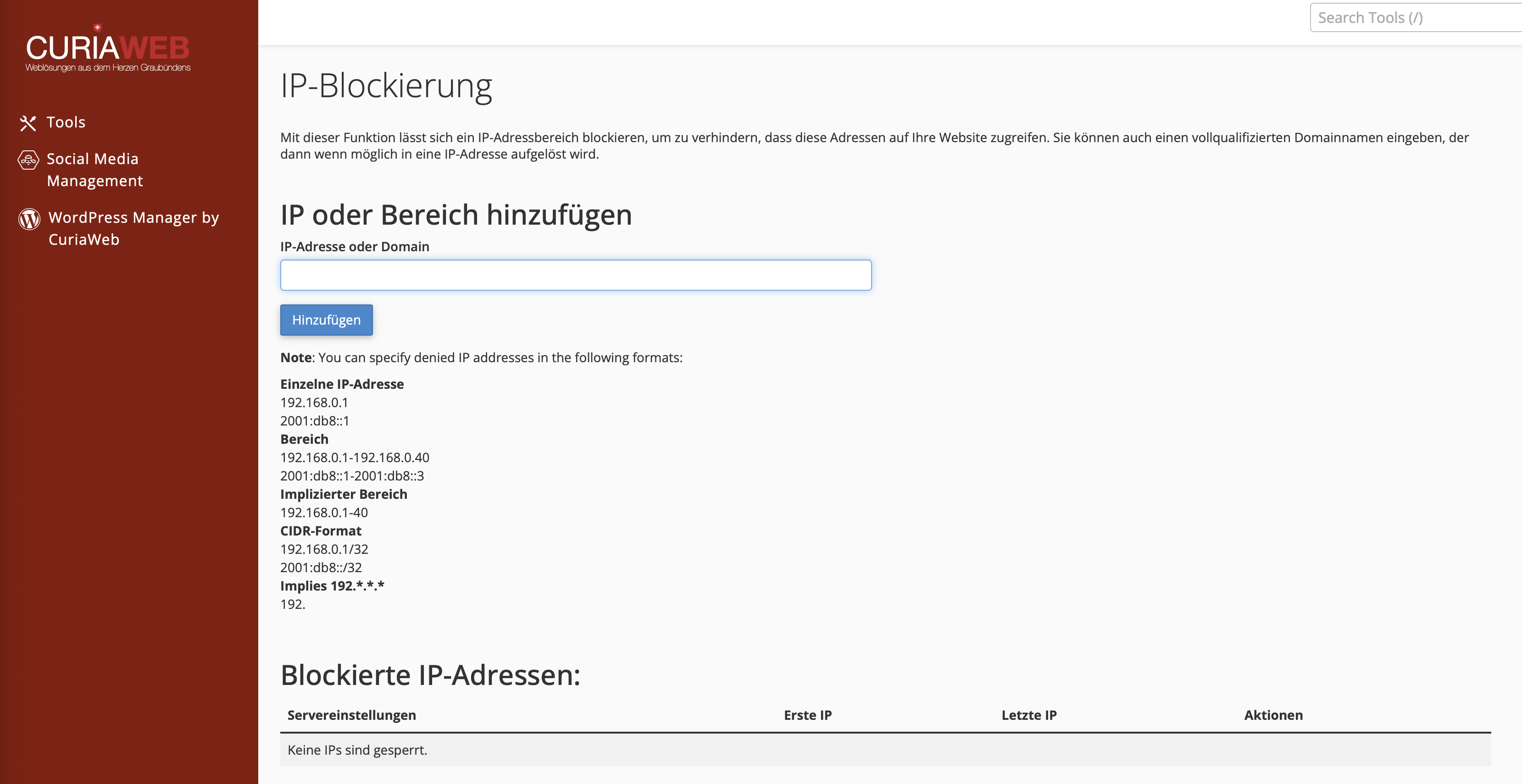
Block an IP Address or Range
- Log in to cPanel.
- Under Security, select IP Blocker.
- Enter the desired source in the "IP Address or Domain" field.
- Click Add.
Supported Formats:
| Type | Example | Result |
|---|---|---|
| Single IP | 123.45.67.89 |
Blocks exactly this user. |
| Range | 123.45.67.1-40 |
Blocks all endings from 1 to 40. |
| CIDR Format | 123.45.67.0/24 |
Blocks the entire subnet (0-255). |
| Implied IP | 123. |
Blocks EVERYTHING starting with 123. |
Removing a Block
You can find all manually set blocks at the bottom of the page under Currently-Blocked IP Addresses.
- Locate the corresponding entry in the list.
- Click the Delete icon (trash can or "Delete").
- Confirm by clicking Remove IP. The IP now has normal access to your website again.
Security Note: Be careful when blocking large ranges (such as
10.). You could accidentally block legitimate visitors or search engine crawlers. If in doubt, check your Visitor Logs beforehand.Accidentally blocked yourself and can't access cPanel?
Contact us via another network (e.g., mobile data) so we can release your IP!
