


Troubleshooting Like a Pro
If your website shows a white page or displays error messages, the Error Logs are your most important tool. cPanel lists the last 300 entries of your server logs here, so you can identify and fix problems immediately.
What's in the log?
Each entry contains a date, a time, and a detailed description of the error (e.g., missing permissions, programming errors in PHP scripts, or missing files).
Each entry contains a date, a time, and a detailed description of the error (e.g., missing permissions, programming errors in PHP scripts, or missing files).
How to View Errors in cPanel
- Log in to your cPanel.
- In the Metrics section, click on Errors.
- The latest 300 entries are displayed in reverse chronological order (newest first).
Alternative: Viewing Errors in File Manager
Often, the system also creates a file named error_log directly in the folder where the error occurred. This is particularly helpful for WordPress or custom PHP applications.
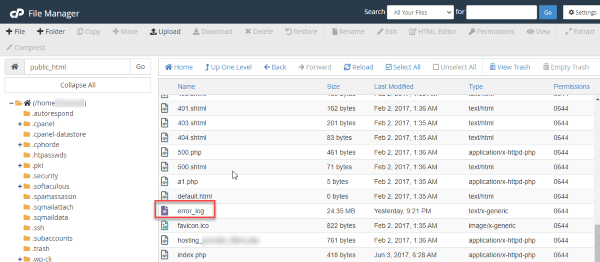
How to find this file:
- Open the File Manager in cPanel.
- Navigate to your website's directory (usually
public_html). - Look for the file
error_log. - Right-click on View or Edit to read the error lines.
Recognizing Typical Error Messages
- File does not exist: An image or page was deleted but is still being linked.
- Permission denied: The file permissions (CHMOD) are set incorrectly.
- PHP Fatal Error: An error in the code (e.g., after a plugin update in WordPress).
- Connection refused: An external script or database connection failed.
Security Tip: Use this tool to detect suspicious activity. Many failed login attempts or requests for unusual paths can indicate a hacker attack.
Stuck with an error message?
Copy the relevant line from the log and send it to our Support – we'll be happy to help with the analysis!
