


Bien utiliser la médiathèque WordPress : Gérer les images, les PDF et los fichiers
La Médiathèque WordPress est le lieu central pour tous les fichiers que vous utilisez sur votre site web. Cela comprend les images, les graphiques, les documents PDF, los fichiers audio, les vidéos, les logos, les icônes et autres médias. Dès que vous téléversez un fichier dans WordPress, il est enregistré dans la médiathèque et peut ensuite être utilisé dans des pages, des articles, des produits ou d'autres zones de contenu.
Surtout sur les sites web en pleine croissance, la médiathèque devient rapidement une zone de gestion cruciale. Nommer correctement ses images, renseigner les textes alternatifs, supprimer les fichiers inutiles et optimiser la taille des fichiers permet non seulement d'améliorer l'organisation, mais aussi les temps de chargement, l'accessibilité et le référencement naturel (SEO).
Dans ce guide, vous découvrirez comment utiliser efficacement la médiathèque WordPress, téléverser de nouveaux médias, modifier des images, organiser vos fichiers et éviter les erreurs courantes.
La médiathèque WordPress affiche les fichiers téléversés de manière claire sous forme de grille ou de liste.
Qu'est-ce que la médiathèque WordPress ?
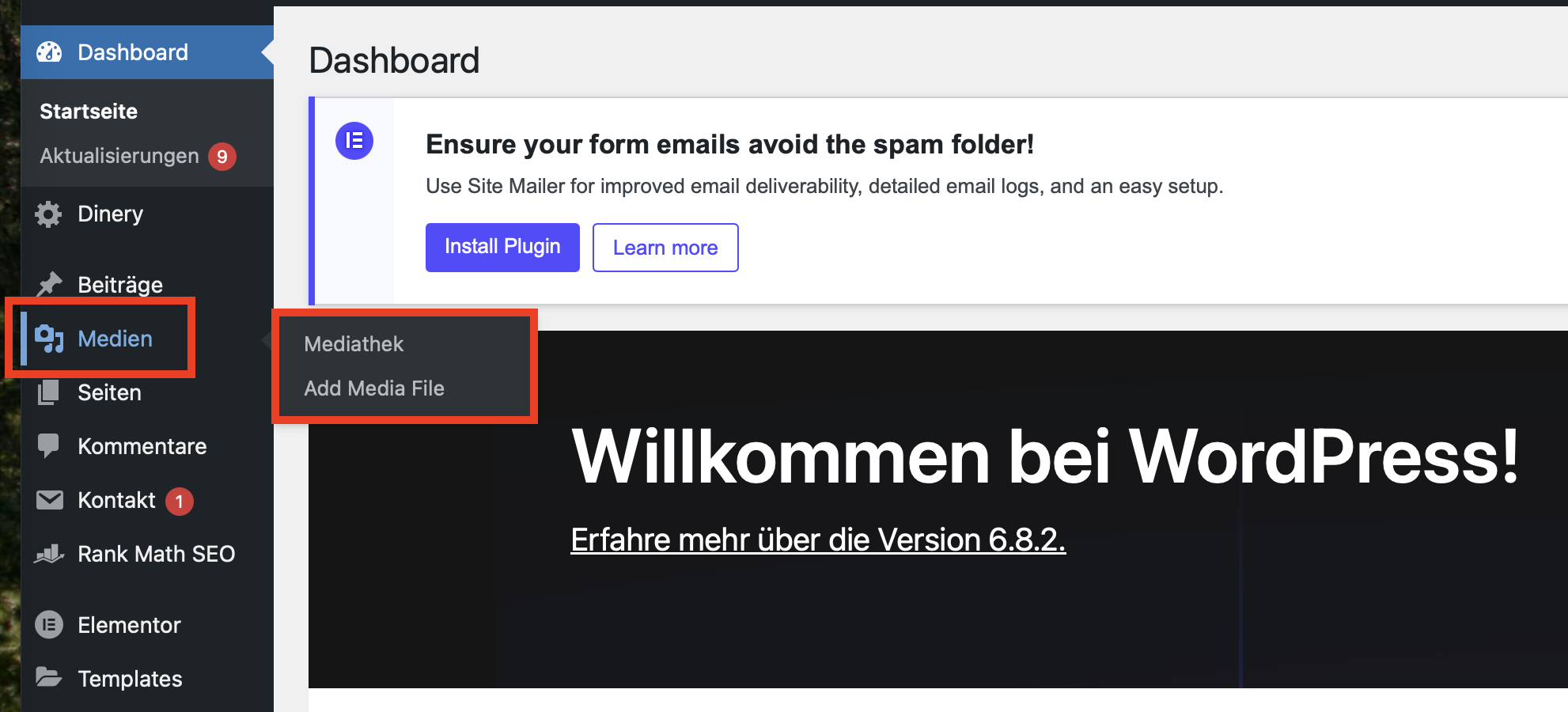
La médiathèque est le gestionnaire de fichiers intégré à WordPress. Vous la trouverez dans l'espace d'administration WordPress sous Médias » Médiathèque. C'est là que s'affichent tous les fichiers téléversés via WordPress.
WordPress ne se contente pas de stocker le fichier réel sur l'espace d'hébergement, il enregistre également des informations supplémentaires dans la base de données. Il s'agit par exemple du titre, de la légende, du texte alternatif, de la description, de la date de téléversement et du type de fichier. Ces informations aident WordPress à afficher, rechercher et intégrer correctement les médias dans vos contenus.
Les fichiers réels se trouvent normalement dans le répertoire :
/wp-content/uploads/
Selon vos paramètres, WordPress trie automatiquement les téléversements par année et par mois. Cela crée des dossiers comme /2026/05/, dans lesquels les fichiers sont classés.
Quels types de fichiers peuvent être téléversés ?
Pour des raisons de sécurité, WordPress n'autorise pas tous les types de fichiers. Les formats de fichiers couramment utilisés sont :
- Images : JPG, JPEG, PNG, GIF, WebP
- Documents : PDF, DOC, DOCX, XLS, XLSX, PPT, PPTX
- Audio : MP3, WAV, OGG
- Vidéo : MP4, MOV, AVI, WMV
- Archives : ZIP, si le système l'autorise
Si un type de fichier n'est pas accepté, WordPress affiche un message d'erreur correspondant. Il s'agit généralement d'une mesure de sécurité. Ne téléversez que des fichiers dont la provenance est fiable.
Les vidéos ou les archives très volumineuses ne devraient pas toujours être téléversées directement via WordPress. Pour les gros fichiers, un téléversement par FTP/SFTP ou l'utilisation d'une plateforme vidéo externe est souvent plus fiable et plus performant.
Téléverser de nouveaux médias dans WordPress
Il existe plusieurs façons d'ajouter des fichiers à la médiathèque WordPress. La meilleure méthode dépend de si vous êtes en train de modifier du contenu ou si vous souhaitez préparer des fichiers à l'avance.
Variante 1 : Téléversement via la médiathèque
- Connectez-vous à l'espace d'administration de WordPress.
- Allez dans Médias » Ajouter des fichiers.
- Glissez-déposez les fichiers dans la zone de téléversement.
- Alternativement, cliquez sur Sélectionner des fichiers.
- Attendez que le téléversement soit terminé.
Cette méthode est particulièrement adaptée si vous souhaitez téléverser plusieurs fichiers à l'avance avant de les insérer ultérieurement dans des pages ou des articles.
Variante 2 : Téléversement directement dans l'éditeur de blocs
Si vous modifiez actuellement une page ou un article, vous pouvez insérer des médias directement dans l'éditeur. Pour ce faire, ajoutez par exemple un bloc Image, un bloc Galerie, un bloc Fichier ou un bloc Vidéo et téléversez le fichier souhaité directement à cet endroit.
Le fichier sera automatiquement enregistré dans la médiathèque et utilisé simultanément dans le contenu en cours.
Variante 3 : Sélectionner un fichier existant dans la médiathèque
Il n'est pas nécessaire de téléverser des fichiers plusieurs fois. Si un fichier est déjà présent dans la médiathèque, vous pouvez le réutiliser à tout moment. Cliquez simplement sur Médiathèque dans l'éditeur et sélectionnez le fichier souhaité.
Cela permet d'économiser de l'espace de stockage et d'éviter les fichiers doublons.
Modifier des images dans WordPress
WordPress propose des fonctions de retouche d'image simples, directement dans le navigateur. Celles-ci ne remplacent pas un logiciel de retouche professionnel, mais s'avèrent très pratiques pour des corrections rapides.
Comment modifier une image :
- Ouvrez Médias » Médiathèque.
- Cliquez sur l'image souhaitée.
- Sélectionnez Modifier l'image sous l'image d'aperçu.
- Effectuez l'ajustement souhaité.
- Enregistrez la modification.
Les modifications suivantes sont possibles :
- Radrer : Supprimez les zones indésirables de l'image ou ajustez le format.
- Redimensionner : Réduisez la taille en pixels d'une image.
- Pivoter : Corrigez l'orientation des images mal alignées.
- Retourner : Retournez une image horizontalement ou verticalement.
Pour les images de sites web, il est souvent judicieux d'optimiser la taille de l'image avant même le téléversement. Une photo provenant directement d'un appareil photo ou d'un smartphone peut peser plusieurs mégaoctets et contenir beaucoup plus de pixels que ce qui est nécessaire sur un site web.
Choisir correctement les noms de fichiers
Une erreur fréquente consiste à téléverser des images avec des noms de fichiers tels que IMG_4829.jpg ou Screenshot-2026-05-15.png. De tels noms ne sont d'aucune utilité pour les utilisateurs ni pour les moteurs de recherche.
Il est préférable d'utiliser des noms de fichiers descriptifs avec des termes pertinents. Exemples :
wordpress-mediatheque-gerer-images.jpgcuriaweb-wordpress-hosting-suisse.pngformulaire-contact-exemple-site-web.pdf
Utilisez si possible des lettres minuscules, des tirets à la place des espaces et évitez les caractères spéciaux tels que à, é, è, ç, ?, %, &, # ou les noms de fichiers très longs. Cela permet de réduire les problèmes liés aux URL, aux navigateurs et aux systèmes de fichiers.
Texte alt, Titre, Légende et Description
Lorsque vous ouvrez un fichier dans la médiathèque, plusieurs champs de saisie apparaissent. Ces champs sont souvent ignorés, alors qu'ils sont importants pour l'accessibilité, le SEO et une gestion propre des médias.
| Champ | Utilisation |
|---|---|
| Texte alternatif | Décrit le contenu de l'image pour les lecteurs d'écran et les moteurs de recherche. Particulièrement important pour l'accessibilité. |
| Titre | Titre interne du fichier média. Aide à la recherche et à l'organisation. |
| Légende | Peut être affichée de manière visible sous l'image, par exemple comme description textuelle. |
| Description | Description interne ou publique plus détaillée, selon le thème et la mise en page. |
Utilisez le Texte alternatif pour décrire de manière concise et compréhensible ce qui est visible sur l'image. Exemple : Au lieu de « Image1 », préférez « Capture d'écran de la médiathèque WordPress avec vue d'ensemble des images ». Le texte alt doit sembler naturel et ne pas être surchargé de mots-clés.
Optimiser les images pour de meilleurs temps de chargement
La médiathèque a une influence directe sur les performances de votre site WordPress. Des images trop lourdes comptent parmi les raisons les plus fréquentes de la lenteur des temps de chargement. Les pages lentes peuvent décourager les visiteurs et nuire à votre visibilité dans les moteurs de recherche.
Faites donc attention aux points suivants :
- Réduisez les images à une largeur de pixel raisonnable avant le téléversement.
- Utilisez des formats modernes comme le WebP, si possible.
- Compressez les images sans dégrader visiblement la qualité.
- Évitez de conserver des fichiers originaux inutilement volumineux dans la médiathèque.
- Utilisez le Lazy Loading (chargement différé), si votre thème ou WordPress le prend en charge.
Pour des images de contenu normales, des largeurs comprises entre 1200 et 2000 pixels suffisent amplement. Une petite image qui n'est affichée que dans une barre latérale n'a pas besoin d'être téléversée avec une largeur de 5000 pixels.
Organiser les médias et les retrouver rapidement
Avec le temps, des centaines, voire des milliers de fichiers s'accumulent sur de nombreux sites WordPress. Une organisation rigoureuse fait gagner du temps et évite les téléversements en double.
WordPress propose plusieurs outils pour cela :
- Vue en grille : Idéale pour une recherche visuelle d'images.
- Vue en liste : Pratique pour vérifier les noms de fichiers, les dates et les auteurs.
- Filtrer par type de fichier : Affiche uniquement les images, les vidéos, les fichiers audio ou les documents.
- Filtrer par date : Limite les fichiers selon le mois de téléversement.
- Champ de recherche : Recherche dans les noms de fichiers, les titres et parfois d'autres métadonnées.
Si vous utilisez beaucoup de médias, prenez l'habitude de travailler systématiquement avec des noms de fichiers clairs et des titres explicites lors du téléversement. Cela facilitera grandement vos recherches ultérieures.
Supprimer des fichiers et économiser de l'espace de stockage
Vous pouvez supprimer les médias dont vous n'avez plus besoin directement dans la médiathèque. Pour ce faire, ouvrez un fichier et cliquez sur Supprimer définitivement. Attention toutefois : les fichiers supprimés ne sont pas automatiquement retirés des pages, des articles ou des produits. Si un fichier supprimé était encore intégré quelque part, cela peut créer une image manquante ou un lien mort à cet endroit.
Avant toute suppression, vous devez donc vérifier :
- Le fichier est-il encore utilisé sur une page ou dans un article ?
- Fait-il partie d'une galerie ?
- Est-il utilisé dans un produit WooCommerce ?
- Est-il intégré dans un constructeur de page (Page Builder), un en-tête, un pied de page ou un widget ?
- Le fichier est-il utilisé par une extension ?
Ne supprimez pas les médias uniquement au sentiment. Surtout sur les anciens sites web, des images peuvent être intégrées à des endroits inattendus. Effectuez une sauvegarde avant de vous lancer dans de grands travaux de nettoyage.
Pourquoi les fichiers téléversés par FTP n'apparaissent pas automatiquement
Les fichiers que vous téléversez manuellement via FTP ou SFTP dans le dossier wp-content/uploads n'apparaissent pas automatiquement dans la médiathèque WordPress. La raison : WordPress enregistre des informations supplémentaires sur chaque fichier média dans la base de données. Lors d'un simple téléversement FTP, cet enregistrement en base de données n'est pas créé.
Si vous souhaitez qu'un fichier apparaisse dans la médiathèque, il est préférable de lo téléverser directement via WordPress. Alternativement, il existe des extensions spécifiques qui permettent d'enregistrer après coup dans la médiathèque des fichiers téléversés par FTP.
Le FTP/SFTP est idéal pour les gros fichiers ou les travaux de maintenance technique. Pour les images normales, les PDF et les documents, le système de téléversement de WordPress est généralement le meilleur choix, car les fichiers sont ainsi correctement enregistrés dans la médiathèque.
Erreurs courantes dans la médiathèque
Si les téléversements ou les images ne fonctionnent pas comme prévu, la cause se situe souvent au niveau de l'un des points suivants :
- Fichier trop volumineux : La limite de téléversement PHP est inférieure à la taille du fichier.
- Type de fichier incorrect : WordPress bloque le format pour des raisons de sécurité.
- Caractères spéciaux dans le nom du fichier : Les accents ou caractères spéciaux peuvent poser problème.
- Dimensions d'image trop grandes : Les images très grandes consomment beaucoup de mémoire lors du traitement.
- Droits d'écriture manquants : WordPress ne peut pas écrire dans le dossier des téléversements.
- Conflit d'extension : Des extensions de sécurité, d'optimisation ou de gestion de médias peuvent impacter les téléversements.
- Problèmes de cache : Les modifications ne sont pas immédiatement visibles.
Si vous êtes hébergé chez CURIAWEB.CH und que vous ne parvenez pas à résoudre vous-même vos problèmes de téléversement, veuillez indiquer au support le domaine concerné, le type de fichier, sa taille et le message d'erreur exact. Cela permettra de cibler la cause beaucoup plus rapidement.
Recommandations pour une médiathèque WordPress propre
Une médiathèque bien tenue facilite le travail quotidien avec WordPress et améliore la qualité technique de votre site web. Mettre en place un flux de gestion des médias clair est particulièrement rentable pour les entreprises, les associations, les boutiques en ligne et les sites éditoriaux.
- Nommez vos fichiers de manière pertinente avant de les téléverser.
- Utilisez des textes alternatifs descriptifs.
- Compressez les grandes images avant de les téléverser.
- Ne téléversez pas des fichiers plusieurs fois s'ils sont déjà existants.
- Supprimez régulièrement mais prudemment les médias inutilisés.
- Vérifiez après de grands changements si vos images et téléchargements fonctionnent toujours.
- Faites une sauvegarde avant de procéder à de grands nettoyages.
Foire aux questions sur la médiathèque WordPress
Où WordPress stocke-t-il les fichiers de la médiathèque ?
Les fichiers sont normalement stockés dans le répertoire /wp-content/uploads/. De plus, WordPress enregistre des informations relatives à chaque fichier dans la base de données.
Pourquoi ne vois-je pas un fichier téléversé par FTP dans la médiathèque ?
Parce que WordPress ne l'enregistre pas automatiquement dans la base de données. Téléversez vos fichiers via l'outil de téléversement de WordPress ou utilisez une extension appropriée pour un enregistrement ultérieur.
Dois-je réduire la taille des images avant de les téléverser ?
Oui. Les grandes images originales issues d'appareils photo ou de smartphones sont souvent inutilement grandes pour les sites web. Des images réduites et compressées améliorent les temps de chargement et économisent de l'espace disque.
Qu'est-ce que le texte alt pour les images ?
Le texte alt décrit le contenu d'une image. Il aide les lecteurs d'écran, améliore l'accessibilité et permet aux moteurs de recherche de mieux comprendre le contenu de l'image.
Puis-je supprimer des fichiers de la médiathèque sans danger ?
Uniquement si vous êtes certain que le fichier n'est plus utilisé. Sinon, des images ou des PDF supprimés risquent de manquer sur des pages, dans des articles, des produits ou des widgets.
Vous souhaitez un site WordPress rapide et fiable ?
Avec CURIAWEB.CH, vous profitez d'un hébergement WordPress avec serveur basé en Suisse, d'un support personnalisé et d'une base stable pour votre site web.
Acheter un hébergement WordPressDes questions sur l'espace de stockage, les téléversements ou la médiathèque ? Notre support CURIAWEB vous aide volontiers personnellement.
