
In the field of Databases your CURIAWEB cPanel, you manage the databases used by websites and web applications. Here you can create new databases, manage database users, assign access rights, and with phpMyAdmin access the contents of a database directly.
At CURIAWEB you will find the functions in this area phpMyAdmin, Manage My Databases, Database Wizard and Remote Database Access.
In this article, we explain what these tools are intended for and when you need which one.
Briefly explained: Many web applications do not store their actual content in regular files, but in a database. WordPress, for example, stores posts, pages, users, settings, and numerous other information there.
Where do you find the database functions? #
Log in to your CURIAWEB cPanel and open the section on the home page Databases.
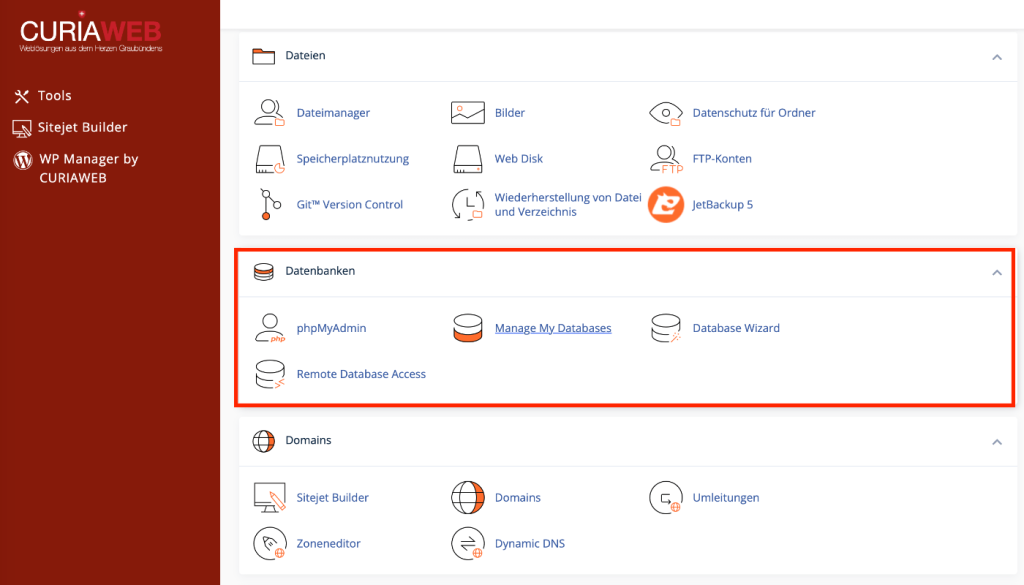
There you will find the following features:
- phpMyAdmin
- Manage My Databases
- Database Wizard
- Remote Database Access
Although all four tools deal with databases, they serve different tasks.
An overview of the remaining areas of your cPanel can be found under cPanel at CURIAWEB explained: All areas and functions at a glance.
What is a database? #
A database stores structured information so that an application can selectively access and modify the data.
Therefore, two fundamental types of data are frequently used for a website: Files and Database contents.
For example, the files of a WordPress installation contain WordPress itself, themes, plugins, and uploaded files. In contrast, the associated database contains posts, pages, comments, user accounts, and many settings, among other things.
For a complete website, therefore, both the files and the corresponding database are often required.
Important: Backing up the website files alone is not automatically a complete backup of the website in the case of a database-driven application. The associated database can be just as important.
Database, user and password – what is the difference? #
A common confusion concerns the database itself and the database user. These are two different things.
The Database contains the stored information of the application.
The Database user is an access point through which an application can access this database.
A database user belongs to a Password. Additionally, the user must be assigned the necessary permissions for the database in question.
An application therefore typically requires multiple pieces of information to establish a connection:
- Database name
- Database user
- Database user password
- Database server or hostname
What specific information is needed depends on the respective application and hosting configuration.
phpMyAdmin #
phpMyAdmin is a web-based database management interface. You can use it to access existing databases and their tables directly in the browser.
After opening phpMyAdmin, the databases that your cPanel account or the corresponding login is authorized to access will be displayed to you.
Within a database, for example, you can view tables and their structure, search or edit records, execute SQL queries, and import and export data.
When do you need phpMyAdmin? #
During normal website operation, you often don't need to use phpMyAdmin at all. WordPress and other web applications access their databases independently.
phpMyAdmin becomes especially interesting when you want to specifically examine or edit data, export or import a database, or analyze a technical error.
Attention: Changes in phpMyAdmin affect the database directly. If you delete a record, a table, or an entire database, a website can be damaged immediately or stop working.
We will cover the operation in detail later under Use phpMyAdmin in cPanel.
What are database tables? #
A database usually consists of multiple Tables. Each table can contain certain types of information.
An application thereby distributes its data across logically separated areas. WordPress, for example, uses different tables for different content and settings.
The exact table structure is determined by the respective application. You should therefore not delete or modify tables solely based on their name.
Practical Tip: If a guide requires a change to a specific database table, first carefully check whether you are actually working with the correct database and the correct website. Especially with multiple installations, table names and database structures can look very similar.
Manage My Databases #
With Manage My Databases you manage databases and database users at the level of your hosting account.
Here you can create new databases, create database users, and assign a user to a specific database.
Furthermore, the permissions that a user has within the respective database are defined here.
Why must a user be assigned to a database? #
Simply creating a database user is not enough. The user must also be granted access to the database they are supposed to work with.
During the assignment, the required permissions are defined. Without sufficient rights, a web application may not be able to read, save, or modify data.
A typical symptom of an incorrect configuration is therefore that an application appears to be using correct access credentials, but still cannot establish a working database connection.
We will show you how to properly create databases and users later in Create MySQL database in cPanel and Create MySQL user and assign to a database.
Database Wizard #
The Database Wizard guides you step by step through the setup of a new database.
Instead of setting up databases, users, and permissions in various places, the assistant guides you through the necessary steps.
This is particularly practical if you need a new database for an application and still have little experience with database management.
Database Wizard or Manage My Databases? #
Both functions can be used for setting up a database. The difference lies mainly in how they work.
The Database Wizard guides you through the creation of the database, user, and permissions in a set order.
Manage My Databases offers, on the other hand, the centralized management of existing databases and users and is also suitable for subsequent changes.
If you simply want to create a new database including a user, the wizard is often the easier starting point. For ongoing management, Manage My Databases clearer.
Remote Database Access #
With Remote Database Access Can access to databases from external systems be allowed?.
Normally, an application installed on your web hosting accesses its database directly within the hosting environment. External database access is not required for this.
Remote database access only becomes relevant when a system outside of the web hosting server needs to establish a direct connection to the database.
To do this, the corresponding external hosts or IP addresses must be explicitly authorized for access.
Safety: Only grant external database access if it is actually required. A database should not be made unnecessarily accessible to external connections.
What does localhost mean for a database? #
In many web applications, you will find a so-called database host in the database configuration.
When a web application and database are operated within the same hosting environment, it is frequently localhost used.
Simply put, this means that the application accesses the database service on the same system or via the locally provided database connection.
You should not change the database host without a reason, however. Use the credentials intended for your specific hosting environment or application.
Why do database names often have a prefix? #
In cPanel, database names and database users can be assigned a prefix that is associated with your hosting account.
For example, if you have a database with the desired name shop you create, the full database name can look something like this after creation:
account shop
For a web application, the full database name crucial. The same applies to a database user if they are displayed with a corresponding prefix.
Practical Tip: Use the database name and username exactly as they appear in cPanel. A missing prefix is enough to prevent an application with otherwise correct credentials from establishing a connection.
What does „All Privileges“ mean? #
When you assign a database user to a database, different permissions can be granted.
This includes, for example, rights to read, insert, modify or delete data, as well as other operations.
Many web applications require several of these permissions for normal operation. In the case of an application that is supposed to manage its database completely by itself, the designated database user is therefore often granted all required rights or ALL PRIVILEGES assigned.
However, which rights are actually required depends on the specific application and the user's intended use.
Export database #
You can export a database using phpMyAdmin. This writes the database content to a file, often in SQL format.
Such a file can be used, for example, for a manual backup, a website migration, or the transfer of a database to another environment.
During an export, the original database is not deleted. An exported representation of the selected data is created.
We will show the specific procedure in Export database with phpMyAdmin.
Import database #
During the import, data from an existing file is read into a database.
This is required, for example, when a website is transferred from another server or when a previously exported database needs to be re-imported.
This requires careful examination of whether Which database the data is imported. An import into the wrong database can modify existing content or lead to conflicts.
Attention: A database import can modify existing tables and records. If the target database already contains important data, you should create a backup before the import.
We will explain the individual steps later at Importing a database with phpMyAdmin.
Why can a database import fail? #
An import via phpMyAdmin can fail for various reasons. These include, for example, a damaged SQL file, incompatible SQL statements, an incorrect file format, or technical size and execution time limits.
For large databases, the size of the import file in particular can play a role.
The specific error message is therefore important. Instead of repeating an import multiple times unchanged, you should first determine at what point and with what message the process was aborted.
The instructions are for such cases phpMyAdmin import not working: Errors and large SQL files intended.
How do you figure out which database belongs to your website? #
If several websites are hosted in one hosting account, there may be a corresponding number of databases. It is not always immediately obvious from the database name which database belongs to which application.
The access credentials used are usually located in the configuration of the respective web application.
In WordPress, the database information is, for example, in the file wp-config.php saved. Among other things, the database name and database user are defined there.
However, do not change this file solely for the purpose of checking it. For the mapping, it is sufficient to read the existing values and compare them with the databases in cPanel.
Can you simply delete an unused database? #
Only if you know for sure that no website or application is accessing it anymore.
A database can be actively used even if its name does not clearly indicate a specific website.
Before deleting a supposedly old database, you should therefore check whether it is still entered in an application configuration.
Attention: Deleting a database can lead to the complete loss of the content stored within it. Never delete a database just because you do not know its name or because it appears unused at first glance.
Change database password – Caution with existing websites #
The password of a database user can be changed. However, for a database account that is already in use, such a change has immediate consequences.
A web application uses the previous password in its configuration file. If only the password is changed in cPanel, the application will initially still know the old password and can no longer connect.
If a password change is required, the configuration of the affected application must therefore be adjusted accordingly.
What happens in the event of a faulty database connection? #
If a web application cannot reach its database, it may lack essential information to render the website.
Possible causes include an incorrect database name, an incorrect username, an incorrect password, missing user permissions, or an incorrect host specification.
Depending on the application, a corresponding error message is then displayed.
Therefore, during troubleshooting, you should check the access credentials individually and not modify database contents immediately.
Create a backup before making manual changes #
phpMyAdmin allows very far-reaching changes. Exactly for this reason, you should work with it particularly carefully on a production website.
If you want to manually modify tables, records, or larger data ranges, you should create a suitable backup of the database beforehand.
This applies in particular when you are following an external guide and cannot fully assess the impact of an SQL command.
Important: Do not blindly execute a SQL command from the internet on a productive database. First, check what the command modifies and whether it is intended for your application and its specific database structure.
Which database function do you need for which task? #
If you want to create a new database and a corresponding user, you can the Database Wizard or Manage My Databases use.
For the later management of databases, users, and permissions Manage My Databases responsible.
If, on the other hand, you want to view, export, import, or specifically edit the actual content of an existing database, you use phpMyAdmin.
Remote Database Access you only need this if an external system needs to access a database in your hosting account directly.
Summary #
In the field of Databases you manage the databases and database users of your websites and applications in your CURIAWEB cPanel.
Manage My Databases serves for the centralized management of databases, users, and permissions. The Database Wizard facilitates the initial setup of a new database. With phpMyAdmin can you directly access database tables and their contents as well as import or export data.
Remote Database Access is provided for special cases where an external system requires a direct database connection.
Extra caution is especially important with phpMyAdmin: changes are made directly to an application's stored data. For critical tasks, you should therefore always make sure first that a suitable backup exists.
In our advanced guides, we show you step-by-step how to create databases and users and how to securely import and export data using phpMyAdmin.


