
In the CURIAWEB customer center, you can grant additional people access to your customer account without sharing your own password. For example, this is practical if a web designer needs to manage technical settings, an employee needs to handle support requests, or your accounting department needs access to required account information.
For each additional user, you can set individual access rights. This allows you to determine which areas the person is allowed to use while your personal access remains protected.
Why you should not share your own password #
You should generally not share your personal access credentials for the CURIAWEB customer center with web designers, employees, agencies, or other persons.
When multiple people use the same login, several problems arise. On the one hand, the other person may gain access to areas they do not even need for their work. On the other hand, if the collaboration ends later, you may have to change your own password.
A separate user access is therefore the better solution. The invited person uses their own access and you can determine which permissions they receive.
You can adjust or remove access at any time later.
When an additional user makes sense #
Additional users are suitable for both external service providers and employees of your company. Typical use cases include, for example:
- A web designer needs access to work on your website or hosting.
- An agency should be able to handle technical support requests.
- An employee takes over certain administrative tasks.
- Your accounting department needs access to the areas relevant to them.
- An external administrator temporarily requires access.
- Another person is to help manage certain CURIAWEB services.
The decisive advantage is that you don't have to share your complete customer account with another person.
How to add a new user #
You can find the user management directly in your CURIAWEB customer center.
- Log in to CURIAWEB Customer Center a.
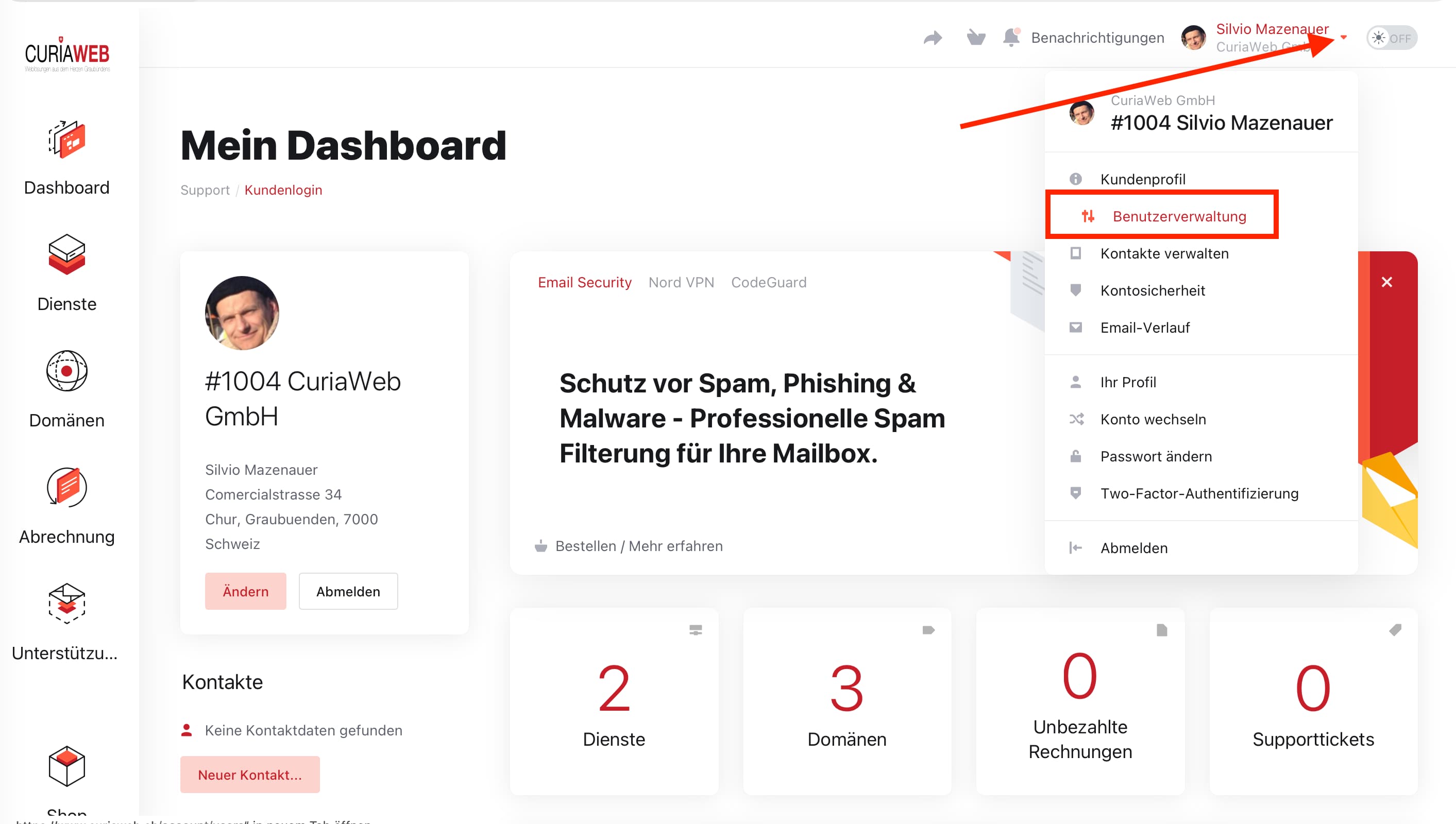
- Open your profile or user menu at the top right.
- Choose „User Management“.
- Enter the email address of the person you want to add.
- Select the desired permissions for the new user.
- Check the assigned permissions again.
- Send the invitation.
The invited person will then receive an email. Using this invitation, they can set up access or accept the invitation with an existing user account.
Following successful acceptance, the person can access your customer account according to the permissions you have granted.
Select permissions selectively #
When inviting a user, you should not simply enable all available permissions. Instead, consider which areas the person actually needs for their task.
For example, a web designer normally does not need permission for areas that exclusively concern your bookkeeping or personal account management. Conversely, someone from bookkeeping generally does not need comprehensive technical access to your hosting.
You can see directly which options are displayed in the user management of the customer center.
Granting rights according to the minimum principle #
For additional users, the so-called is recommended minimization principle or Principle of Least Privilege. In doing so, a user receives only those permissions that are required for their specific task.
This reduces unnecessary access while also limiting the impact if a user account should ever fall into the wrong hands.
Therefore, check before sending an invitation:
- What task is the person supposed to do?
- Which areas does she actually need for this?
- Are there any permissions that are not necessary for this?
When in doubt, you can initially grant fewer permissions and expand them later.
Change or remove access later #
User access should not remain permanently active when it is no longer needed.
For example, when a web designer's work is completed, an external administrator is no longer working for you, or an employee leaves the company, you should review their access.
Open this again User management in the CURIAWEB customer center. There you can manage existing users and their access rights.
Remove permissions that are no longer needed or user access completely. Especially in the case of temporary external access, it is advisable to check user management regularly.
User access instead of shared credentials #
A dedicated user account not only facilitates collaboration, but also prevents you from having to share your personal password.
Therefore, you should always use the user management system for web designers, agencies, employees, or other authorized persons whenever possible. Only grant the permissions actually needed and remove access as soon as it is no longer required.


