
CURIAWEB creates automatic daily backups of your hosting data. If you want to check which days have available backups, you can view them directly in JetBackup 5.
This is especially helpful if you have accidentally deleted data or need a previous version of a website, file, or email.
In this guide, we will show you how to open JetBackup 5 in cPanel and check which backups are available for your hosting account.
Briefly explained: Open JetBackup 5 in cPanel and go to the existing backups there. You can see which days have backups available. Do not perform the restoration yourself – contact CURIAWEB Support for that.
Step 1: Log in to cPanel #
Log in to your cPanel hosting account first.
After logging in, you will see the various functions and tools available for your hosting account.
Step 2: Open JetBackup 5 #
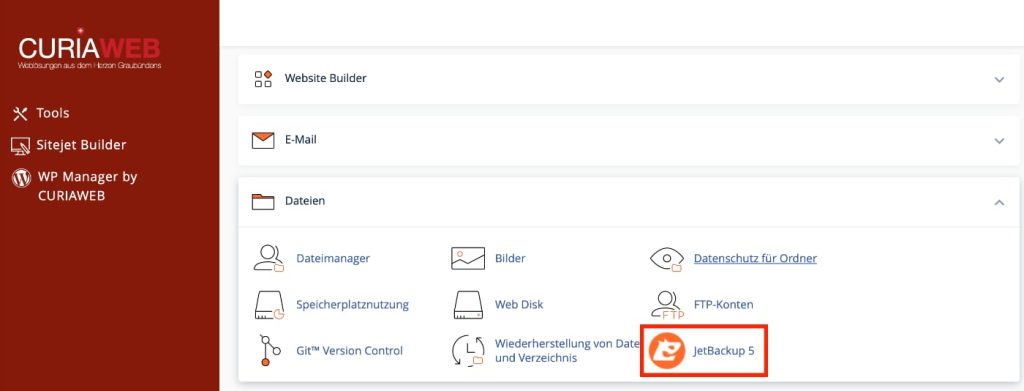
Search in cPanel for JetBackup 5 and open the application.
The easiest way to find JetBackup is via the cPanel search function. Just enter the following term there:
JetBackupThen click on JetBackup 5.
Step 3: Open the backup overview #
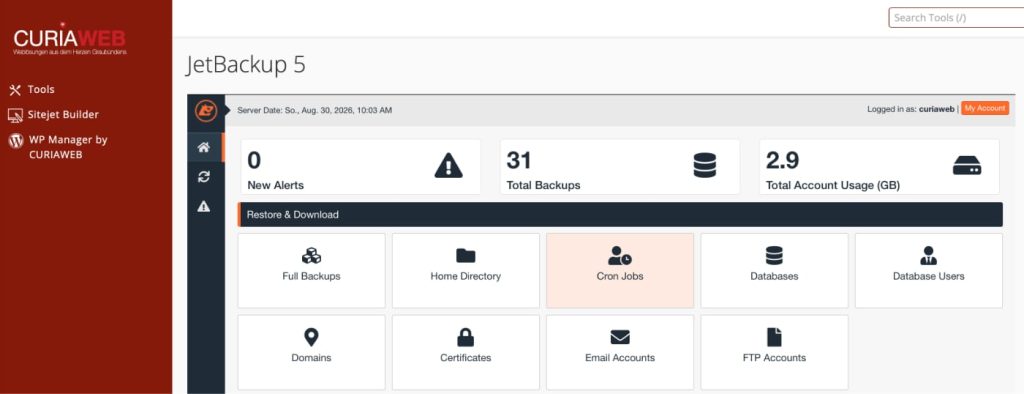
After opening JetBackup 5, you will reach the overview.
You can find the section for existing backups in JetBackup Restore & Download.
The name initially sounds as though you could start a recovery yourself there. However, with CURIAWEB, recovery is disabled for customers. You primarily use this area to view the existing backups.
Note: JetBackup 5 is standard software that can be set up differently by various hosting providers. Therefore, individual features or buttons may be available differently depending on the hosting provider.
Step 4: Choose which data you want to view #
JetBackup 5 can display the backed-up data by different areas.
Depending on your hosting account and the existing backups, the following areas may be displayed, for example:
- complete hosting account,
- Files and directories,
- Databases,
- Email accounts,
- FTP accounts,
- DNS data,
- SSL certificates and
- further secured components of the hosting account.
Which areas are actually displayed depends on which data has been saved for your account and which functions are unlocked for your access.
Step 5: Check the available days #
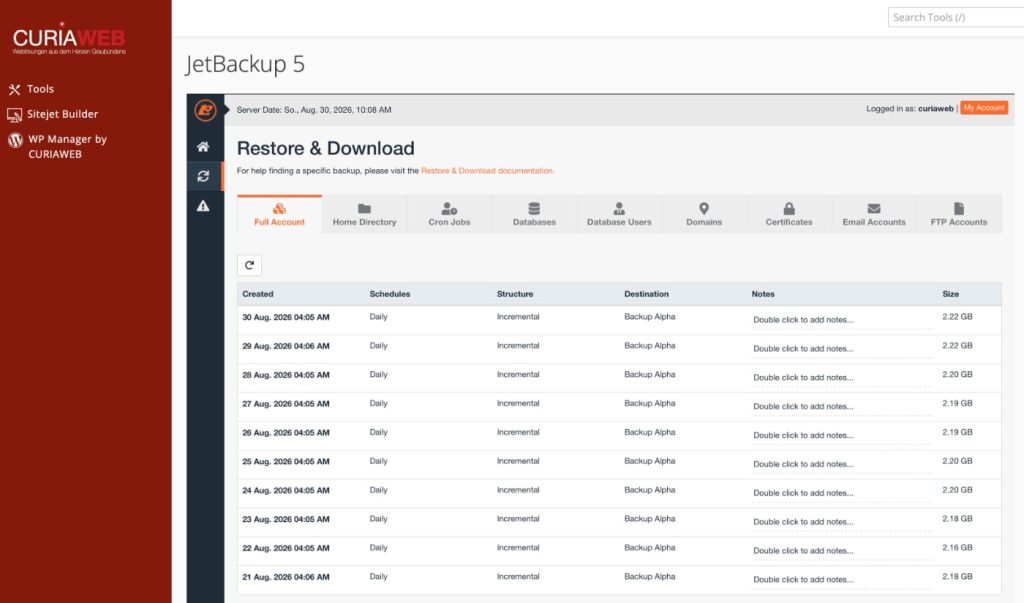
In the overview, you can see the existing backups with their respective dates.
You can use this to check if a backup exists from a time period when your data was presumably still correct.
An example:
Monday
File still exists
        ↓
Tuesday
File accidentally deleted
        ↓
Wednesday
Loss is noticed
In this case, a backup from before the deletion would be interesting – for example, from Monday.
A backup from Wednesday, on the other hand, might already contain the state in which the file is no longer present.
Important: Do not automatically choose the newest backup. What matters is when the required data was last present correctly.
What does the date of a backup mean? #
The displayed date helps you determine the time period the backup is from.
A backup contains the saved state of the data at that point in time. Changes made only later cannot yet be included in it.
Conversely, if an error was already present before the backup, this error may also be contained in the backup.
An error occurs
        ↓
Backup is created
        ↓
Backup may already contain
the erroneous state
Therefore, it is helpful to know as precisely as possible when your data was last correct.
Why do I see multiple backups? #
CURIAWEB creates a new backup of your hosting data daily and keeps the backups for 30 days.
This allows you to access backups from different days and not rely solely on the latest backup.
We explain how this system works in detail in the article Daily backups at CURIAWEB: How the 30-day backup works.
Can I view the contents of a backup? #
For certain secured areas, JetBackup 5 can display additional details about the existing data.
For files, for example, the directory structure of the backed-up home directory can be displayed, provided that the type of backup and the features enabled for it support this.
This can be useful if you want to check whether a specific file or folder is present in a backup.
Note: You do not have to search for a file in the backups yourself if you are unsure. Let us know as precisely as possible in the support ticket which data is missing and when it was last present.
Can I restore the backup myself? #
No. With CURIAWEB, you can view the existing backups in JetBackup 5, but you cannot start a restoration yourself.
The restoration is carried out by CURIAWEB Support.
The reason for this is simple: restoring an older backup can overwrite current data. Especially with websites, databases, or email accounts, you should therefore first check what actually needs to be restored.
For example, if only a single file is missing, the entire hosting account does not need to be restored to an earlier point in time.
You can find the exact procedure in the article Restoring a backup in CURIAWEB: How the restoration works.
You found the right backup – what now? #
If you have found a backup from the desired time period, it is best to note down the displayed date.
Then open a support ticket and let us know which data you need.
Create support ticket for a recovery
For example, the following information is helpful:
- the affected domain or the hosting account,
- which data should be restored,
- the date of the desired backup and
- a brief description of what happened.
For example:
Domain:
meine-domain.ch

Required data:
Folder /public_html/bilder/

Problem:
Folder was accidentally deleted.

Found in JetBackup:
Backup from Monday
If you do not know which backup is the correct one, you do not have to select one. Instead, let us know when the data was last present correctly.
What if the desired date is no longer displayed? #
CURIAWEB keeps daily backups for 30 days.
If you can no longer find an older date in JetBackup, the corresponding backup may have already been removed from the regular retention period.
This is particularly important for data whose loss is noticed only late.
If, for example, you discover only several weeks later that a file is missing, you should check as quickly as possible whether a suitable backup is still available.
We explain why backups are not the same as long-term archiving in the article Backup is not equal to archive: Understanding 30-day retention correctly.
Summary #
In JetBackup 5, you can check for yourself which days have backups available for your CURIAWEB hosting account.
To do this, open JetBackup 5 in cPanel and access the available backups. The displayed date will help you find a backup from a time period when your data was still correct.
Do not automatically select the newest backup. If an error occurred earlier, it may also be present in newer backups.
You cannot initiate a restoration yourself in CURIAWEB. If you need data from a backup, open a support ticket and let us know as precisely as possible what needs to be restored.
If you are unsure which backup is suitable, a precise description of when the required data was last correctly present is sufficient.


