
In the field of Files your CURIAWEB cPanel you will find the most important tools for managing the files and directories of your web hosting. Here, for example, you can edit files directly in the browser, manage FTP access, check the used storage space, or restore existing backups.
Some of these features, like the File manager or the FTP accounts are frequently needed. Other tools like Web Disk or Git™ Version Control are more tailored to specific use cases.
In this article, we explain all the functions that you in the area Files you can find your CURIAWEB cPanel, and show you what they are intended for.
Briefly explained: In the field of Files you manage the data of your hosting account. This includes, among other things, the files of your websites, directories, FTP access, and tools for storage space control and recovery.
Where do you find the file tools? #
Log in to your CURIAWEB cPanel and open the section on the home page Files.
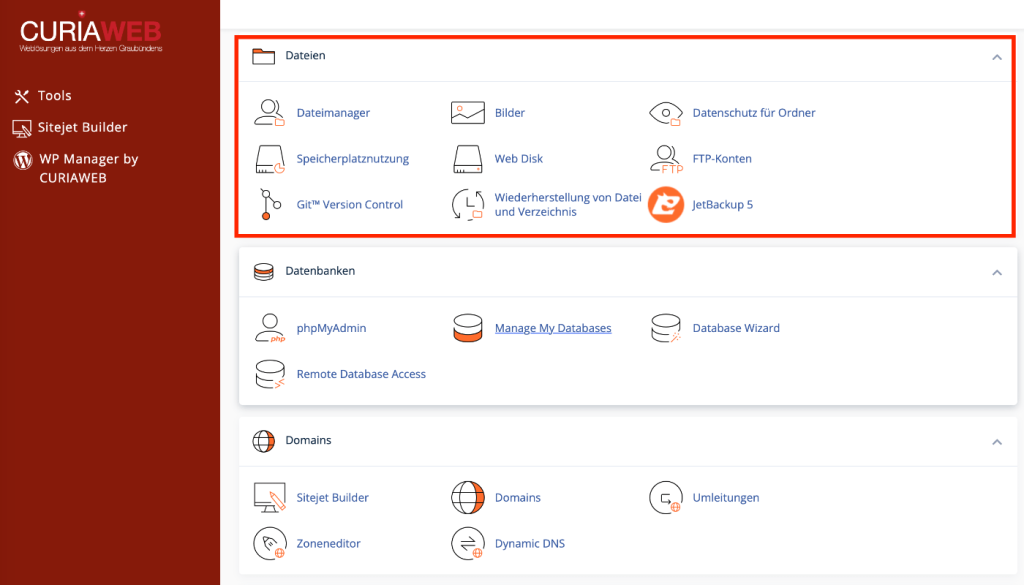
There you will find the following features:
- File manager
- Pictures
- Folder data privacy
- Storage usage
- Web Disk
- FTP accounts
- Git™ Version Control
- File and directory recovery
- JetBackup 5
Which function you need depends on whether you want to edit individual files, transfer larger amounts of data, create an additional FTP access, or restore a backup, for example.
An overview of all areas of your cPanel can be found under cPanel at CURIAWEB explained: All areas and functions at a glance.
File manager #
The File manager is one of the most important tools in cPanel. It allows you to directly access the files and directories of your hosting account via your web browser.
Among other things, you can use it to create, upload, download, copy, move, rename, and delete files and folders. Text-based files can also be edited directly in the browser.
The file manager is particularly well-suited for individual files or smaller changes because no additional FTP program is required for them.
Where are my website files located? #
Which files belong to a website depends on which directory the domain in question is assigned to.
For a typical primary domain, the document root is often located in the directory public_html. However, additional domains can use their own directories.
Important: Do not automatically assume that every website in
public_htmlis located. When dealing with multiple domains, first check which directory is actually assigned to the respective domain.
We will cover practical operation in detail later under Use cPanel File Manager.
Pictures #
Under Pictures cPanel provides various tools for working with image files.
Depending on the available function, this can be used, for example, to generate preview images, scale images, or convert image files into another supported format.
These tools can be practical when simple changes are to be made directly within the hosting account. Specialized programs are usually better suited for professional image editing.
Practical Tip: Create a copy before processing important original images. An image file modified on the server cannot always be reverted to its original state without a backup.
Folder data privacy #
With Folder data privacy Can you additionally protect a directory of your website with a username and password?.
If someone subsequently visits a protected area, they must first authenticate before the web server delivers the content.
This can be useful, for example, for a temporarily protected development area, internal files, or a non-publicly accessible part of a website.
Directory protection is not the same as a user account within WordPress or any other web application. Access control already takes place at the web server level.
We will show the interior later in Password protect folders in cPanel.
Storage usage #
Under Storage usage can you check which areas of your hosting account are taking up storage space.
This is especially helpful when the used disk space has increased unexpectedly and you want to find out which directories are responsible for it.
Large amounts of data can be generated, for example, by website files, uploaded media, temporary files, logs, backups, or other data stored within the account.
Important: Do not delete large files simply because they consume a lot of storage space. First, check what the file or directory belongs to. Deleting required application files can immediately break a website.
Web Disk #
With Web Disk you can access files in your hosting account via the WebDAV protocol.
This allows supported directories on a computer or other compatible device to be used similarly to a remote drive or network storage.
Web Disk is thus an alternative for certain forms of file access, but is not strictly required for the normal administration of a website.
If you only want to modify files occasionally, the file manager is often easier. For the regular transfer of many website files, FTP is frequently used.
FTP accounts #
Under FTP accounts Can you create and manage additional access points for file transfer.
An FTP account can be used, for example, when a person or application needs access to a specific area of the hosting account without granting full cPanel access.
When creating an additional FTP account, its access can be restricted to a specific directory. As a result, a user does not necessarily have to be granted access to all website files.
Practical Tip: Do not unnecessarily give external people your personal cPanel access. If only access to certain files is required, a correspondingly restricted FTP account can be the more sensible solution.
We will show you how to set up such an access later in Create an FTP account in cPanel.
FTP is not the same as the file manager #
With the file manager and FTP, you can access files in your hosting account, but the way they work differs.
The File manager runs directly in the browser. You log in to cPanel and work with your files there.
At FTP On the other hand, an FTP program connects to the server. A well-known example of this is FileZilla.
For a single configuration file, the file manager is often faster. If, on the other hand, many files or entire directory structures need to be transferred, an FTP program can be more convenient.
Git™ Version Control #
Git™ Version Control primarily aimed at developers and technically experienced users.
Git is a version control system. Changes to files or source code can be traceably managed in a repository.
The cPanel integration enables the management of corresponding Git repositories within the hosting environment.
For a normal website that is maintained exclusively through a content management system or a website builder, you normally do not need to use Git.
Briefly explained: If terms like repository, branch, commit, or deployment mean nothing to you, you very likely do not need Git for the normal management of your website.
File and directory recovery #
With File and directory recovery files or directories can be restored from available backup versions.
This can be helpful, for example, if a file was accidentally deleted or overwritten.
During a recovery, you should carefully check which backup version and target you select. An older version can overwrite newer changes.
Attention: A restore is not a harmless preview function. If you roll back to an older state, current files or changes may be replaced. Therefore, carefully check what is to be restored before performing the restore.
JetBackup 5 #
JetBackup 5 is an additional backup and recovery solution integrated into the CURIAWEB hosting environment.
Using JetBackup, you can view available backup states of your hosting account and – depending on the existing backups and enabled features – restore various data.
This can include, for example, files, directories, databases, or other account data.
JetBackup is not part of the actual cPanel core. The application is integrated into cPanel so that you can access the available backups via the same central management interface.
Restoration and backup are not the same #
A backup is an existing copy of your data. A restoration – often also Restore – is the process by which data is restored from such a backup.
For example, if you accidentally corrupt a file today and a suitable backup from yesterday exists, the earlier version might be able to be restored from it.
Which backup points are actually available depends on the backup configuration and the respective point in time.
Important: For particularly important changes, do not rely on just any previous version being available indefinitely. Check whether a suitable backup is in place before carrying out critical work.
File manager or FTP – which one should you use? #
Both methods have their merits.
For example, if you want to upload a single file, edit a configuration file, or briefly check the contents of a directory, the File manager usually the fastest way.
If, on the other hand, you want to transfer many files or copy more extensive directory structures between your computer and the web hosting, an FTP program is often clearer.
For this reason, there will be a separate guide for working with FileZilla later at Accessing web hosting with FileZilla.
What are file permissions? #
Files and directories have permissions on the server. They determine which accesses to a file or folder are allowed.
Therefore, you may encounter numerical values in the file manager like 644 or 755.
These values are not random. They describe different read, write, and execute permissions for different user groups.
Incorrect permissions can prevent an application from accessing required files. Conversely, overly generous permissions can pose a security risk.
Attention: Do not set file permissions to
777, just because an application reports a permission error. This grants very far-reaching permissions and frequently fails to fix the root cause of the problem.
We explain the permissions in detail in How to correctly set file permissions 644 and 755 in cPanel.
What is the .htaccess file? #
For websites on a properly configured Apache web server, the file may appear in your file manager .htaccess meet.
Among other things, it can contain rules for redirects, URL processing, access protection, or other web server settings.
Since the filename starts with a period, it is a hidden file. Depending on the file manager's settings, the display of hidden files must first be enabled.
A faulty rule within a .htaccessfile can have a direct impact on the accessibility of a website.
Practical Tip: Create before a manual change to
.htaccessa copy of the working file. If your change causes an error, you can much more easily revert to the previous state.
You can find further information later at .htaccess explained and safely edited.
Hidden files in the file manager #
Not all files are necessarily displayed at first glance. Files whose names begin with a period are usually treated as hidden files on Unix and Linux systems.
A well-known example is .htaccess.
If you cannot find an expected file in the file manager even though it should be there, the setting for displaying hidden files may therefore be relevant first.
We show you how to activate these in Show hidden files like .htaccess in cPanel.
Deleted files and directories #
Before deleting files, you should always check whether they are still needed by a website or application.
This is especially true for files whose function is not immediately recognizable from their name.
For example, if you randomly remove files within a WordPress installation, the website may no longer work afterwards.
Even old directories should not be deleted solely based on their date or name. First, check whether a domain, subdomain, application, or other service is accessing them.
Caution with production websites #
The cPanel file manager gives you direct access to key components of your website. Changes therefore often take effect immediately.
If you edit a PHP file incorrectly, rename an important file, or delete a required directory, a live website can display an error immediately.
Therefore, it makes sense to make changes traceable and individually.
Practical Tip: When troubleshooting, do not change multiple files, permissions, and configurations at the same time. Make one change, test the result, and only then proceed to the next step. This allows you to much better identify which change actually had an effect.
When should you use the Files area? #
The area Files is always relevant when you want to work directly with the data stored on your hosting.
Typical tasks include uploading a file, editing a configuration file, creating FTP access, checking memory usage, or restoring an accidentally modified file.
For many everyday changes to a website, on the other hand, you don't even need to open the file area. For example, if you change text in WordPress, you normally do that within WordPress and not directly in the cPanel file manager.
Summary #
The area Files cPanel provides you with all the essential tools to manage the files and directories of your CURIAWEB web hosting.
The File manager is suitable for direct access via the browser, while FTP accounts allow file access by external programs. The Storage usage helps in finding large directories, and via the existing recovery functions or JetBackup 5 available backup copies can be used.
Special care must be taken with file permissions, .htaccess, file deletion, and restorations. These changes can directly impact a production website.
In our advanced guides, we show you step-by-step how to use the most important file and FTP functions of your CURIAWEB cPanel.


