
With Softaculous you can install WordPress directly via cPanel. The installation takes only a few minutes and guides you through all the important settings for your new WordPress website.
1. Open Softaculous in cPanel #
Log in to cPanel first. The easiest way to get directly to cPanel is via your CURIAWEB customer center.
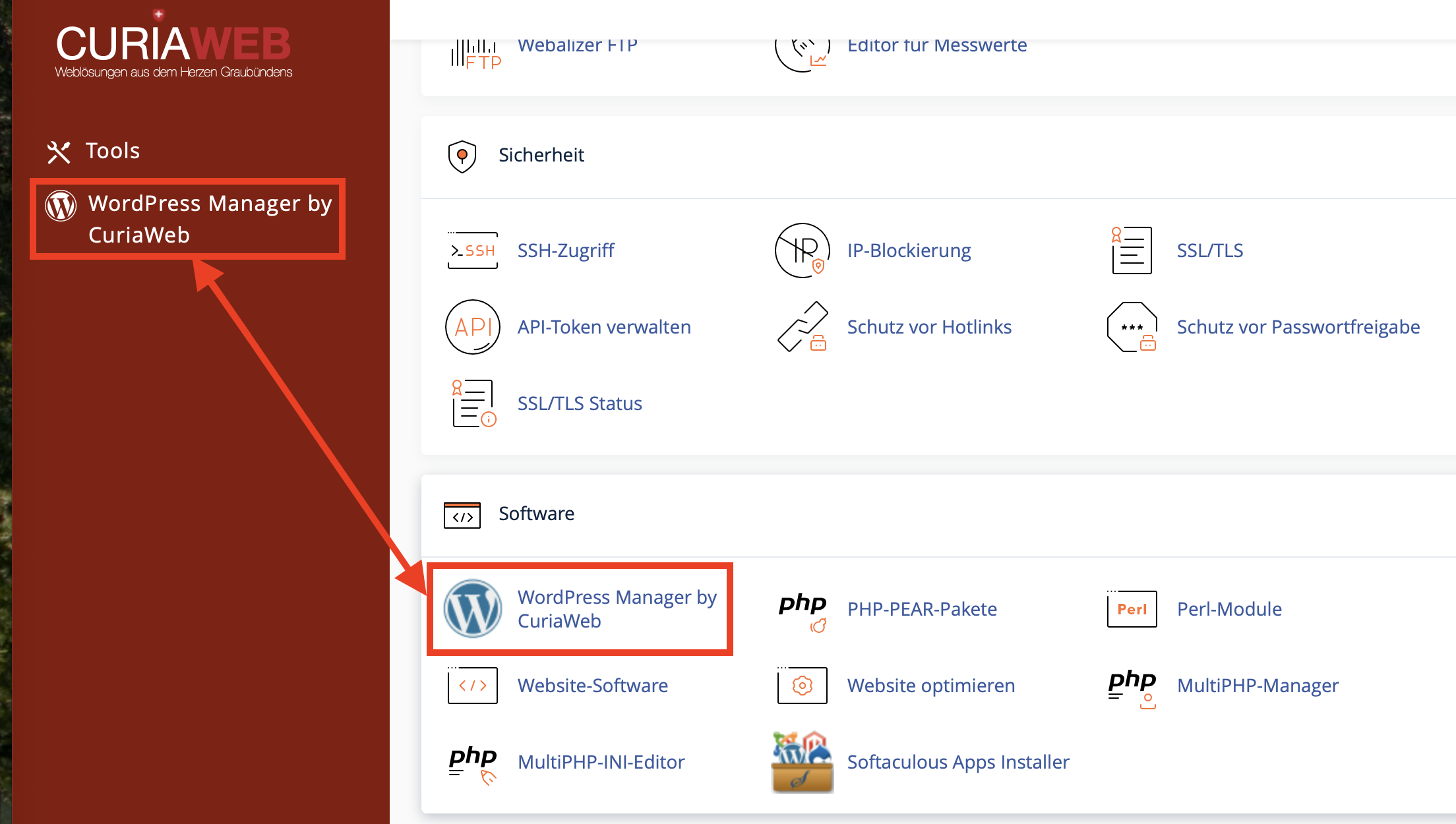
- Open the section in cPanel „Software“.
- Click on „WordPress Manager by Softaculous“ or „Softaculous Apps Installer“.
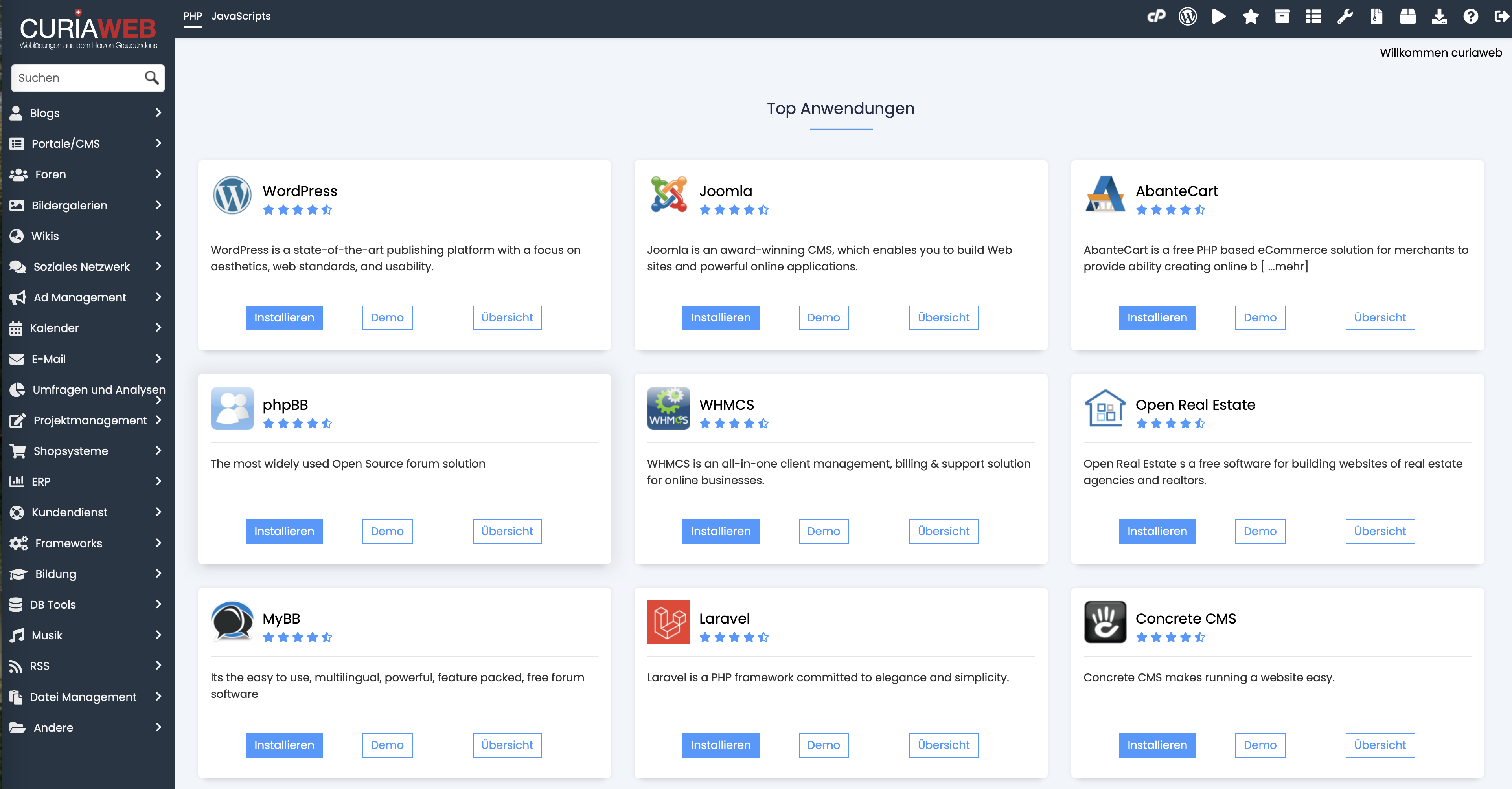
- Choose WordPress out.
- Click on „Install Now“ or rather. „Install“.
2. Select domain and installation path #
On the installation page, you define the address at which your new WordPress website should be accessible.
- WordPress Version: Always use the latest WordPress version.
- Protocol: Choose
https://, if an SSL certificate is set up for your domain. - Domain Select the domain where WordPress should be installed.
- In Directory: Leave this field blank if WordPress is to be installed directly under your domain.
For example, if your website is at https://deine-domain.ch field remains to be accessible „In Directory“ read.
Do you wear there for example blog a, WordPress is instead under https://deine-domain.ch/blog Installed.
3. Set up website and administrator #
Next, you set the basic information for your website and your WordPress administrator account.
- Website-Name: Enter a name for your website. You can change it at any time later in WordPress.
- Description: Enter a short description or change it later in the WordPress backend.
- Admin username: Use an individual username and preferably not a simple one
admin. - Admin password: Use a long and unique password.
- Admin E-mail: Enter an email address you have access to. WordPress uses it for important notifications and password recovery, among other things.
Important: Keep your WordPress login details secure and do not use the password for other services.
4. Check advanced options #
Under „Advanced Options“ or rather. „Advanced Options“ you can find additional settings for the installation.
Many of these settings can remain at the suggested values for a standard WordPress installation. Check the settings for automatic updates and backups in particular, and decide based on how you want to manage your website later.
If you are not sure about a setting, do not change it unnecessarily. Most settings can be adjusted later.
5. Install WordPress #
Check your information again and then click on „Install“.
Softaculous now automatically sets up WordPress, the required database, and the basic configuration.
After a successful installation, you will normally be shown two important addresses:
- Website:
https://deine-domain.ch - WordPress Administration:
https://deine-domain.ch/wp-admin
About /wp-admin can you then log in to WordPress using the previously defined administrator username and password.
WordPress is now ready to use #
After the installation, you can log in to the WordPress backend and begin setting up your website. There, for example, you can select your design, create pages, install plugins, and configure the basic settings of your website.
If the installation with Softaculous does not work or an error message appears, please contact CURIAWEB support and let us know as precisely as possible at which point the problem occurs.


