
In the field of Email of your CURIAWEB cPanel you will find all the important tools for managing the email functions of your domains. Here, for example, you can create mailboxes, set up forwarders, configure auto-responders, manage spam filters, and check the delivery of messages.
You will need some of these functions regularly, while others are intended for special configurations or troubleshooting. In this article, we explain all the functions in the section Email and show you what they are used for.
Briefly explained: If you want to set up an email address on your own domain or change a server-side email setting, you will find the corresponding function in most cases in the area Email your cPanel.
Where do you find the email functions? #
Log in to your CURIAWEB cPanel and open the section on the home page Email.
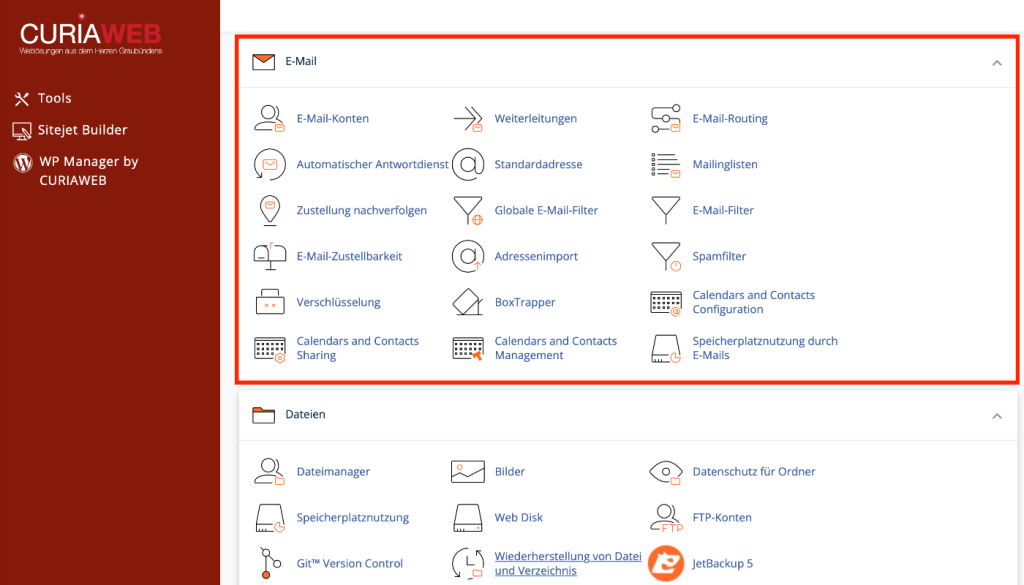
Depending on the configuration of your hosting account, various tools are available to you there. In the case of CURIAWEB, these particularly include:
- Email accounts
- Redirects
- Email routing
- Automated answering service
- Default address
- Mailing lists
- Track delivery
- Global email filters
- Email filter
- Email deliverability
- Address import
- Spam filter
- Encryption
- BoxTrapper
- Calendars and Contacts Configuration
- Calendars and Contacts Sharing
- Calendars and Contacts Management
- Email storage usage
The individual functions fulfill different tasks. Not every one of them is required for the normal operation of an email account.
Email accounts #
Under Email accounts Do you manage the actual mailboxes of your domains.
Here, for example, you can enter an address like info@deine-domain.ch or vorname@deine-domain.ch create and subsequently manage.
Key options include creating new email accounts, changing passwords, and managing available storage space.
After setting up a mailbox, you can retrieve the emails via webmail or with an email program or a mobile device, for example.
Important: An email account is a real mailbox. A forwarding address, on the other hand, is not an independent mailbox. This distinction is important when you set up new addresses.
We will show you the specific setup in our guide Create an email account in cPanel.
Redirects #
With Redirects can you automatically forward messages sent to a specific address to another destination.
A redirection can be useful, for example, if messages to kontakt@deine-domain.ch be automatically forwarded to an already existing mailbox.
A forwarding address therefore does not necessarily have to have its own mailbox. It receives messages and forwards them according to the configured rule.
How to set up such a redirection is covered in Set up email forwarding in cPanel.
Email routing #
The Email routing determines where emails for a domain are to be processed or delivered.
This is relevant, for example, if your website is hosted by CURIAWEB, but the domain's email services are run through an external provider.
Depending on the configuration, various routing options are available. These may include local or remote mail processing, among others.
Attention: Email routing should not be changed without a specific reason. An incorrect setting can cause messages for your domain to be processed in the wrong place or not arrive as expected.
We explain the various settings and their meanings in detail at Email routing in cPanel explained.
Automated answering service #
With the Automatic answering service Can you automatically reply to incoming emails?.
A typical example is an out-of-office message:
„Thank you for your message. We are out of office from ... to ... and will answer your request afterwards.“
Among other things, you can specify which address the automatic reply should apply to, which sender and subject it uses, and what text the recipient receives.
A start and end time can also be useful for timed automatic replies.
We will show you the facility in Set up an autoresponder in cPanel.
Default address #
The Default address defines what happens to messages sent to a non-existent email address at your domain.
Assuming your domain is your-domain.ch and someone sends a message to falsche-adresse@deine-domain.ch, although this mailbox does not exist. The default address determines how the server handles such a message.
One possible configuration is to reject messages to unknown recipients. Depending on the setting, they can also be forwarded to another destination instead.
What is a catch-all address? #
Catch-All-Adresse catch-all address Spoken.
This sounds practical at first, but it can also lead to accepting a large number of unwanted messages sent to randomly generated or misspelled addresses on your domain.
Practical Tip: A catch-all configuration is not automatically the best solution. If you only need specific email addresses, it is often more sensible to set them up specifically as a mailbox or forwarder and reject messages to unknown recipients.
You can find more about this later under Default Address in cPanel: Catch-All and Unknown Recipients.
Mailing lists #
With Mailing lists Messages can be distributed to a group of participants. A message sent to the list address is then forwarded to the members of the list according to the configuration.
Mailing lists are primarily intended for traditional distribution and discussion lists.
They should not automatically be equated with a modern newsletter system. Different technical, organizational, and legal requirements apply to newsletters and marketing emails.
Track delivery #
Track delivery is among the most important diagnostic tools in the cPanel email section.
You can use this to investigate how the mail server processed a message. This is helpful, for example, when a recipient reports not having received an expected email.
The displayed information can provide indications as to whether a message was successfully processed, forwarded, delayed, or rejected with an error.
Practical Tip: If you are investigating a specific delivery problem, note down the complete sender address, recipient address, as well as the date and approximate time of the message in question if possible. This allows a case to be searched much more specifically.
We will demonstrate practical troubleshooting in Track email delivery in cPanel.
Global email filters #
Global email filters enable the automatic processing of incoming messages based on defined rules at the cPanel account level.
A filter can examine various properties of a message and then perform a specified action.
Since global rules can affect a larger area, you should configure them with particular care.
Attention: A filter rule formulated too broadly can also capture desired messages. Therefore, check carefully, especially in the case of deletion or redirection rules, which messages are affected by the condition.
We handle the setup under Using Global Email Filters in cPanel.
Email filter #
With Email filtering can you create rules for individual email accounts.
This allows messages to be automatically handled based on sender, recipient, subject, or other properties, for example.
Depending on the rule, matching messages can, for example, be sorted into a specific folder, forwarded, or processed in other ways.
Unlike global filters, these rules apply to the selected email account.
We show you how to create such rules at Create and manage email filters in cPanel.
Email deliverability #
Under Email deliverability can you check technical settings that are important for the authentication of your domain's emails.
This includes in particular mechanisms such as SPF and DKIM.
Simply put, these mechanisms help other mail servers evaluate whether a message actually originates from a system authorized for your domain.
The function can indicate potential issues with corresponding DNS records.
Important: A technically correct SPF and DKIM configuration improves the conditions for proper email authentication. However, it is not a guarantee that every message will land in the recipient's inbox. Recipient systems take numerous other factors into account.
We explain how to use the ad in Check email deliverability in cPanel.
Address import #
The Address import is helpful if you want to set up many email addresses or forwardings.
Instead of creating each entry individually through the cPanel interface, corresponding data can be imported from a prepared file.
For a few addresses, manual setup is usually easier. With a larger number, however, importing can save a significant amount of time.
We'll show you the specific procedure at Import email addresses and forwarders in cPanel.
Spam filter #
The Spam filter is used to identify unwanted messages based on various characteristics and to handle them accordingly.
Depending on the configuration, messages can be rated and processed differently based on their spam score.
The settings should be made with care. Very aggressive filtering can lead to legitimate messages also being falsely classified as spam.
cPanel spam filter and SpamExperts are not the same #
At CURIAWEB, in addition to the cPanel functions, further email security solutions such as SpamExperts are used.
The spam filter displayed in cPanel and SpamExperts are technically different systems. Therefore, settings from one system should not automatically be considered as settings for the other.
We cover the cPanel spam filter in Configure spam filter in cPanel.
Encryption #
The function Encryption is used to manage GnuPG keys. It allows you to apply appropriate cryptographic methods to email content.
For the normal setup of an email account and the usual sending and receiving via IMAP and SMTP, you normally do not need to configure this function.
GnuPG content encryption should also be distinguished from the encrypted connection between your email client and the mail server.
Important: An encrypted IMAP or SMTP connection and end-to-end encryption of the actual message content are different things.
BoxTrapper #
BoxTrapper operates on the challenge-response principle. Messages from unknown senders can initially be withheld until the sender responds to an automatically sent confirmation request.
This is intended to reduce automated spam messages.
However, the process can also affect legitimate messages. Automatically sent emails, order confirmations, notification systems, or other technical senders are often unable to respond to such a confirmation request.
Practical Tip: Do not enable BoxTrapper simply because you are receiving spam. First, check the existing spam filters and the impact of a challenge-response mechanism on legitimate senders.
Calendars and Contacts Configuration #
Under Calendars and Contacts Configuration you will find information needed to set up supported calendar and contact services on compatible devices and applications.
This feature therefore does not affect your regular email inbox itself, but rather the additional calendar and contact features provided.
Calendars and Contacts Sharing #
With Calendars and Contacts Sharing supported calendar and contact resources can be shared with other users.
This feature is useful, for example, when multiple users need to access specific calendar information together.
Calendars and Contacts Management #
Under Calendars and Contacts Management You manage the relevant calendar and contact resources within your account.
The three areas for calendars and contacts are functionally related: Administration defines the corresponding resources, sharing concerns their release, and configuration provides information for setup on supported clients.
Email storage usage #
With Email storage usage You can check how much storage space is being used by the messages in your email accounts.
This is especially helpful if a mailbox has become unusually large or you want to find out where a lot of email storage is being used.
Depending on the size of a mailbox, for example, folders with very many or very large messages can consume a significant portion of the available storage space.
We cover the practical review and cleanup under Check and clean up email storage in cPanel.
Which features do you use most often in your daily life? #
If you mainly use cPanel to manage your business email addresses, you will only need a fraction of the available features on a regular basis.
Particularly common are Email accounts for creating and managing mailboxes, Redirects for additional addresses, as well as Track delivery and Email deliverability during troubleshooting.
Filters, automatic replies, and storage management are also regularly needed depending on the use case.
Functions like mailing lists, GnuPG encryption, or BoxTrapper, on the other hand, are intended for special requirements and do not need to be set up just because they are available in cPanel.
Do not confuse email account, forwarding, and automatic reply #
Three frequently used functions perform completely different tasks:
A Email account provides its own mailbox where messages can be stored.
A Forwarding receives messages for an address and forwards them to another destination.
A automatic answering service automatically sends a defined response to incoming messages.
Which function you need therefore depends on what is actually supposed to happen to the address in question.
Systematically address email issues #
If an email doesn't arrive, you shouldn't immediately change various settings. First, it needs to be determined at which point the problem occurs.
Check, for example, whether the recipient address is correct, whether the mailbox exists, and whether the server shows delivery information. In the event of problems with a specific message, Track delivery often a sensible first diagnostic point.
For general domain authentication issues, on the other hand, Email deliverability provide relevant information.
Practical Tip: When troubleshooting email issues, the error message is often more important than the visible impact. A message like „Message not delivered“ initially says little about the cause. In contrast, a specific SMTP error code or delivery status can point directly to the actual problem.
Summary #
The area Email in cPanel is the central management location for the server-side email functions of your domains hosted at CURIAWEB.
Here you create and manage mailboxes, forwards, automatic replies, and filters. At the same time, tools are available to help you investigate delivery issues, authentication, and storage space.
You don't have to use every feature. The crucial thing is to choose the right tool for a task and, especially with routing, filtering, and deliverability settings, not to make changes on suspicion.
In the following instructions, we will show you step by step how to correctly set up and use the most important email functions in your CURIAWEB cPanel.


