
In the field of Domains You manage your domains and various hosting functions associated with them in your CURIAWEB cPanel. Here, among other things, you can set up additional domains or subdomains, create redirects, and manage DNS records via the zone editor.
At CURIAWEB you will find the functions in this area Sitejet Builder, Domains, Detours, Zone editor and Dynamic DNS.
In this article, we explain what these tools are intended for and which changes require special care.
Briefly explained: The area Domains connects your domain to the technical functions of your web hosting. Here you manage, among other things, which directory belongs to a domain, redirects, and certain DNS settings.
Where do you find the domain functions? #
Log in to your CURIAWEB cPanel and open the section on the home page Domains.
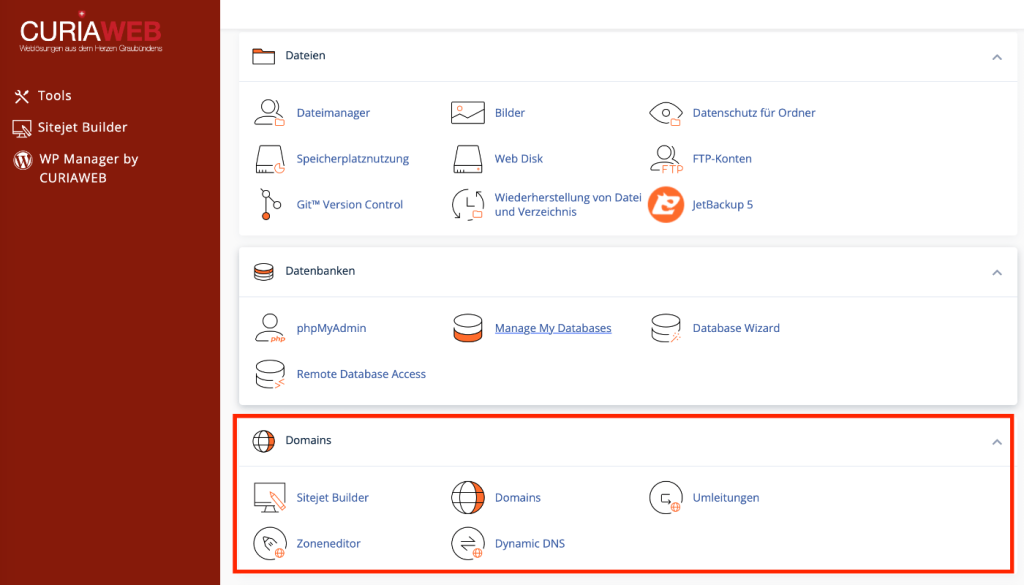
There you will find the following features:
- Sitejet Builder
- Domains
- Detours
- Zone editor
- Dynamic DNS
An overview of the remaining areas of your cPanel can be found under cPanel at CURIAWEB explained: All areas and functions at a glance.
What does a domain mean within cPanel? #
A domain like your-domain.ch is initially the address at which a service can be accessed on the internet. For a website from your hosting account to be displayed under this address, the domain must be technically connected to the corresponding hosting environment.
Within cPanel, it is determined, among other things, which domains your hosting account uses and which directory a website is assigned to.
However, that does not mean that adding a domain in cPanel automatically registers a new domain.
Important: Adding a domain in cPanel and registering a domain are two different processes. A domain must already be registered and point to the intended hosting environment via the appropriate DNS configuration so that it can be used correctly from the outside.
Domains #
The function Domains is the central management of the domains within your cPanel account.
Here you can see the configured domains and—as far as your hosting account and server configuration allow—add additional domains or subdomains and manage existing mappings.
Of particular importance in this regard is the so-called Document Root.
What is the document root? #
The Document Root is the directory within your hosting account from which the web server serves the files for a specific website.
Simply put, it connects a domain to the files of the corresponding website.
A possible directory could look like this, for example:
/public_html/
An additional website, on the other hand, could use its own directory, for example:
/public_html/beispiel/
The actual directory structure may vary depending on the setup.
Practical Tip: If you run multiple websites in one hosting account, always check the document root of the domain in question before making changes in the file manager. This helps you avoid editing files for the wrong website.
We will show you how to add and manage a domain in cPanel later at Add and manage a domain in cPanel.
What is a subdomain? #
A Subdomain is an additional address beneath an existing domain.
For example, if your main domain is:
your-domain.ch
Could a subdomain look like this:
shop.deine-domain.ch
or:
test.deine-domain.ch
Subdomains can be used for independent areas, development environments, applications, or other services.
In current cPanel interfaces, subdomains are set up via the general domain management. Therefore, a separate icon labeled „Subdomains“ does not necessarily have to be present.
We will show the specific setup in Create subdomain in cPanel.
An additional domain is not the same as a subdomain #
You should not confuse an additional independent domain and a subdomain.
zweite-domain.ch is an independent domain.
shop.deine-domain.ch is a subdomain of your-domain.ch.
Both can point to different website directories within a hosting account, provided your hosting package and the respective configuration allow it.
What does „Share document root“ mean? #
When adding a domain, cPanel may offer the option to share the document root with an already existing domain, depending on the configuration.
If two domains share the same document root, fundamentally the same website files are used.
This is completely different from creating a standalone website in a separate directory for an additional domain.
Attention: If you want to run an independent website for a new domain, you should make sure not to accidentally share the document root of an existing website. Therefore, check this setting when adding the domain.
Sitejet Builder #
The Sitejet Builder is a tool integrated into cPanel for creating websites via a graphical user interface.
This can be used to create a website for a suitable domain and then edit it using the Sitejet editor.
However, Sitejet is not the same as Kopage, SitePad, or WordPress. It is its own website creation system.
Important: If there is already a productive website on a domain, you should not simply set up another website builder for it. First, check which system the existing website was created with and what effects a new publication would have.
Detours #
With the function Detours Can you automatically redirect visitors from one web address to another destination?.
A redirection can be useful, for example, when an old address is no longer used and visitors should be directed to a new page instead.
A simple example would be a redirection from:
on:
A domain can also be forwarded to another address.
Permanent and temporary redirects #
When it comes to web redirects, a particular distinction must be made between permanent and temporary redirects.
A permanent redirection is typically done with the HTTP status code 301 implemented. It signals that a resource should permanently be accessible at a different address.
A temporary redirect with 302 on the other hand, fundamentally signals that the diversion is not intended to be permanent.
Which variant is correct depends on the specific purpose of the redirection.
Important: Do not choose a permanent redirect just because it seems more familiar to you. For a merely temporary destination, a temporary redirect may be the more correct solution.
We cover the setup in detail under Set up domain redirection in cPanel.
Redirection and DNS are not the same #
A common confusion concerns web redirects and DNS.
Simply put, a DNS record determines the technical destination to which a domain or hostname is resolved.
A web redirect, on the other hand, takes place at the web service level. The browser first calls up an address and then receives the instruction to call up a different URL.
For example, if you want a visitor to visibly switch to a new URL when accessing an old URL, you need a web redirect and not simply a different DNS record.
Zone editor #
The Zone editor is the tool for managing a domain's DNS records, provided that its DNS zone is managed via the corresponding hosting environment.
DNS - the Domain Name System – simply put, ensures that domain names can be mapped to the correct technical services.
A DNS zone consists of various records or entries.
In the zone editor, you may encounter the following record types, among others:
- A
- AAAA
- CNAME
- MX
- TXT
Which records are present and which you should change depends on the respective domain and the services used with it.
We will demonstrate the practical operation of the tool later at Using the DNS Zone Editor in cPanel.
What does an A record do? #
A A-Record maps a hostname to an IPv4 address.
In simple terms, this can be used, for example, to specify which IPv4 address a domain or a specific hostname should point to.
If an A record is changed to an incorrect IP address, the affected website can subsequently end up on the wrong server or no longer be reachable as expected.
What does an AAAA record do? #
A AAAA record serves a similar purpose to an A record, but uses an IPv6 address.
Here too, the following applies: an existing entry should not be changed or deleted on suspicion.
What does a CNAME record do? #
A CNAME record uses a different hostname as an alias or target.
Such entries are often used when a hostname should point to another hostname instead of directly entering an IP address.
Which combinations are permissible and sensible depends on the specific DNS configuration.
What does an MX record do? #
MX records are of central importance for receiving emails for a domain. They determine which mail servers are responsible for incoming emails to the domain.
If your emails are processed by an external mail provider, different MX records may therefore be required than with local mail processing.
Attention: Do not change or delete MX records on a whim. An incorrect MX configuration can cause emails for your domain to stop arriving at the intended mail server.
What does a TXT record do? #
TXT Records can contain different text-based information and are used for numerous technical purposes.
For example, they play a role in domain verification and various email authentication methods.
A TXT record is therefore not automatically an „email entry.“ Its meaning is derived from its specific content and intended use.
Do not simply delete DNS records #
A DNS zone can contain entries whose purpose is not recognizable at first glance. This does not mean that these entries are redundant.
A record may be required, for example, for a website, a mail server, a subdomain, verification, or an external service.
Practical Tip: If you need to change a DNS record, note down the previous record beforehand, including name, type, and value. This makes it easier to trace the original configuration if the change does not produce the desired result.
Why is a DNS change not always immediately visible? #
DNS information is cached by various systems. Therefore, after a change, it can take a certain amount of time until the new value is used everywhere.
How quickly a change becomes visible depends, among other things, on existing cache entries and the respective TTL values.
If a change is not immediately visible on your device, that doesn't automatically mean the new DNS record is incorrect.
What does TTL mean? #
TTL stands for Time to Live. In the DNS context, the value specifies how long a record may be cached by DNS resolvers before it should be queried again.
A higher TTL value can therefore lead to a previously cached old value being used for longer.
However, the actual visibility of a DNS change depends on several systems involved. A blanket statement like „DNS always takes 24 or 48 hours“ is therefore technically too imprecise.
When does the cPanel Zone Editor work for a domain? #
The decisive factor is where the authoritative DNS zone of a domain is actually managed.
If a domain uses nameservers whose authoritative DNS zone is outside the CURIAWEB hosting environment, a change to a local zone in cPanel does not automatically result in this change being used publicly for the domain.
In such a case, the relevant DNS entry must be changed at the DNS provider that is actually responsible.
Important: The fact that a domain is displayed in your cPanel does not automatically mean that cPanel also controls the publicly used DNS zone of this domain. The decisive factor is the domain's authoritative nameservers.
Dynamic DNS #
Dynamic DNS – often referred to as DDNS – is intended for situations where the IP address of an external system can change regularly.
Instead of manually updating a DNS record after every change of the IP address, the new address can be updated automatically via an appropriate mechanism.
A typical use case would be an external network or device with a dynamically assigned public IP address that needs to remain reachable via a fixed hostname.
For a standard website hosted directly on your CURIAWEB web hosting, you typically do not need Dynamic DNS.
Deleting a domain in cPanel – what happens? #
When you remove an additional domain from the cPanel domain management, you should check carefully in advance which services and files are associated with it.
Removing a domain from cPanel is also not the same as canceling or deleting the registered domain with the domain registrar.
Likewise, you should not assume that removing a domain will automatically clean up all associated files or databases in a meaningful way.
Attention: Do not remove a domain that is in productive use from cPanel just because you do not need it temporarily. Check the website, email usage, DNS configuration, and existing data beforehand.
What should you check before making changes to a domain? #
When making changes to an existing domain, you should first determine what it is currently used for.
A domain can be used for a website, email addresses, subdomains, and external services all at the same time. Therefore, a seemingly small change can have an impact on multiple areas.
Special care is required with DNS records, document roots, and domain redirects.
In addition, if you make multiple changes at the same time, subsequent troubleshooting becomes much more difficult.
Website is no longer working after a DNS change #
If a website is no longer accessible as expected immediately after a DNS change, you should first compare the records you just changed with the previous configuration.
Check in particular whether the correct hostname, record type, and target value were used.
Do not randomly change other DNS records afterwards. This can quickly turn a single incorrect record into an overall configuration that is difficult to trace.
Practical Tip: When performing DNS work, change only the actually required record if possible. Document the old value beforehand and specifically check the result after the change.
Domains in cPanel and Domains & DNS in our Knowledge Base #
In this section of our knowledge base, we focus on Operation of domain functions within cPanel.
This includes, in particular, adding and managing a domain, creating a subdomain, web redirects, and using the DNS zone editor.
General topics concerning domains, nameservers, domain registration, domain transfers, and detailed DNS basics are covered separately. This keeps the cPanel guides focused on the actual management of your web hosting.
Summary #
The area Domains Your CURIAWEB cPanel contains the most important tools for managing the domains associated with your hosting.
Under Domains manage domains, subdomains, and their assignment to the corresponding website directories. With Detours do you forward web addresses to other destinations? The Zone editor enables the management of DNS records while Dynamic DNS is intended for special use cases with changing external IP addresses.
The Sitejet Builder is also a standalone website creation tool and should not be confused with the actual domain management.
Special care is required with DNS records. Incorrect changes can affect websites, email services, and other systems associated with a domain.
In our advanced guides, we show you step-by-step how to set up domains and subdomains in cPanel, create redirects, and use the DNS Zone Editor safely.


