
You have disabled automatic WordPress updates in Softaculous – and yet WordPress suddenly updates itself to a new version?
That is no contradiction. WordPress has a custom mechanism for automatic core updates, which can operate independently of Softaculous. Therefore, a WordPress installation can be updated automatically even though «Do not auto-upgrade» is explicitly set in Softaculous.
Especially with productive websites, WooCommerce shops, or installations with many plugins, an unplanned core update can be problematic. A new WordPress version can contain changes with which a theme, plugin, or used PHP version is not yet fully compatible.
Important: Automatic updates are fundamentally a security feature and not bad per se. If you completely disable them, you must ensure yourself that security and maintenance updates are checked and installed promptly.
Why does WordPress even update automatically? #
In a WordPress installation, several independent mechanisms can influence automatic updates.
These include in particular:
- the settings of WordPress itself,
- an installer or management system like Softaculous,
- separate automatic updates for plugins,
- separate automatic updates for themes,
- Constants and filters within the WordPress configuration.
Therefore, it is not always enough to disable automatic updates in just a single place.
A typical case looks like this:
In Softaculous, the WordPress installation states:
Automatic WordPress core update:
Do not update automatically
Nevertheless, WordPress installs a new WordPress version automatically.
The reason could be that WordPress itself remains configured for automatic core updates.
What is the WordPress core? #
With the WordPress Core the actual WordPress software is meant. Plugins and themes are not part of the core and have their own update mechanisms.
For example, when WordPress itself is updated from one version to a newer version, it is a core update.
If, on the other hand, Elementor, WooCommerce, or another plugin is updated, it is a plugin update. The same applies accordingly to themes.
Important: Disabling automatic WordPress core updates does not automatically disable the updating of plugins or themes. These settings must be controlled separately.
Distinguish between major, maintenance, and security updates #
WordPress distinguishes between different types of updates when it comes to automatic core updates.
In simple terms, a distinction can be made between major version upgrades and maintenance and security updates.
| Update Art | Meaning |
|---|---|
| Major update | Major WordPress version with new features and potential technical changes |
| Maintenance update | Minor corrections and bug fixes within an existing version series |
| Security update | Fixes known or relevant security issues |
This distinction is important for a productive website. A security update should normally be installed as soon as possible. In the case of a major version change, on the other hand, it may be advisable to check the compatibility of the plugins used, the theme, and the PHP version beforehand.
Check current status directly in WordPress #
WordPress displays in the administration area which automatic core updates are currently activated.
To do this, open:
WordPress Dashboard → UpdatesBelow the current WordPress version you will find a note regarding the status of automatic updates.
Depending on the configuration, different messages may appear there.
Case 1: All new WordPress versions are installed automatically #
If WordPress displays a message along the lines of:
This website is automatically kept up to date by all new WordPress versions.
then automatic updates are also enabled for new major WordPress versions.
In this state, WordPress offers a link that allows you to switch to automatic updates for maintenance and security updates only.
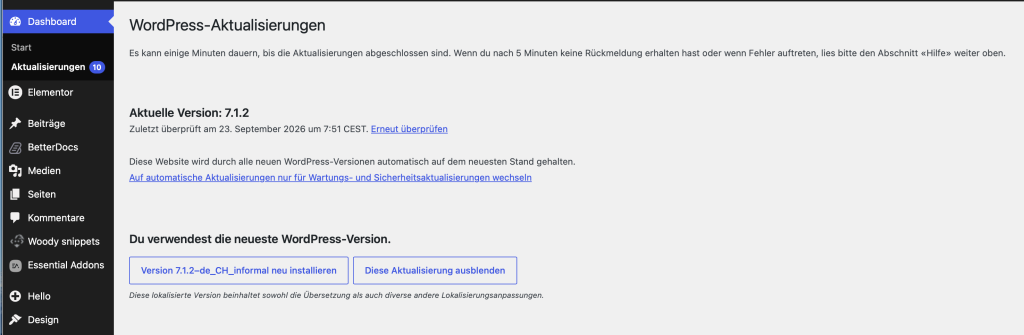
This is a possible explanation for why WordPress suddenly updated to a new version, even though, for example, Softaculous was set to «Do not auto-upgrade.».
Case 2: Automatically install only maintenance and security updates #
If you disable automatic major updates, WordPress can still automatically install maintenance and security updates.
WordPress then essentially shows:
This website is kept automatically up to date exclusively through maintenance and security updates for WordPress.
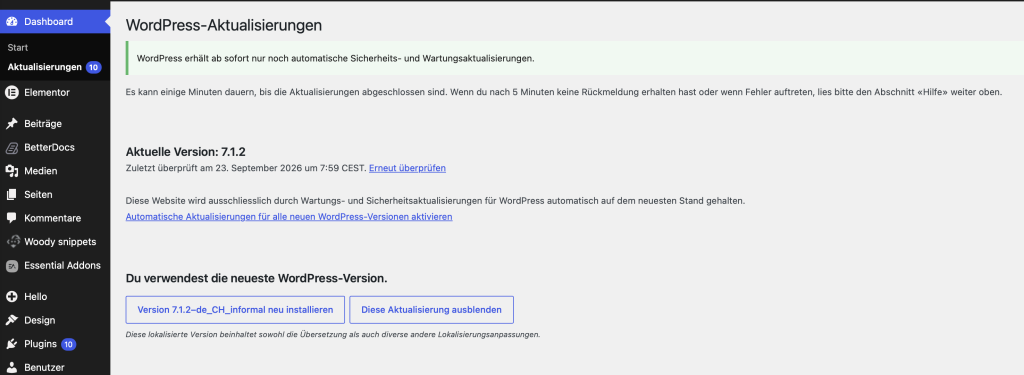
In this state, major new WordPress versions are no longer installed automatically. However, minor maintenance and security updates may still be applied automatically.
For many websites, this is a sensible compromise: major version upgrades are performed intentionally, while important minor fixes can still be installed automatically.
Case 3: Disable all automatic WordPress core updates #
If you also do not want to automatically install maintenance and security updates, you can completely disable the automatic updating of the WordPress core via the file wp-config.php Deactivate.
The following constant is used for this:
define( 'WP_AUTO_UPDATE_CORE', false );After this change, WordPress shows in the area Dashboard → Updates according to:
This website does not receive automatic updates for new WordPress versions.
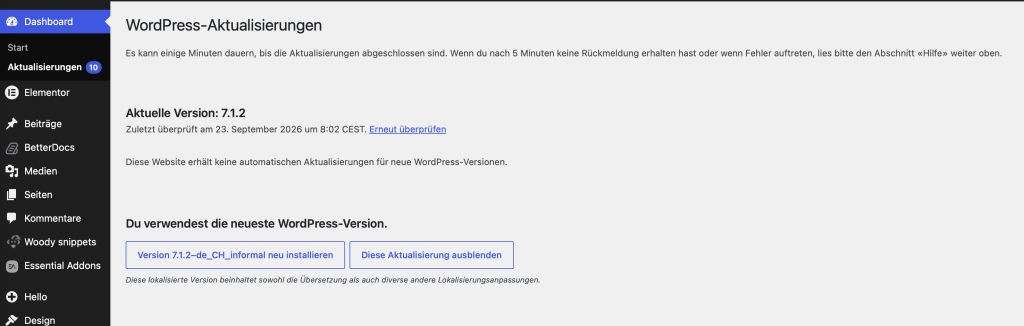
This clearly shows that WordPress itself should no longer automatically install new core versions.
Edit wp-config.php #
The file wp-config.php is usually located in the root directory of your WordPress installation.
For a typical installation, this can be the following directory, for example:
public_html/wp-config.phpIf WordPress was installed in a subdirectory, the file is located there accordingly.
Open the file using the file manager of your hosting account or via another suitable access to your website's files.
Attention: Create before changes to the
wp-config.phpa backup of the file. A syntax error in this file can cause WordPress to stop loading correctly.
Completely disable automatic core updates #
Add the following line into the wp-config.php a
define( 'WP_AUTO_UPDATE_CORE', false );The constant should be inserted before the final WordPress line, which, depending on the language of the installation, translates roughly to:
/* That's all, stop editing! Happy publishing. */An excerpt can look like this, for example:
define( 'WP_AUTO_UPDATE_CORE', false );

/* That's all, stop editing! Happy publishing. */
Then save the file.
Check if the setting has been applied #
Do not rely solely on the line in the wp-config.php is available.
Open again afterwards:
WordPress Dashboard → UpdatesIf the setting has been applied correctly, WordPress should indicate that the site will not receive automatic updates for new WordPress versions.
With that you can immediately check whether WP_AUTO_UPDATE_CORE is taken into account by WordPress.
Control: When WordPress, after entering
define( 'WP_AUTO_UPDATE_CORE', false );continues to announce automatic core updates, it should be checked whether the constant is spelled correctly and in a suitable place in thewp-config.phpwas inserted.
What values can WP_AUTO_UPDATE_CORE have? #
The constant WP_AUTO_UPDATE_CORE can be set differently.
| Configuration | Effect |
|---|---|
define( 'WP_AUTO_UPDATE_CORE', false ); | Disable automatic WordPress core updates |
define( 'WP_AUTO_UPDATE_CORE', true ); | Enable automatic core updates comprehensively |
define( 'WP_AUTO_UPDATE_CORE', 'minor' ); | Restrict automatic updates to minor core versions |
If you want to perform major version upgrades consciously yourself, but still want to continue receiving maintenance and security updates automatically, you can 'minor' be a possible configuration.
If no WordPress core version at all should be installed without prior inspection, you use:
define( 'WP_AUTO_UPDATE_CORE', false );Why can Softaculous still display «Do not auto-upgrade»? #
Softaculous and WordPress are two different systems.
Softaculous can install, manage, back up, and, depending on the configuration, also update WordPress. However, WordPress itself also has its own background updater.
If you disable automatic WordPress core updates in Softaculous, it initially means that Softaculous itself should not perform this automatic upgrade.
That doesn't necessarily disable the internal update mechanism of WordPress.
Exactly for this reason, the following situation can arise:
Softaculous:
Automatic update of WordPress core → Disabled

WordPress:
Automatic update of all new WordPress versions → Enabled
In this case, WordPress can still update itself.
Important: If you want to reliably control automatic updates, you should not only check your installer's setting, but additionally check the update status directly under WordPress Dashboard → Updates check.
Check Softaculous additionally #
If your WordPress installation is managed with Softaculous, you should also check there to see if automatic updates are enabled.
Open the relevant installation in the Softaculous WordPress Manager.
If automatic updates via Softaculous are not desired, the following option in the WordPress core settings should be selected accordingly:
Automatic WordPress core update:
Do not update automatically
On this occasion, also check the settings for plugins and themes.
Depending on the Softaculous configuration, automatic updates for:
- the WordPress core,
- WordPress plugins and
- WordPress themes
can be activated or deactivated separately.
Honor global Softaculous settings #
If you manage multiple WordPress installations, additional global Softaculous settings may be relevant.
Softaculous includes, among other things, specifications for automatic script updates and for the default settings of new installations.
A global setting can determine, for example, whether automatic upgrades are preselected for new installations.
Therefore, during troubleshooting you should both:
- as well as the global Softaculous configuration
- the settings of the specific WordPress installation
check.
However, one thing remains crucial: even if Softaculous is not supposed to perform updates, the internal WordPress updater can still be active independently of it.
What about automatic plugin updates? #
The constant:
define( 'WP_AUTO_UPDATE_CORE', false );regarding the WordPress Core.
It is not intended to control automatic updates of individual plugins.
WordPress can manage its own automatic updates for plugins. You can usually find the status under:
WordPress Dashboard → PluginsThere, automatic updates can be enabled or disabled for individual plugins.
In addition, plugins, management tools, or hosting systems can use their own update mechanisms.
What about automatic theme updates? #
Themes are also managed independently of the WordPress core.
The attitude WP_AUTO_UPDATE_CORE therefore does not automatically deactivate theme updates.
If you want to have complete control over updates, you should also check whether automatic updates are enabled for your installed themes.
Should automatic WordPress updates be completely disabled? #
There is no one-size-fits-all answer to that.
Automatic security and maintenance updates have one important advantage: security patches can be installed promptly without an administrator having to intervene manually first.
On the other hand, a productive website can consist of many interdependent components:
- WordPress Core,
- Theme,
- Plugins,
- PHP version,
- Database,
- Cache systems,
- WooCommerce and extensions,
- Interfaces to external services.
An update of a single component can therefore theoretically have an impact on other parts of the website.
Especially in the case of a WooCommerce store, a mission-critical website, or an installation with special plugins, it can make sense to carry out updates consciously and in a controlled manner.
Attention: Disabling automatic updates only makes sense if the website is actively maintained afterwards. A permanently outdated WordPress version poses a significantly greater risk than a controlled update.
Controlled updates instead of avoiding updates #
The goal should not be to avoid updating WordPress for as long as possible.
The goal is rather to be able to determine the timing of the update yourself and to control the impact.
Before a major WordPress update, it is particularly recommended to:
- ensuring a current backup,
- checking the compatibility of important plugins,
- to take the used theme into account,
- to check the PHP version and system requirements,
- to use a staging environment first for mission-critical websites if necessary.
After the update, core functions of the website should be tested.
In a WooCommerce shop, this includes, for example, the shopping cart, checkout, payment methods, email notifications, and important interfaces.
WordPress continues to update despite WP_AUTO_UPDATE_CORE #
If WordPress, despite:
define( 'WP_AUTO_UPDATE_CORE', false );continues to be updated automatically, the cause should be investigated in more detail.
Possible causes include, for example:
- an external WordPress management system,
- a hosting or installer system that forces updates,
- a plugin with its own update control,
- additional code in a plugin or theme,
- a second definition or an incorrect position of the constant,
- server-side management or maintenance functions.
In this case, it should first be checked whether, which system actually triggered the update, instead of disabling further update functions on suspicion.
The three update states at a glance #
| WordPress ad | Meaning |
|---|---|
| All new WordPress versions are installed automatically | Even major new WordPress versions can be installed automatically. |
| Only maintenance and security updates | Major version upgrades do not happen automatically, but smaller maintenance and security updates still do. |
| No automatic updates for new WordPress versions | Automatic WordPress core updates are disabled |
Summary #
When WordPress updates automatically, even though automatic updates are disabled in Softaculous, it does not necessarily mean there is an error.
WordPress has its own mechanism for automatic core updates. This can be enabled independently of Softaculous.
You can check the current status under Dashboard → Updates check.
If only major automatic version upgrades should be prevented, you can restrict WordPress to automatic maintenance and security updates.
If WordPress should not automatically install any core version at all, you can do this in the wp-config.php clearly define
define( 'WP_AUTO_UPDATE_CORE', false );After that, WordPress should be installed under Dashboard → Updates Confirm that no automatic updates for new WordPress versions are performed.
Plugin and theme updates are independent of this and must be checked separately.
Anyone who completely disables automatic core updates should not simply leave WordPress at an old version. Updates should instead promptly, consciously, and after a brief compatibility check to be carried out.


